> ## Documentation Index
> Fetch the complete documentation index at: https://docs.goguardian.com/llms.txt
> Use this file to discover all available pages before exploring further.
# Scene Conflicts
> Understand and resolve GoGuardian Teacher Scene conflicts that occur when students are in overlapping class sessions with different Scenes applied.
A Scene conflict occurs when a student is in 2 or more active class sessions at the same time and at least one session has a Scene applied. Because a student can only have one Scene active at any point, one teacher's Scene takes priority over the other.
By default, the most recently applied Scene takes priority.
## Scene Conflict Notification
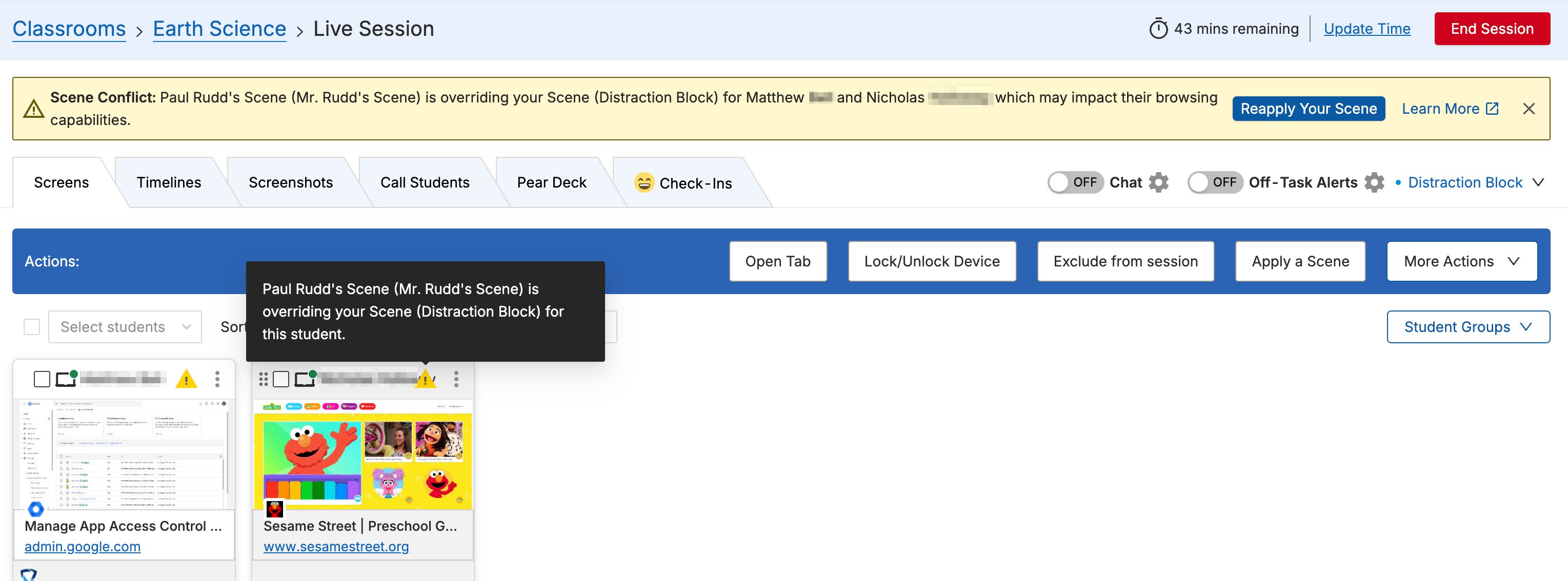
When a conflict is detected, a **Scene Conflict** banner appears in your session view. The banner:
* Names the teacher whose Scene is conflicting with yours
* Lists the students affected by the conflict
* Provides a **Reapply Your Scene** button to push your Scene back to all affected students
 ## Scene Status Icons
When a conflict is active, affected students' tiles show a Scene conflict indicator. Hover over the tile to see which teacher's Scene is currently applied to that student.
In the expanded Student view, a Scene state icon shows which Scene is active for that student. Hover over the icon to see the Scene name.
## Scene Status Icons
When a conflict is active, affected students' tiles show a Scene conflict indicator. Hover over the tile to see which teacher's Scene is currently applied to that student.
In the expanded Student view, a Scene state icon shows which Scene is active for that student. Hover over the icon to see the Scene name.



 ## Your Scene Was Overridden
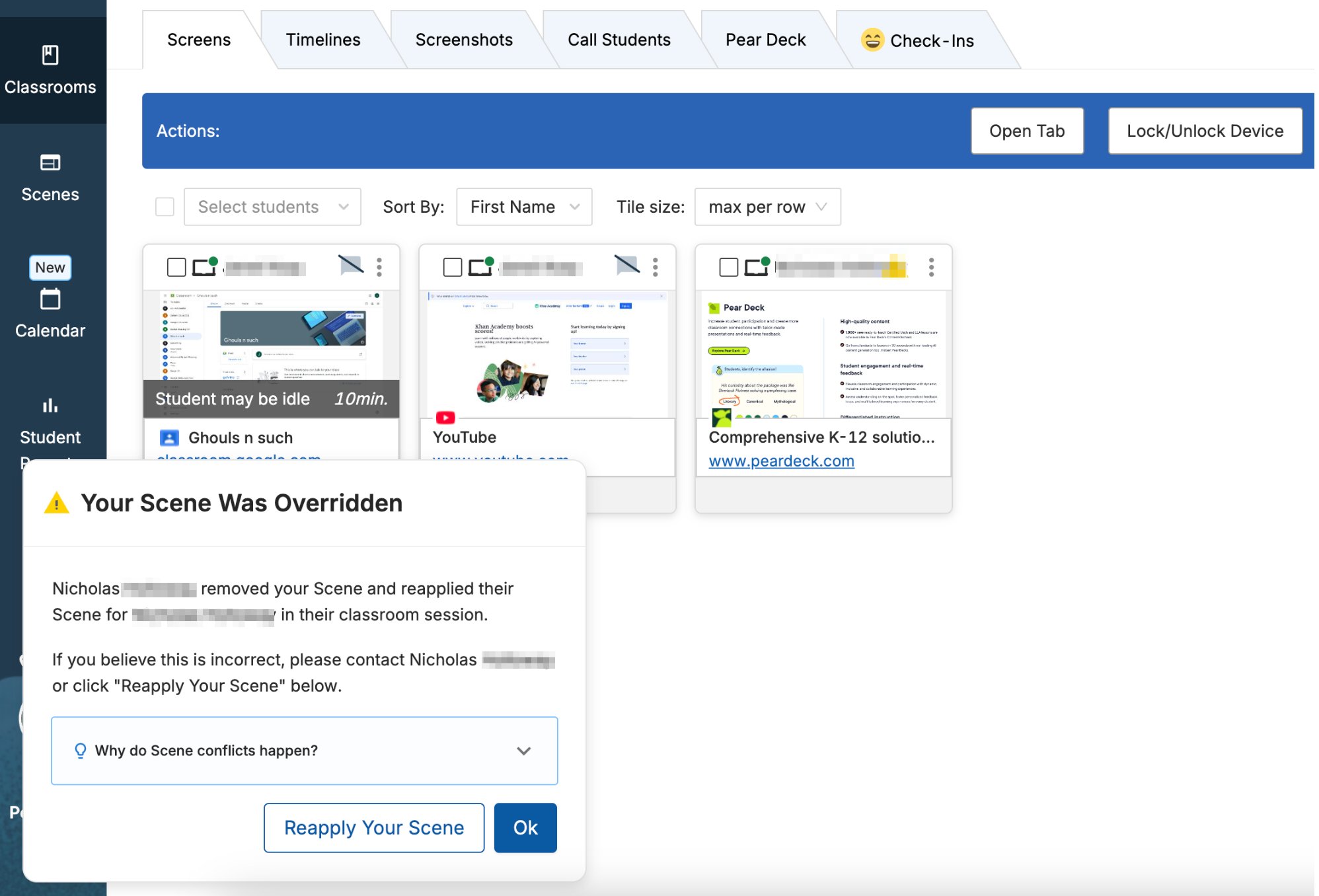
If another teacher removes your Scene or reapplies their own, you receive a **Your Scene Was Overridden** notification. The notification shows:
* The name of the teacher who changed the Scene
* The students affected
A **Reapply Your Scene** button is available in the notification if you need to restore your Scene.
## Common Conflict Scenarios
**Scenario 1: Both teachers have Scenes applied**
1. Teacher A has a session running with a Scene applied.
2. Teacher B starts a session with some of the same students and applies a Scene.
3. Teacher B's Scene takes priority because it was applied more recently.
4. Teacher A sees the Scene Conflict banner and can click **Reapply Your Scene** to override.
5. If Teacher A reapplies their Scene, Teacher B receives a "Your Scene Was Overridden" notification.
**Scenario 2: One teacher has a Scene, the other does not**
1. Teacher A has a session with a Scene applied.
2. Teacher B starts a session with some of the same students and does not apply a Scene.
3. Teacher B sees the Scene Conflict banner showing Teacher A's Scene.
4. Teacher B can remove Teacher A's Scene. If they do, Teacher A receives the "Your Scene Was Overridden" notification.
## Resources
Review how Scenes work and how the most-recently-applied rule is determined.
Apply, change, or remove a Scene during a session.
## Your Scene Was Overridden
If another teacher removes your Scene or reapplies their own, you receive a **Your Scene Was Overridden** notification. The notification shows:
* The name of the teacher who changed the Scene
* The students affected
A **Reapply Your Scene** button is available in the notification if you need to restore your Scene.
## Common Conflict Scenarios
**Scenario 1: Both teachers have Scenes applied**
1. Teacher A has a session running with a Scene applied.
2. Teacher B starts a session with some of the same students and applies a Scene.
3. Teacher B's Scene takes priority because it was applied more recently.
4. Teacher A sees the Scene Conflict banner and can click **Reapply Your Scene** to override.
5. If Teacher A reapplies their Scene, Teacher B receives a "Your Scene Was Overridden" notification.
**Scenario 2: One teacher has a Scene, the other does not**
1. Teacher A has a session with a Scene applied.
2. Teacher B starts a session with some of the same students and does not apply a Scene.
3. Teacher B sees the Scene Conflict banner showing Teacher A's Scene.
4. Teacher B can remove Teacher A's Scene. If they do, Teacher A receives the "Your Scene Was Overridden" notification.
## Resources
Review how Scenes work and how the most-recently-applied rule is determined.
Apply, change, or remove a Scene during a session.