> ## Documentation Index
> Fetch the complete documentation index at: https://docs.goguardian.com/llms.txt
> Use this file to discover all available pages before exploring further.
# Apply Scenes to Student Groups
> How to apply different Scenes to different groups of students within the same classroom session using GoGuardian Teacher.
GoGuardian Teacher's Scenes for Student Groups feature lets teachers apply different Scenes to different groups of students within the same classroom session. This lets teachers organize and control web filtering rules on a per-group basis.
 ## Apply a Scene to a Group
There are 2 ways to apply Scenes at the group level.
### Option 1: Select Students First
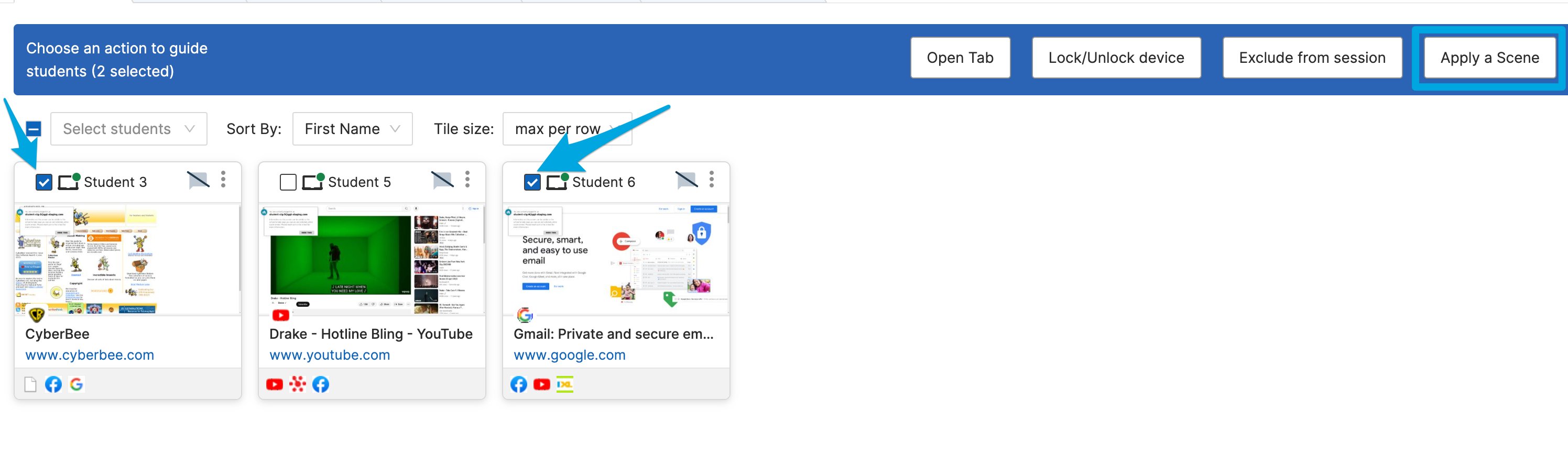
1. Select specific students by clicking the checkbox in the corner of their tiles.
2. Click the **Apply a Scene** button on the command bar.
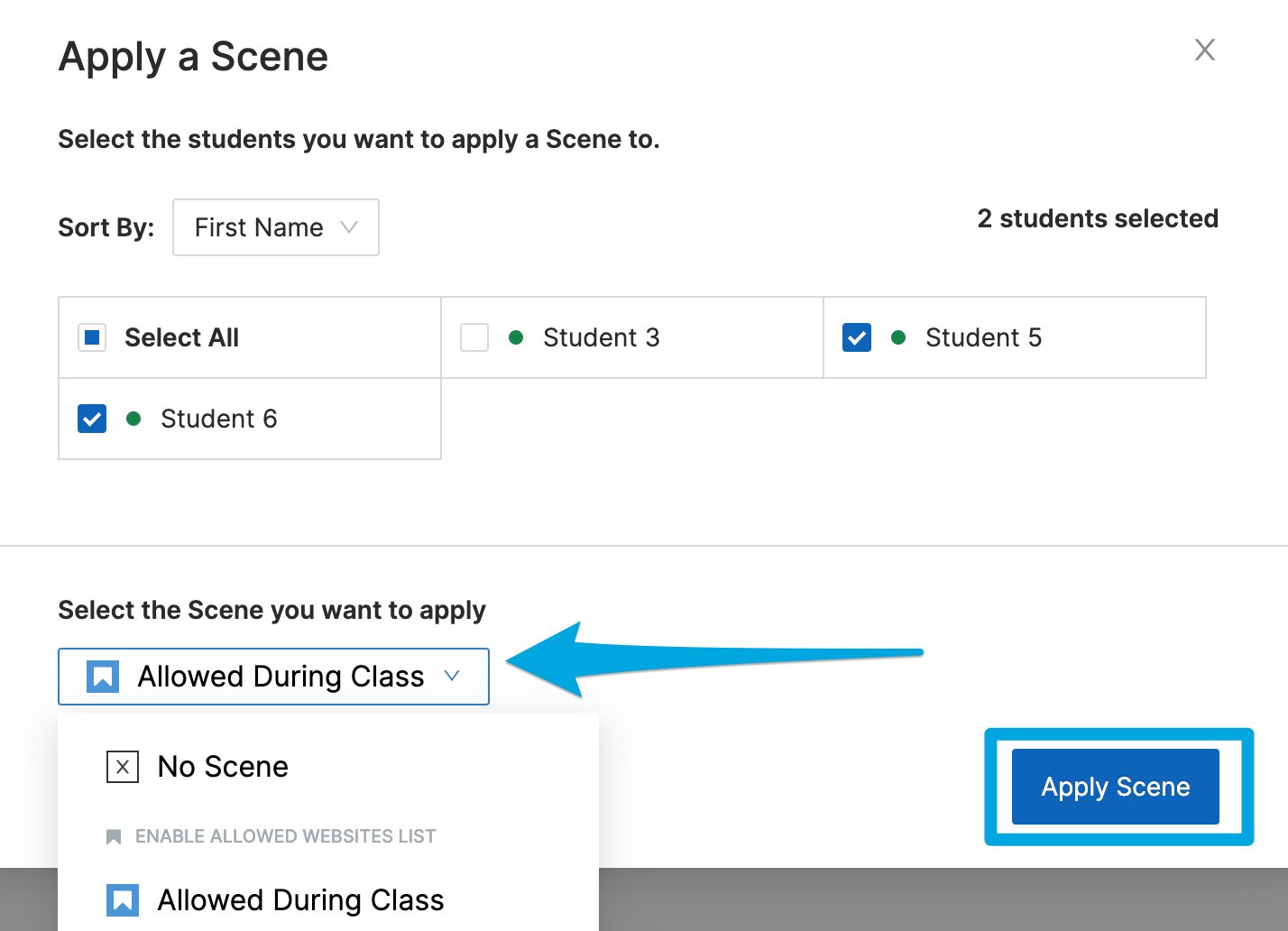
3. Select a Scene from the drop-down menu and click **Apply Scene**.
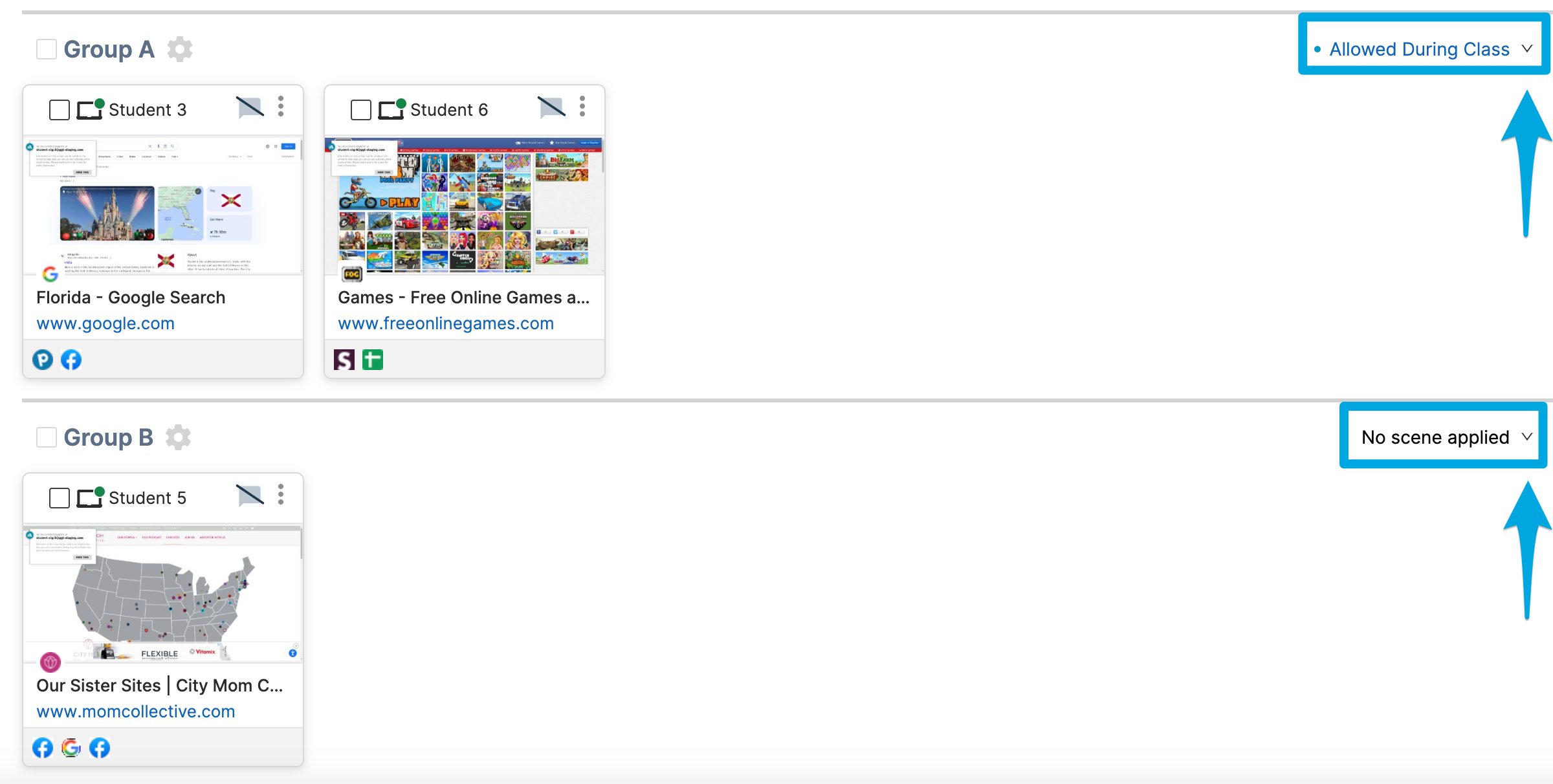
4. Verify that students are sorted into 2 groups: Group A includes the selected students with the chosen Scene, and Group B includes all remaining students without a Scene.
While Student Groups are active, use the drop-down menus to apply or change Scenes.
### Option 2: Create Groups First, Then Apply Scenes
1. Click the **Student Groups** button.
2. Create a new group, or choose from a previously created group.
3. Use the **Scene** drop-down menu to select a Scene for each group.
## Apply a Scene to a Group
There are 2 ways to apply Scenes at the group level.
### Option 1: Select Students First
1. Select specific students by clicking the checkbox in the corner of their tiles.
2. Click the **Apply a Scene** button on the command bar.
3. Select a Scene from the drop-down menu and click **Apply Scene**.
4. Verify that students are sorted into 2 groups: Group A includes the selected students with the chosen Scene, and Group B includes all remaining students without a Scene.
While Student Groups are active, use the drop-down menus to apply or change Scenes.
### Option 2: Create Groups First, Then Apply Scenes
1. Click the **Student Groups** button.
2. Create a new group, or choose from a previously created group.
3. Use the **Scene** drop-down menu to select a Scene for each group.
 ## Move Students Between Groups with Drag and Drop
Teachers can use the drag and drop feature to quickly rearrange students and move them from 1 group to another. Moving a student to a different group also updates their Scene rules to limit which websites they can access.
During a test, you can sort students into 2 groups: one group actively testing with a strict Scene that locks down web browsing, and another group for students who've finished with a Scene that allows more websites. As students complete their test, drag and drop them from the testing group to the completed group.
## Move Students Between Groups with Drag and Drop
Teachers can use the drag and drop feature to quickly rearrange students and move them from 1 group to another. Moving a student to a different group also updates their Scene rules to limit which websites they can access.
During a test, you can sort students into 2 groups: one group actively testing with a strict Scene that locks down web browsing, and another group for students who've finished with a Scene that allows more websites. As students complete their test, drag and drop them from the testing group to the completed group.
 ## Resources
Learn how Scenes work and what they can do.
Step-by-step instructions for building and applying Scenes.
Understand the building blocks of a Scene.
See all available commands for managing a classroom session.
## Resources
Learn how Scenes work and what they can do.
Step-by-step instructions for building and applying Scenes.
Understand the building blocks of a Scene.
See all available commands for managing a classroom session.