> ## Documentation Index
> Fetch the complete documentation index at: https://docs.goguardian.com/llms.txt
> Use this file to discover all available pages before exploring further.
# Scenes Overview
> How GoGuardian Teacher Scenes work, including allow and block list modes, auto-open tabs, tab limits, Quick Lists, Advanced Filtering, and YouTube filtering.
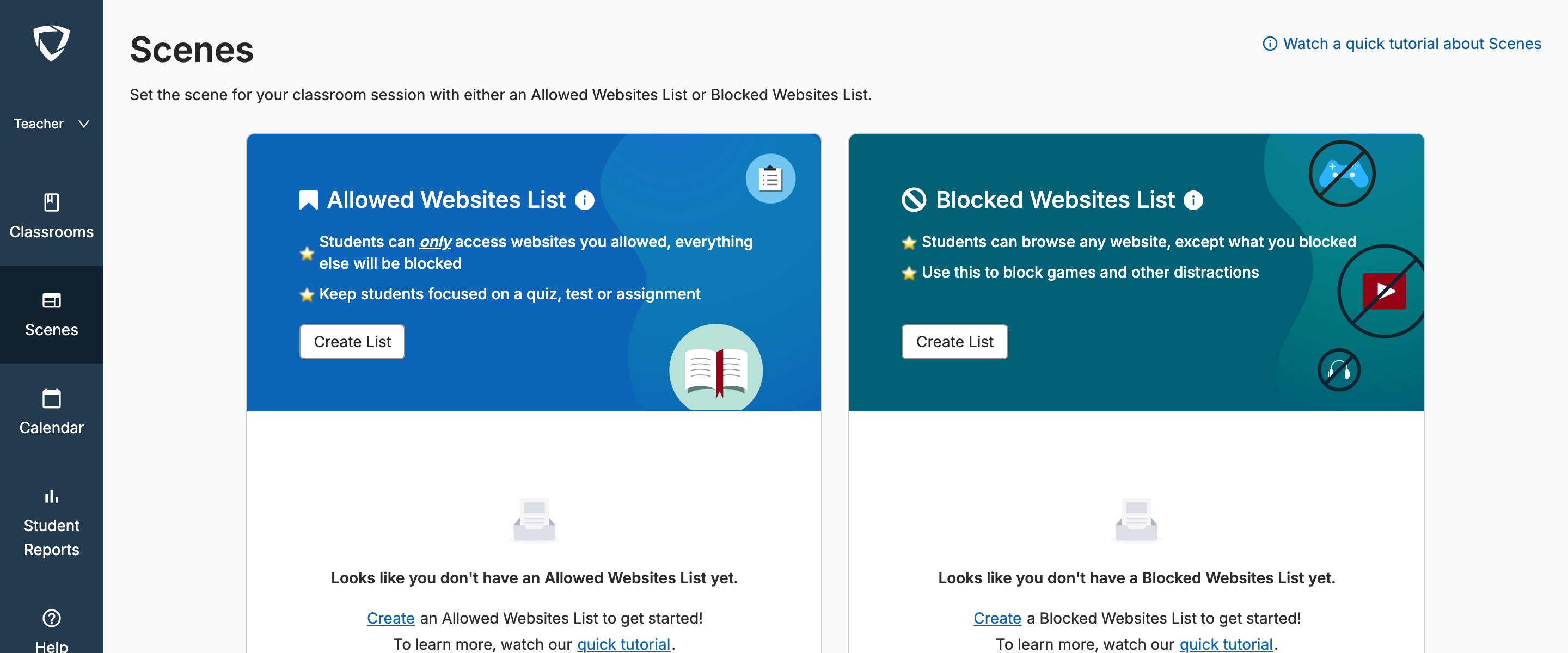
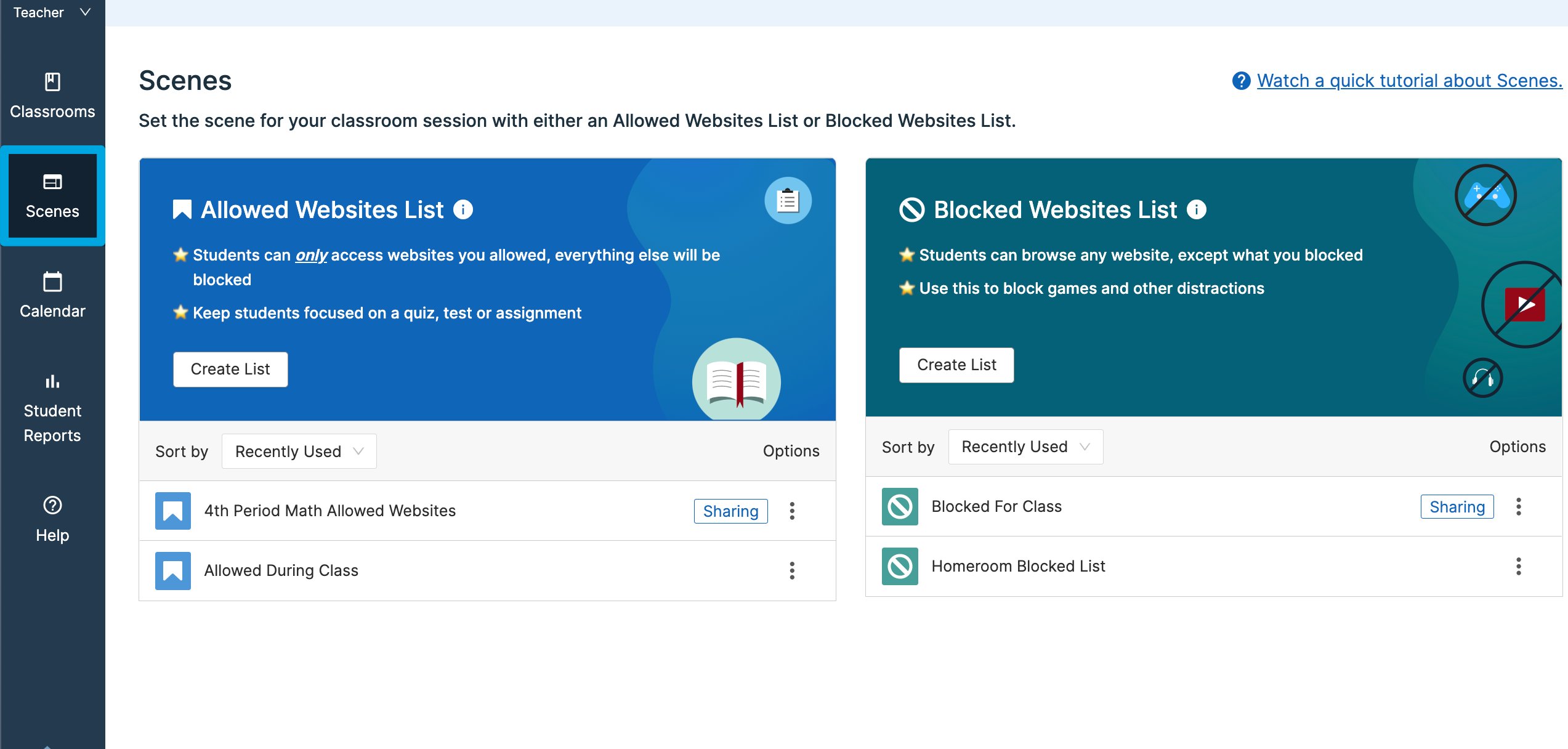
Scenes let teachers apply custom web-filtering rules to students during a class session. A Scene can restrict students to a specific set of websites, block particular sites, automatically open pages on student devices, and limit the number of tabs students can have open.
 ## Scene Types
Scenes come in 2 types:
| Type | How It Works |
| ------------------------- | ------------------------------------------------------------------------------------------------------------------------------------ |
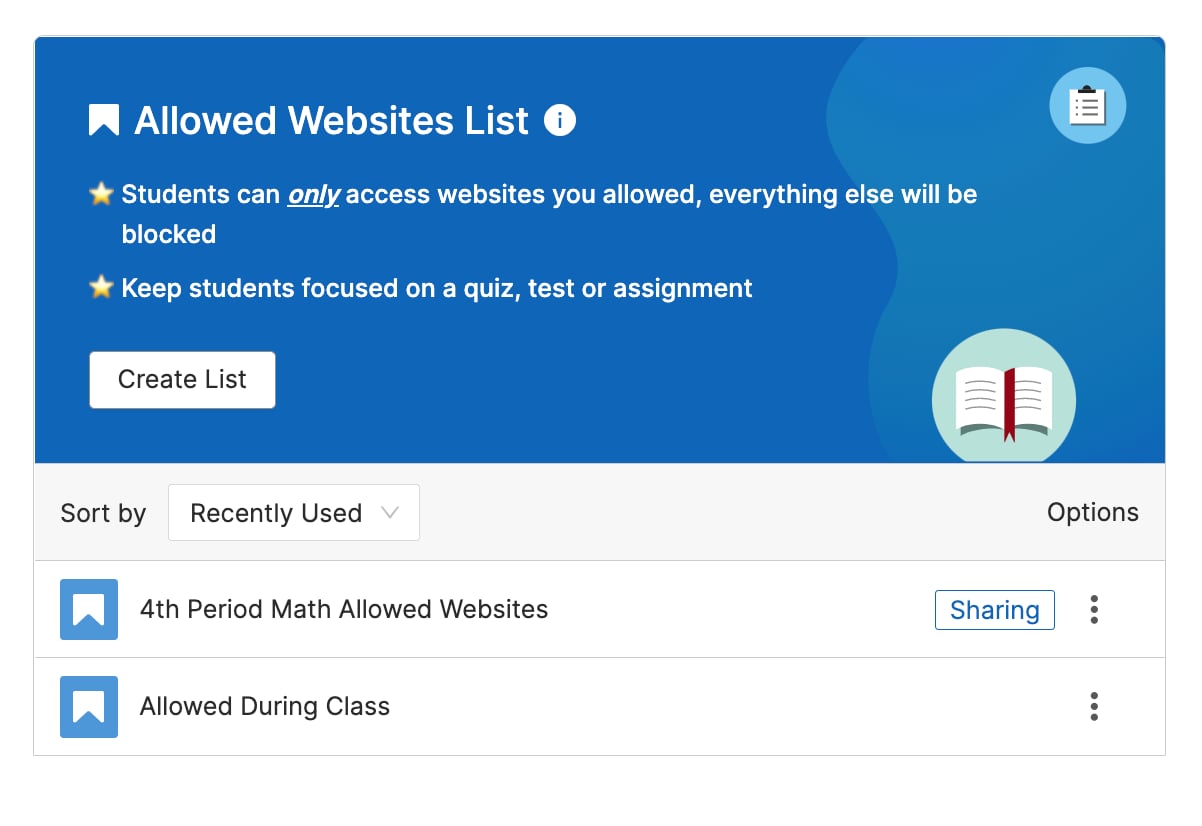
| **Allowed Websites List** | Students can only access sites on the list. All other sites are blocked. Best for classes that need a defined set of resources. |
| **Blocked Websites List** | Students can access any site except those on the list. Best for classes where students should browse freely with a few restrictions. |
GoGuardian Admin filtering policies always take precedence over Scene rules. A teacher cannot use a Scene to allow a site that is blocked by GoGuardian Admin policy.
## Add Sites to a Scene
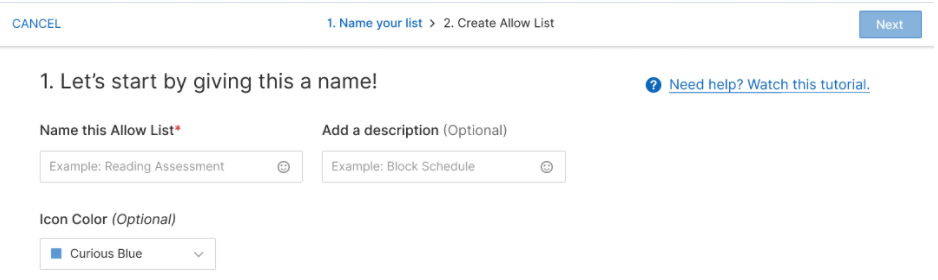
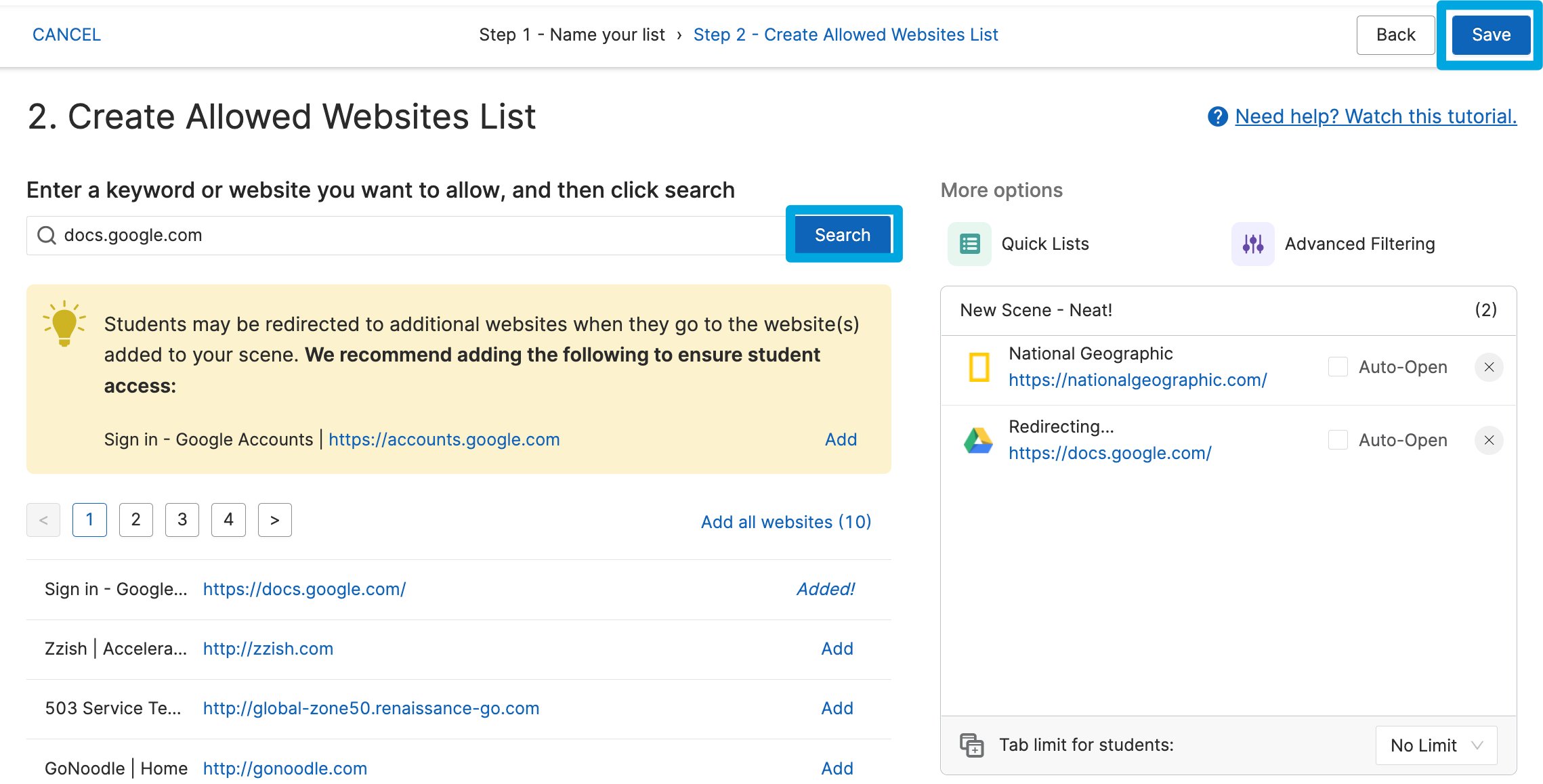
When building a Scene, enter a URL or keyword in the search field. GoGuardian Teacher returns the entered site and related suggestions. Click **Add** next to any site you want to include.
You can add a full website, a website path, or an individual webpage:
| Entry type | What it allows or blocks |
| ---------------------- | ---------------------------------------------------------------------------- |
| **Full website** | The entire site and all pages within it (`nationalgeographic.com`) |
| **Website path** | Only a specific section of the site (`nationalgeographic.com/animals`) |
| **Individual webpage** | A single page only (`nationalgeographic.com/animals/endangered-salamanders`) |
When building an Allow List Scene for Google tools, some sites redirect to subdomains (for example, Google Classroom redirects through accounts.google.com). Add the subdomain to the allow list, or use a wildcard entry such as `*google*` to allow all Google domains at once.
## Scene Types
Scenes come in 2 types:
| Type | How It Works |
| ------------------------- | ------------------------------------------------------------------------------------------------------------------------------------ |
| **Allowed Websites List** | Students can only access sites on the list. All other sites are blocked. Best for classes that need a defined set of resources. |
| **Blocked Websites List** | Students can access any site except those on the list. Best for classes where students should browse freely with a few restrictions. |
GoGuardian Admin filtering policies always take precedence over Scene rules. A teacher cannot use a Scene to allow a site that is blocked by GoGuardian Admin policy.
## Add Sites to a Scene
When building a Scene, enter a URL or keyword in the search field. GoGuardian Teacher returns the entered site and related suggestions. Click **Add** next to any site you want to include.
You can add a full website, a website path, or an individual webpage:
| Entry type | What it allows or blocks |
| ---------------------- | ---------------------------------------------------------------------------- |
| **Full website** | The entire site and all pages within it (`nationalgeographic.com`) |
| **Website path** | Only a specific section of the site (`nationalgeographic.com/animals`) |
| **Individual webpage** | A single page only (`nationalgeographic.com/animals/endangered-salamanders`) |
When building an Allow List Scene for Google tools, some sites redirect to subdomains (for example, Google Classroom redirects through accounts.google.com). Add the subdomain to the allow list, or use a wildcard entry such as `*google*` to allow all Google domains at once.
 ## Auto-Open Tabs
Scenes can automatically open specific websites on student devices when the Scene is applied. For Default Scenes, tabs open as soon as the class session starts.
* For **Allow Lists**: first add the site to the allowed list, then check the **Auto-Open** checkbox that appears next to the site.
* For **Block Lists**: use the **Auto-Open Tabs** section available when editing the Scene.
Tabs only open if the student has a Chrome window open. If students do not receive the tabs immediately, ask them to open Chrome and the tabs will open.
## Tab Limits
Set a maximum number of open tabs for students using the **Tab limit for students** drop-down menu. When a Scene with a tab limit is applied, any tabs a student has open over the limit are closed automatically. The limit is only active while the Scene is applied.
## Auto-Open Tabs
Scenes can automatically open specific websites on student devices when the Scene is applied. For Default Scenes, tabs open as soon as the class session starts.
* For **Allow Lists**: first add the site to the allowed list, then check the **Auto-Open** checkbox that appears next to the site.
* For **Block Lists**: use the **Auto-Open Tabs** section available when editing the Scene.
Tabs only open if the student has a Chrome window open. If students do not receive the tabs immediately, ask them to open Chrome and the tabs will open.
## Tab Limits
Set a maximum number of open tabs for students using the **Tab limit for students** drop-down menu. When a Scene with a tab limit is applied, any tabs a student has open over the limit are closed automatically. The limit is only active while the Scene is applied.
 ## Quick Lists
Quick Lists are pre-built groups of URLs that can be added to a Scene at once, without entering each site individually.
| Type | Who Creates It |
| -------------------------- | ---------------------------------------------------------------------------------------------------------------------------------------------------------------------- |
| **GoGuardian Quick Lists** | Built and maintained by GoGuardian. Pre-built lists for commonly used educational sites, such as a Google Docs Quick List that includes all 21 Google Docs subdomains. |
| **District Quick Lists** | Created by a Super User in your organization's Org Management. Available to all teachers in the district. |
| **Custom Quick Lists** | Created by individual teachers. Reusable across Scenes for repeated use. |
## Quick Lists
Quick Lists are pre-built groups of URLs that can be added to a Scene at once, without entering each site individually.
| Type | Who Creates It |
| -------------------------- | ---------------------------------------------------------------------------------------------------------------------------------------------------------------------- |
| **GoGuardian Quick Lists** | Built and maintained by GoGuardian. Pre-built lists for commonly used educational sites, such as a Google Docs Quick List that includes all 21 Google Docs subdomains. |
| **District Quick Lists** | Created by a Super User in your organization's Org Management. Available to all teachers in the district. |
| **Custom Quick Lists** | Created by individual teachers. Reusable across Scenes for repeated use. |
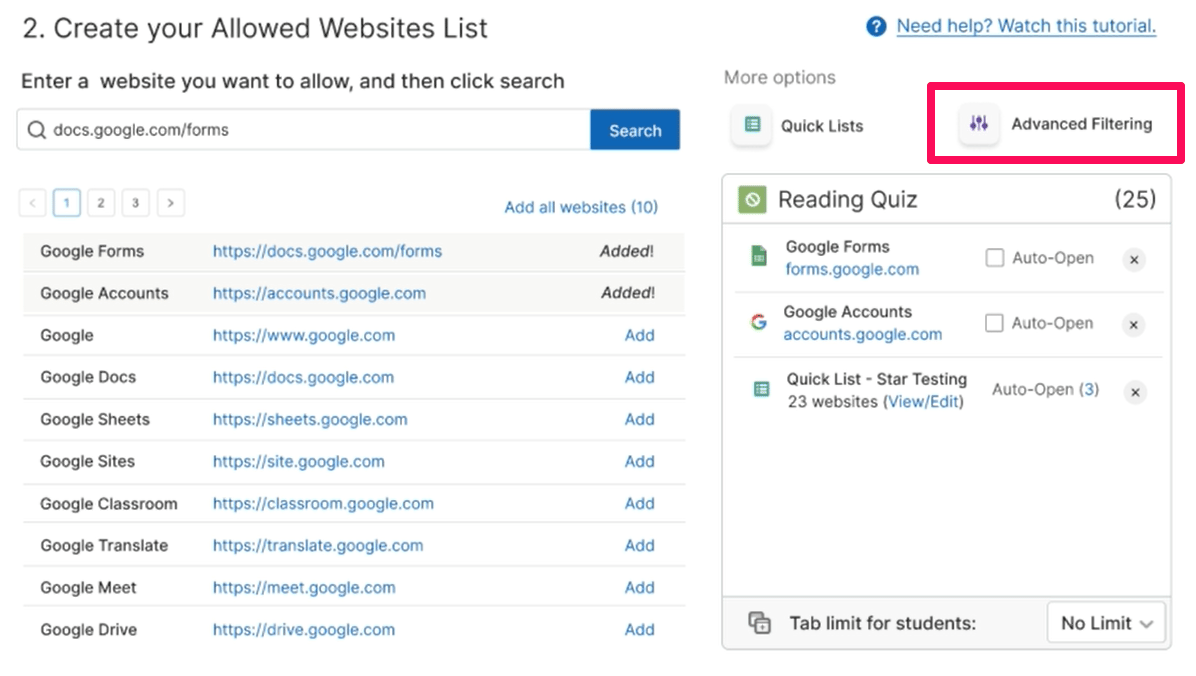
 ## Advanced Filtering
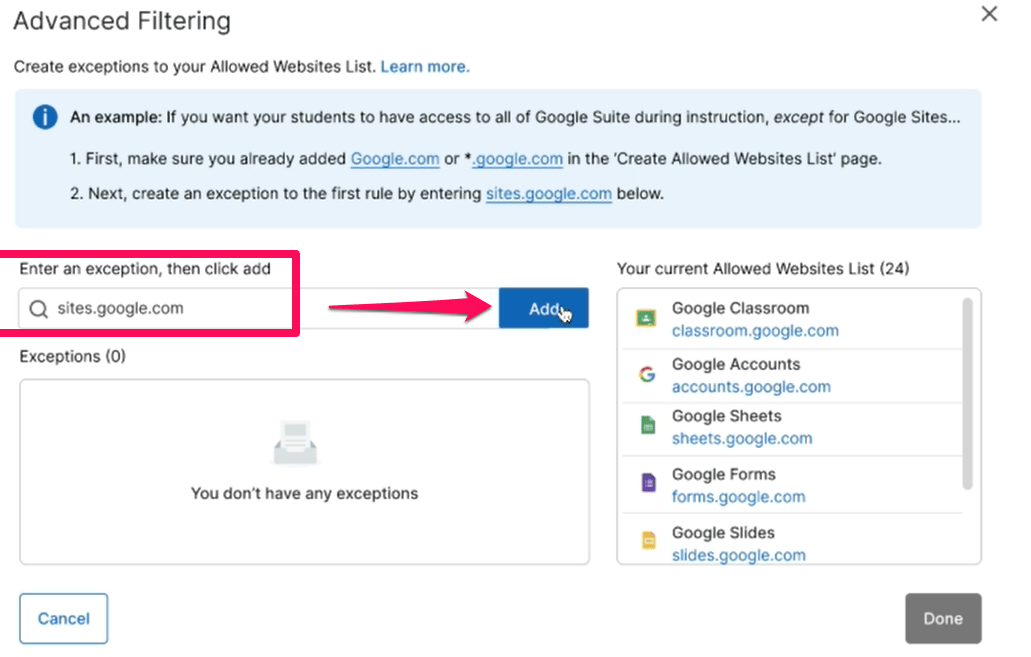
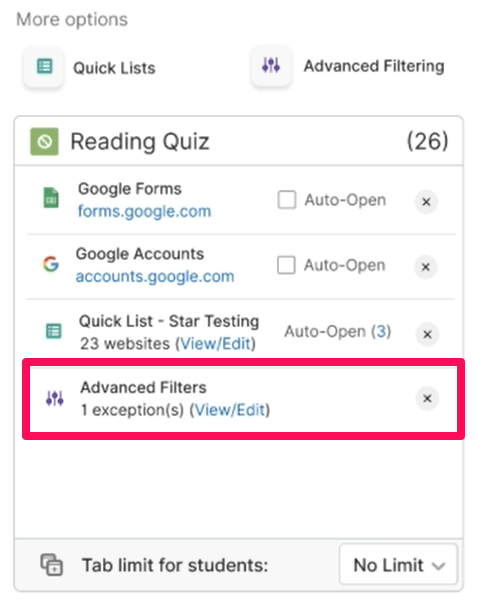
Advanced Filtering adds exceptions to Allow List or Block List rules. Use it when you want to allow an entire domain but block one or two specific sites within it.
For example: adding `*google.com*` to an Allow List Scene allows all Google services. Using Advanced Filtering, you can then add `sites.google.com` as an exception to block it specifically while keeping all other Google services accessible.
## Advanced Filtering
Advanced Filtering adds exceptions to Allow List or Block List rules. Use it when you want to allow an entire domain but block one or two specific sites within it.
For example: adding `*google.com*` to an Allow List Scene allows all Google services. Using Advanced Filtering, you can then add `sites.google.com` as an exception to block it specifically while keeping all other Google services accessible.

 ## YouTube Filtering
YouTube.com and specific YouTube video URLs can be added to Allow List or Block List Scenes:
* **Allow List**: adding YouTube.com allows the main YouTube site. Adding a specific video URL (without YouTube.com) allows only that video.
* **Block List**: adding YouTube.com blocks the main YouTube site. Adding a specific video URL blocks only that video.
GoGuardian Admin and Google Admin Console YouTube filtering always take precedence over Scene rules. Coordinate with your IT department to make sure videos needed for class are allowed at the Admin level.
## Check if a Website Is Blocked
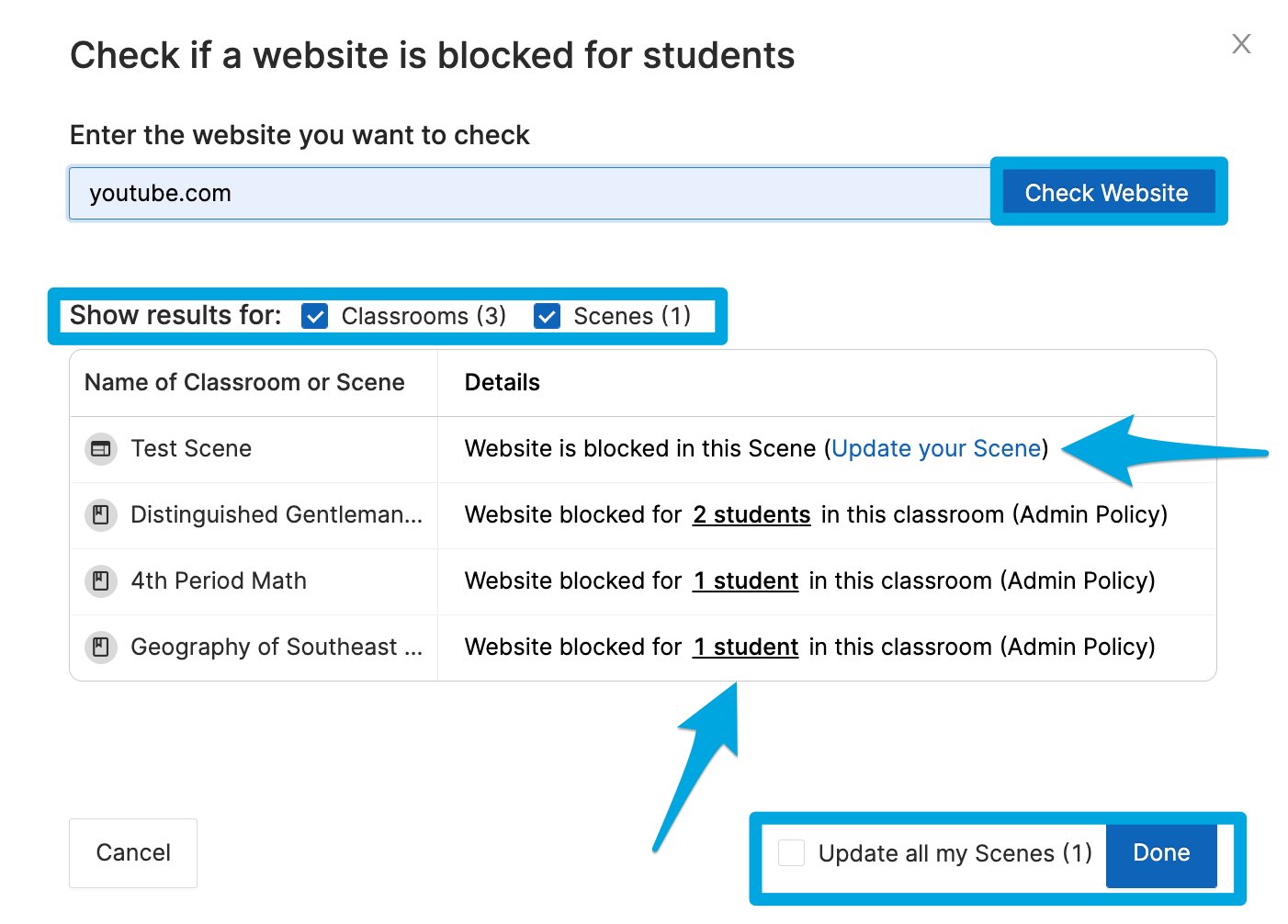
GoGuardian Teacher includes a website-checking tool on the main dashboard. Click **Check if a Website is Blocked** to test whether a specific URL would be blocked for any student in your class, and whether the block comes from a Scene or from a GoGuardian Admin policy.
Scene-based blocks can be updated directly from the tool. Admin-based blocks require your IT administrator to make the change.
## YouTube Filtering
YouTube.com and specific YouTube video URLs can be added to Allow List or Block List Scenes:
* **Allow List**: adding YouTube.com allows the main YouTube site. Adding a specific video URL (without YouTube.com) allows only that video.
* **Block List**: adding YouTube.com blocks the main YouTube site. Adding a specific video URL blocks only that video.
GoGuardian Admin and Google Admin Console YouTube filtering always take precedence over Scene rules. Coordinate with your IT department to make sure videos needed for class are allowed at the Admin level.
## Check if a Website Is Blocked
GoGuardian Teacher includes a website-checking tool on the main dashboard. Click **Check if a Website is Blocked** to test whether a specific URL would be blocked for any student in your class, and whether the block comes from a Scene or from a GoGuardian Admin policy.
Scene-based blocks can be updated directly from the tool. Admin-based blocks require your IT administrator to make the change.

 ## Share Scenes
Teachers can share Scenes with other teachers. The teacher who receives the shared Scene can apply it during sessions, but only the original owner can edit the Scene's rules.
## Share Scenes
Teachers can share Scenes with other teachers. The teacher who receives the shared Scene can apply it during sessions, but only the original owner can edit the Scene's rules.
 ## Resources
Step-by-step instructions for creating and applying a Scene.
Reference for every Scene setting and what it controls.
Use wildcard patterns to allow or block groups of URLs by keyword.
Resolve conflicts when multiple teachers have overlapping sessions.
## Resources
Step-by-step instructions for creating and applying a Scene.
Reference for every Scene setting and what it controls.
Use wildcard patterns to allow or block groups of URLs by keyword.
Resolve conflicts when multiple teachers have overlapping sessions.