> ## Documentation Index
> Fetch the complete documentation index at: https://docs.goguardian.com/llms.txt
> Use this file to discover all available pages before exploring further.
# Schedule Classroom Sessions
> Schedule recurring or one-time automatic class sessions in GoGuardian Teacher using the Calendar, and set up A/B or block scheduling.
With the GoGuardian Teacher [Calendar](https://teacher.goguardian.com/calendar), you can schedule recurring class sessions to start and stop automatically throughout the semester or school year. Sessions run on their assigned schedule until they reach a scheduled end date or you delete them.
Scheduled sessions have a maximum length of 8 hours. Chat and Default Scenes must be enabled manually each time a scheduled session starts.
## Set Up a Scheduled Session
1. Go to [teacher.goguardian.com/calendar](https://teacher.goguardian.com/calendar).
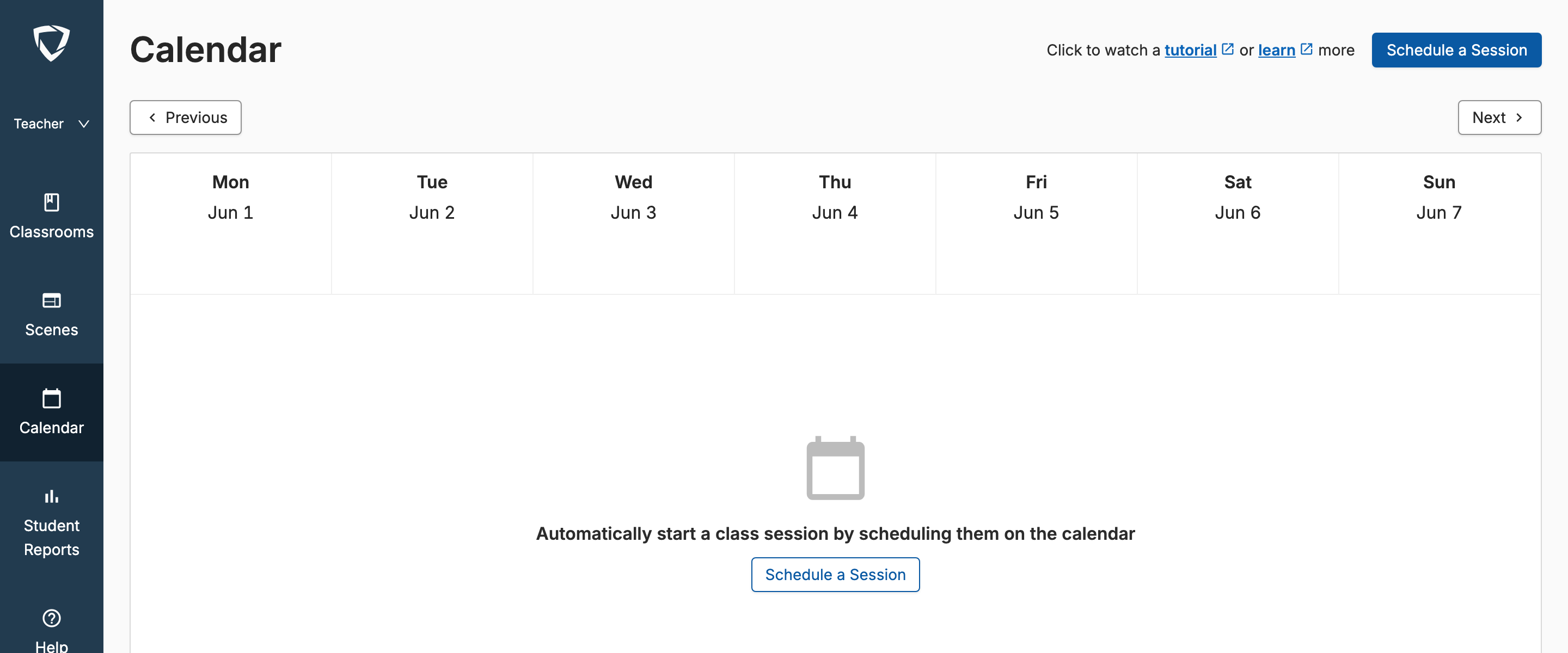 2. Click **Schedule a Session**.
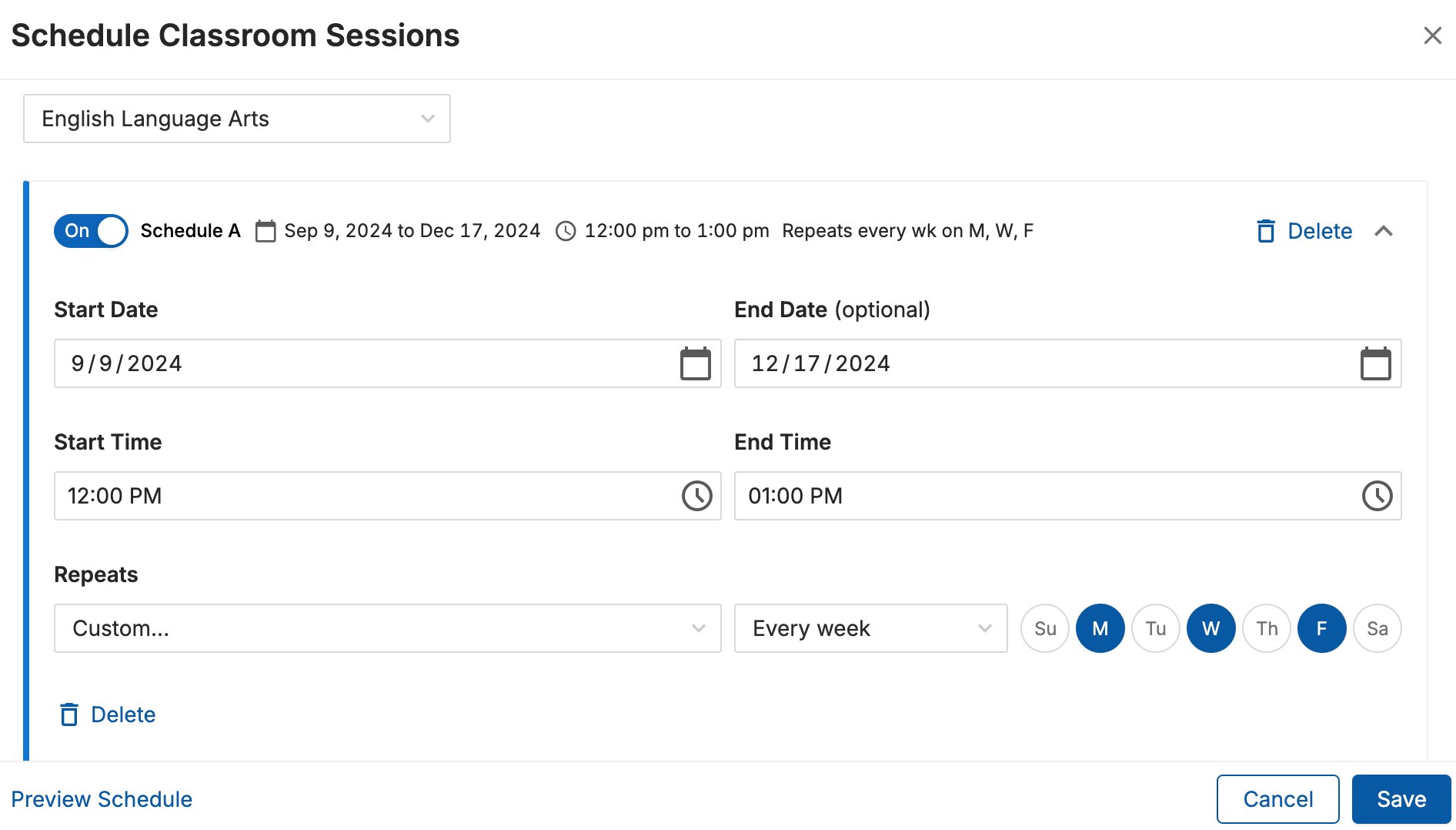
3. Choose a start date and an optional end date. Select or enter the start time and end time. Choose a **Repeat** option: for example, Monday–Friday, or a custom pattern such as M/W/F or T/TH.
4. Click **Save**.
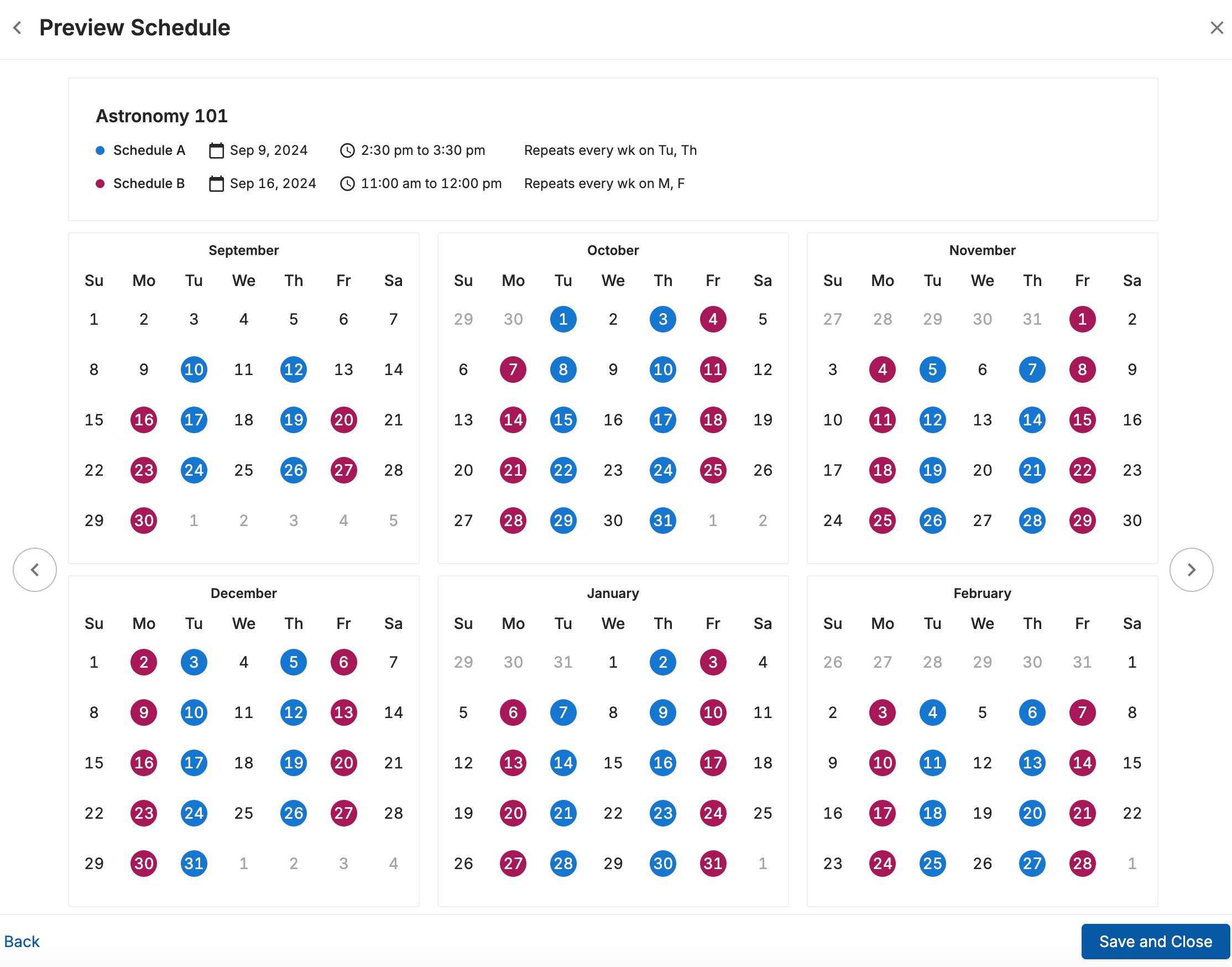
5. Click **Preview Schedule** to confirm the sessions appear correctly throughout the year.
2. Click **Schedule a Session**.
3. Choose a start date and an optional end date. Select or enter the start time and end time. Choose a **Repeat** option: for example, Monday–Friday, or a custom pattern such as M/W/F or T/TH.
4. Click **Save**.
5. Click **Preview Schedule** to confirm the sessions appear correctly throughout the year.
 ## Set Up A/B or Block Scheduling
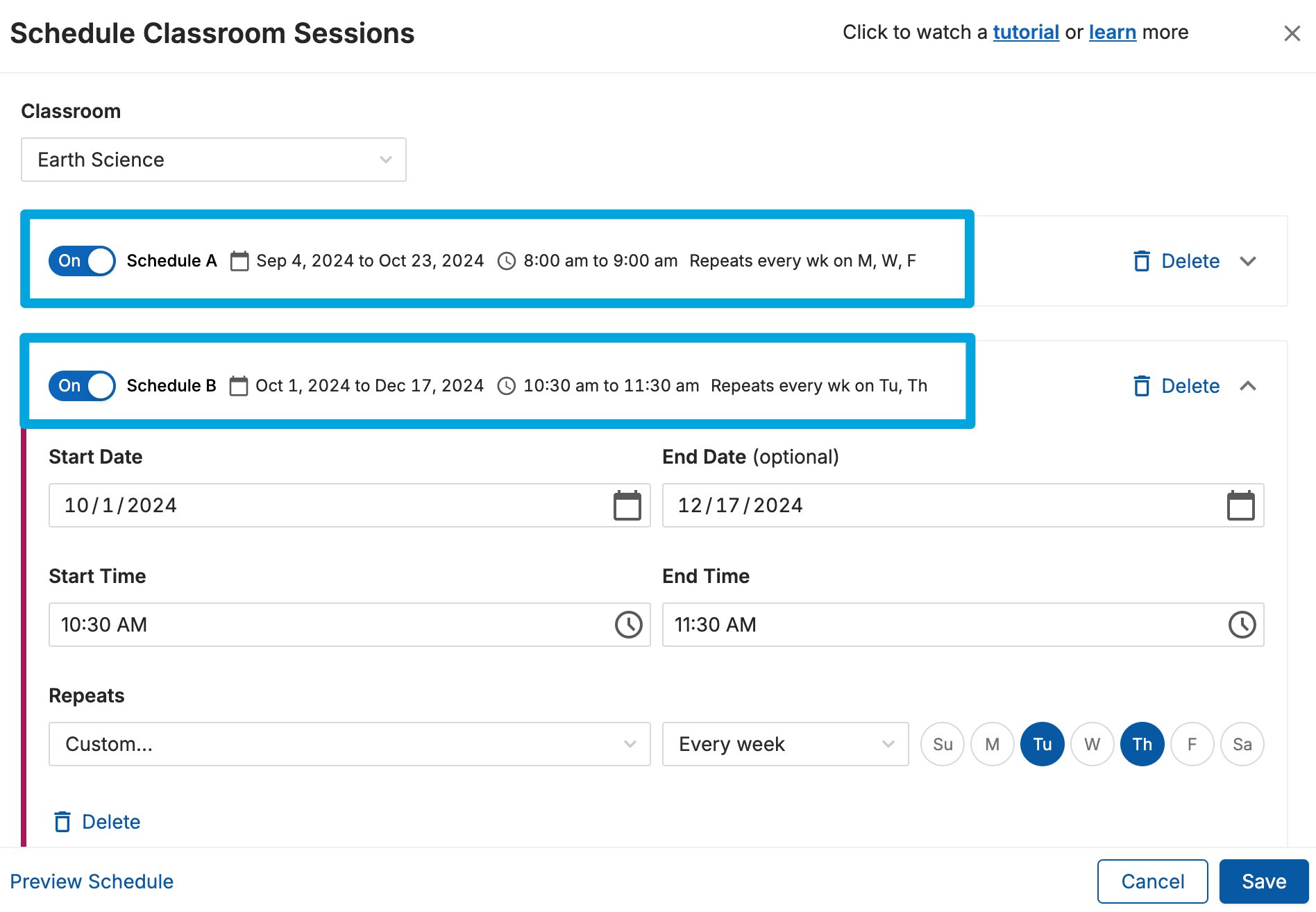
To set up A/B or block scheduling, first create an initial (Schedule A) session using the steps above, then add a second schedule:
1. Click **+Add Another Schedule**.
## Set Up A/B or Block Scheduling
To set up A/B or block scheduling, first create an initial (Schedule A) session using the steps above, then add a second schedule:
1. Click **+Add Another Schedule**.
 2. Enter a start date, an optional end date, start time, and end time.
3. Choose a **Repeat** option.
4. Click **Save**.
You can enable or disable either schedule at any time by toggling the **On/Off** switch next to Schedule A or Schedule B.
2. Enter a start date, an optional end date, start time, and end time.
3. Choose a **Repeat** option.
4. Click **Save**.
You can enable or disable either schedule at any time by toggling the **On/Off** switch next to Schedule A or Schedule B.
 ## Modify a Scheduled Session
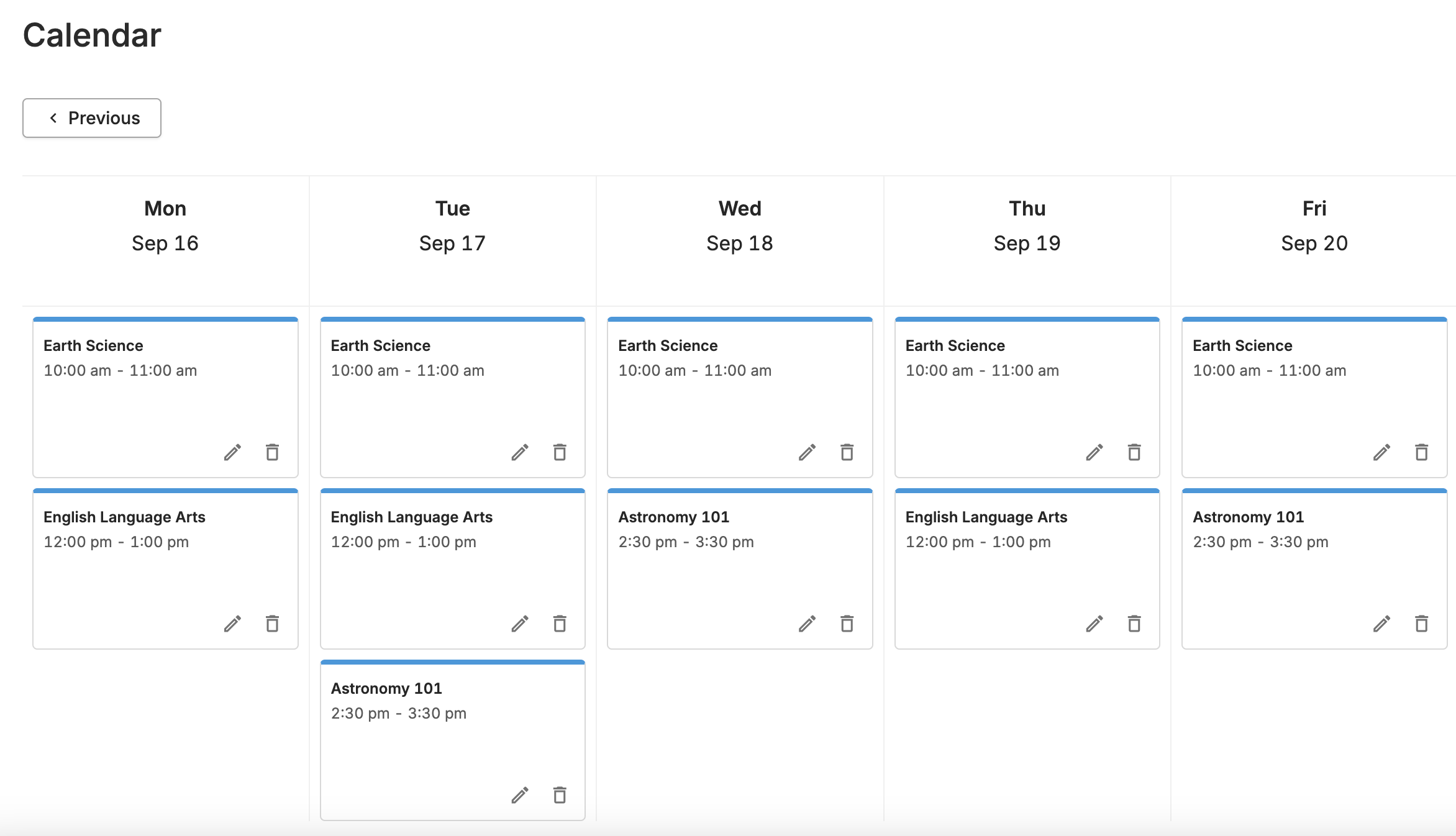
1. Find the session in the Calendar.
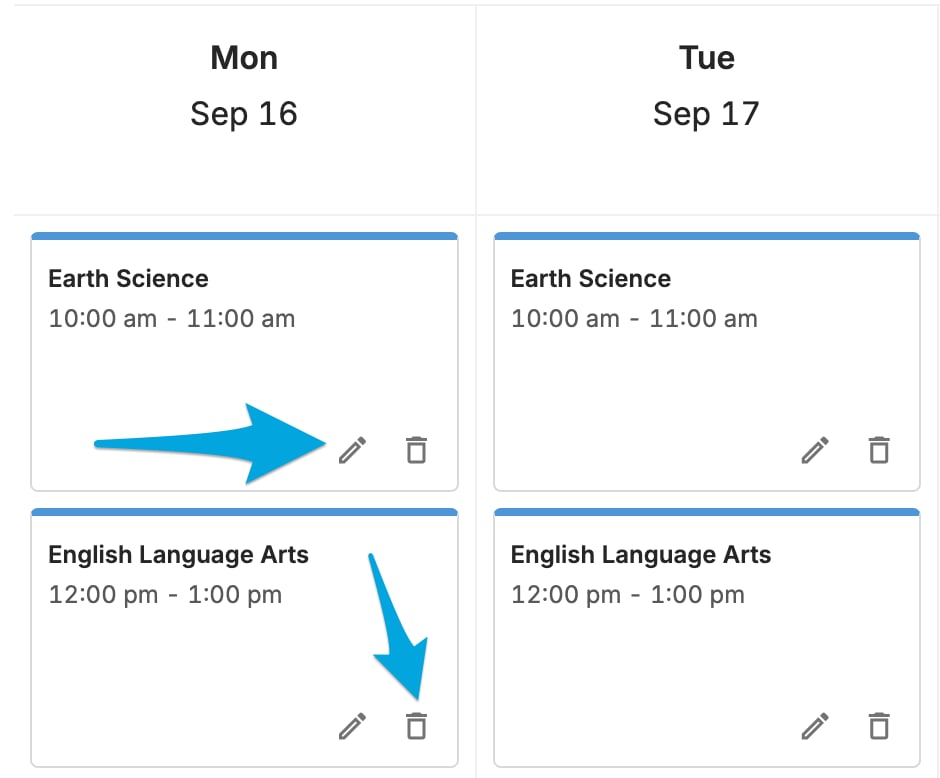
2. Click the pencil icon to open the session settings.
3. Make the needed changes.
4. Click **Save** to confirm.
## Modify a Scheduled Session
1. Find the session in the Calendar.
2. Click the pencil icon to open the session settings.
3. Make the needed changes.
4. Click **Save** to confirm.
 ## Delete a Scheduled Session
1. Click the trash bin icon next to the scheduled session.
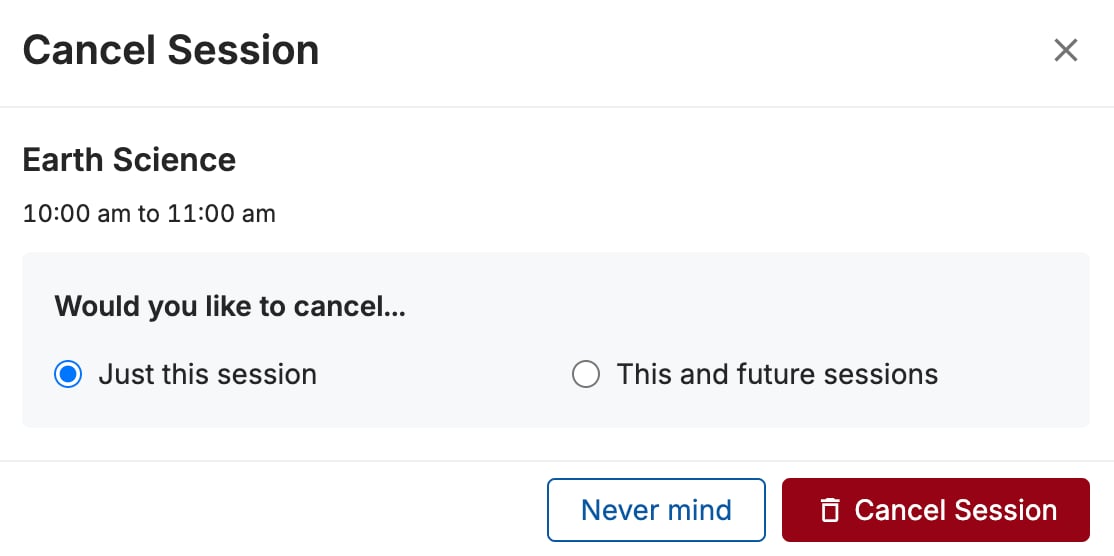
2. Choose **Just this session** to cancel a single occurrence, or choose **This and future sessions** to cancel all remaining sessions in the series.
## Resources
Start a session manually and review how sessions work.
Set a Default Scene that applies automatically when a session starts.
Enable Chat manually at the start of each scheduled session.
## Delete a Scheduled Session
1. Click the trash bin icon next to the scheduled session.
2. Choose **Just this session** to cancel a single occurrence, or choose **This and future sessions** to cancel all remaining sessions in the series.
## Resources
Start a session manually and review how sessions work.
Set a Default Scene that applies automatically when a session starts.
Enable Chat manually at the start of each scheduled session.