> ## Documentation Index
> Fetch the complete documentation index at: https://docs.goguardian.com/llms.txt
> Use this file to discover all available pages before exploring further.
# Session Report Emails
> Review what GoGuardian Teacher session report emails contain and how to opt out of them for individual classes or all classes.
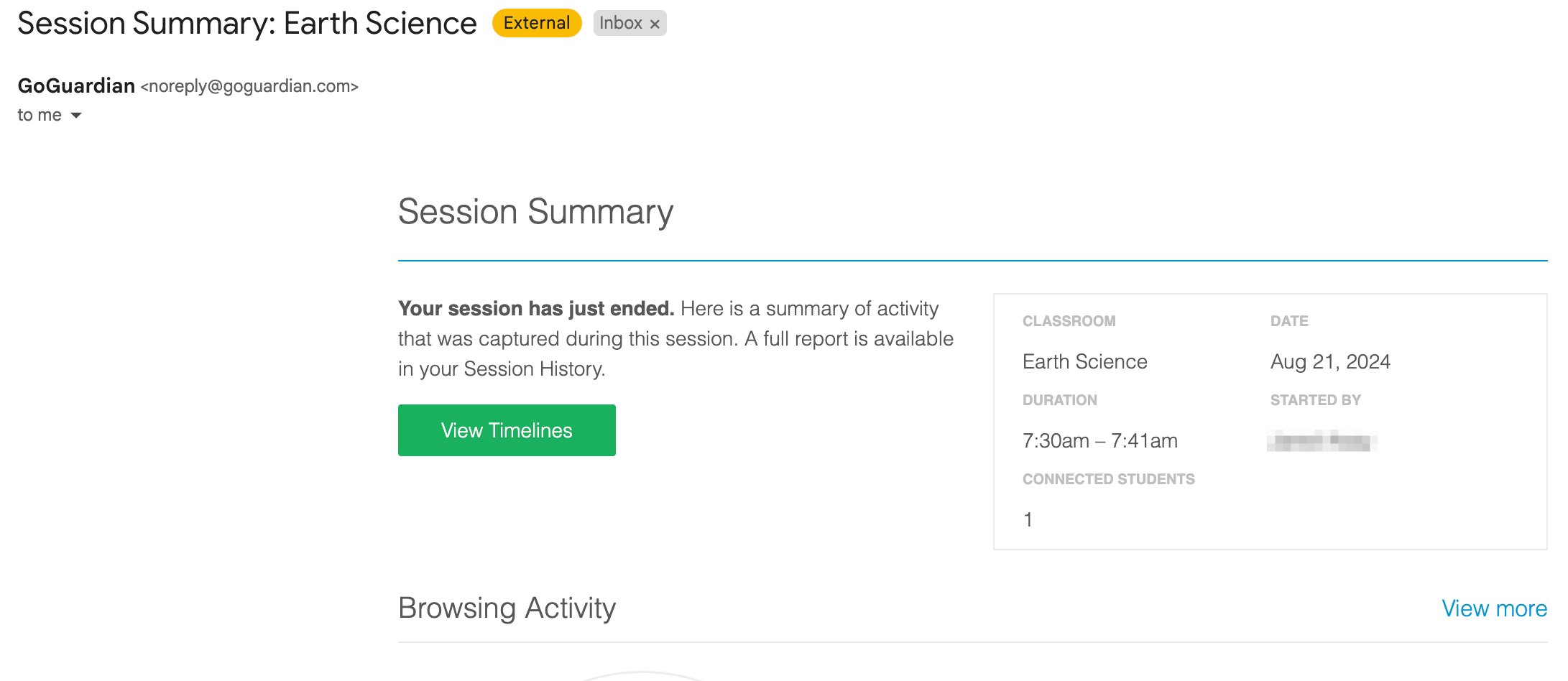
Session report emails provide an overview of student activity during the most recent class session. Reports are enabled by default and sent from [noreply@goguardian.com](mailto:noreply@goguardian.com) with the subject line "Session Summary: \[Class Name]".
## Report Sections
Each session report email has 4 sections.
| Section | What It Contains |
| ----------------------------- | ------------------------------------------------------------------------------------------------------------------------------------------------------------------------------------------------ |
| **Classroom Session Details** | Class name, session duration, number of connected students, who started the session, session date, and whether the session was scheduled. Includes a link to the full timeline for that session. |
| **Browsing Activity** | A chart and list showing where students spent their time online during the session. |
| **Students** | An overview of students with the highest and lowest amounts of activity, organized into 4 categories. |
| **Subscription Settings** | Links to change which classes you receive session summaries for, or to disable emails entirely. |
### Student Activity Categories
The Students section groups activity into 4 categories:
* Most time on most popular site
* Most time spent across all sites
* Least time spent across all sites
* Least time on most popular site
The "most popular site" is the site where the largest number of students spent the most time. For example, if 6 out of 10 students spent the most time on docs.google.com and 4 students spent the most time on another site, docs.google.com is the most popular site for that session.
 ## Opt Out of Session Report Emails for a Specific Class
1. From the GoGuardian Teacher dashboard, click the class.
2. Go to the **Settings** tab.
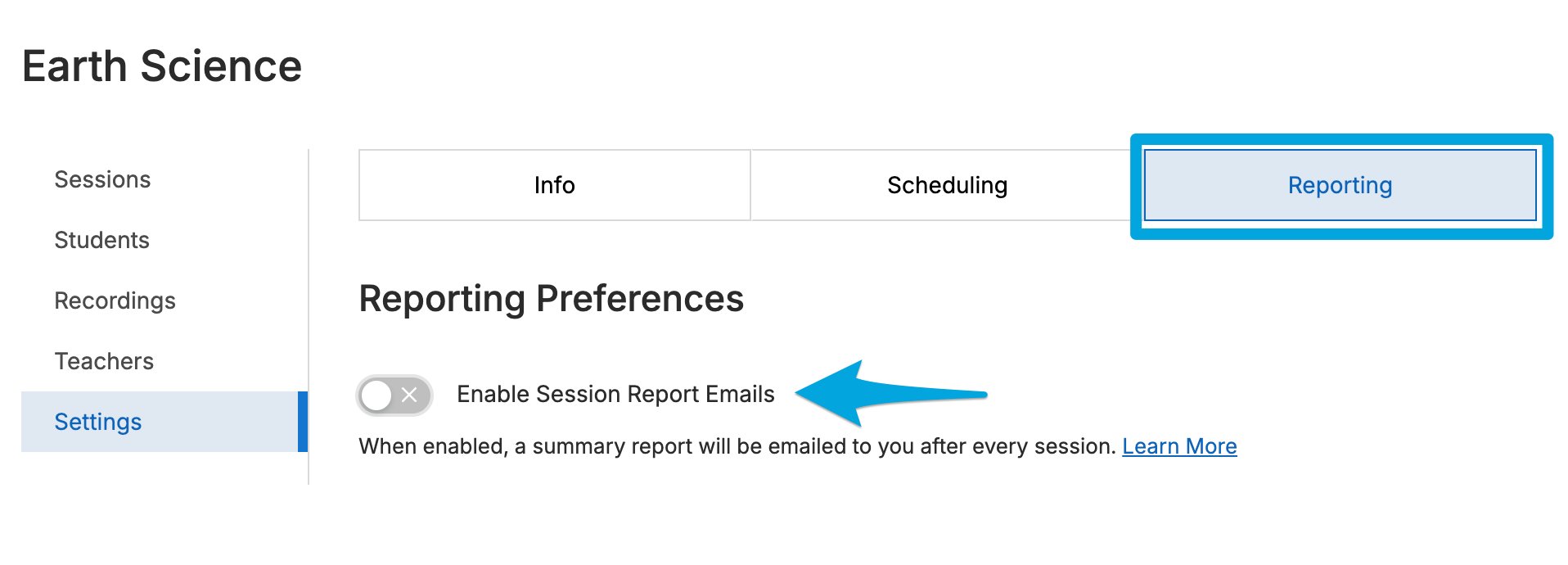
3. In the **Reporting** section, click the toggle to turn off session report emails for that class.
## Opt Out of Session Report Emails for a Specific Class
1. From the GoGuardian Teacher dashboard, click the class.
2. Go to the **Settings** tab.
3. In the **Reporting** section, click the toggle to turn off session report emails for that class.
 ## Opt Out of All Session Report Emails
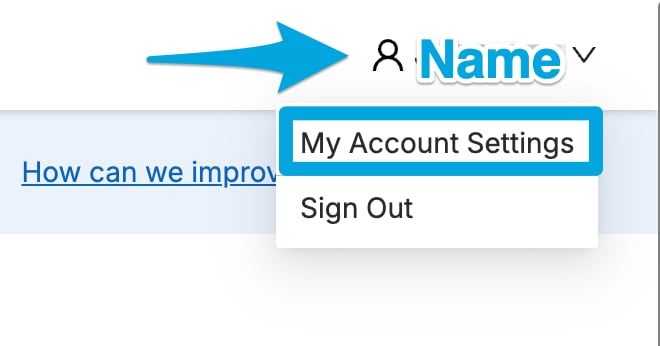
1. From the GoGuardian Teacher dashboard, click your name to open the drop-down menu.
2. Select **My Account Settings**.
3. Go to the **Preferences** tab (selected by default).
4. Turn off the **Receive session report emails** toggle to stop all session report emails.
## Resources
Review how to start a session and what data is saved.
Access detailed individual student browsing activity.
## Opt Out of All Session Report Emails
1. From the GoGuardian Teacher dashboard, click your name to open the drop-down menu.
2. Select **My Account Settings**.
3. Go to the **Preferences** tab (selected by default).
4. Turn off the **Receive session report emails** toggle to stop all session report emails.
## Resources
Review how to start a session and what data is saved.
Access detailed individual student browsing activity.