> ## Documentation Index
> Fetch the complete documentation index at: https://docs.goguardian.com/llms.txt
> Use this file to discover all available pages before exploring further.
# Set Up Teacher Accounts
> Create GoGuardian Teacher accounts for individual teachers, in bulk via CSV, or through a Clever or ClassLink integration. Requires Super User permissions.
GoGuardian Teacher accounts are created and managed in Organization Management at [manage.goguardian.com](https://manage.goguardian.com). Access to Organization Management requires Super User permissions.
## Add a Single Teacher Account
1. Sign in to [manage.goguardian.com](https://manage.goguardian.com).
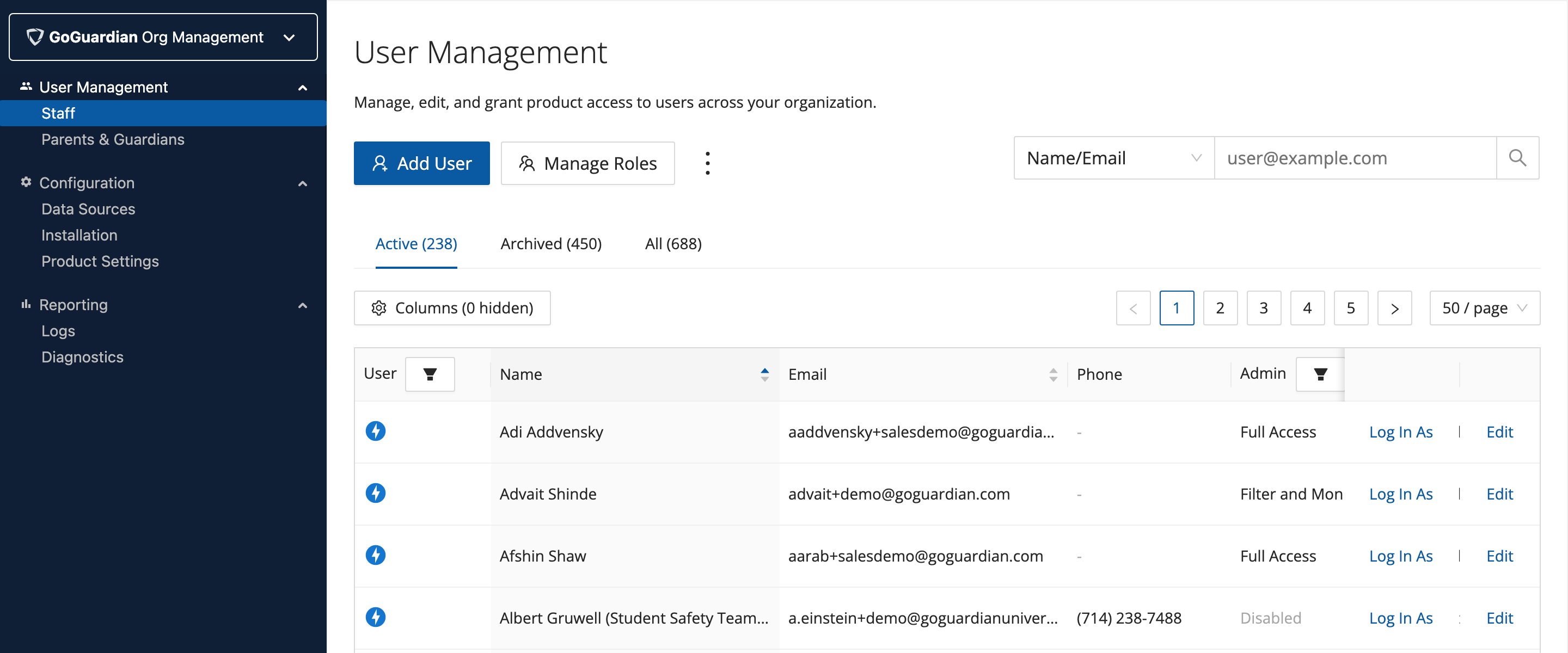 2. Click **Add User**. Enter the teacher's first name, last name, and school email address.
3. Set the GoGuardian Teacher option to **Enabled**. If the teacher should be able to manage other teacher accounts, turn on the **Super User** toggle.
4. Assign Teacher OU access if you want to limit which students this teacher can access. If you want the teacher to have full OU access, leave the default selection.
5. Scroll to the bottom and click **Save**.
6. A welcome email with a password setup link is sent to the teacher automatically. The link expires after 48 hours. If the link expires, use the **Reset Password** option to send a new one.
Welcome emails are sent only when accounts are created individually. Accounts created via CSV upload or integration sync do not receive a welcome email.
## Add Multiple Teacher Accounts by CSV
1. Go to [manage.goguardian.com](https://manage.goguardian.com).
2. Click the 3-dot menu and select **Download CSV** to get the CSV template.
2. Click **Add User**. Enter the teacher's first name, last name, and school email address.
3. Set the GoGuardian Teacher option to **Enabled**. If the teacher should be able to manage other teacher accounts, turn on the **Super User** toggle.
4. Assign Teacher OU access if you want to limit which students this teacher can access. If you want the teacher to have full OU access, leave the default selection.
5. Scroll to the bottom and click **Save**.
6. A welcome email with a password setup link is sent to the teacher automatically. The link expires after 48 hours. If the link expires, use the **Reset Password** option to send a new one.
Welcome emails are sent only when accounts are created individually. Accounts created via CSV upload or integration sync do not receive a welcome email.
## Add Multiple Teacher Accounts by CSV
1. Go to [manage.goguardian.com](https://manage.goguardian.com).
2. Click the 3-dot menu and select **Download CSV** to get the CSV template.
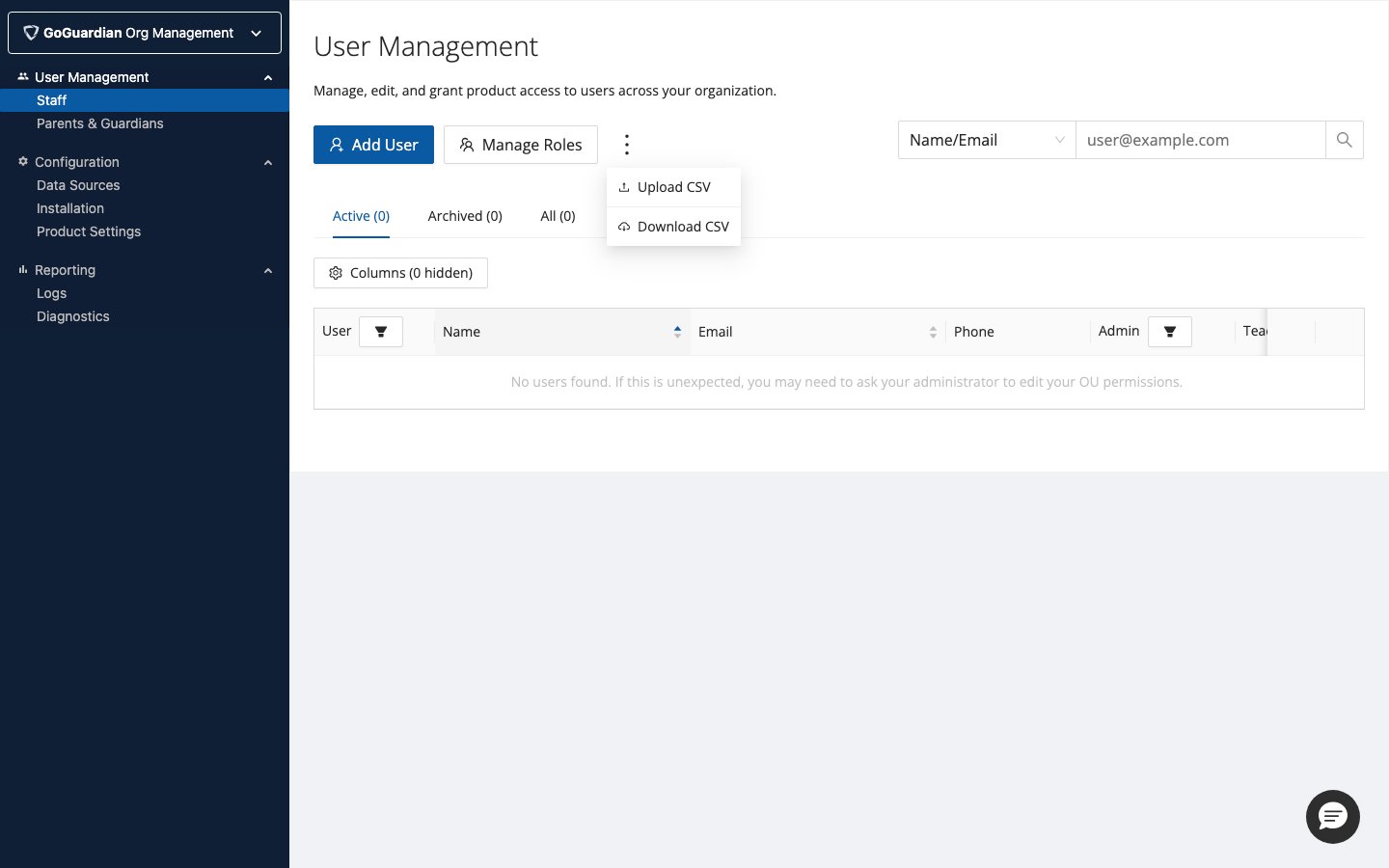 3. Add teacher information to the CSV. See the Bulk-Add Users by CSV article for formatting details.
4. Set permissions, status, and OU access in the CSV.
5. Upload the completed CSV.
## Add Teacher Accounts Through Clever or ClassLink
If your organization uses Clever or ClassLink, you can sync teacher accounts, classes, and class rosters directly into GoGuardian Teacher. See the integration setup articles for step-by-step instructions:
* [Instructions for Integrating Clever with GoGuardian](/products/org-management/clever-classlink-sync#connect-clever)
* [Instructions for Integrating ClassLink with GoGuardian](/products/org-management/clever-classlink-sync#connect-classlink)
## Resources
Edit, disable, and manage existing teacher accounts in Org Management.
Sync teacher accounts automatically from Google Admin Console.
Sign in to a teacher's account to troubleshoot or assist with setup.
3. Add teacher information to the CSV. See the Bulk-Add Users by CSV article for formatting details.
4. Set permissions, status, and OU access in the CSV.
5. Upload the completed CSV.
## Add Teacher Accounts Through Clever or ClassLink
If your organization uses Clever or ClassLink, you can sync teacher accounts, classes, and class rosters directly into GoGuardian Teacher. See the integration setup articles for step-by-step instructions:
* [Instructions for Integrating Clever with GoGuardian](/products/org-management/clever-classlink-sync#connect-clever)
* [Instructions for Integrating ClassLink with GoGuardian](/products/org-management/clever-classlink-sync#connect-classlink)
## Resources
Edit, disable, and manage existing teacher accounts in Org Management.
Sync teacher accounts automatically from Google Admin Console.
Sign in to a teacher's account to troubleshoot or assist with setup.