> ## Documentation Index
> Fetch the complete documentation index at: https://docs.goguardian.com/llms.txt
> Use this file to discover all available pages before exploring further.
# Share Scenes With Another Teacher
> How to share GoGuardian Teacher Scenes with other teachers in your organization, manage shared access, and revoke sharing permissions.
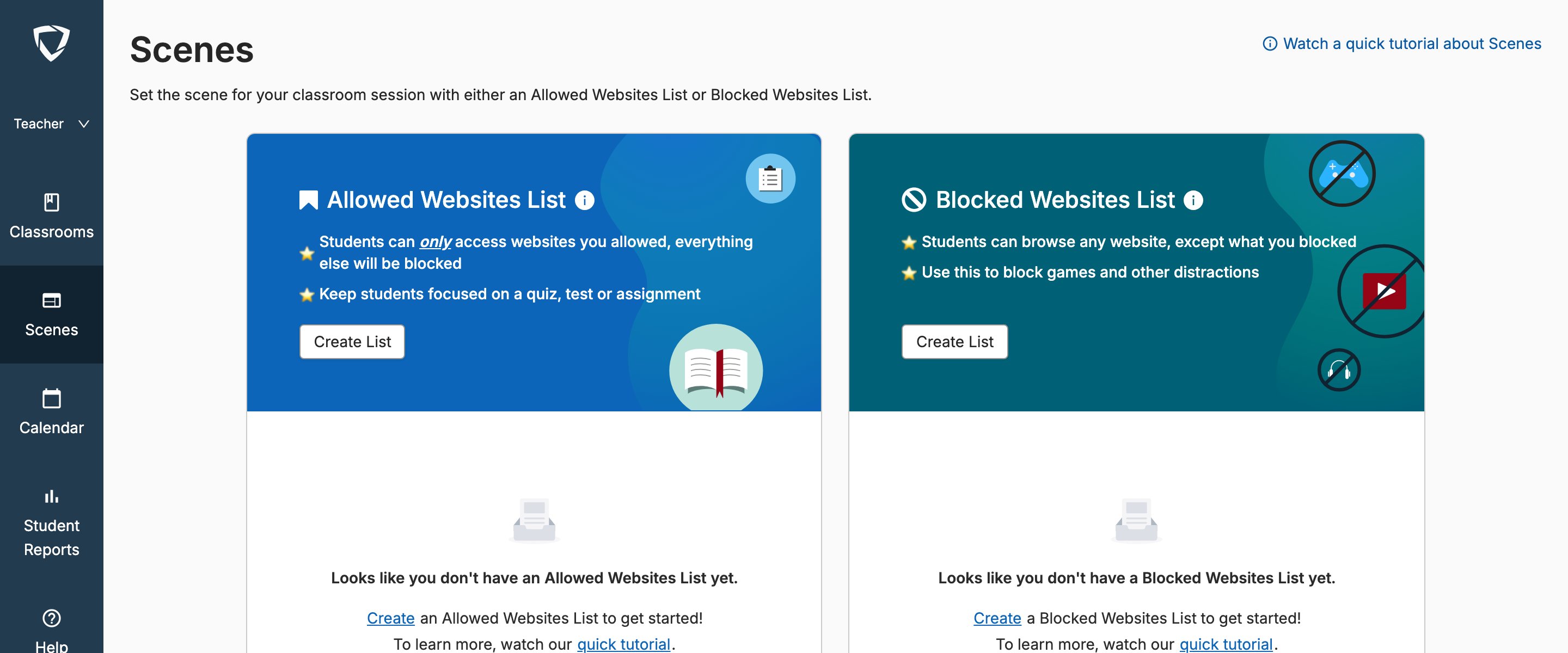
GoGuardian Teacher lets you share [Scenes](/products/teacher/scenes-overview) with other teachers in your organization using the Scene sharing feature.
 ## How Scene Sharing Works
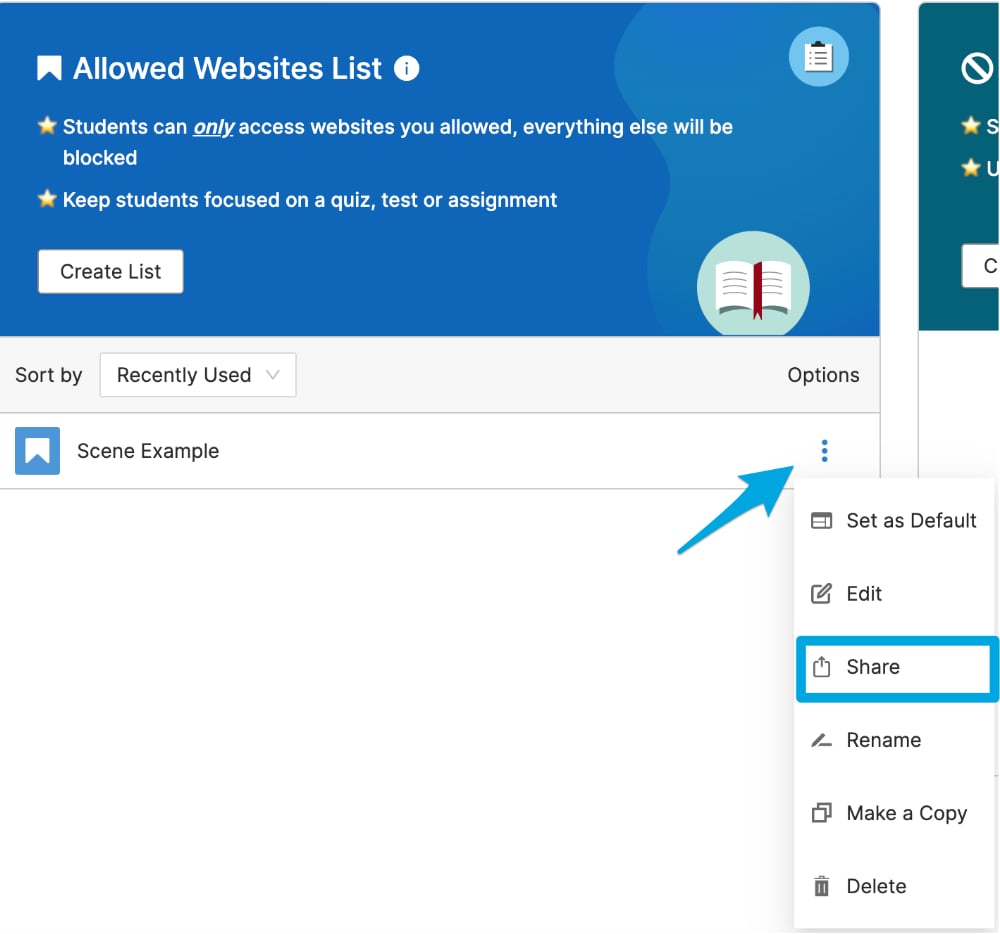
Each Scene you create has a 3-dot (kebab) menu next to the Scene name. From that menu, you can click **Share** to access Scene sharing options.
Only Scene owners — those who originally created the Scene — can share or edit the Scene.
## Share a Scene
1. Select the 3-dot (kebab) menu next to the Scene you want to share, then click **Share**.
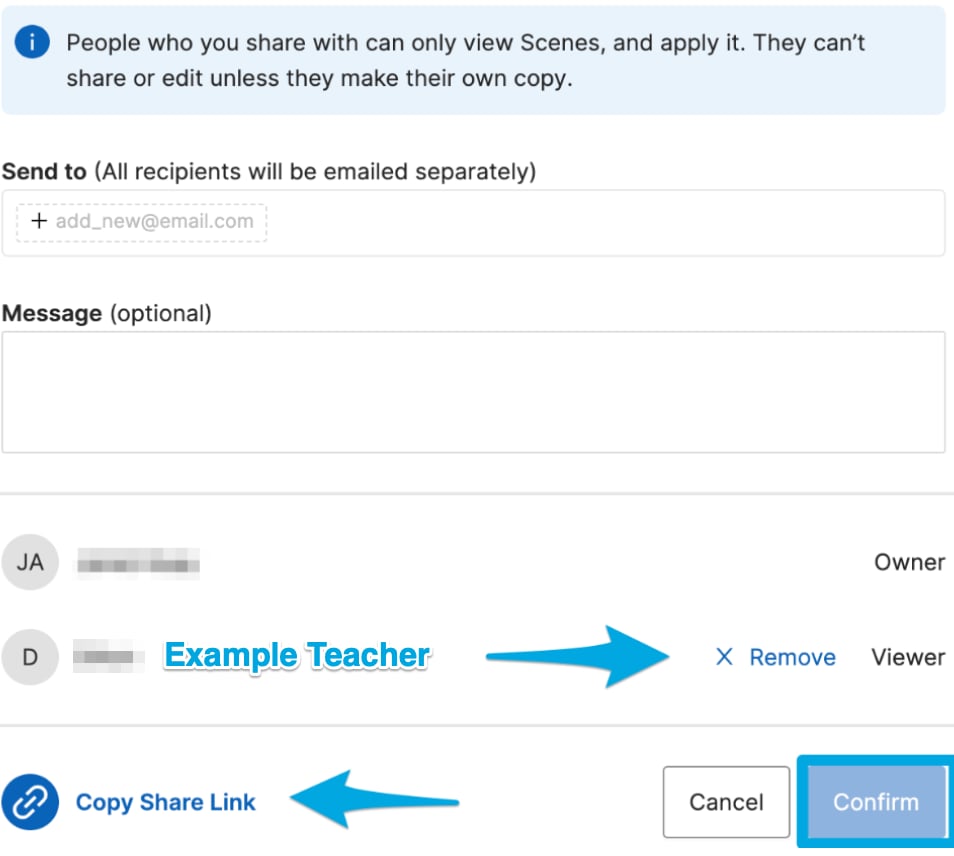
2. In the **Share Scene** tool, enter the email address of the teacher you want to share with. Optionally, add a message or description of the Scene. Click **Confirm** to share.
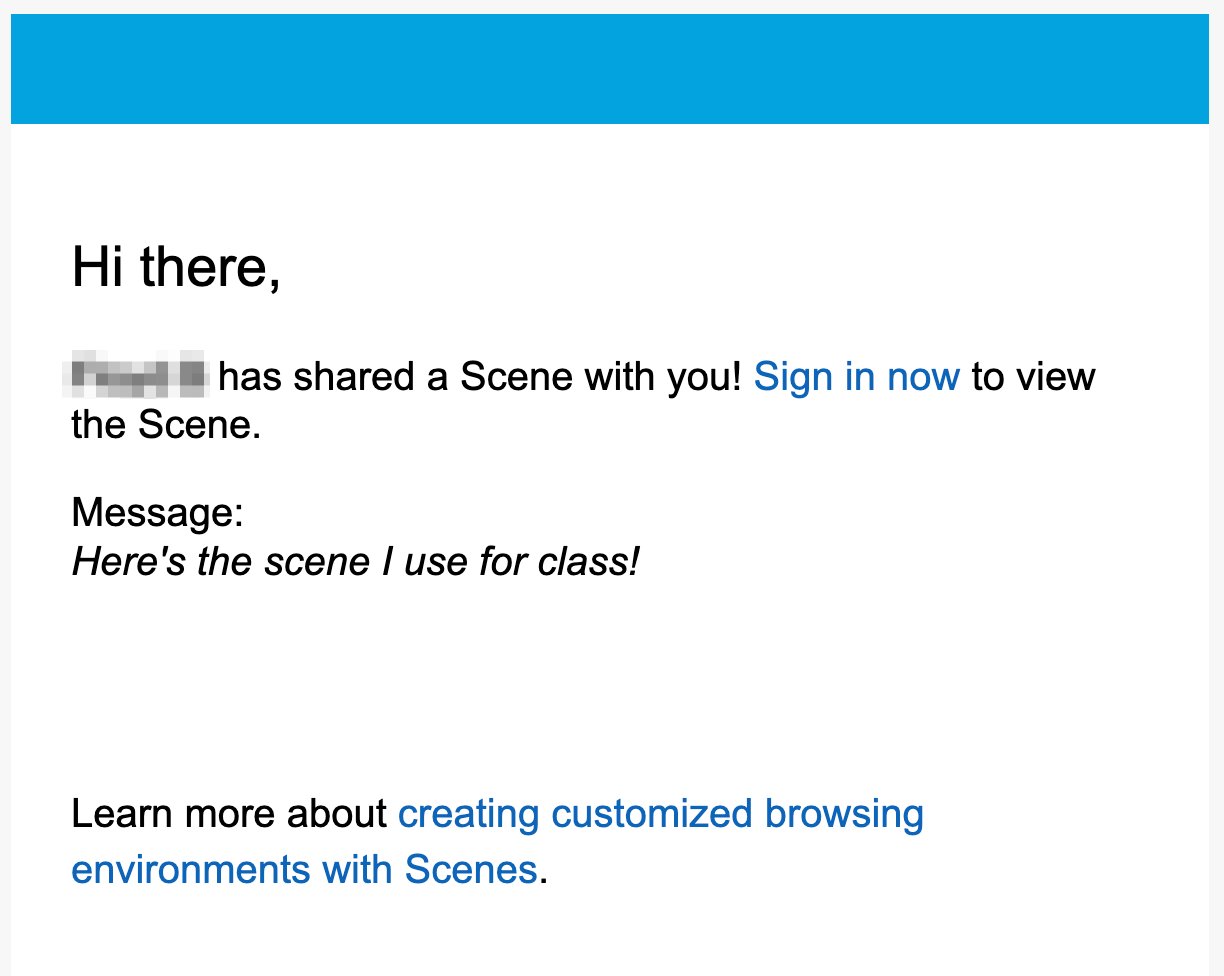
3. The recipient receives an email from [noreply@goguardian.com](mailto:noreply@goguardian.com) with the subject line "GoGuardian Teacher Scene has been shared with you," including a link to view the Scene.
You can also share a Scene by selecting **Copy Share Link** from the **Share** menu. This automatically generates and copies a URL you can send directly to teachers.
Scenes can only be shared with teachers within the same organization and GoGuardian account.
## How Scene Sharing Works
Each Scene you create has a 3-dot (kebab) menu next to the Scene name. From that menu, you can click **Share** to access Scene sharing options.
Only Scene owners — those who originally created the Scene — can share or edit the Scene.
## Share a Scene
1. Select the 3-dot (kebab) menu next to the Scene you want to share, then click **Share**.
2. In the **Share Scene** tool, enter the email address of the teacher you want to share with. Optionally, add a message or description of the Scene. Click **Confirm** to share.
3. The recipient receives an email from [noreply@goguardian.com](mailto:noreply@goguardian.com) with the subject line "GoGuardian Teacher Scene has been shared with you," including a link to view the Scene.
You can also share a Scene by selecting **Copy Share Link** from the **Share** menu. This automatically generates and copies a URL you can send directly to teachers.
Scenes can only be shared with teachers within the same organization and GoGuardian account.
 ## Manage Shared Scenes
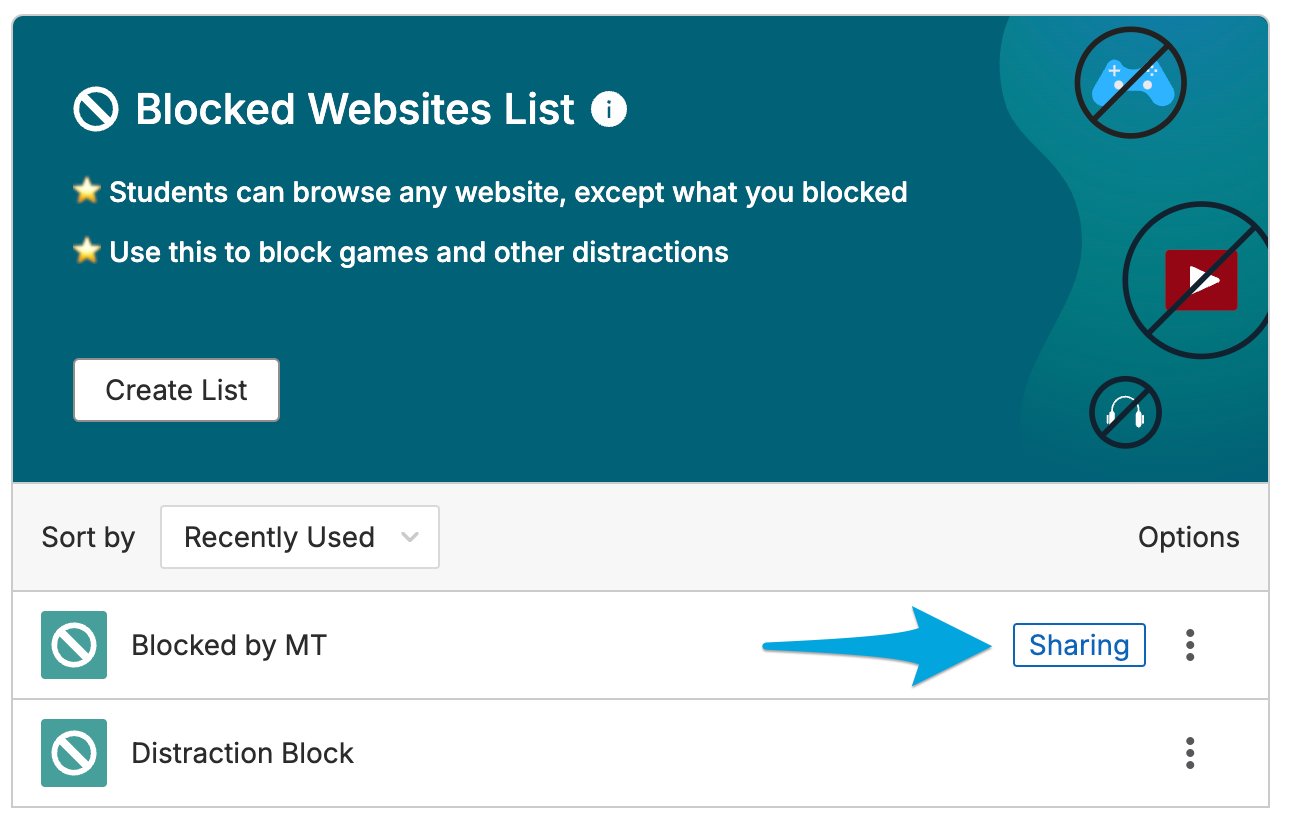
Each Scene you've shared displays a **Sharing** label next to the Scene name. Hover over the **Sharing** label to see a list of the teachers the Scene has been shared with.
## Manage Shared Scenes
Each Scene you've shared displays a **Sharing** label next to the Scene name. Hover over the **Sharing** label to see a list of the teachers the Scene has been shared with.
 ## Use Shared Scenes
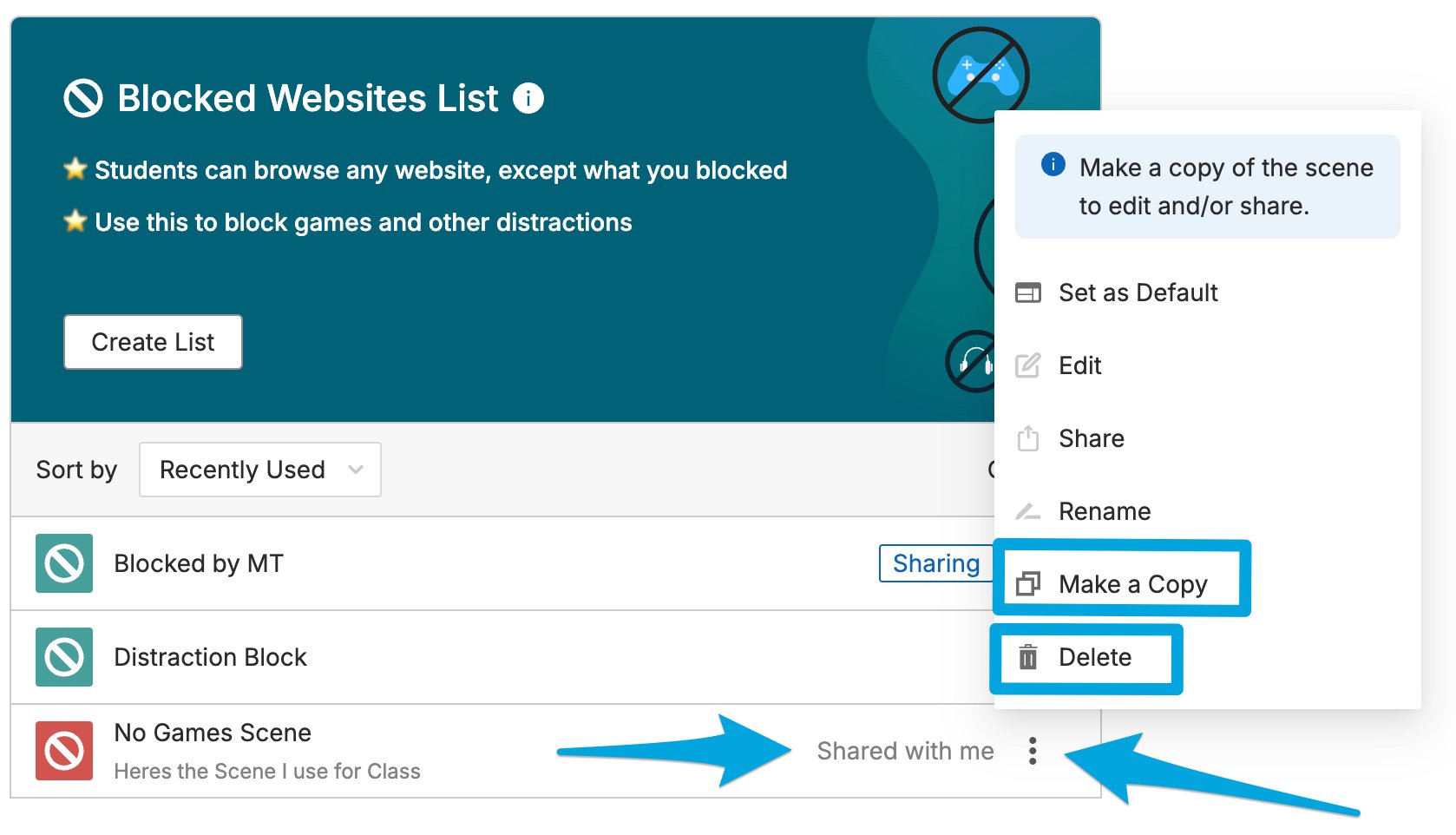
Teachers who receive a shared Scene see it in their Scenes list with a **Shared with me** label. Any changes the owner makes to the Scene are automatically reflected in the shared version.
Teachers who receive a shared Scene cannot edit it directly. To customize a shared Scene:
1. Select the 3-dot (kebab) menu next to the shared Scene.
2. Click **Make a Copy**.
3. Edit, apply to classes, or re-share the copied Scene as needed.
To remove a shared Scene from your list, select **Delete** from the 3-dot (kebab) menu next to the Scene.
## Remove Shared Access
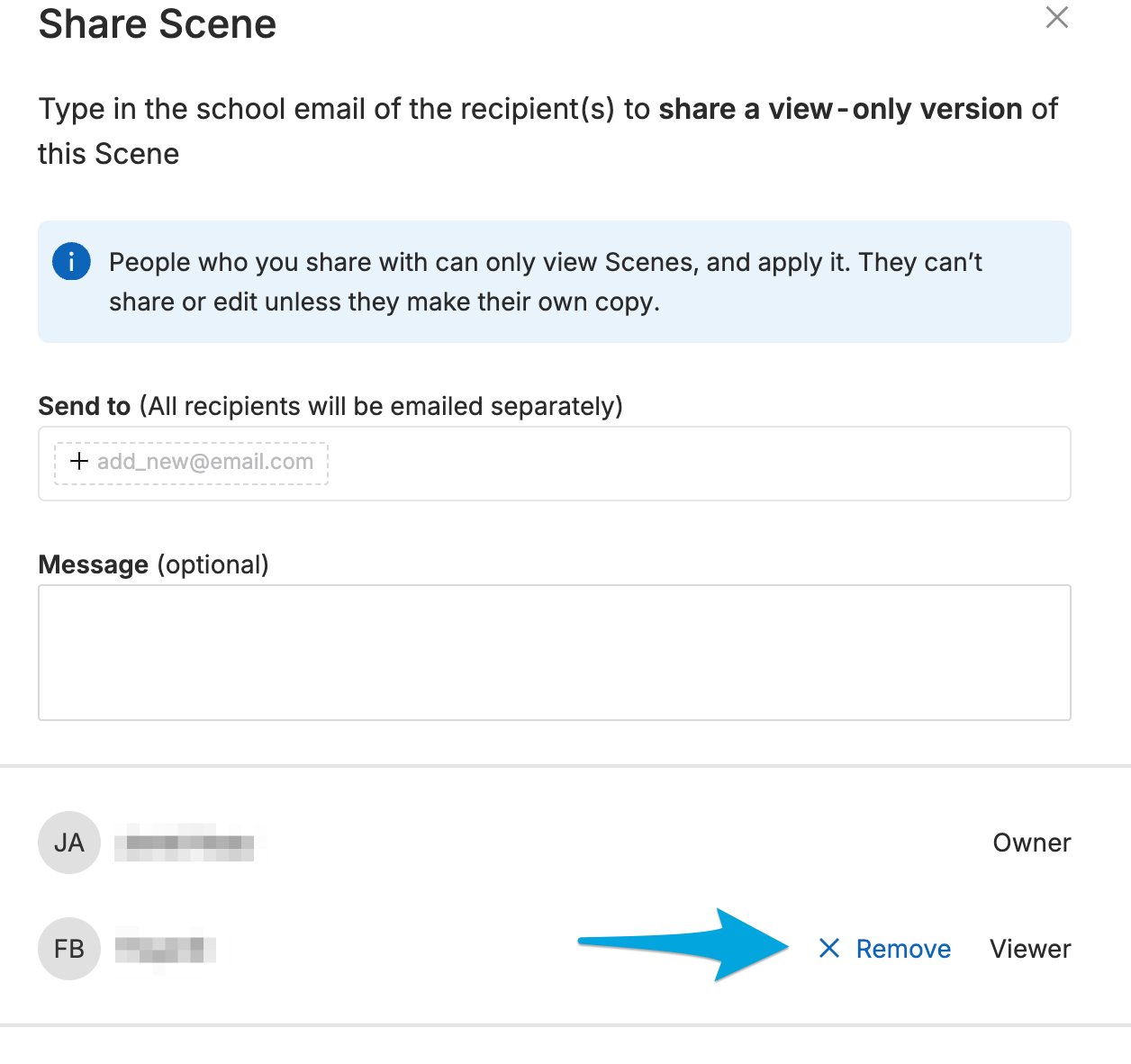
1. Select the 3-dot (kebab) menu next to the Scene, then click **Share**.
2. Click **Remove** next to the teacher's name whose access you want to revoke.
3. The teacher no longer sees the Scene in their Scenes list.
## Use Shared Scenes
Teachers who receive a shared Scene see it in their Scenes list with a **Shared with me** label. Any changes the owner makes to the Scene are automatically reflected in the shared version.
Teachers who receive a shared Scene cannot edit it directly. To customize a shared Scene:
1. Select the 3-dot (kebab) menu next to the shared Scene.
2. Click **Make a Copy**.
3. Edit, apply to classes, or re-share the copied Scene as needed.
To remove a shared Scene from your list, select **Delete** from the 3-dot (kebab) menu next to the Scene.
## Remove Shared Access
1. Select the 3-dot (kebab) menu next to the Scene, then click **Share**.
2. Click **Remove** next to the teacher's name whose access you want to revoke.
3. The teacher no longer sees the Scene in their Scenes list.
 ## Resources
Learn what Scenes are and how they work in GoGuardian Teacher.
Step-by-step instructions for building and applying a Scene to your class.
Understand the filtering options available when building a Scene.
Learn how Teacher resolves conflicts when multiple Scenes apply to the same class.
## Resources
Learn what Scenes are and how they work in GoGuardian Teacher.
Step-by-step instructions for building and applying a Scene to your class.
Understand the filtering options available when building a Scene.
Learn how Teacher resolves conflicts when multiple Scenes apply to the same class.