> ## Documentation Index
> Fetch the complete documentation index at: https://docs.goguardian.com/llms.txt
> Use this file to discover all available pages before exploring further.
# Sort and Reorganize Classrooms
> An overview of the sorting options and drag-and-drop reordering available on the Active Classrooms page in GoGuardian Teacher.
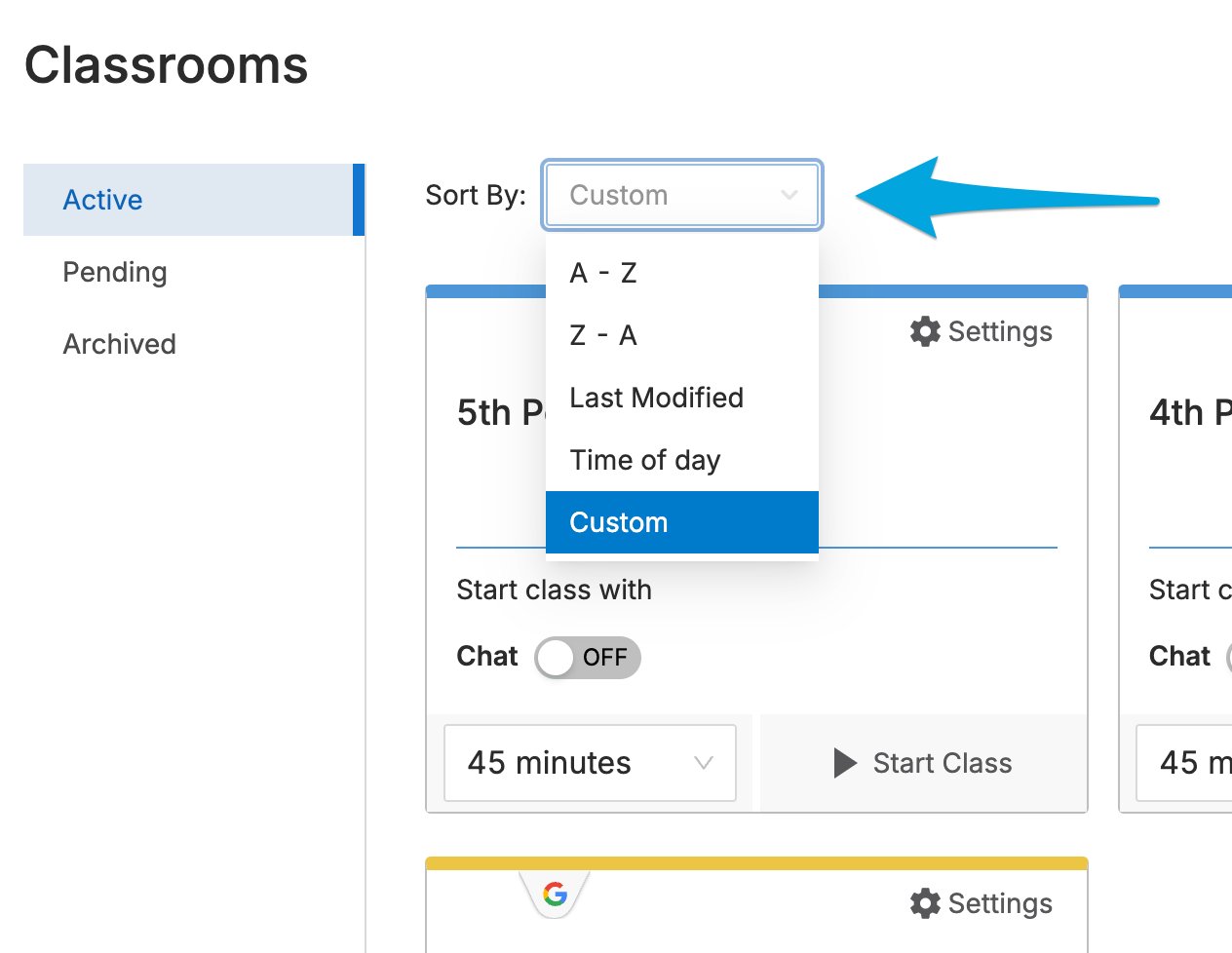
GoGuardian Teacher classrooms can be sorted in a variety of ways from the **Active Classrooms** page.
## Sort Classrooms
1. Go to the [Active Classrooms](https://teacher.goguardian.com/classrooms/active) page in GoGuardian Teacher.
2. Select the **Sort By** drop-down menu.
3. Select a sort method.
 | Option | Description |
| ------------------ | ------------------------------------------------------------------------------------------------------ |
| **Alphabetically** | Sorts classrooms A–Z or Z–A. |
| **Last Modified** | Sorts classrooms by most recent edits to classroom info, such as class settings or the student roster. |
| **Time of Day** | Sorts classrooms based on the scheduled start time of class sessions, from earliest to latest. |
| **Custom** | Returns class tiles to the order a teacher last set using the Drag and Drop feature. |
## Drag and Drop Tiles
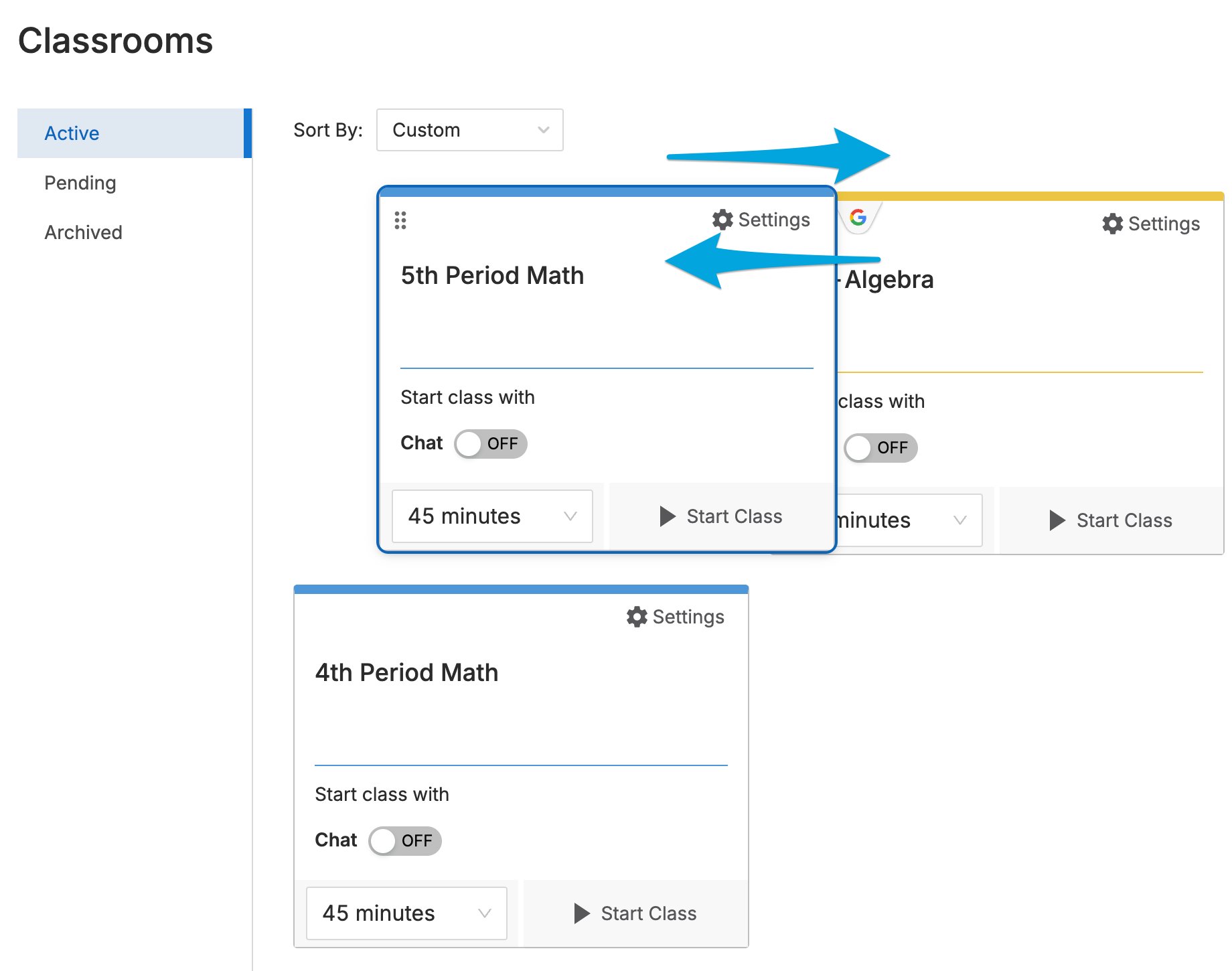
With the Drag and Drop feature, teachers can drag class tiles to any order they'd like. To move a tile, hover over blank space on the class tile, then click and hold to drag it to a new position.
After rearranging tiles with Drag and Drop, select **Custom** from the **Sort By** menu to restore that custom order in future sessions.
| Option | Description |
| ------------------ | ------------------------------------------------------------------------------------------------------ |
| **Alphabetically** | Sorts classrooms A–Z or Z–A. |
| **Last Modified** | Sorts classrooms by most recent edits to classroom info, such as class settings or the student roster. |
| **Time of Day** | Sorts classrooms based on the scheduled start time of class sessions, from earliest to latest. |
| **Custom** | Returns class tiles to the order a teacher last set using the Drag and Drop feature. |
## Drag and Drop Tiles
With the Drag and Drop feature, teachers can drag class tiles to any order they'd like. To move a tile, hover over blank space on the class tile, then click and hold to drag it to a new position.
After rearranging tiles with Drag and Drop, select **Custom** from the **Sort By** menu to restore that custom order in future sessions.
 ## Resources
Set recurring or one-time session schedules for your classrooms.
Manage classrooms you no longer need or want to reuse.
Update your student roster from the classroom settings.
Begin a live session with your students.
## Resources
Set recurring or one-time session schedules for your classrooms.
Manage classrooms you no longer need or want to reuse.
Update your student roster from the classroom settings.
Begin a live session with your students.