> ## Documentation Index
> Fetch the complete documentation index at: https://docs.goguardian.com/llms.txt
> Use this file to discover all available pages before exploring further.
# Start a Classroom Session
> Start, manage, and end a GoGuardian Teacher classroom session, and review session data after class.
A classroom session is the digital equivalent of a classroom period. When a session begins, all enrolled students with GoGuardian installed join automatically.
Classroom sessions can also be scheduled to run automatically using the Calendar. See [Schedule Classroom Sessions](/products/teacher/schedule-classroom-sessions) for details. Scheduled sessions require Chat to be enabled manually each time.
## Start a New Session
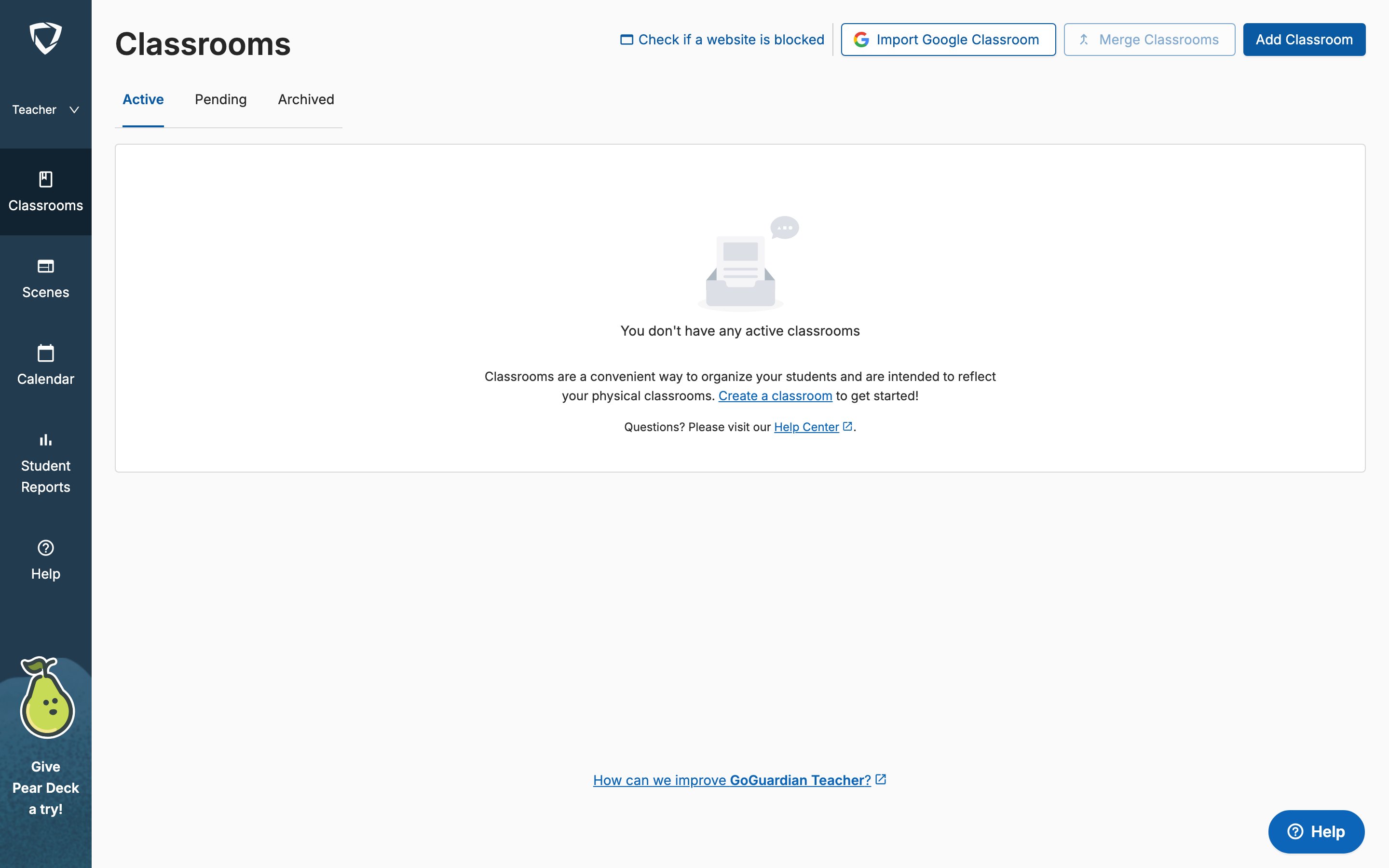
1. Go to [teacher.goguardian.com](https://teacher.goguardian.com) and sign in.
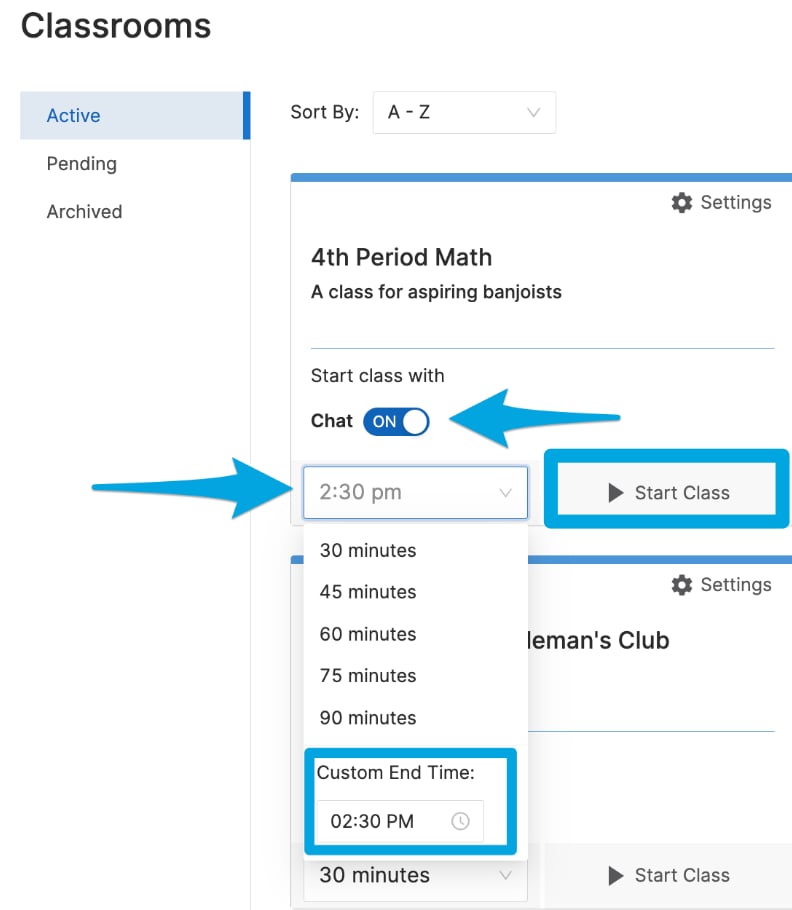
 2. Select a session length or enter a custom end time from the drop-down menu on the class tile. New classes default to a 45-minute session length.
3. Optionally turn the **Chat** toggle on or off to enable or disable Teacher Chat at the start of class.
4. Click **Start Class** to begin the session. Students with GoGuardian installed and signed into their school accounts will join automatically.
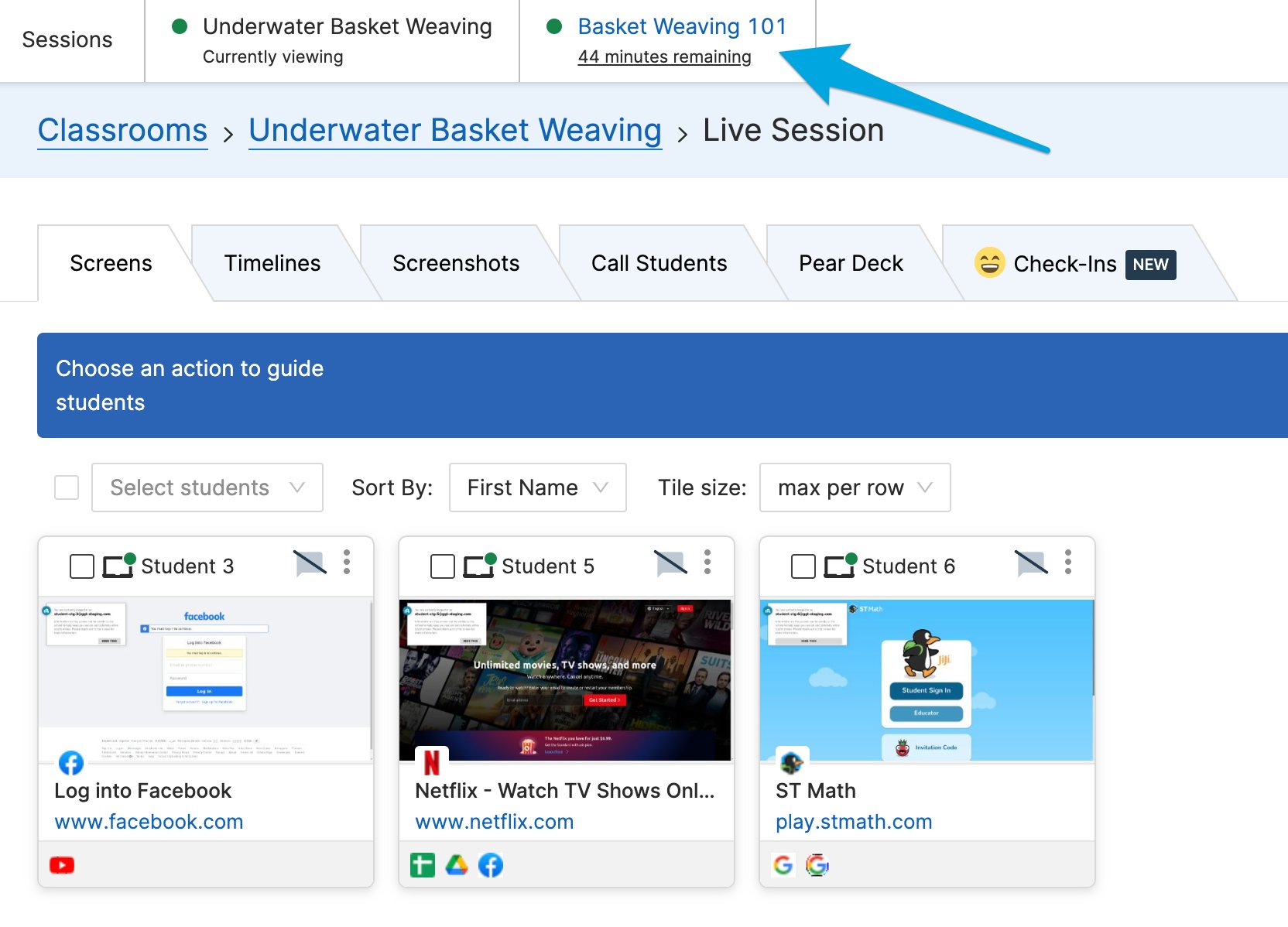
5. Confirm that your enrolled students appear in the Screens view. Students who are online and connected will show their active tab.
Multiple sessions can be active at the same time. Click any class on the **Sessions** bar to switch between active sessions.
2. Select a session length or enter a custom end time from the drop-down menu on the class tile. New classes default to a 45-minute session length.
3. Optionally turn the **Chat** toggle on or off to enable or disable Teacher Chat at the start of class.
4. Click **Start Class** to begin the session. Students with GoGuardian installed and signed into their school accounts will join automatically.
5. Confirm that your enrolled students appear in the Screens view. Students who are online and connected will show their active tab.
Multiple sessions can be active at the same time. Click any class on the **Sessions** bar to switch between active sessions.
 ## Extend or End a Session
To end a session before the scheduled end time, click **End Session**.
To extend an active session:
1. Click **Update Time**.
## Extend or End a Session
To end a session before the scheduled end time, click **End Session**.
To extend an active session:
1. Click **Update Time**.
 2. Select an amount of time to add, or enter a new end time.
3. Click **Update Session**.
2. Select an amount of time to add, or enter a new end time.
3. Click **Update Session**.
 ## Review Past Sessions
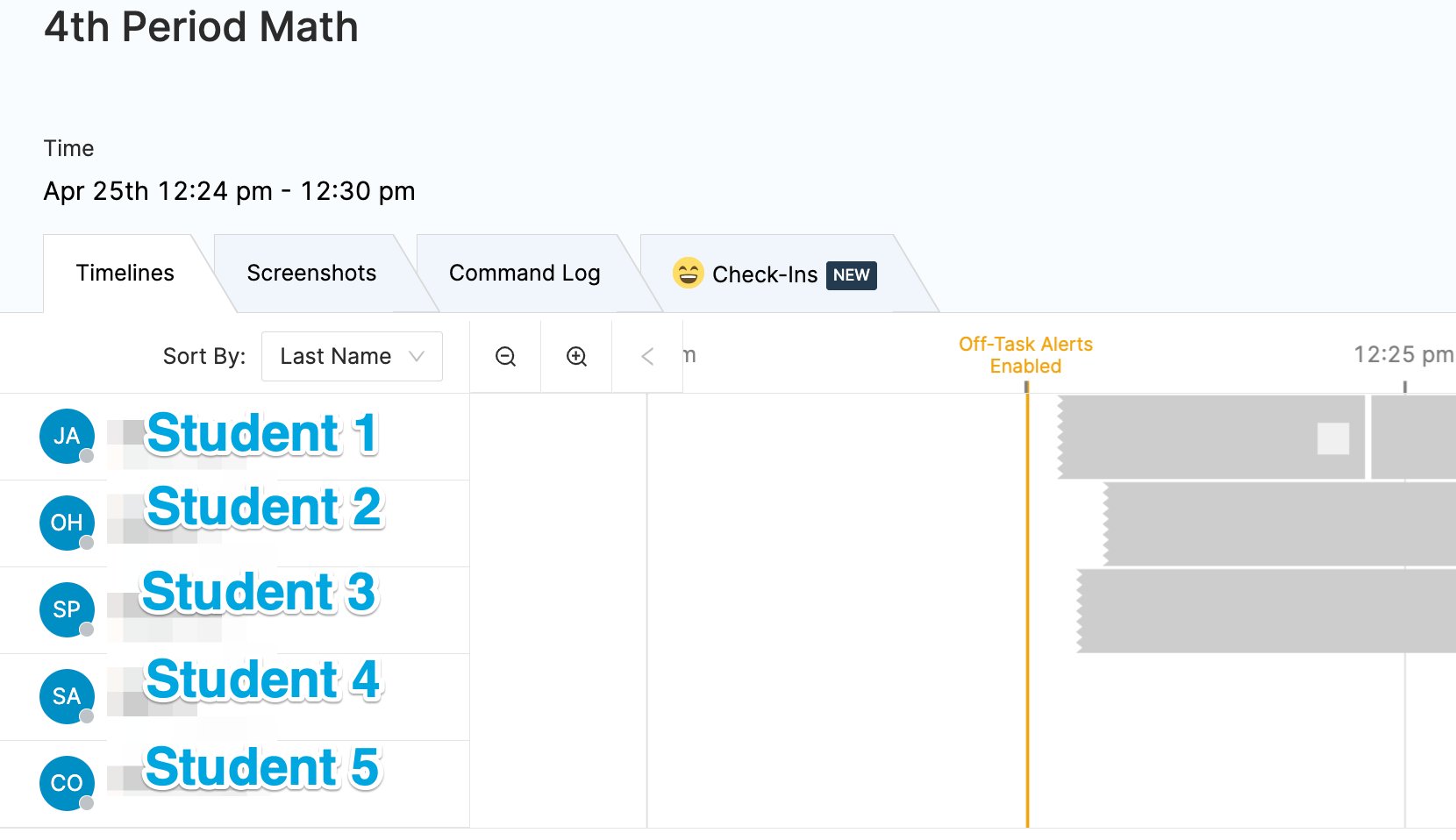
GoGuardian Teacher automatically saves session data: student browsing history, Chat records, screenshots, student check-ins, and a command log.
To review a past session:
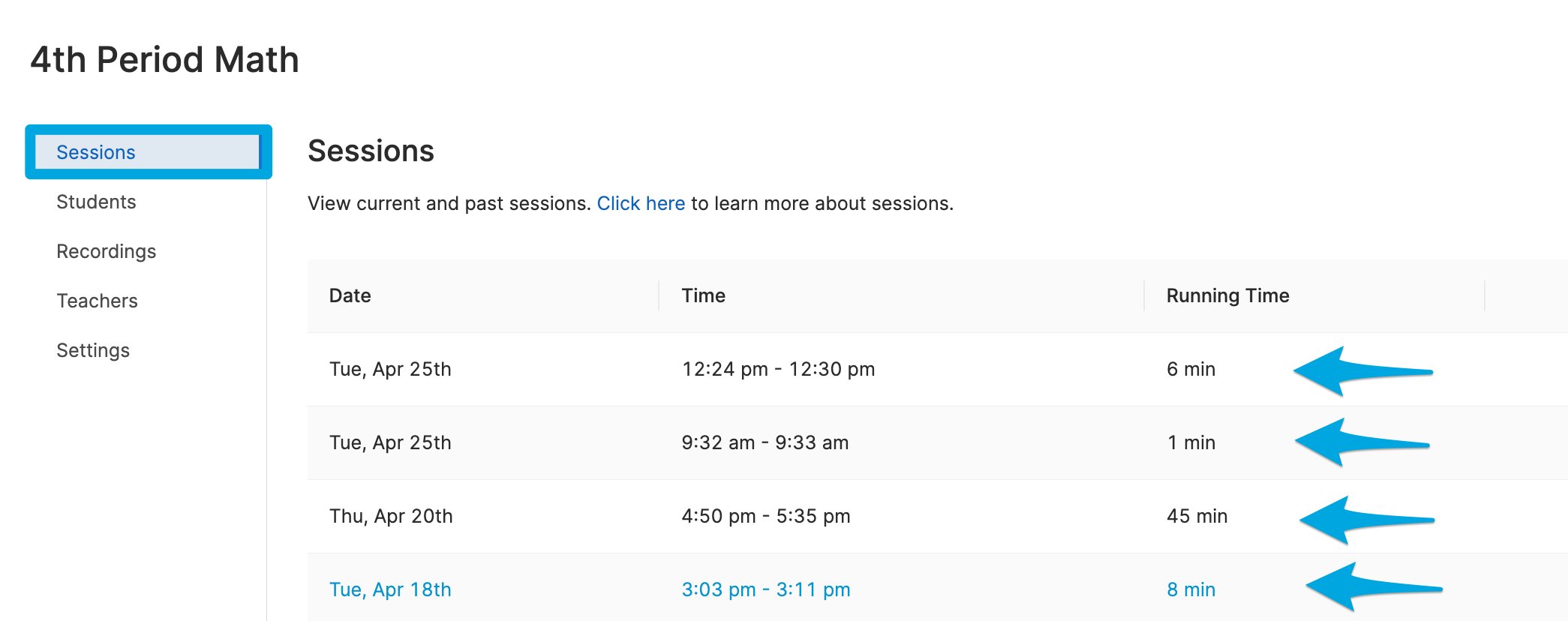
1. Click on the class tile or select **View Sessions** from the Settings cogwheel menu to open the **Sessions** tab.
## Review Past Sessions
GoGuardian Teacher automatically saves session data: student browsing history, Chat records, screenshots, student check-ins, and a command log.
To review a past session:
1. Click on the class tile or select **View Sessions** from the Settings cogwheel menu to open the **Sessions** tab.
 2. Under the **Date**, **Time**, and **Running Time** columns, click the session you want to review.
3. Select from the **Timelines**, **Screenshots**, **Command Log**, and **Check-Ins** tabs to view the corresponding data.
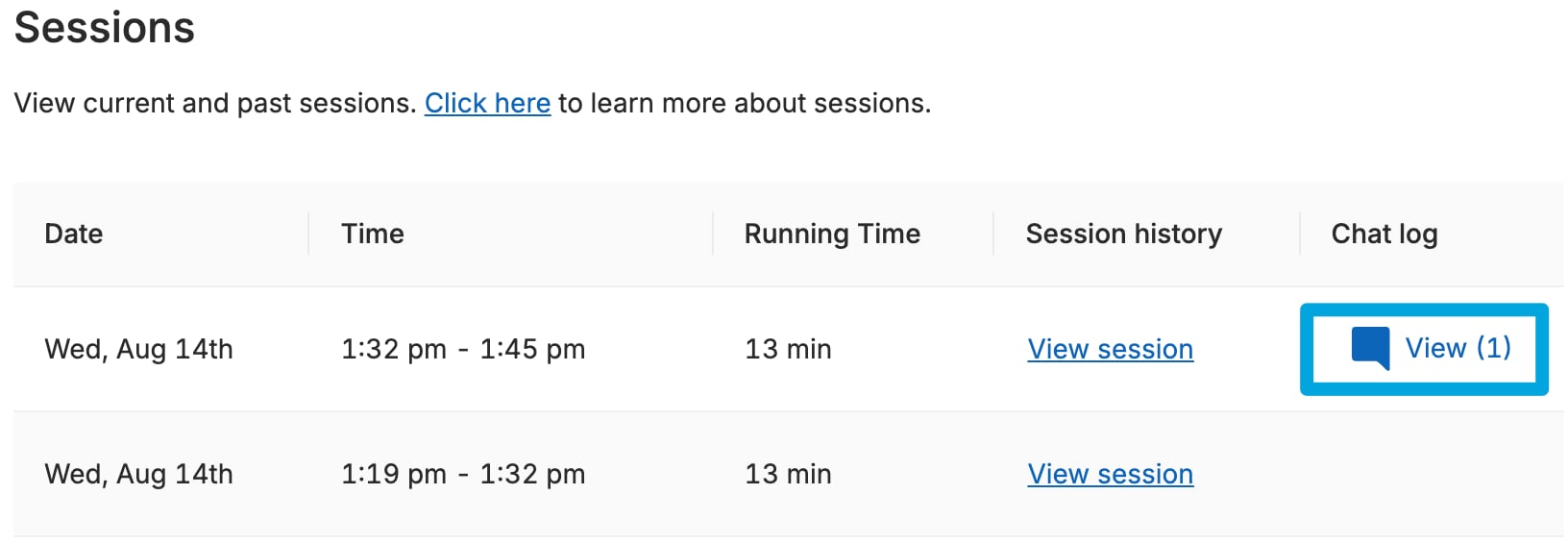
Sessions with Chat history show a **Chat Logs** button next to the session entry on the main Sessions page.
2. Under the **Date**, **Time**, and **Running Time** columns, click the session you want to review.
3. Select from the **Timelines**, **Screenshots**, **Command Log**, and **Check-Ins** tabs to view the corresponding data.
Sessions with Chat history show a **Chat Logs** button next to the session entry on the main Sessions page.
 ## Resources
Enable and use 1-on-1 chat with students during a session.
Set up recurring or one-time automatic session schedules.
Review all available teacher commands for managing student devices.
Review the session summary email sent after each class.
## Resources
Enable and use 1-on-1 chat with students during a session.
Set up recurring or one-time automatic session schedules.
Review all available teacher commands for managing student devices.
Review the session summary email sent after each class.