> ## Documentation Index
> Fetch the complete documentation index at: https://docs.goguardian.com/llms.txt
> Use this file to discover all available pages before exploring further.
# Student Browsing Reports
> View and email individual student browsing activity, teacher commands, screenshots, and chat history from GoGuardian Teacher class sessions.
Student Reports in GoGuardian Teacher show individual student browsing activity and a log of teacher commands used during class sessions. Reports are available for every class where GoGuardian Teacher was active.
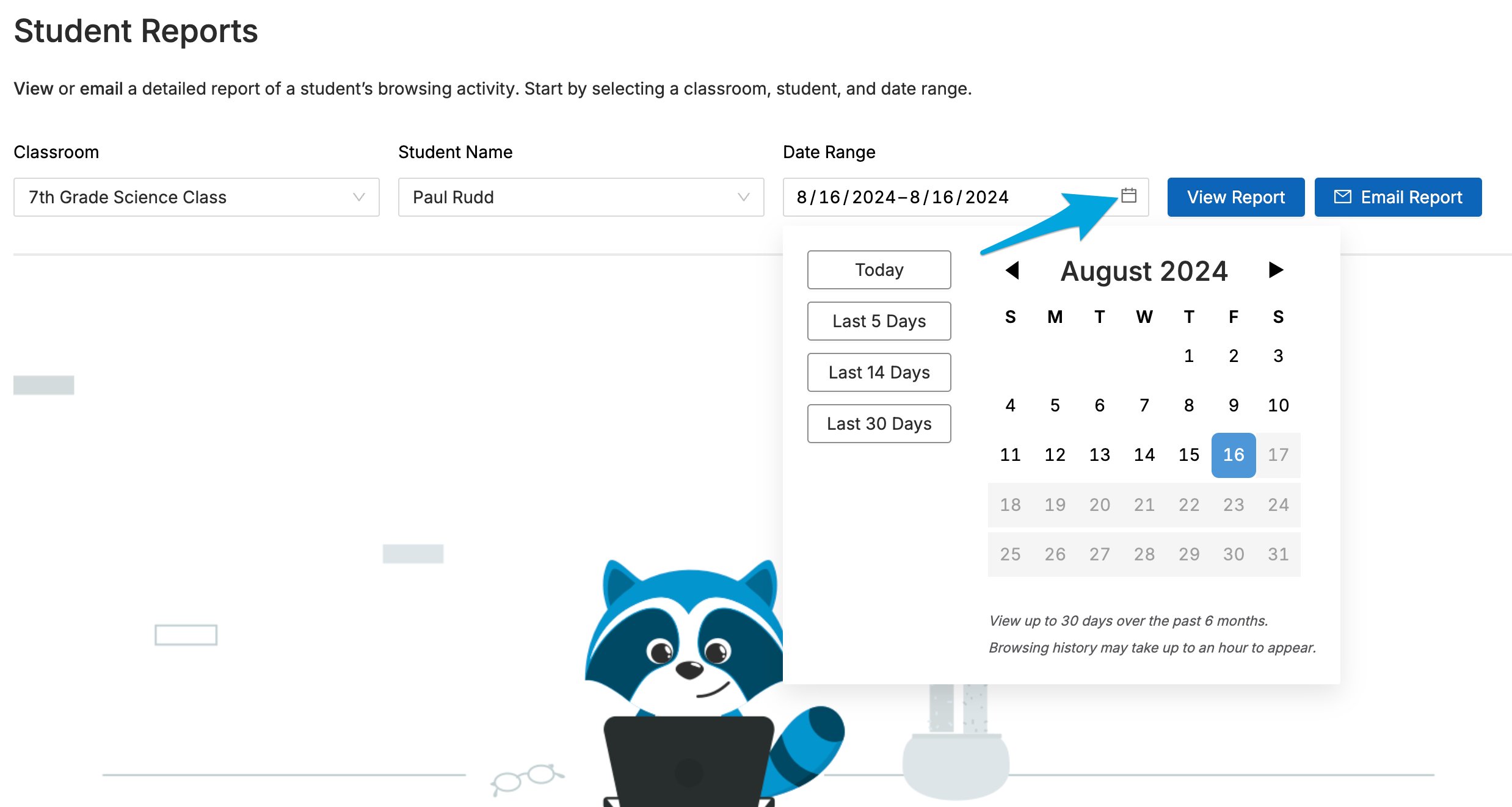
Data from the past 6 months is available for reporting. Each report covers a maximum range of 30 days. Browsing activity from the past hour may not appear — allow up to 1 hour after a session before generating a report.
## What's in a Report
Each student report includes:
* Pie charts showing top activity (websites, documents, and Google Searches) and time spent on each
* Detailed browsing history for the student during the selected class sessions
* Teacher interventions: instances where a Scene blocked the student's browsing or a teacher issued a command (locked screen, opened or closed tabs)
* Screenshots taken by the teacher during the selected class and time range
* Chat history between the teacher and student during the selected sessions
## View or Email a Report
1. Click [**Student Reports**](https://teacher.goguardian.com/reports) in GoGuardian Teacher.
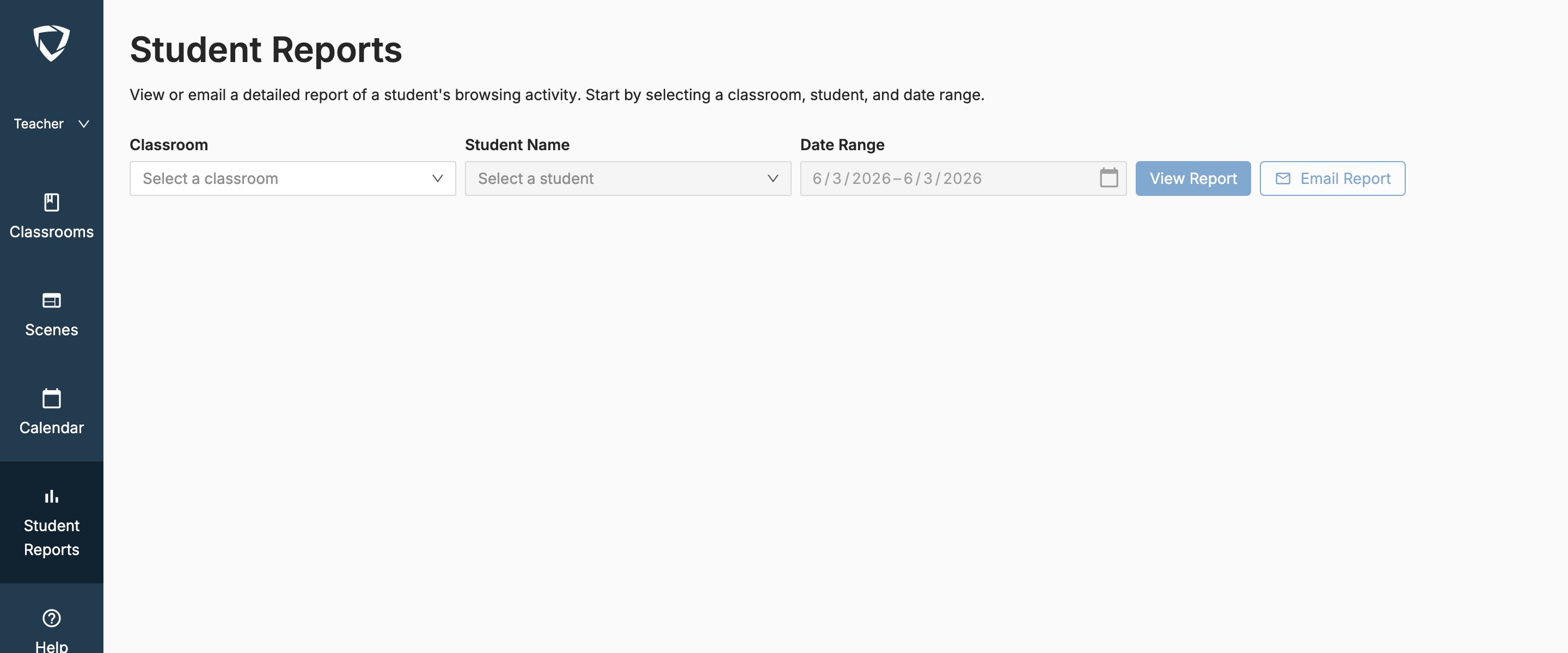 2. Select a **Classroom**, a **Student**, and a **Date Range**.
3. Click **View Report** to open the report in your browser, or **Email Report** to receive a PDF copy by email.
If a student's report shows `blocked.com-default.ws`, this corresponds to GoGuardian Teacher Scene block page URLs — it is not an external site the student visited.
The emailed PDF includes the student's browsing activity, teacher commands, screenshots, and a chat history section.
2. Select a **Classroom**, a **Student**, and a **Date Range**.
3. Click **View Report** to open the report in your browser, or **Email Report** to receive a PDF copy by email.
If a student's report shows `blocked.com-default.ws`, this corresponds to GoGuardian Teacher Scene block page URLs — it is not an external site the student visited.
The emailed PDF includes the student's browsing activity, teacher commands, screenshots, and a chat history section.
 ## Resources
Review where to find chat history in Student Reports.
Review teacher commands that appear in reports as interventions.
Review the class-level session summary sent after each session.
Capture screenshots that are saved and included in reports.
## Resources
Review where to find chat history in Student Reports.
Review teacher commands that appear in reports as interventions.
Review the class-level session summary sent after each session.
Capture screenshots that are saved and included in reports.