> ## Documentation Index
> Fetch the complete documentation index at: https://docs.goguardian.com/llms.txt
> Use this file to discover all available pages before exploring further.
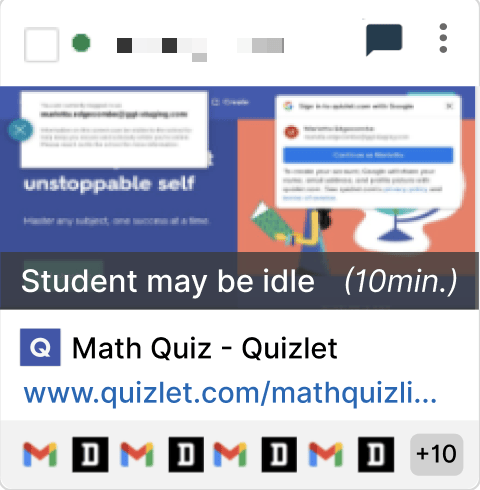
# Student May Be Idle
> Explains what the Student may be idle status means and how to respond when it appears on a student's class tile.
The **Student may be idle** status means a student has not moved their mouse or pressed a key on their keyboard for 10 minutes. When that threshold is reached, the message appears on the student's class tile and shows how long the student has been inactive.
## Possible Cause 1: Student Is Present but Inactive
The student is present but has not interacted with their mouse or keyboard in at least 10 minutes. This can happen when a student is watching a long video or a live presentation, such as a Google Meet.
**Resolution:** Have students who are present interact with their computer at least once every 10 minutes.
 ## Possible Cause 2: Student Is Away from Device
The student is physically away from their computer.
**Resolution:** Contact the student via chat or another means to check whether they respond.
## Resources
Send messages to students directly from GoGuardian Teacher.
Learn how to start and manage a classroom session.
Review what students are doing on their screens in real time.
Troubleshoot when a student appears offline in Teacher.
## Possible Cause 2: Student Is Away from Device
The student is physically away from their computer.
**Resolution:** Contact the student via chat or another means to check whether they respond.
## Resources
Send messages to students directly from GoGuardian Teacher.
Learn how to start and manage a classroom session.
Review what students are doing on their screens in real time.
Troubleshoot when a student appears offline in Teacher.