> ## Documentation Index
> Fetch the complete documentation index at: https://docs.goguardian.com/llms.txt
> Use this file to discover all available pages before exploring further.
# Students Missing from Classroom Session
> Steps to check when one or more students are missing from your active GoGuardian Teacher classroom session.
If one or more students are missing from your current classroom session, work through the following checks.
1. If students joined your class using an enroll code, they may be waiting in the pending enrollments queue.
1. Go to the **Students** tab.
2. Review the **Pending Enrollments** list.
3. Click **Enroll All** to approve all pending students, or click **Enroll** next to an individual student.
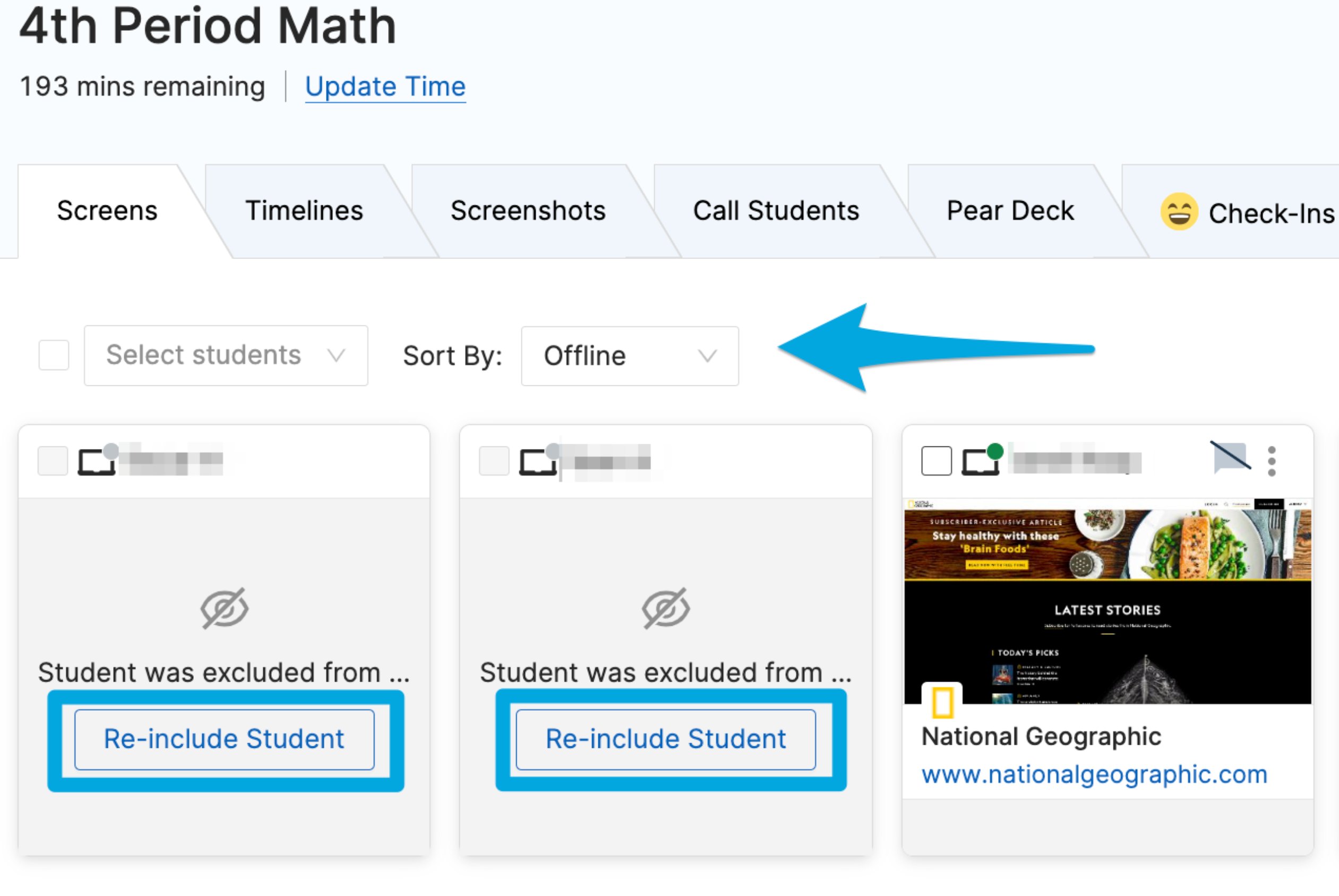
2. A student may have been removed from the session using the **Exclude Student** command.
1. Sort students by **Offline** to surface excluded students.
2. Find the excluded student's tile.
3. Click **Re-Include Student** to add them back to the active session.
3. If your class is synced from a third-party roster, check the source for missing students.
* **Google Classroom:** Confirm the student is on the Google Classroom roster and has accepted the Google Classroom invitation.
* **Clever or ClassLink:** Confirm the student is added to the course in Clever or ClassLink. Changes in those systems sync to Teacher automatically. Contact your administrator or IT department if you need help updating the roster.
For more on resolving Google Classroom roster issues, see [Troubleshoot Google Classroom](/products/teacher/troubleshoot-google-classroom).

 ## Resources
Manually add students or manage class rosters in Teacher.
Troubleshoot students who appear offline during a session.
Review the steps for launching a classroom session.
Learn about the commands available during an active session.
## Resources
Manually add students or manage class rosters in Teacher.
Troubleshoot students who appear offline during a session.
Review the steps for launching a classroom session.
Learn about the commands available during an active session.