> ## Documentation Index
> Fetch the complete documentation index at: https://docs.goguardian.com/llms.txt
> Use this file to discover all available pages before exploring further.
# Use Student Check-Ins
> How to start a Check-In, review student responses, and access previous Check-In results during a GoGuardian Teacher class session.
The Check-Ins feature lets teachers gauge how students are feeling during a class session. Students receive a prompt to select from a series of emojis or choose **I'd rather not say**, then submit their response. Teachers can also message students directly from the Check-Ins interface.
 ## Start a Check-In
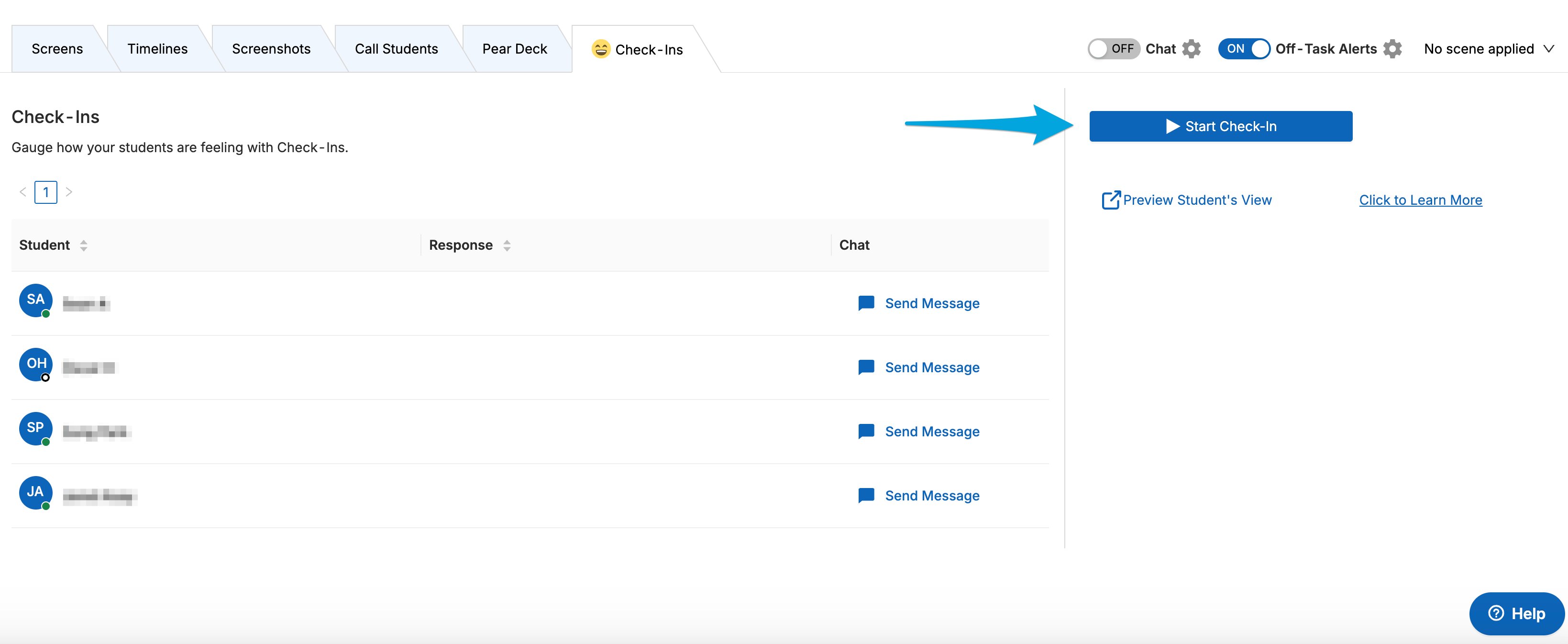
1. While a class session is active, go to the **Check-Ins** tab.
2. Click **Start Check-In** to send the prompt to students. Students have approximately 2 minutes to submit their responses.
3. If you want to close the prompt before the timer runs out, click **Stop Check-In**.
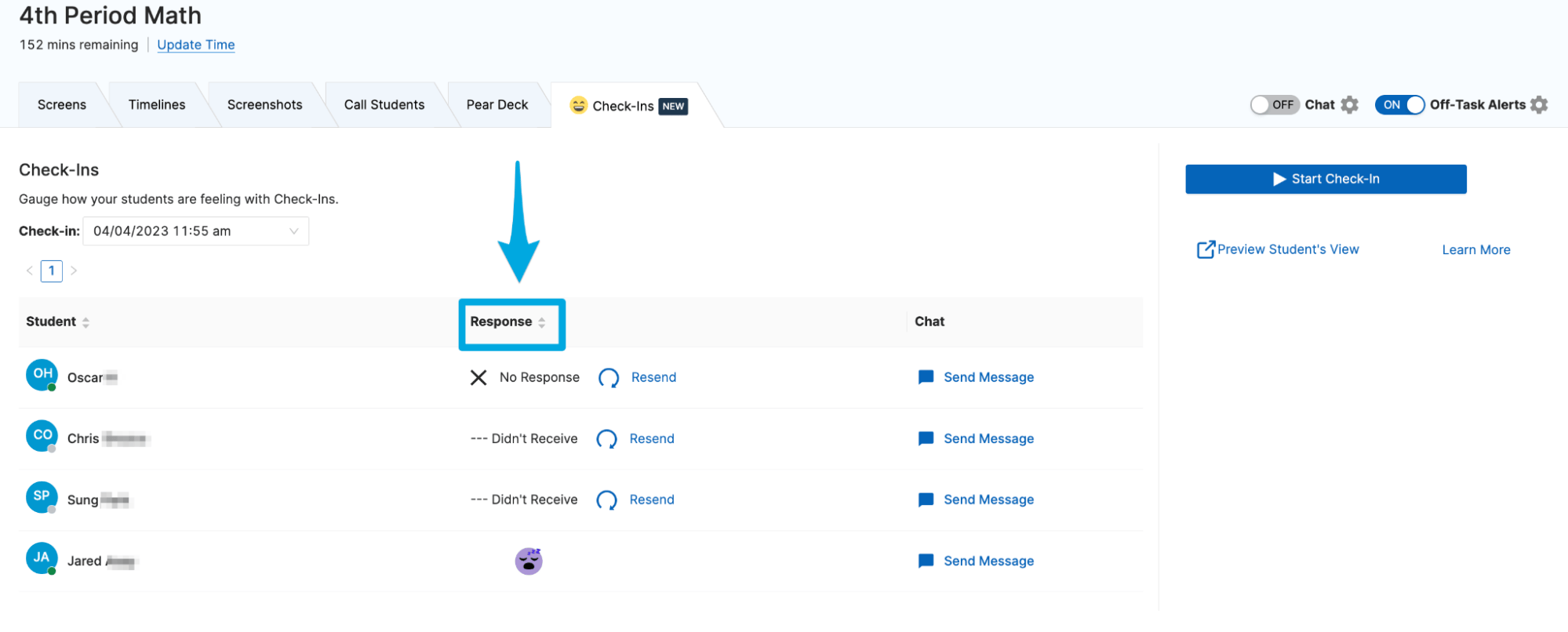
4. Each student's response appears next to their name under the **Response** column. Students who didn't respond in time show **Didn't Receive** with a **Resend** button next to their name.
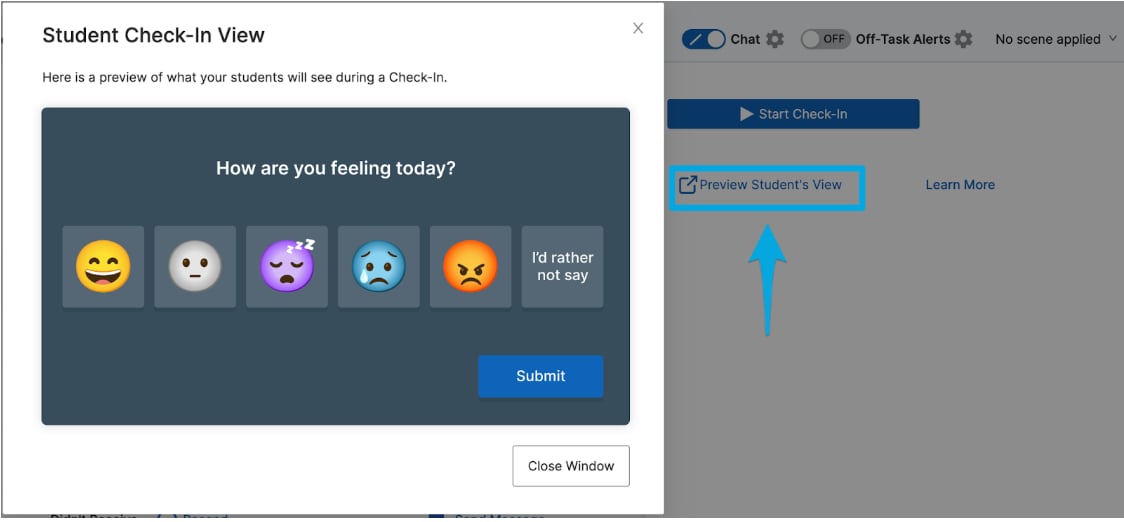
Click **Preview Student's View** to see the Check-In prompt exactly as students will see it before you send it.
## Start a Check-In
1. While a class session is active, go to the **Check-Ins** tab.
2. Click **Start Check-In** to send the prompt to students. Students have approximately 2 minutes to submit their responses.
3. If you want to close the prompt before the timer runs out, click **Stop Check-In**.
4. Each student's response appears next to their name under the **Response** column. Students who didn't respond in time show **Didn't Receive** with a **Resend** button next to their name.
Click **Preview Student's View** to see the Check-In prompt exactly as students will see it before you send it.
 ## Resend to Students Who Didn't Respond
If a student didn't complete the Check-In in time, click **Resend** next to their name. This resubmits the prompt for that student.
## Send a Message to a Student
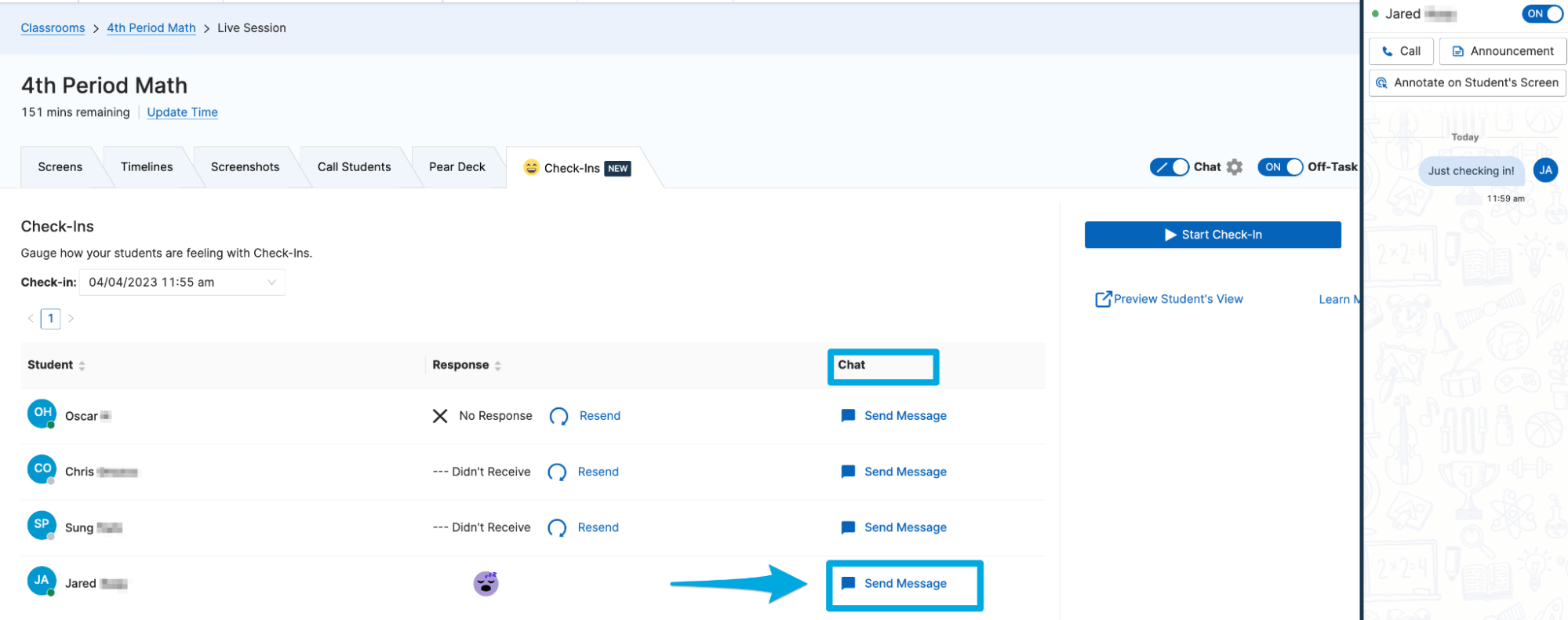
Click **Send Message** from the **Check-Ins** tab to message a student directly. For more on direct messaging, see [Use Teacher Chat](/products/teacher/use-teacher-chat).
## Resend to Students Who Didn't Respond
If a student didn't complete the Check-In in time, click **Resend** next to their name. This resubmits the prompt for that student.
## Send a Message to a Student
Click **Send Message** from the **Check-Ins** tab to message a student directly. For more on direct messaging, see [Use Teacher Chat](/products/teacher/use-teacher-chat).
 ## Access Previous Check-Ins
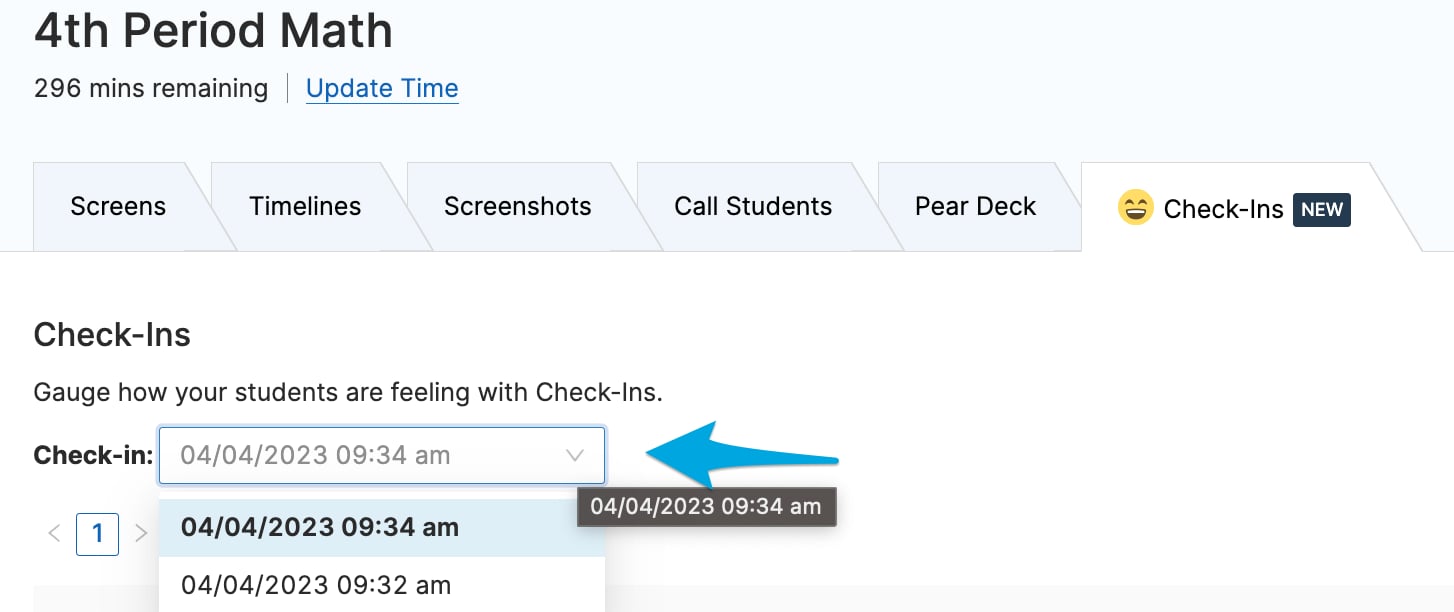
Check-In results are saved in class session history. Use the drop-down menu to select a previous Check-In date and review past results.
Reviewing Check-In trends over time can help identify patterns for students who may need encouragement, additional support, or referral to a school guidance counselor.
Check-Ins doesn't include an export function. To save a record, use the print command — **Ctrl + P** on Windows or **Command + P** on Mac — to save a PDF copy of the page and students' Check-In results.
## Access Previous Check-Ins
Check-In results are saved in class session history. Use the drop-down menu to select a previous Check-In date and review past results.
Reviewing Check-In trends over time can help identify patterns for students who may need encouragement, additional support, or referral to a school guidance counselor.
Check-Ins doesn't include an export function. To save a record, use the print command — **Ctrl + P** on Windows or **Command + P** on Mac — to save a PDF copy of the page and students' Check-In results.

 ## Resources
Message students directly and access previous chat conversations.
Set up and launch a class session in GoGuardian Teacher.
Get notified when students go off task during a session.
Review session summaries after class ends.
## Resources
Message students directly and access previous chat conversations.
Set up and launch a class session in GoGuardian Teacher.
Get notified when students go off task during a session.
Review session summaries after class ends.