> ## Documentation Index
> Fetch the complete documentation index at: https://docs.goguardian.com/llms.txt
> Use this file to discover all available pages before exploring further.
# Troubleshoot Google OU Sync Issues
> Steps to resolve Google Organizational Unit import errors and fix students listed in the wrong OU in GoGuardian.
This article covers troubleshooting steps for Google Organizational Unit (OU) import issues, including errors when attempting to sync and students not listed in the correct OU.
## Fix OU Import Errors
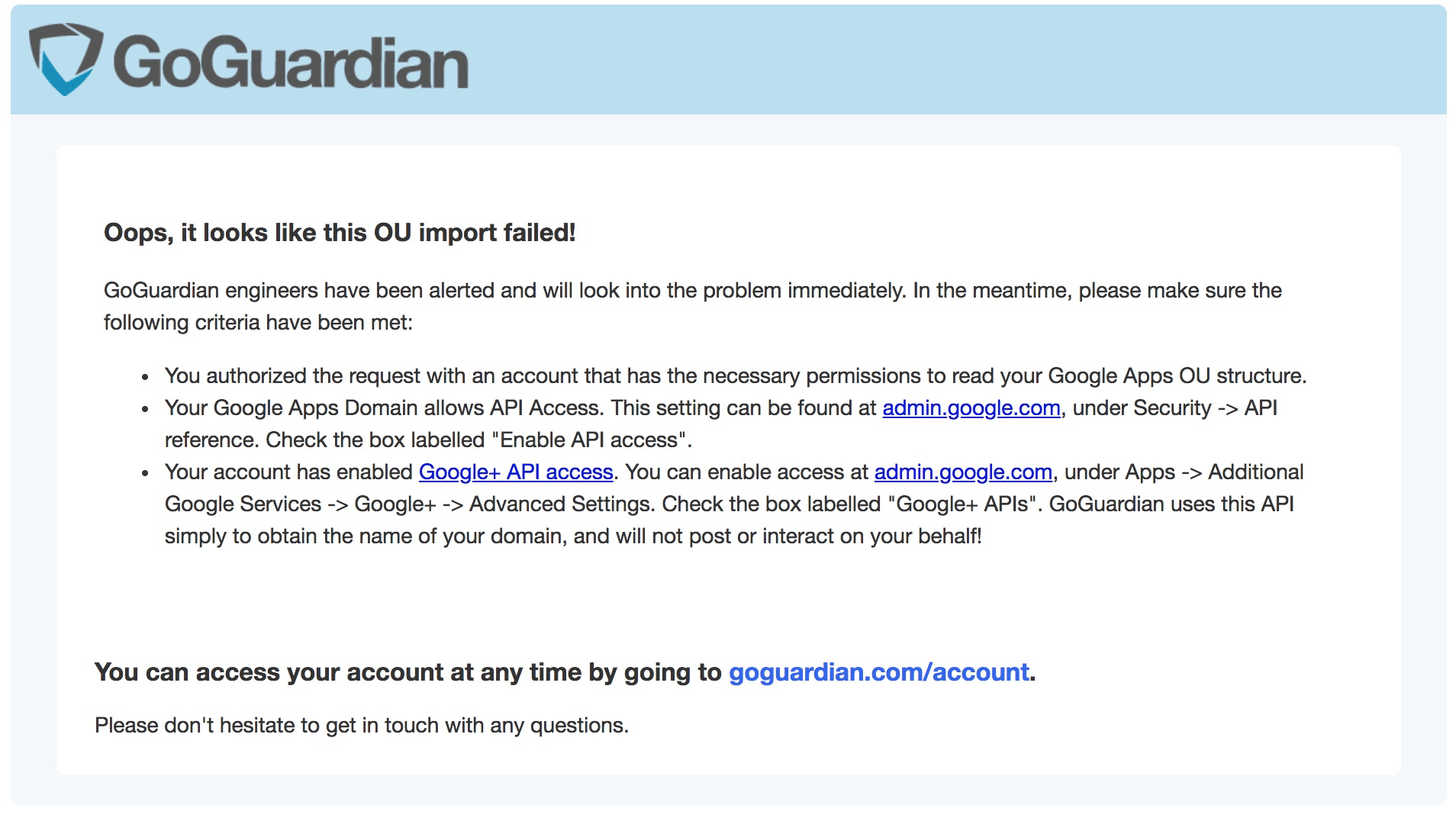
If the Google Admin Console OU import or sync process fails, administrators may see an error message stating the OU import failed.
The primary cause of import errors is Google account permissions and API or security settings in Google Admin Console.
### 1. Verify Google Account Permissions
Syncing or importing OUs from Google requires the following Google account permissions:
* Admin API Privileges:
* Domain Management
* Organization Units (create, read, update, delete)
* Users (create, read, update, delete)
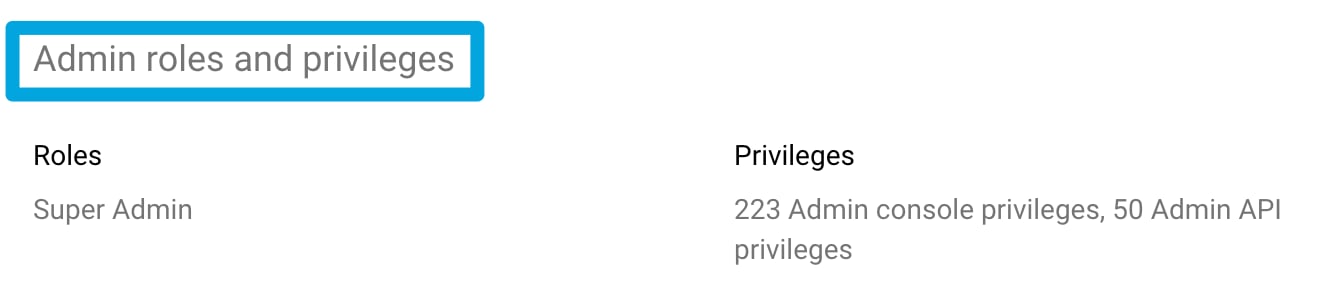
Check and edit account permissions in the **Admin roles and privileges** section of Google Admin Console.
If there is only 1 OU for the domain, importing the OU structure to GoGuardian isn't necessary. Multiple OUs allow for greater control over access to student data for administrator accounts and are used for granular filtering and reviewing activity features in GoGuardian Admin and Beacon.
If account permissions are correct, verify that there is more than 1 OU in the OU structure.
### 2. Configure API Access
Verify access to the GoGuardian OAuth App in Google Admin Console.
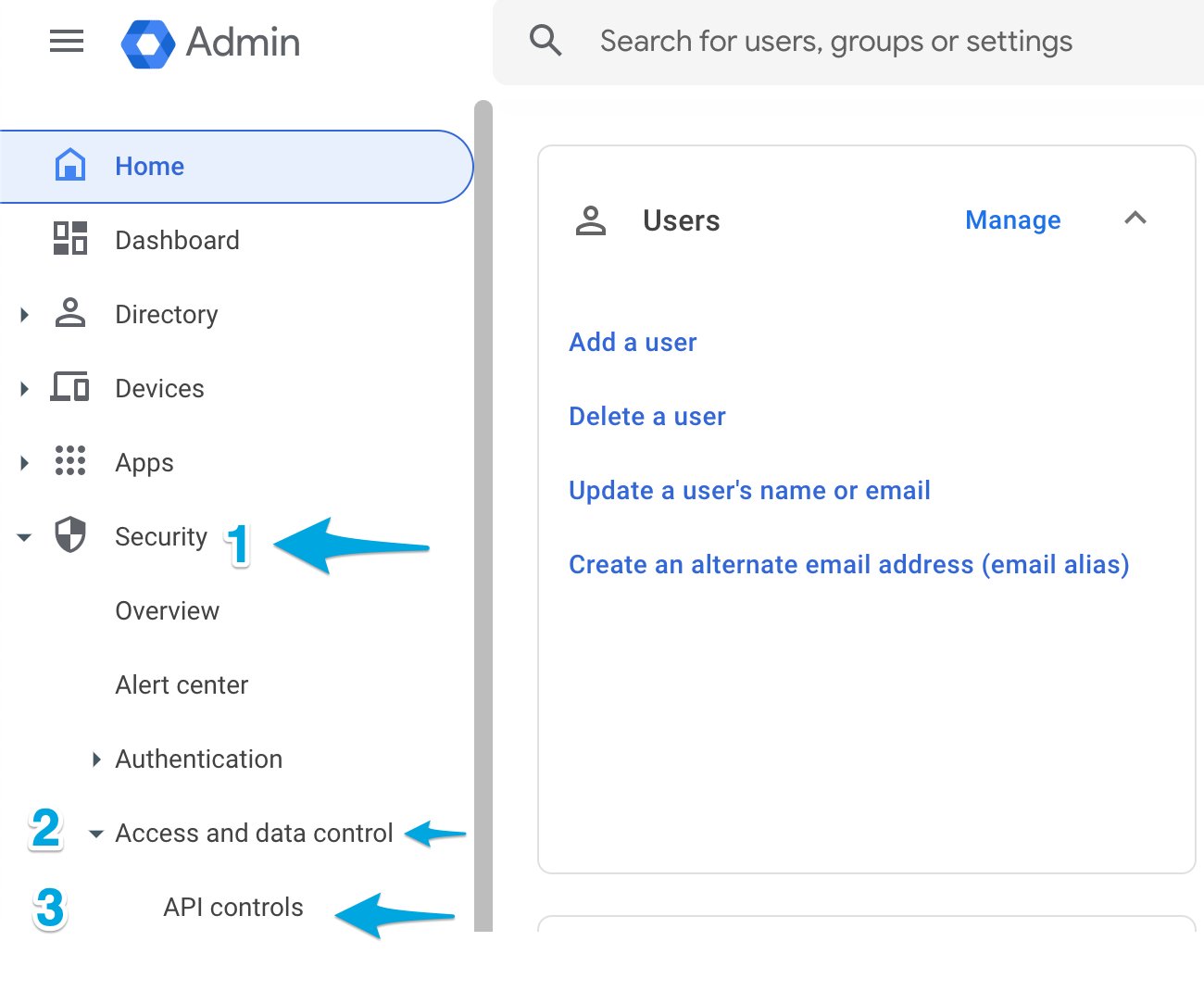
1. In the Google Admin Console Dashboard, go to **Security**, then **Access and Data Control**, then **API Controls**.
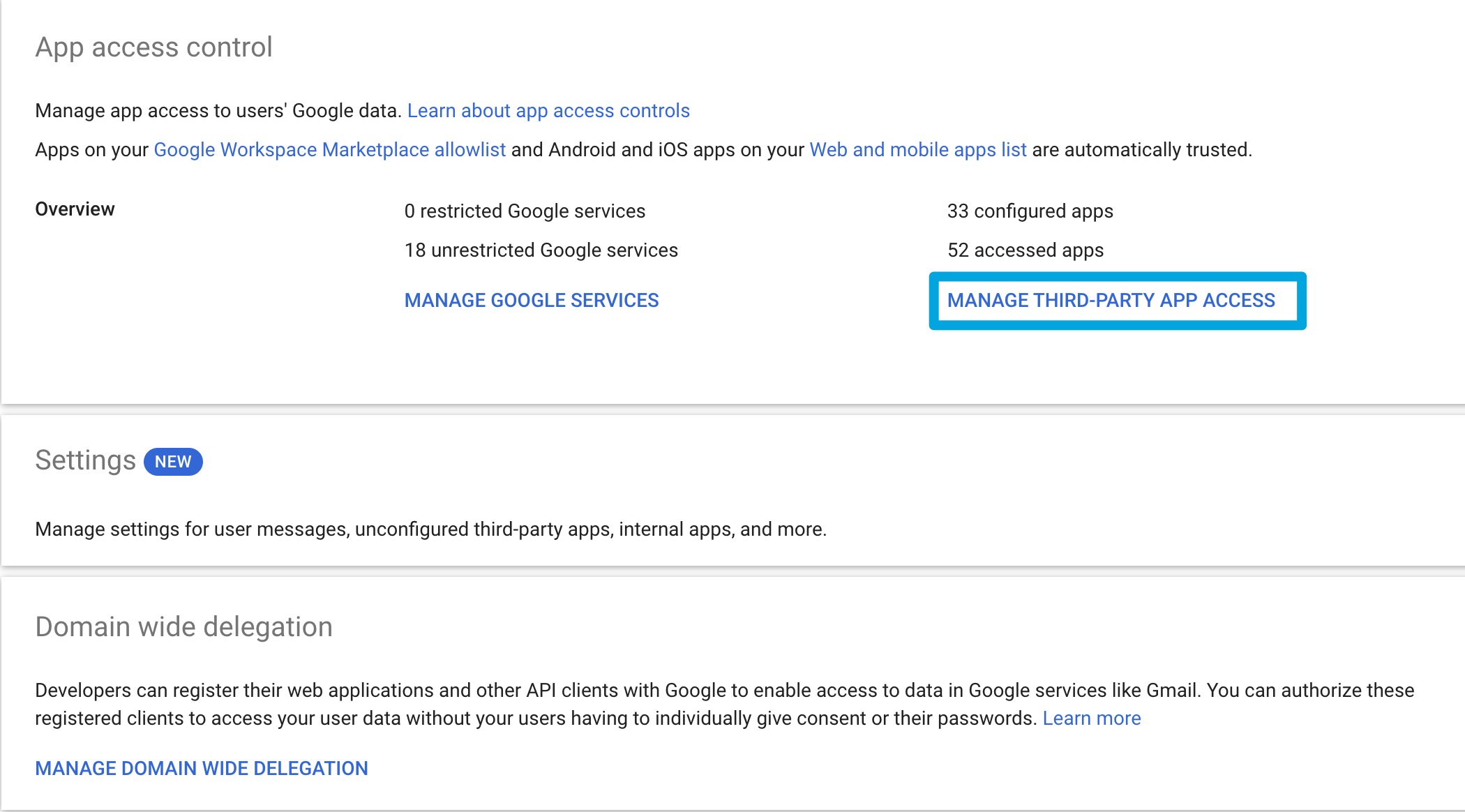
2. From the API access control page, select **Manage Third-Party App Access**.
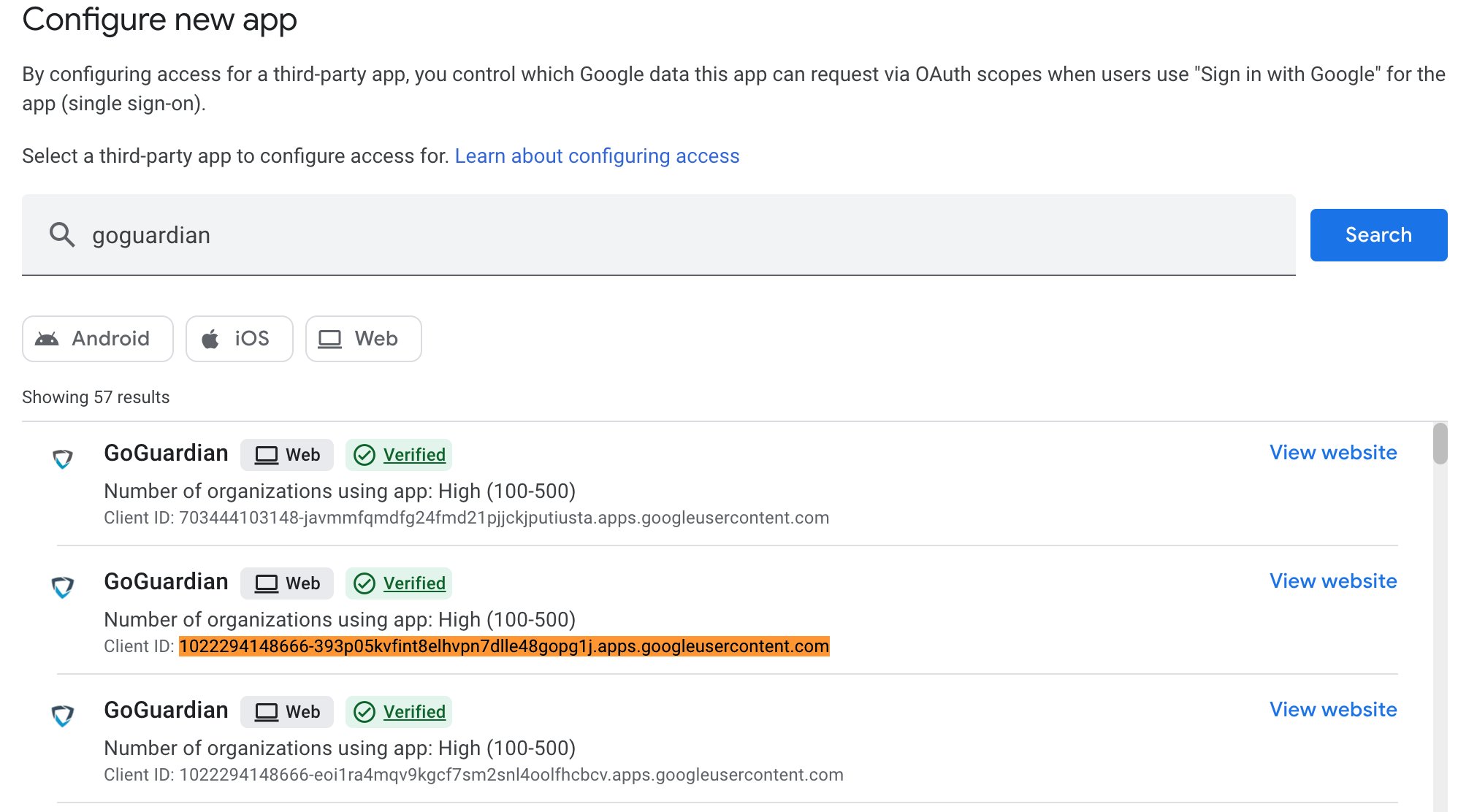
3. Click **Configure new app**. In the search bar, enter "GoGuardian" and click **Search**. From the search results, look for the following OAuth Client ID:
`1022294148666-393p05kvfint8elhvpn7dlle48gopg1j.apps.googleusercontent.com`
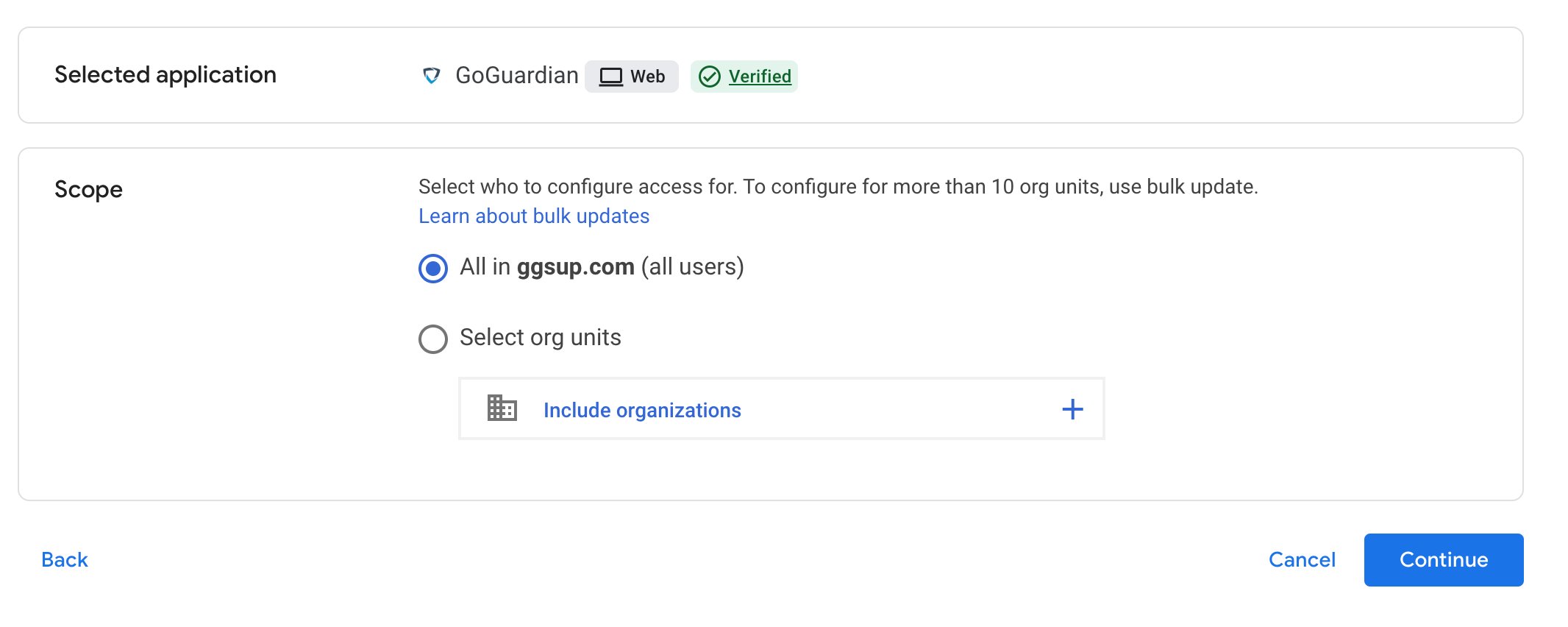
4. Select the **All users** option or scope to specific org units.
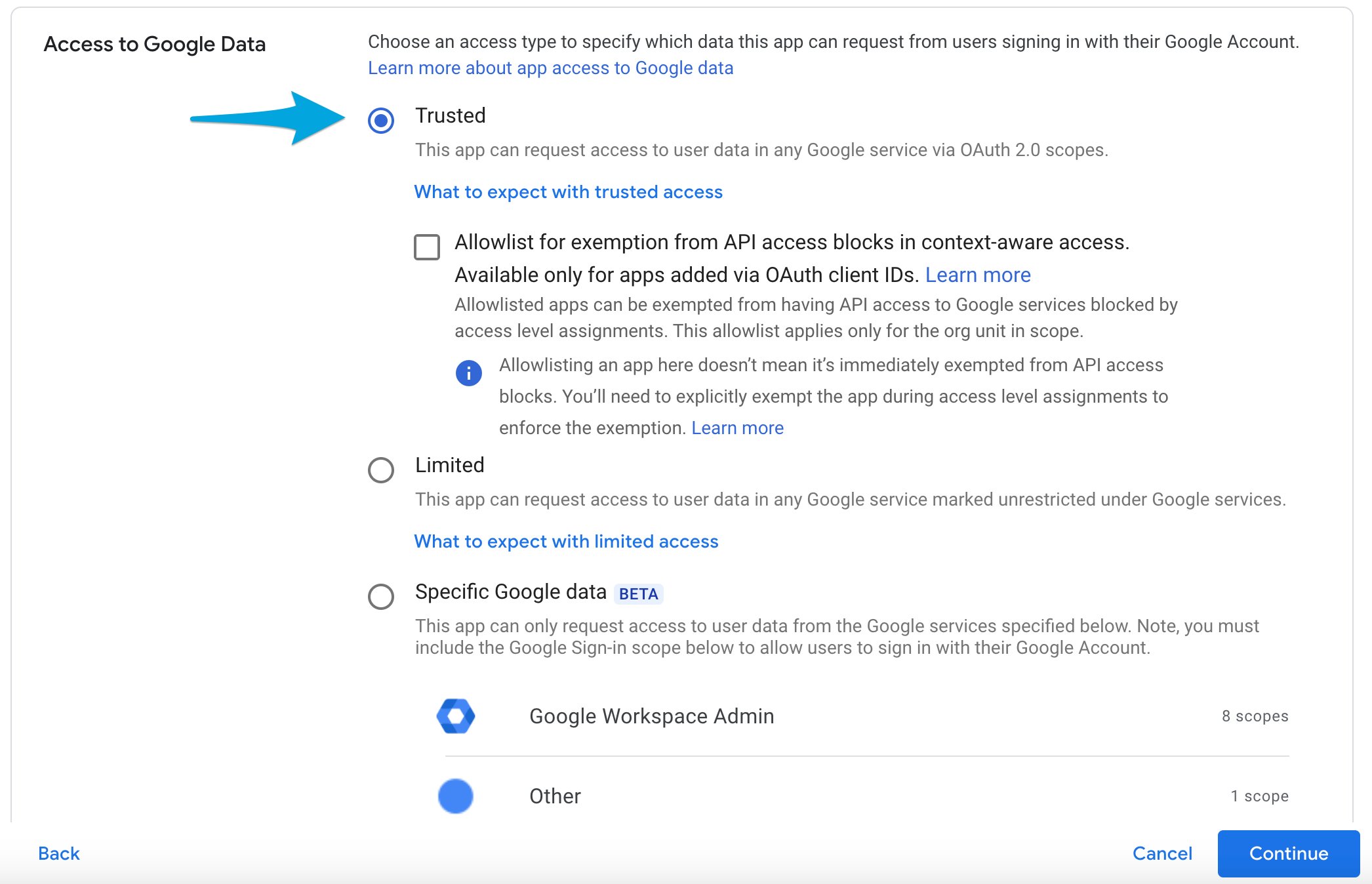
5. Set the app to **Trusted**, click **Continue**, then click **Finish** on the final page.
If you continue to have trouble with OU imports, contact the GoGuardian Support team.
 ## Fix Students Listed in the Wrong OU
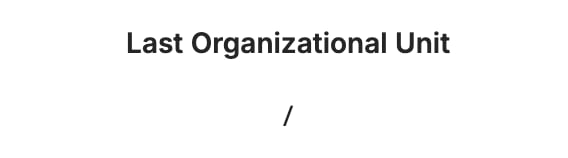
If a student's Organizational Unit displays only a forward slash ("/"), this typically means the OU that the student belongs to in Google Admin Console was not chosen to be synced to GoGuardian. When this occurs, the student is placed in the root or domain-level OU.
The root OU can still be filtered by any filtering policies applied at the root level.
1. Look up the student in Google Admin Console to confirm their current OU.
2. If the OU is incorrect, click **Change Organizational Unit** and select the correct OU.
## Fix Students Listed in the Wrong OU
If a student's Organizational Unit displays only a forward slash ("/"), this typically means the OU that the student belongs to in Google Admin Console was not chosen to be synced to GoGuardian. When this occurs, the student is placed in the root or domain-level OU.
The root OU can still be filtered by any filtering policies applied at the root level.
1. Look up the student in Google Admin Console to confirm their current OU.
2. If the OU is incorrect, click **Change Organizational Unit** and select the correct OU.
 3. Manually sync Org Units with Google Admin Console in GoGuardian Admin or Org Management.
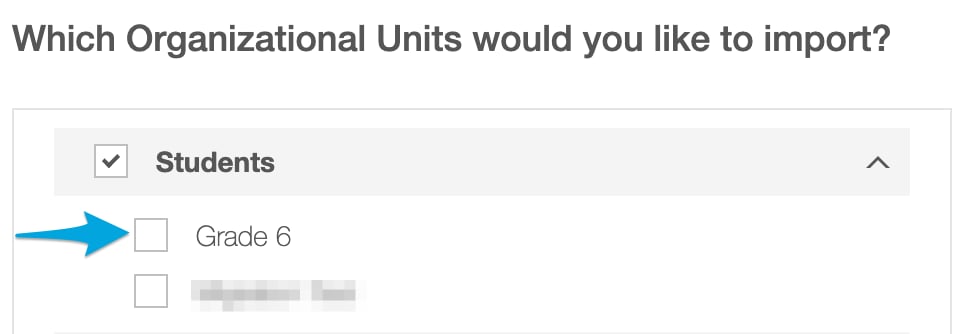 4. Allow up to 5 minutes for updated Organizational Units to display in GoGuardian Admin.
## Understand Automatic Sync
GoGuardian automatically syncs your selected imported OUs once per day. If student accounts are moved between imported OUs in Google Admin Console, or if you add a new student to an imported OU, the updates are reflected in GoGuardian Admin by the next morning.
## Important: Handling OU Structure Changes
Over the course of the year, you might rename, reorganize, add, or delete OUs in Google Admin Console. If your OU structure is modified in Google Admin Console, you must manually re-import or re-sync your OUs to reflect the changes.
After re-importing your OUs, re-evaluate your GoGuardian Admin policies to confirm they're applied appropriately. If there are significant changes to imported OUs, any filtering policies applied to those OUs may be removed.
## Resources
Review account and permission settings for GoGuardian Teacher.
Get started with teacher account configuration.
Sync teacher accounts directly from Google Admin Console.
Troubleshoot missing students in GoGuardian Teacher.
4. Allow up to 5 minutes for updated Organizational Units to display in GoGuardian Admin.
## Understand Automatic Sync
GoGuardian automatically syncs your selected imported OUs once per day. If student accounts are moved between imported OUs in Google Admin Console, or if you add a new student to an imported OU, the updates are reflected in GoGuardian Admin by the next morning.
## Important: Handling OU Structure Changes
Over the course of the year, you might rename, reorganize, add, or delete OUs in Google Admin Console. If your OU structure is modified in Google Admin Console, you must manually re-import or re-sync your OUs to reflect the changes.
After re-importing your OUs, re-evaluate your GoGuardian Admin policies to confirm they're applied appropriately. If there are significant changes to imported OUs, any filtering policies applied to those OUs may be removed.
## Resources
Review account and permission settings for GoGuardian Teacher.
Get started with teacher account configuration.
Sync teacher accounts directly from Google Admin Console.
Troubleshoot missing students in GoGuardian Teacher.