> ## Documentation Index
> Fetch the complete documentation index at: https://docs.goguardian.com/llms.txt
> Use this file to discover all available pages before exploring further.
# Unlock a Student's Screen
> How to unlock a student's device when it displays the "Browsing Disabled" message in a GoGuardian Teacher session.
If a student's screen displays a **Browsing Disabled** message during class, the student's device has been locked by the [Lock Device](/products/teacher/lock-screen) command. Teachers can unlock a student's device even if it was locked by another teacher.
If the student's screen does not say **Browsing Disabled**, they may be blocked by another source. See [Types of GoGuardian Block Pages](/products/teacher/commands-overview) for more information.
## Unlock an Individual Student's Screen
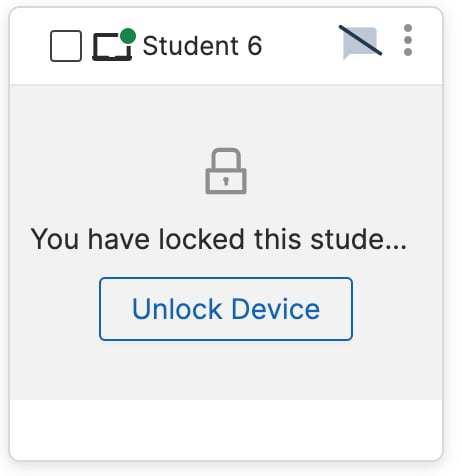
To unlock 1 student's screen, click the **Unlock Device** button on the locked student's tile.
 ## Unlock Multiple Students at Once
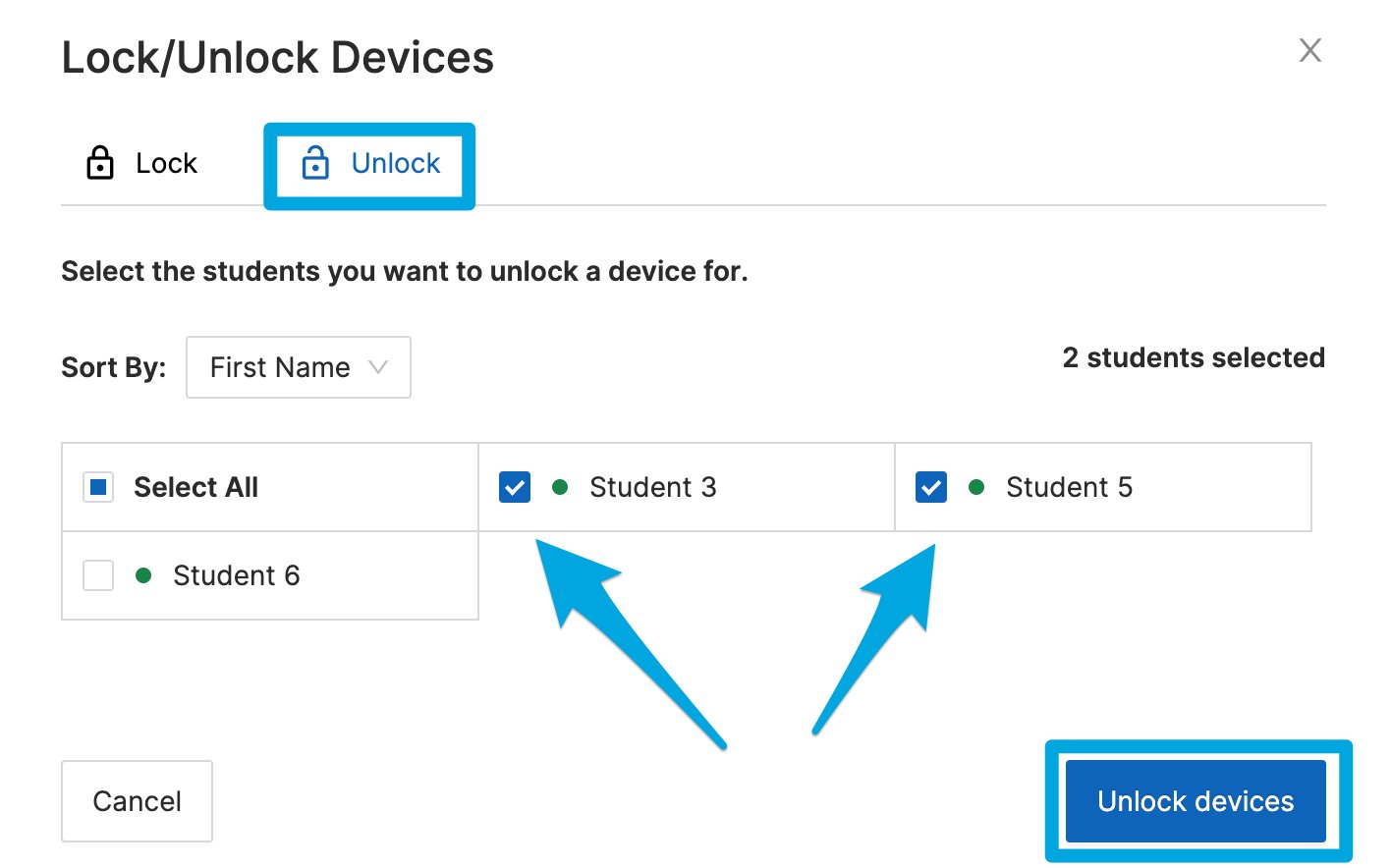
To unlock 2 or more students at once:
1. Click the **Lock / Unlock Device** button on the command bar.
2. On the **Lock / Unlock Devices** interface, select all students or specific students.
3. Click **Unlock devices** to confirm. The selected students' screens should return to normal browsing.
## Unlock Multiple Students at Once
To unlock 2 or more students at once:
1. Click the **Lock / Unlock Device** button on the command bar.
2. On the **Lock / Unlock Devices** interface, select all students or specific students.
3. Click **Unlock devices** to confirm. The selected students' screens should return to normal browsing.
 ## Troubleshooting
If a student's device does not unlock after 30 seconds, reboot the student's device, wait for the student to reconnect to the session, then issue the unlock command again.
If you continue to have trouble unlocking devices, see [Troubleshoot Teacher Commands](/products/teacher/troubleshoot-commands).
## Resources
Use the Lock Device command to restrict student browsing during class.
Learn about all available commands in GoGuardian Teacher.
Control student browsing using scenes to allow or block specific sites.
Get started with GoGuardian Teacher by launching a classroom session.
## Troubleshooting
If a student's device does not unlock after 30 seconds, reboot the student's device, wait for the student to reconnect to the session, then issue the unlock command again.
If you continue to have trouble unlocking devices, see [Troubleshoot Teacher Commands](/products/teacher/troubleshoot-commands).
## Resources
Use the Lock Device command to restrict student browsing during class.
Learn about all available commands in GoGuardian Teacher.
Control student browsing using scenes to allow or block specific sites.
Get started with GoGuardian Teacher by launching a classroom session.