> ## Documentation Index
> Fetch the complete documentation index at: https://docs.goguardian.com/llms.txt
> Use this file to discover all available pages before exploring further.
# Send Announcements to Students
> How to send class-wide, group, and individual announcements to students during an active GoGuardian Teacher session.
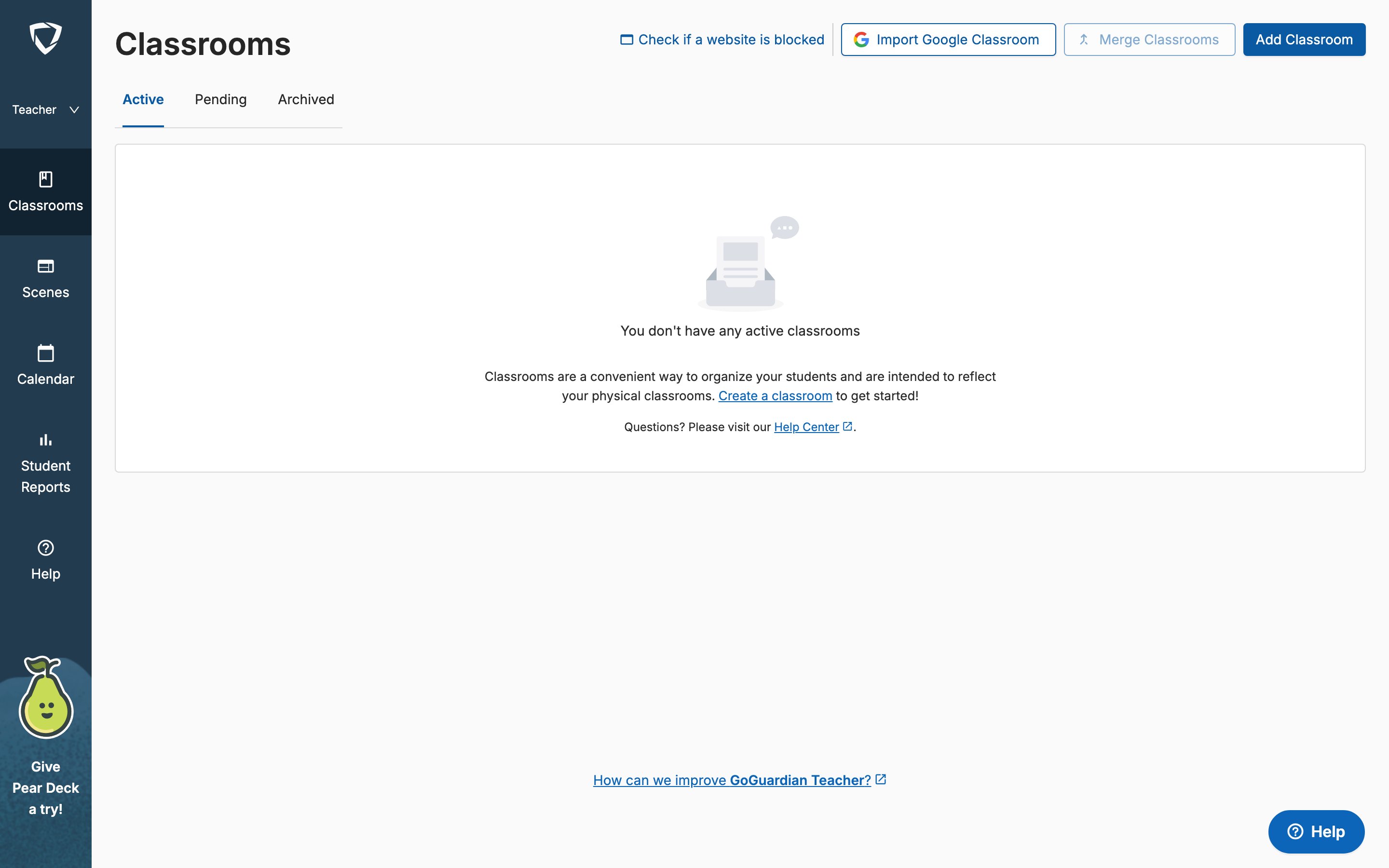
The Announcements feature in GoGuardian Teacher lets you send a message to all students, a specific group, or an individual student during an active class session. Students must acknowledge the announcement before it clears from their screen.
 ## Send an Announcement to the Whole Class
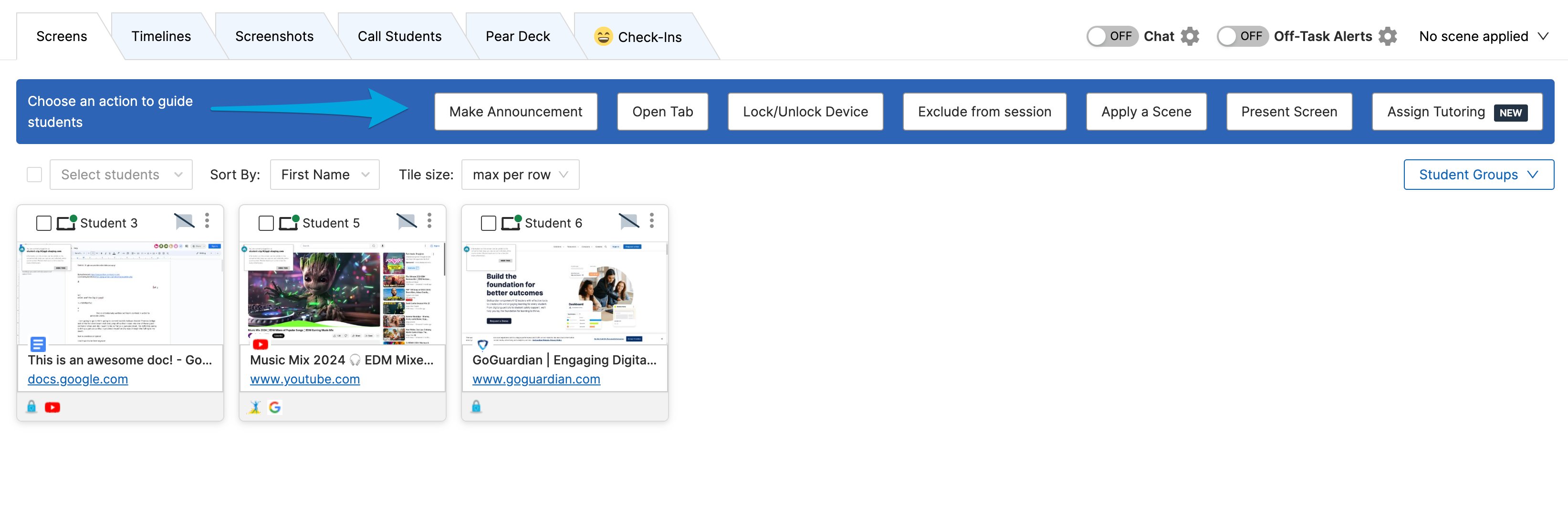
1. During an active class session, click **Make Announcement** in the Command Bar.
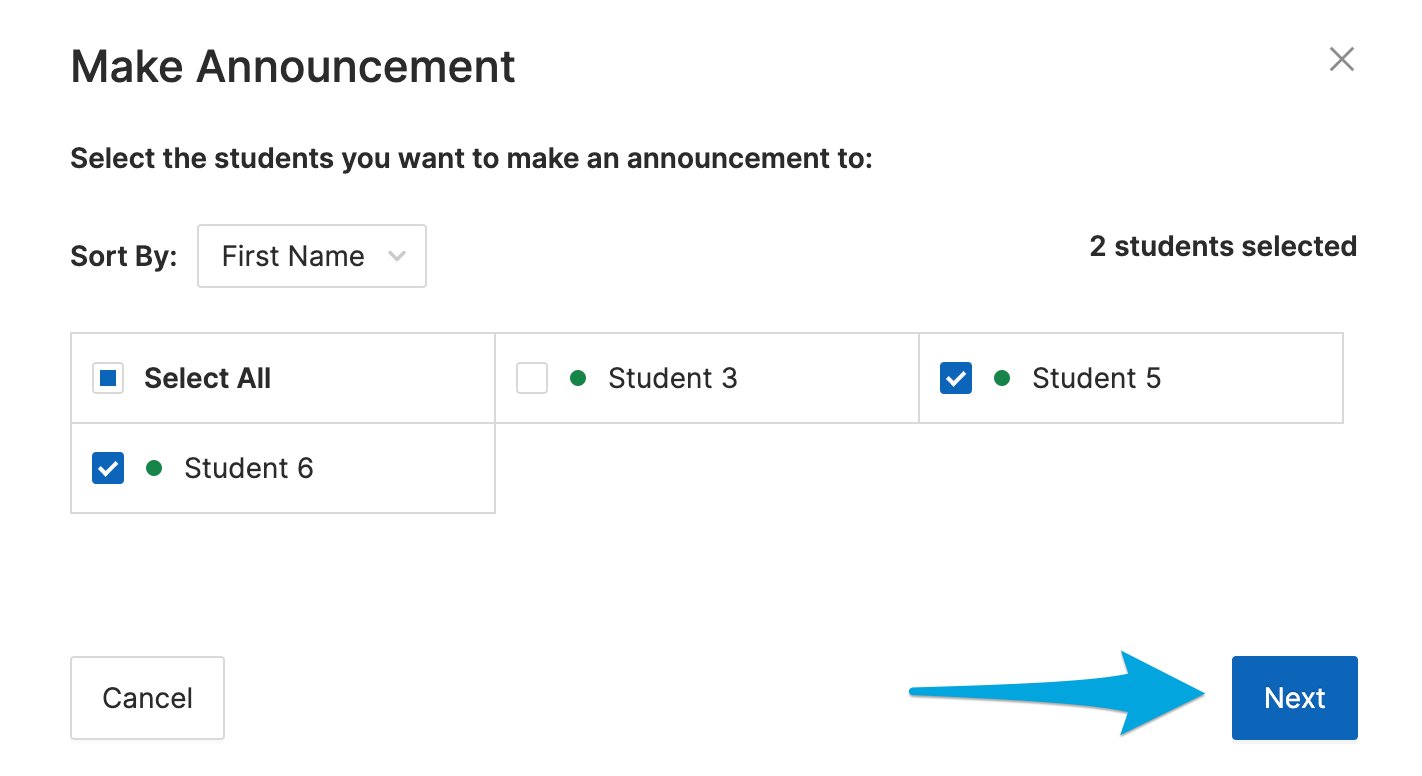
2. On the prompt that appears, select **All** to send the announcement to every student in the class, then click **Next**.
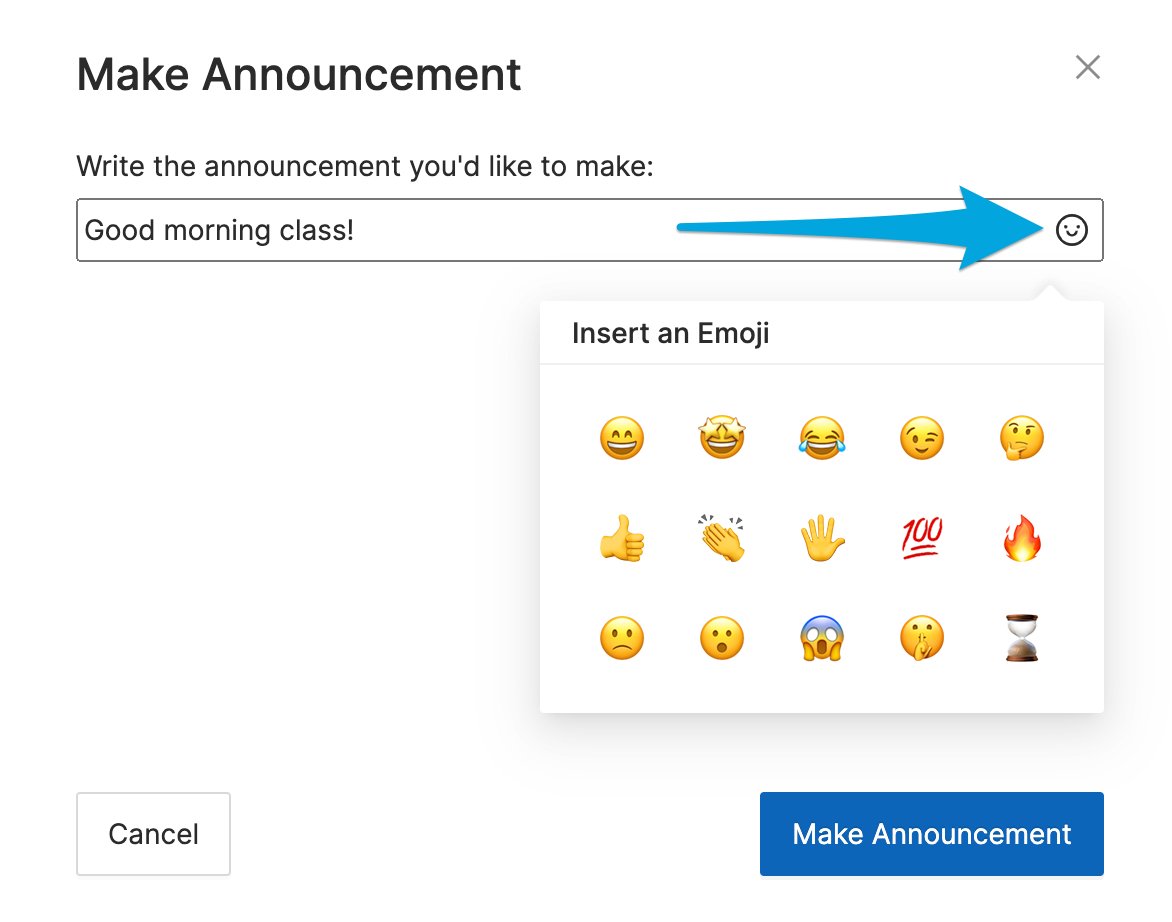
3. Enter your message in the text box. Optionally, insert an emoji using the smiley face button. Click **Make Announcement** to send.
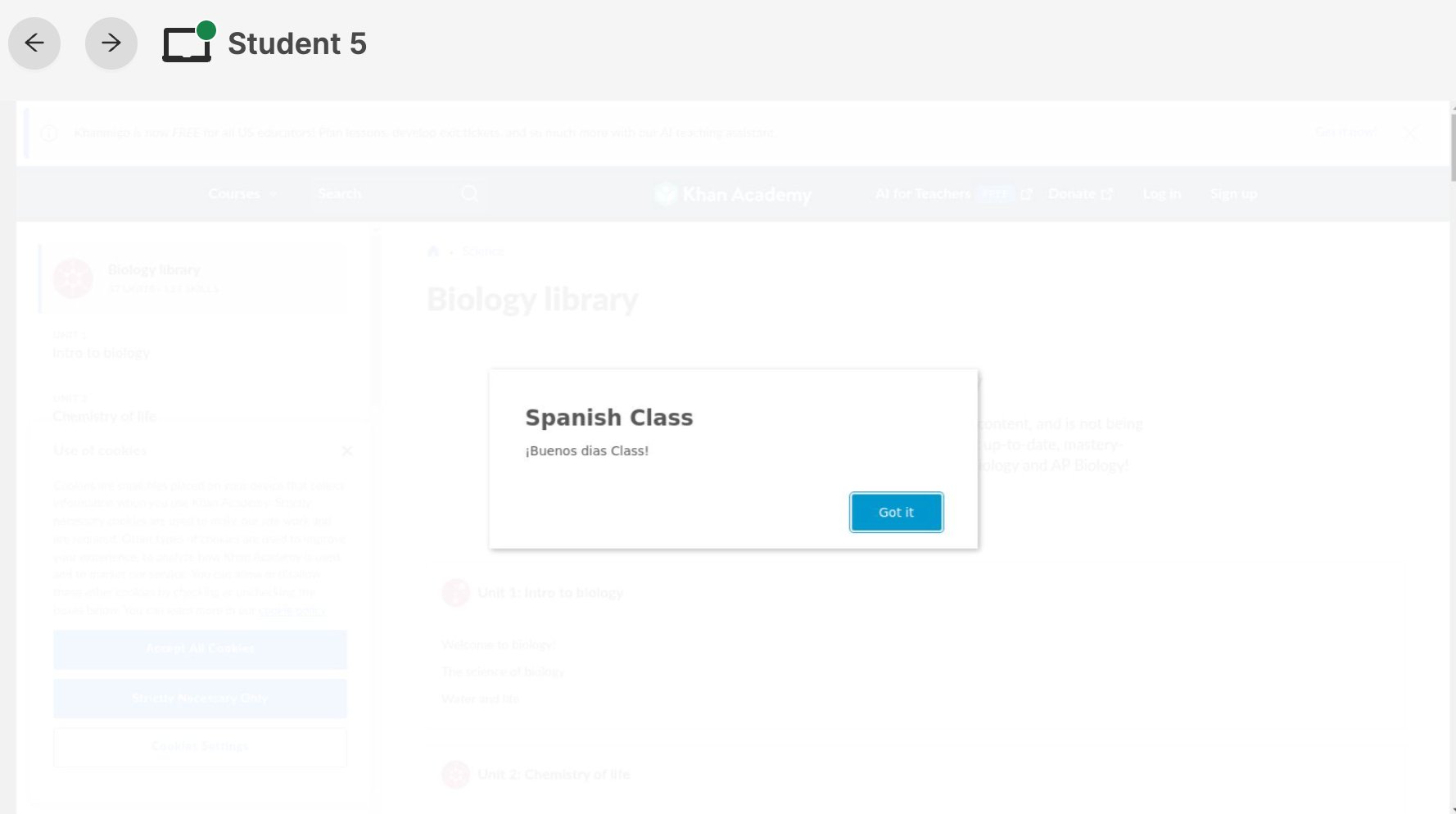
4. Each student will see the message in a pop-up box with the class name at the top. The announcement is delivered successfully when students click **Got it** to acknowledge it.
## Send an Announcement to the Whole Class
1. During an active class session, click **Make Announcement** in the Command Bar.
2. On the prompt that appears, select **All** to send the announcement to every student in the class, then click **Next**.
3. Enter your message in the text box. Optionally, insert an emoji using the smiley face button. Click **Make Announcement** to send.
4. Each student will see the message in a pop-up box with the class name at the top. The announcement is delivered successfully when students click **Got it** to acknowledge it.
 ## Send an Announcement to a Student Group
When you have students organized into groups, you can send announcements to each group separately.
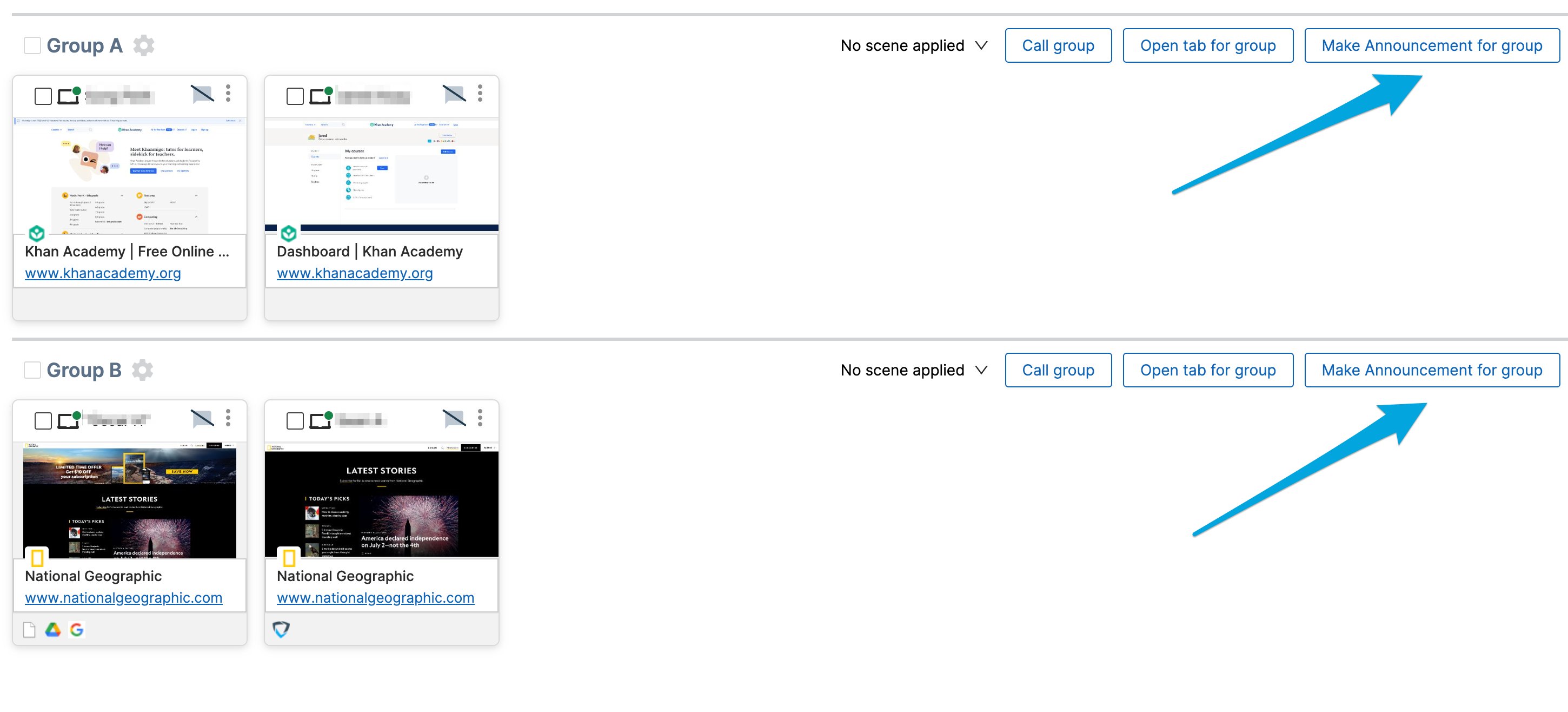
1. In the active class session, find the student group you want to message.
2. Click **Make Announcement for group**. All students in the selected group will receive the message and must acknowledge it by clicking **Got it**.
## Send an Announcement to a Student Group
When you have students organized into groups, you can send announcements to each group separately.
1. In the active class session, find the student group you want to message.
2. Click **Make Announcement for group**. All students in the selected group will receive the message and must acknowledge it by clicking **Got it**.
 ## Send an Announcement to an Individual Student
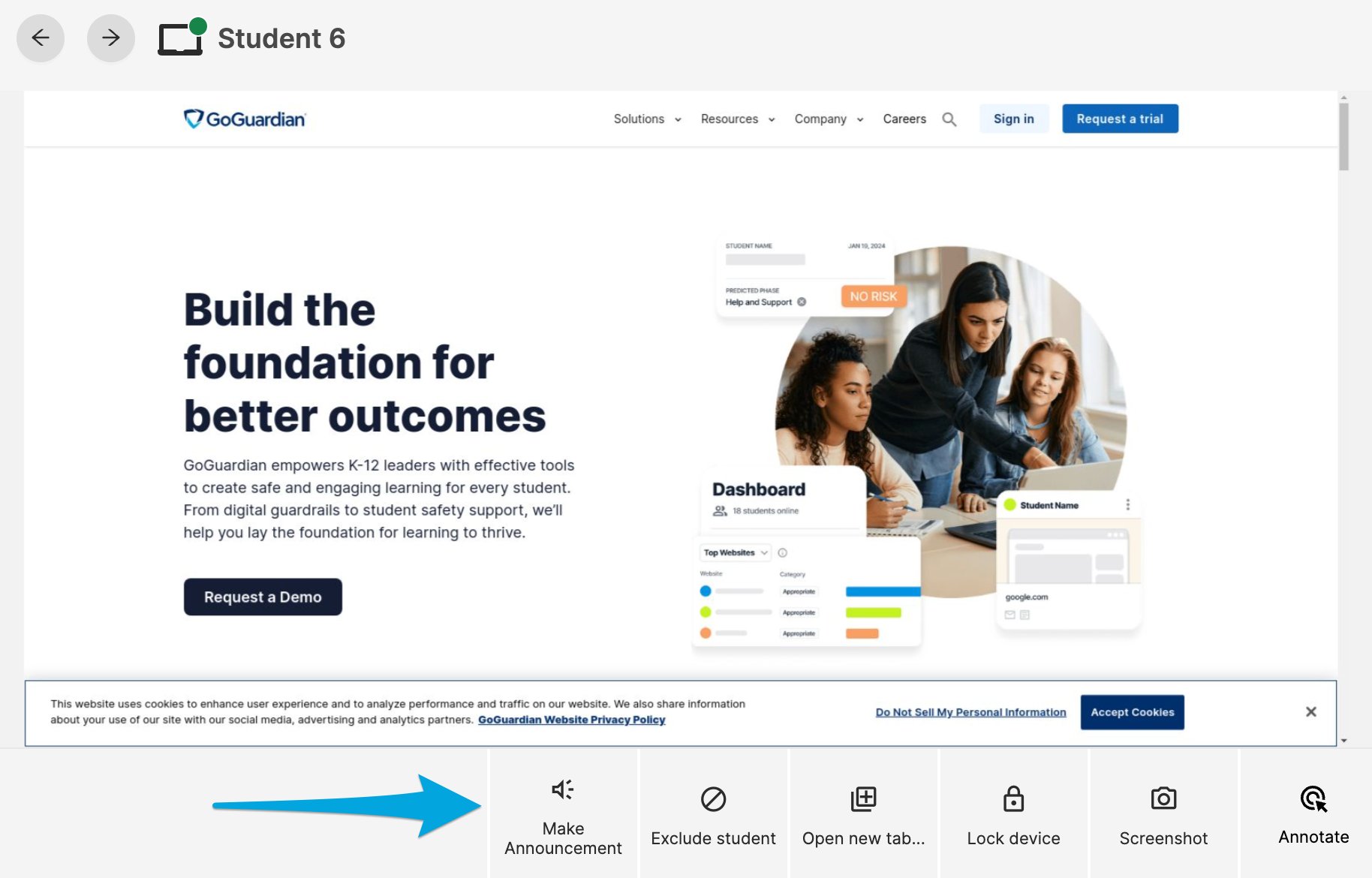
1. In the active class session, click the individual student's screen view.
2. Click **Make Announcement** to send a message to that student only.
Individual announcements are useful when a student needs a reminder notification rather than a direct Teacher chat message.
## Student Experience
When an announcement is sent, the student sees the message in a pop-up box that displays the class name at the top. The student must click **Got it** to acknowledge and dismiss the announcement.
***
## Send an Announcement to an Individual Student
1. In the active class session, click the individual student's screen view.
2. Click **Make Announcement** to send a message to that student only.
Individual announcements are useful when a student needs a reminder notification rather than a direct Teacher chat message.
## Student Experience
When an announcement is sent, the student sees the message in a pop-up box that displays the class name at the top. The student must click **Got it** to acknowledge and dismiss the announcement.
***
 ## Resources
Send direct messages to students during a class session.
Explore all available commands in the Command Bar.
Learn how to begin an active class session.
Review what students are doing during a session.
## Resources
Send direct messages to students during a class session.
Explore all available commands in the Command Bar.
Learn how to begin an active class session.
Review what students are doing during a session.