> ## Documentation Index
> Fetch the complete documentation index at: https://docs.goguardian.com/llms.txt
> Use this file to discover all available pages before exploring further.
# Use Wildcards in Scenes
> Use wildcard patterns in GoGuardian Teacher Scenes to allow or block all websites and subdomains that contain a specific keyword.
Wildcards let you allow or block groups of websites by keyword, without listing each URL individually. Add a word surrounded by asterisks — `*keyword*` — to match any domain or subdomain that contains that word.
Wildcards match website domains and subdomains only. They do not match URL paths — anything after `.com`, `.org`, and similar extensions. For example, `*google*` matches `google.com` and `maps.google.com`, but does not match `example.com/google`.
## How Wildcards Work
| Entry | In an Allow List Scene | In a Block List Scene |
| ---------- | ----------------------------------------------------------------------------------------------------------------------------- | ------------------------------------------------------------------------------------------------------------------------------- |
| `*google*` | Allows all domains and subdomains containing "google" — for example, `google.com`, `sites.google.com`, `classroom.google.com` | Blocks all domains and subdomains containing "google" — for example, `google.com/search`, `maps.google.com`, `earth.google.com` |
| `*games*` | Allows all domains and subdomains containing "games" — for example, `crazygames.com`, `games.example.com` | Blocks all domains and subdomains containing "games" — for example, `coolmathgames.com`, `games.forschool.com` |
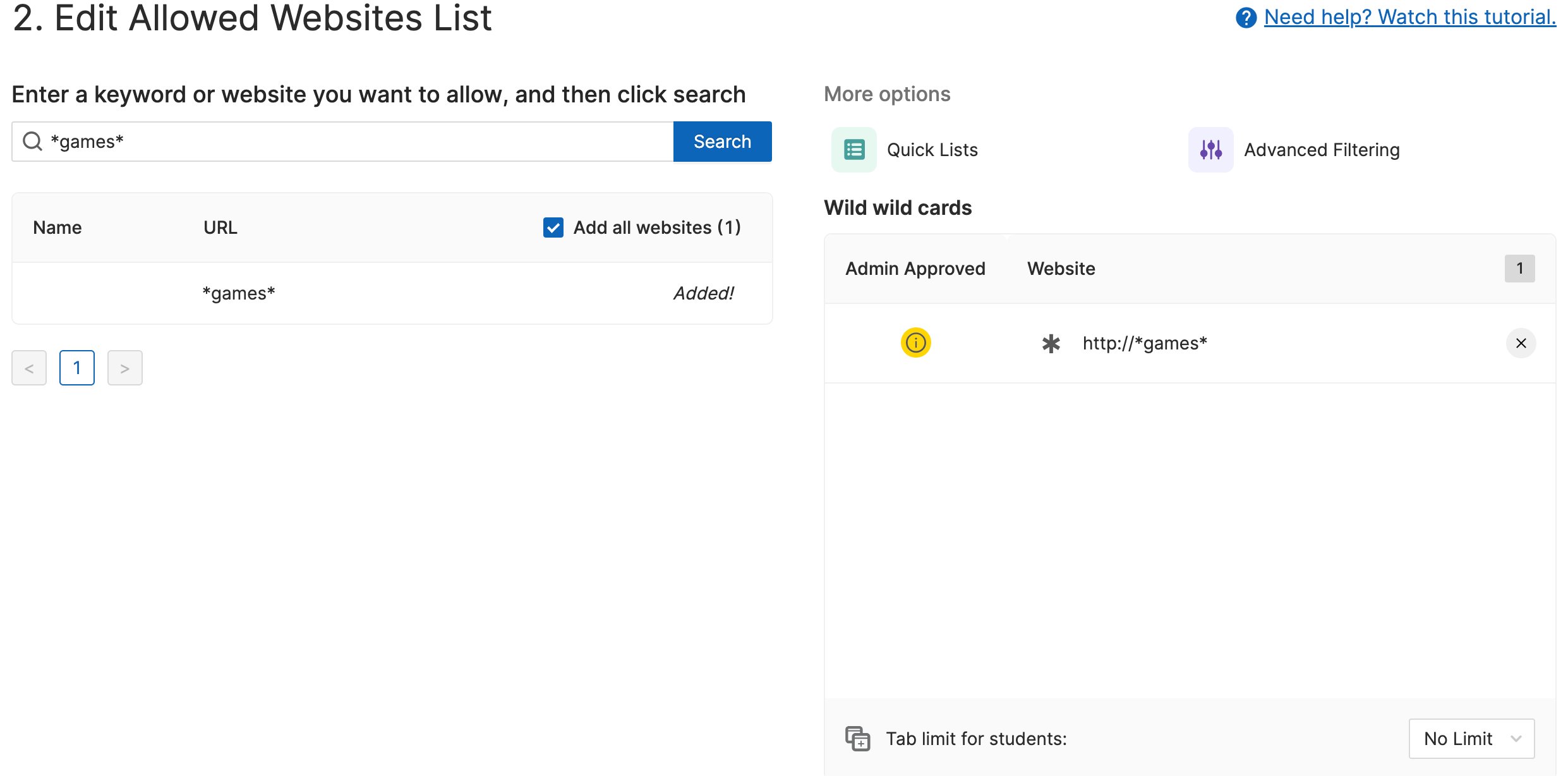 ## Add a Wildcard to a Scene
1. Go to the [Scenes](https://teacher.goguardian.com/scenes) tab in GoGuardian Teacher and open the Scene you want to edit.
2. In the site search field, enter the keyword surrounded by asterisks — for example, `*google*`.
3. Click **Add** to add the wildcard rule to the Scene.
4. Click **Save** to apply the changes.
5. Confirm the wildcard entry appears in the Scene's site list. Optionally, use the **Check if a Website is Blocked** tool on the GoGuardian Teacher homepage to test the rule against a specific URL.
## Resources
Review how Allow List and Block List Scenes work, including the website checker.
Review Advanced Filtering for exceptions to wildcard rules.
## Add a Wildcard to a Scene
1. Go to the [Scenes](https://teacher.goguardian.com/scenes) tab in GoGuardian Teacher and open the Scene you want to edit.
2. In the site search field, enter the keyword surrounded by asterisks — for example, `*google*`.
3. Click **Add** to add the wildcard rule to the Scene.
4. Click **Save** to apply the changes.
5. Confirm the wildcard entry appears in the Scene's site list. Optionally, use the **Check if a Website is Blocked** tool on the GoGuardian Teacher homepage to test the rule against a specific URL.
## Resources
Review how Allow List and Block List Scenes work, including the website checker.
Review Advanced Filtering for exceptions to wildcard rules.