> ## Documentation Index
> Fetch the complete documentation index at: https://docs.goguardian.com/llms.txt
> Use this file to discover all available pages before exploring further.
# Video Call Mode
> Start a video call with students during a GoGuardian Teacher class session, manage participants, record the call, and access recordings.
Video Call mode lets you start a group or 1-on-1 audio and video call with students during an active class session. You can also share your screen while on a video call.
 Video conferencing must be enabled for your organization by a Super User. If you do not see the **Call Students** tab in your session, contact your GoGuardian administrator.
Group calls are limited to 2 hours. 1-on-1 calls are limited to 8 hours.
## Start a Video Call
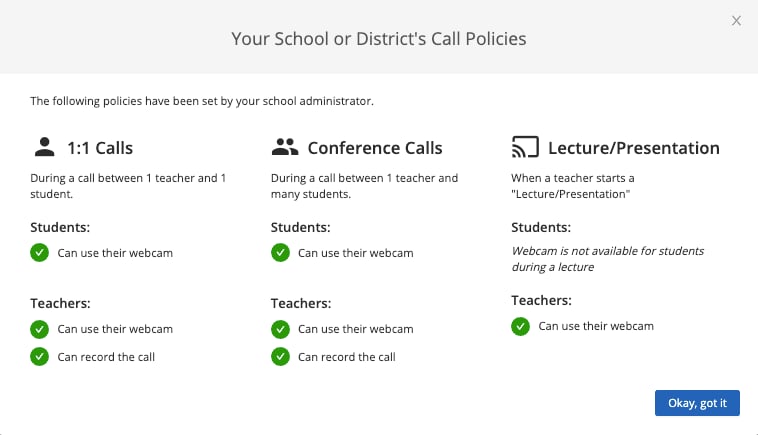
1. During an active class session, click the **Call Students** tab. A pop-up shows the call settings your administrator has enabled for your organization.
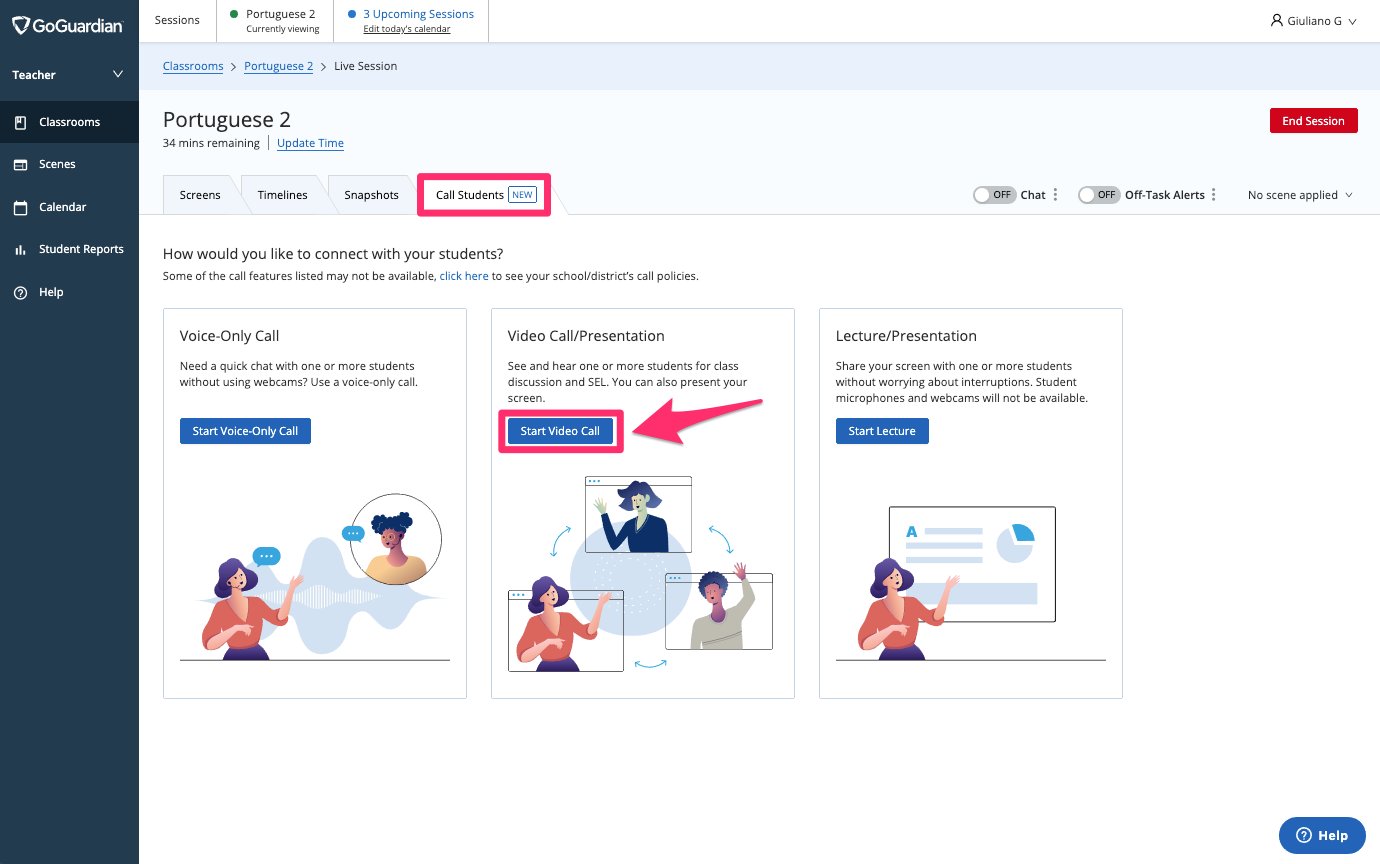
2. Click **Start Video Call**.
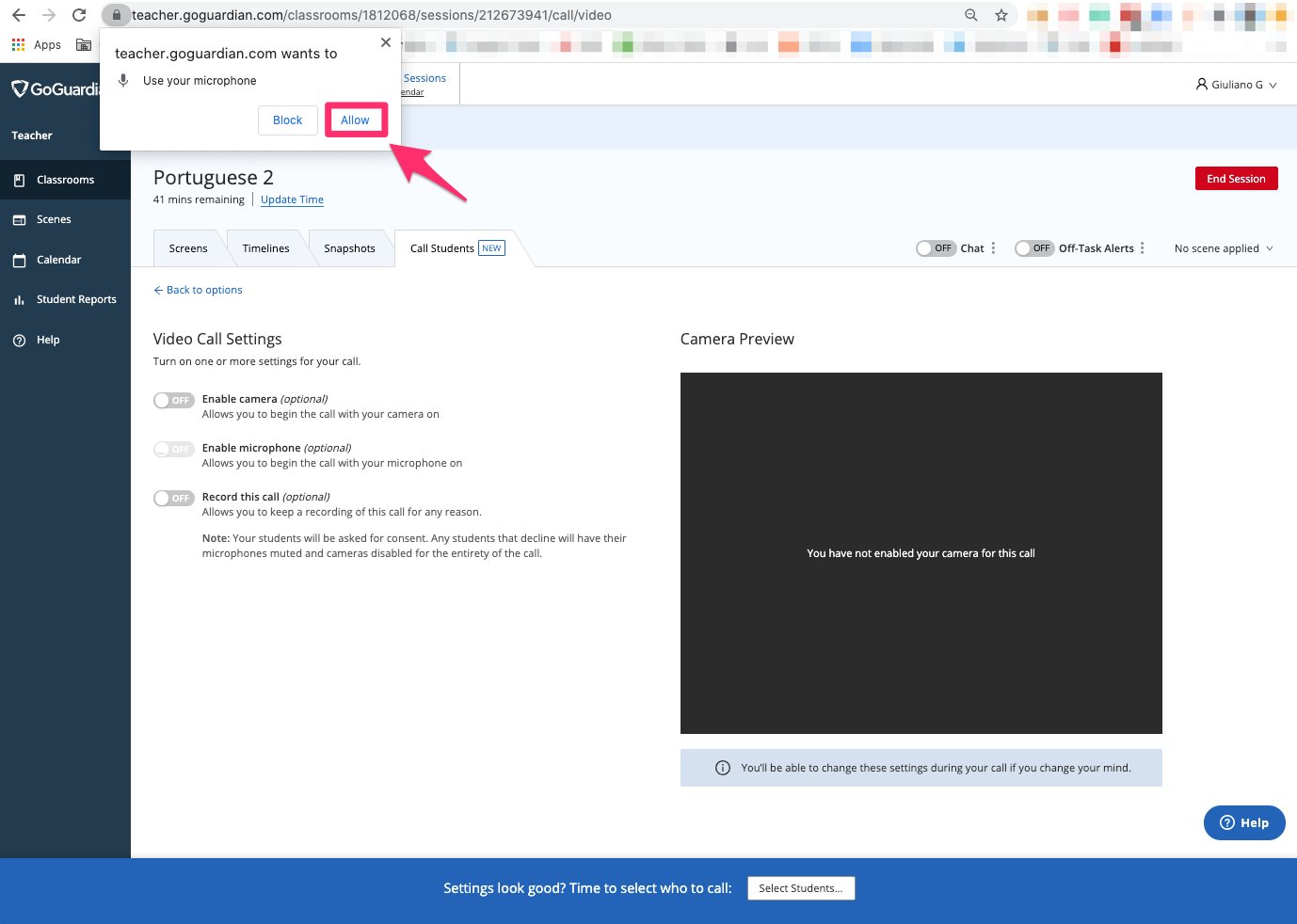
3. Turn on the **Enable Camera** toggle. If prompted, click **Allow** to grant GoGuardian Teacher access to your camera.
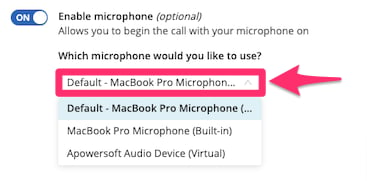
4. Turn on the **Enable Microphone** toggle. If prompted, click **Allow** to grant GoGuardian Teacher access to your microphone. If you have more than one microphone, select the one you want to use from the drop-down.
5. Turn on the **Record this call** toggle if you want to record the session. Students will be asked for consent before joining a recorded call. Students who decline can still join and listen but will have their cameras and microphones disabled for the call.
6. Click **Select Students**, then check the boxes next to each student to call. Select **Select All** to call the entire class, or check **Mute all students** to start the call with all student microphones off. You can select up to 40 students per call.
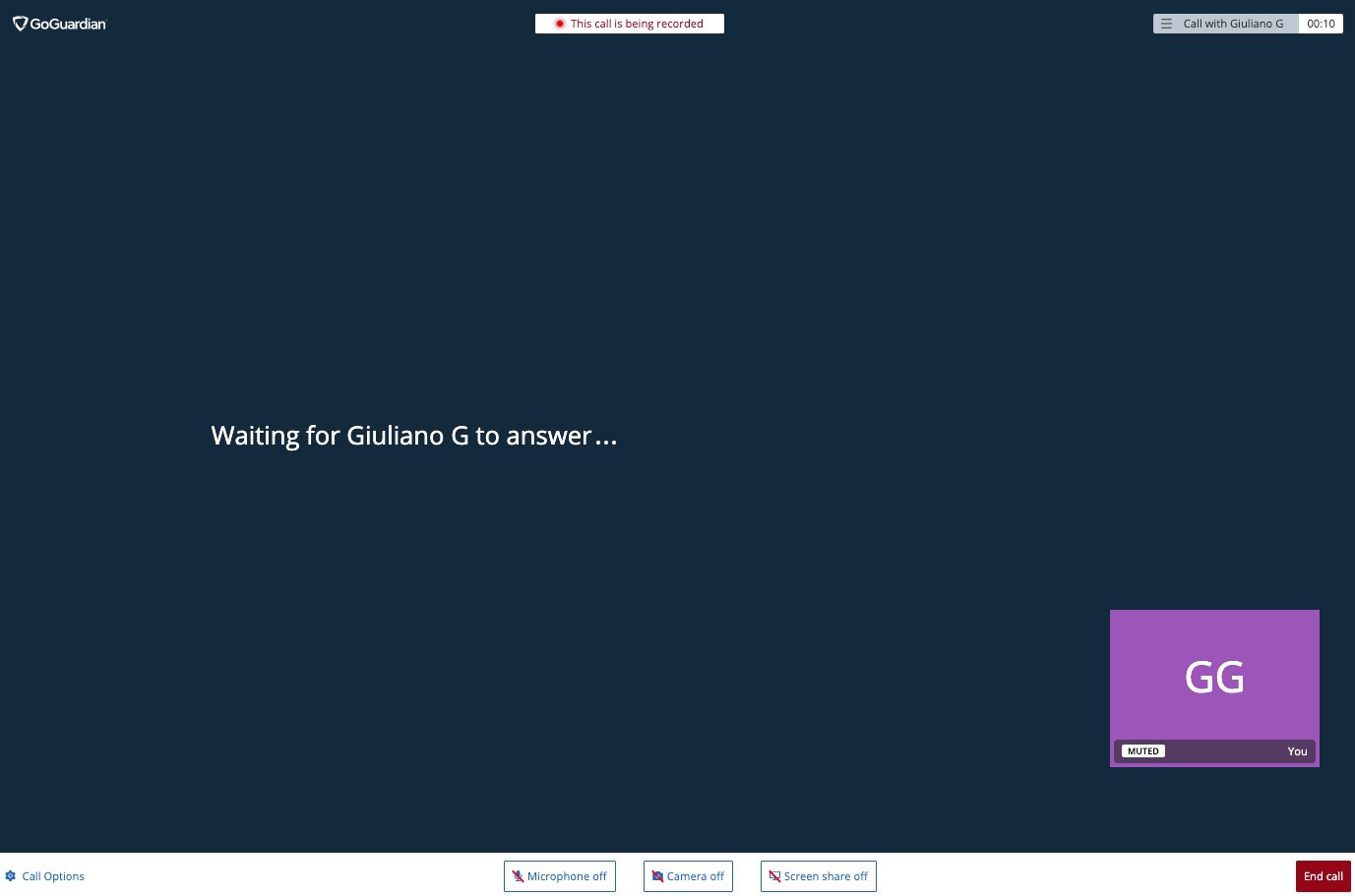
7. Click **Call**. A new tab opens and waits for students to connect. Students must click **Accept** to join. First-time users are prompted to grant browser access to their camera and microphone.
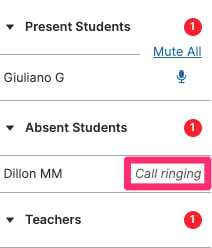
8. Confirm that connected students appear in the call view. Students listed under **Absent Students** are offline. When they come online, their status changes to "Call Ringing" and they can join.
## Manage the Call
During an active call, hover over a student's view to:
* Mute or unmute them
* Allow or disallow their webcam
* View their browsing activity
Use the controls in the bottom-center of the screen to enable or disable your own camera, microphone, and screen sharing.
Select **Call Settings** in the bottom-left corner to switch cameras, microphones, or audio output.
Video conferencing must be enabled for your organization by a Super User. If you do not see the **Call Students** tab in your session, contact your GoGuardian administrator.
Group calls are limited to 2 hours. 1-on-1 calls are limited to 8 hours.
## Start a Video Call
1. During an active class session, click the **Call Students** tab. A pop-up shows the call settings your administrator has enabled for your organization.
2. Click **Start Video Call**.
3. Turn on the **Enable Camera** toggle. If prompted, click **Allow** to grant GoGuardian Teacher access to your camera.
4. Turn on the **Enable Microphone** toggle. If prompted, click **Allow** to grant GoGuardian Teacher access to your microphone. If you have more than one microphone, select the one you want to use from the drop-down.
5. Turn on the **Record this call** toggle if you want to record the session. Students will be asked for consent before joining a recorded call. Students who decline can still join and listen but will have their cameras and microphones disabled for the call.
6. Click **Select Students**, then check the boxes next to each student to call. Select **Select All** to call the entire class, or check **Mute all students** to start the call with all student microphones off. You can select up to 40 students per call.
7. Click **Call**. A new tab opens and waits for students to connect. Students must click **Accept** to join. First-time users are prompted to grant browser access to their camera and microphone.
8. Confirm that connected students appear in the call view. Students listed under **Absent Students** are offline. When they come online, their status changes to "Call Ringing" and they can join.
## Manage the Call
During an active call, hover over a student's view to:
* Mute or unmute them
* Allow or disallow their webcam
* View their browsing activity
Use the controls in the bottom-center of the screen to enable or disable your own camera, microphone, and screen sharing.
Select **Call Settings** in the bottom-left corner to switch cameras, microphones, or audio output.

 ## Co-Teachers
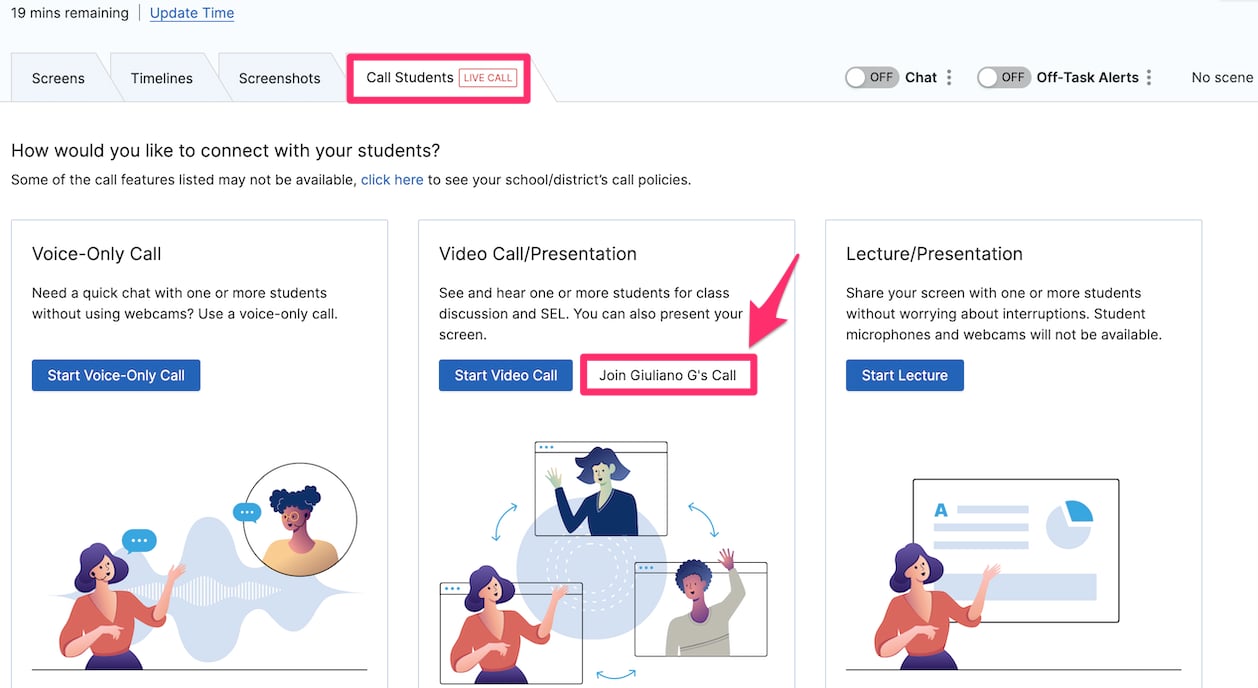
To join an active group call as a co-teacher, go to the **Call Students** tab in the active session. If a call is already in progress, click **Join \[teacher name]'s Call**.
More than 1 student must be present in the call before co-teachers can join. A maximum of 10 teachers (including the teacher who started the call) can be on a call at the same time.
## End the Call and Save a Recording
Click **End Call** to end the session. If the call was recorded, you are prompted to give the recording a title. Click **Save Recording** to save it, or **Delete recording** to discard it. A shareable link is provided — only students in the classroom can access the link.
## Co-Teachers
To join an active group call as a co-teacher, go to the **Call Students** tab in the active session. If a call is already in progress, click **Join \[teacher name]'s Call**.
More than 1 student must be present in the call before co-teachers can join. A maximum of 10 teachers (including the teacher who started the call) can be on a call at the same time.
## End the Call and Save a Recording
Click **End Call** to end the session. If the call was recorded, you are prompted to give the recording a title. Click **Save Recording** to save it, or **Delete recording** to discard it. A shareable link is provided — only students in the classroom can access the link.

 ## Start a 1-on-1 Call from Teacher Chat
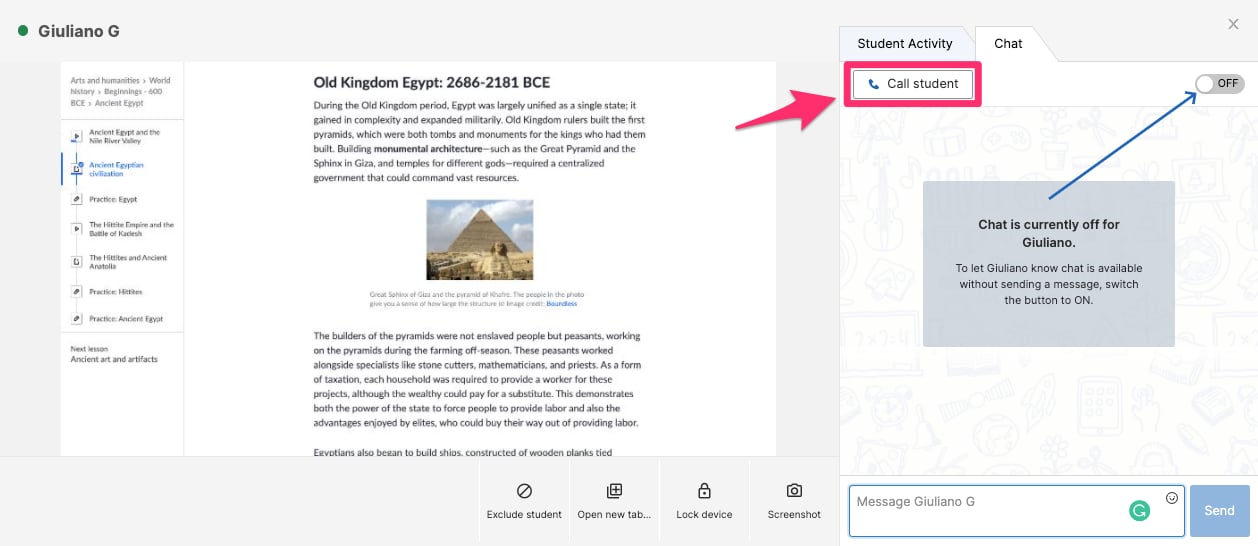
To start a 1-on-1 call with a specific student, expand their screen view, go to the **Chat** tab, and click **Call Student**. Chat does not need to be enabled for the student.
## Start a 1-on-1 Call from Teacher Chat
To start a 1-on-1 call with a specific student, expand their screen view, go to the **Chat** tab, and click **Call Student**. Chat does not need to be enabled for the student.
 ## Rejoin a Call
After a student leaves a call, they can rejoin it. If the student closes the call tab, it reopens automatically as long as the call is still active with the rest of the class.
## Access Past Recordings
Recorded calls are saved in the **Recordings** tab of the classroom. Recordings are stored for 90 days and then automatically deleted. From the Recordings tab, you can copy a shareable link, play, download, or delete each recording.
Recently completed recordings may take a few hours to finish processing before they are available to view.
## Resources
Configure video call settings for your organization (Super Users).
Start an audio-only call with students.
Use Teacher Chat to communicate with students during a session.
## Rejoin a Call
After a student leaves a call, they can rejoin it. If the student closes the call tab, it reopens automatically as long as the call is still active with the rest of the class.
## Access Past Recordings
Recorded calls are saved in the **Recordings** tab of the classroom. Recordings are stored for 90 days and then automatically deleted. From the Recordings tab, you can copy a shareable link, play, download, or delete each recording.
Recently completed recordings may take a few hours to finish processing before they are available to view.
## Resources
Configure video call settings for your organization (Super Users).
Start an audio-only call with students.
Use Teacher Chat to communicate with students during a session.