> ## Documentation Index
> Fetch the complete documentation index at: https://docs.goguardian.com/llms.txt
> Use this file to discover all available pages before exploring further.
# View Data from Past Sessions
> How to access session history, screenshots, command logs, and chat records from previous GoGuardian Teacher class sessions.
Teachers can access previous class session history, including screenshots taken and chat records, by visiting their class **Sessions** tab.
## Access Past Session Data
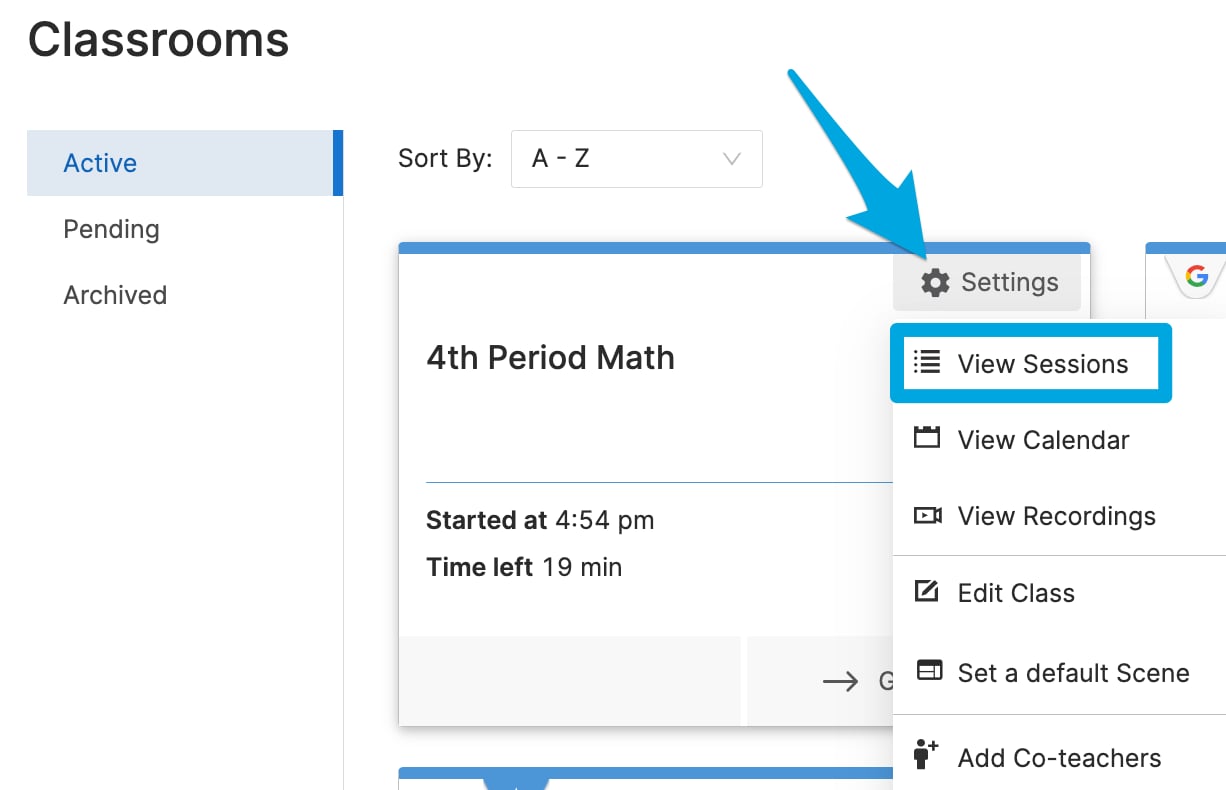
1. Go to **Settings** > **View Sessions**.
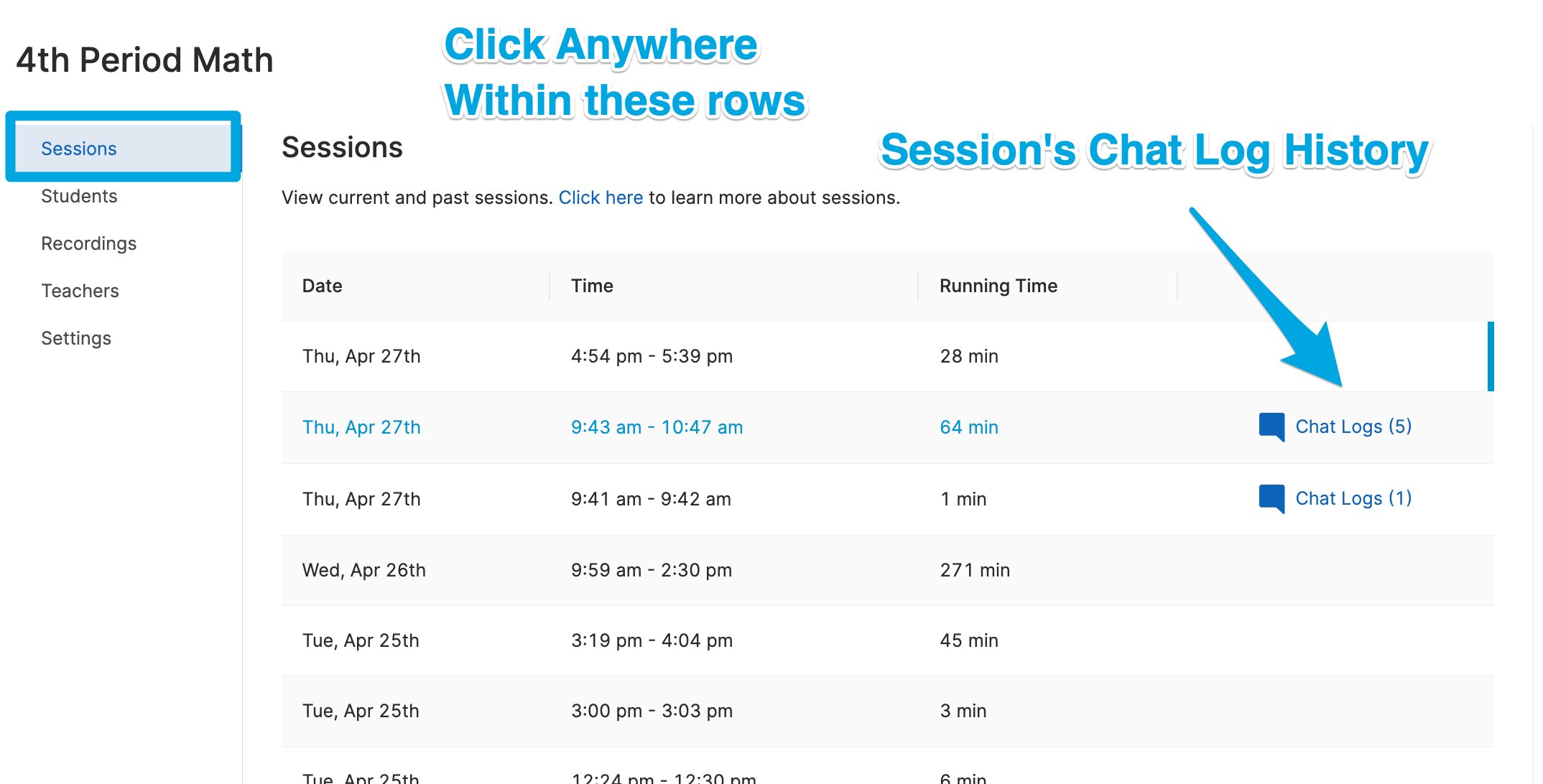
All past session data for each classroom is available, organized by most recent sessions.
2. Any class sessions with Teacher Chat history will have a **Chat Logs** button within the class session row.
Chat logs can also be accessed from within Student Reports. See [Use Teacher Chat](/products/teacher/use-teacher-chat) for more information.
3. Click the session's date and time to open the Timeline view for that session.
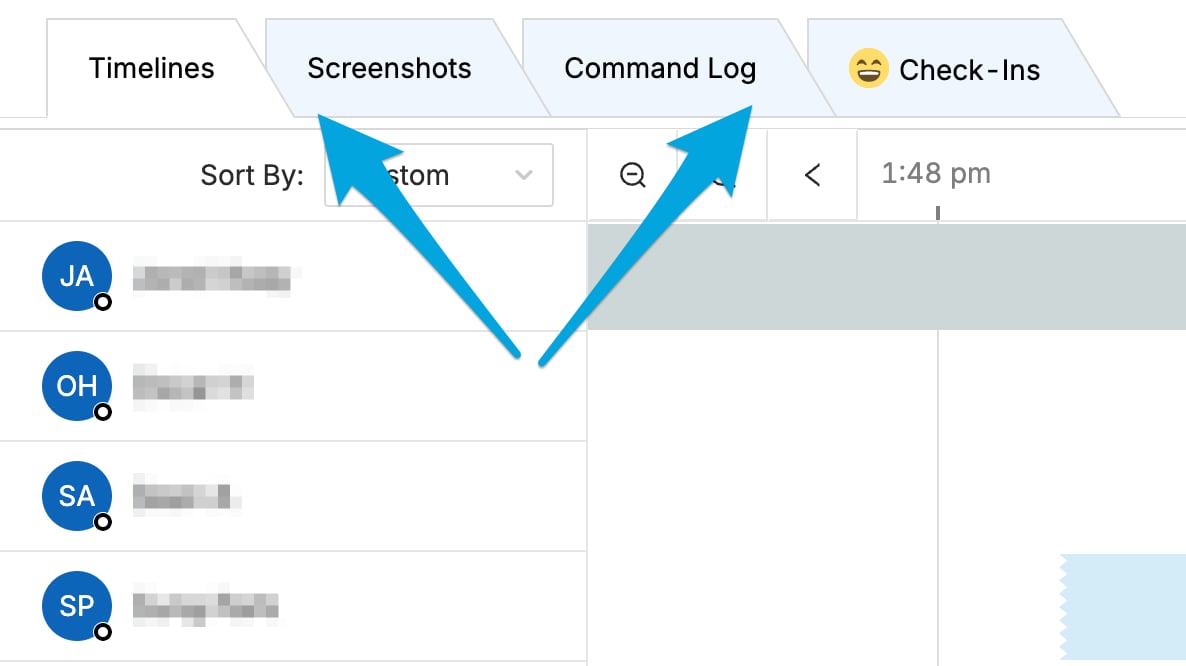
4. Switch between **Timeline**, **Screenshots**, **Command Log**, and **Check-Ins** using the tabs at the top of the page, just under the date and time.
* **Timeline**: Timeline data from the session is saved here. Use your keyboard arrow keys, the scroll bar, or click and drag to scroll through the session timeline.
* **Screenshots**: All screenshots taken during the session are stored under the **Screenshots** tab. You can download the screenshots at any time.
* **Command Log**: All commands sent during the session are stored here indefinitely.
* **Chat**: Past chat data can be reviewed by clicking **Chat Logs**.
 ## Resources
Enable and use real-time chat with students during class sessions.
Capture screenshots of student screens during an active session.
Learn about the commands available during a session.
Set up automated session summary emails after class ends.
## Resources
Enable and use real-time chat with students during class sessions.
Capture screenshots of student screens during an active session.
Learn about the commands available during a session.
Set up automated session summary emails after class ends.