> ## Documentation Index
> Fetch the complete documentation index at: https://docs.goguardian.com/llms.txt
> Use this file to discover all available pages before exploring further.
# Voice-Only Call Mode
> Start an audio-only call with one or more students during a GoGuardian Teacher class session, without using webcams.
Voice-Only Call mode lets you start an audio call with one or more students during an active class session — no webcams required.
Group calls are limited to 2 hours. 1-on-1 calls are limited to 8 hours.
## Start a Voice-Only Call
**Method 1 — From the Call Students tab:**
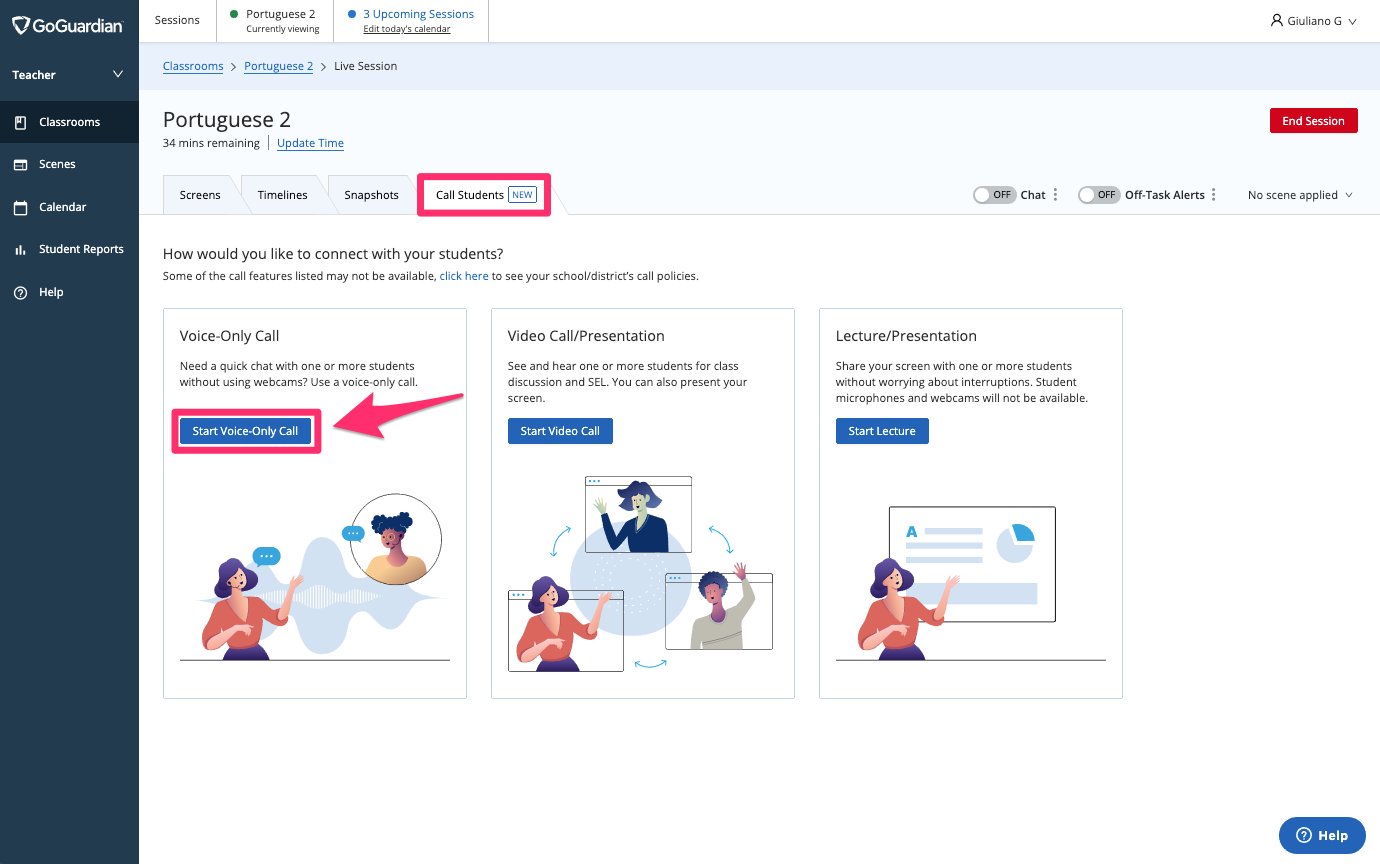
1. During an active class session, click the **Call Students** tab.
2. Click **Start Voice-Only Call**.
3. Turn on the **Enable Microphone** toggle. If prompted, click **Allow** to grant GoGuardian Teacher access to your microphone. If you have more than one microphone, select it from the drop-down.
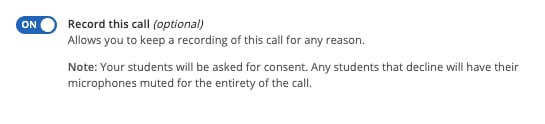
4. Turn on the **Record this call** toggle if you want to record the session. Students will be asked for consent before joining. Students who decline can still join and listen, but their microphones will be disabled for the call.
5. Click **Select Students**, then check the boxes next to the students you want to call. Select **Select All** for the whole class, or check **Mute all students** to start with all microphones off. You can select up to 40 students per call.
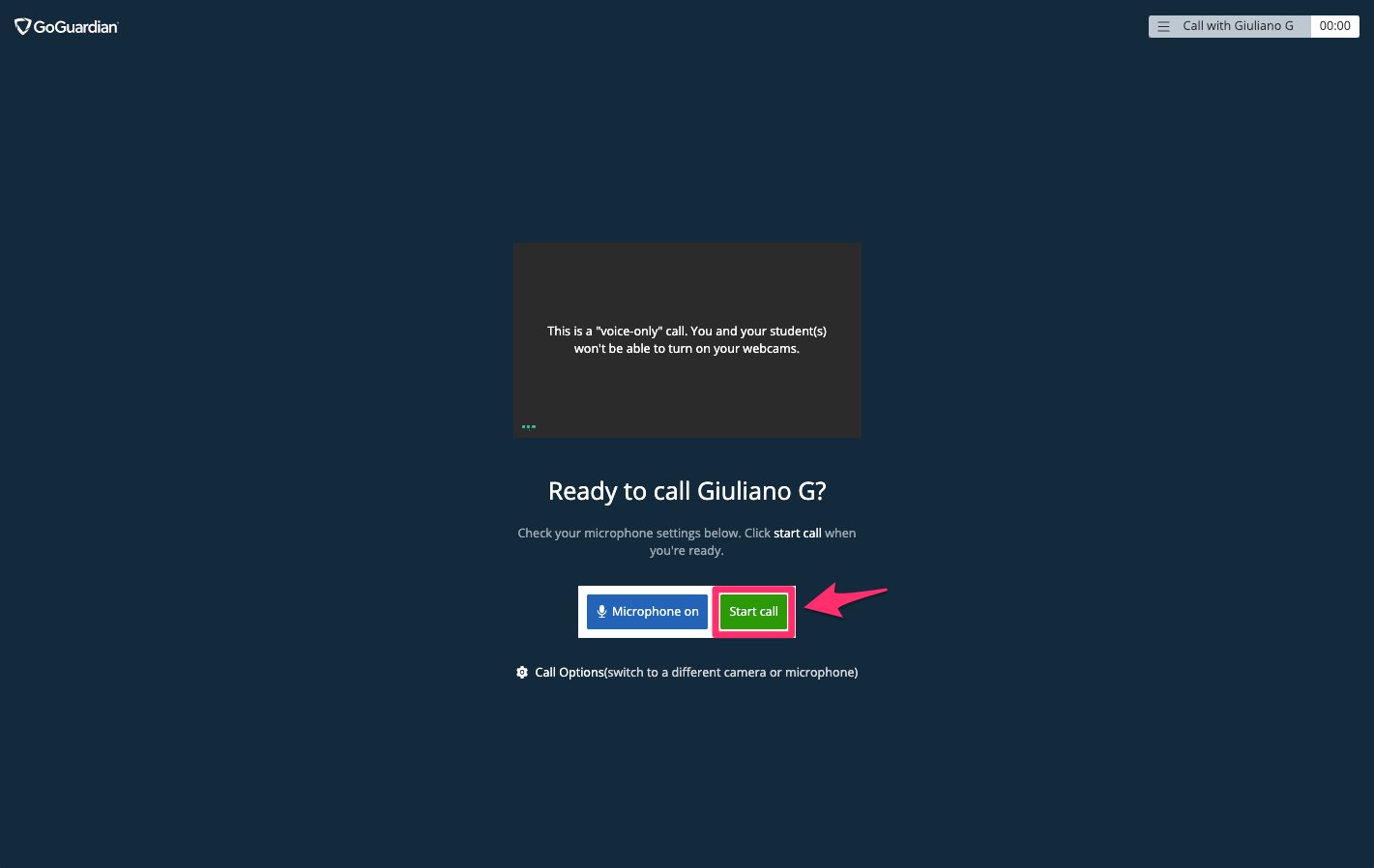
6. Click **Call**. A new tab opens and waits for students to connect. Students must click **Accept** to join.
7. Confirm that students appear as connected in the call view. Students listed under **Absent Students** are offline. When they come online, their status changes to "Call Ringing" and they can join the call.
 **Method 2 — From Teacher Chat:**
Expand a student's screen view, go to the **Chat** tab, and click **Call Student**. This starts a 1-on-1 voice call directly. Chat does not need to be enabled for the student.
## During the Call
Select **Call Settings** in the bottom-left corner to switch microphones or audio output during the call. Students can access their settings from the same location.
Students can leave the recording at any time from their call options. If they join the recording after initially declining, they are re-prompted for consent.
**Method 2 — From Teacher Chat:**
Expand a student's screen view, go to the **Chat** tab, and click **Call Student**. This starts a 1-on-1 voice call directly. Chat does not need to be enabled for the student.
## During the Call
Select **Call Settings** in the bottom-left corner to switch microphones or audio output during the call. Students can access their settings from the same location.
Students can leave the recording at any time from their call options. If they join the recording after initially declining, they are re-prompted for consent.
 ## Co-Teachers
To join an active group call as a co-teacher, go to the **Call Students** tab and click **Join \[teacher name]'s Call**.
More than 1 student must be present in the call before co-teachers can join. A maximum of 10 teachers (including the teacher who started the call) can be on a call at the same time.
## End the Call and Save a Recording
Click **End Call** when done. If the call was recorded, you are prompted to give the recording a title. Click **Save Recording** or **Delete recording**. A shareable link is available — only students in the classroom can access it.
## Access Past Recordings
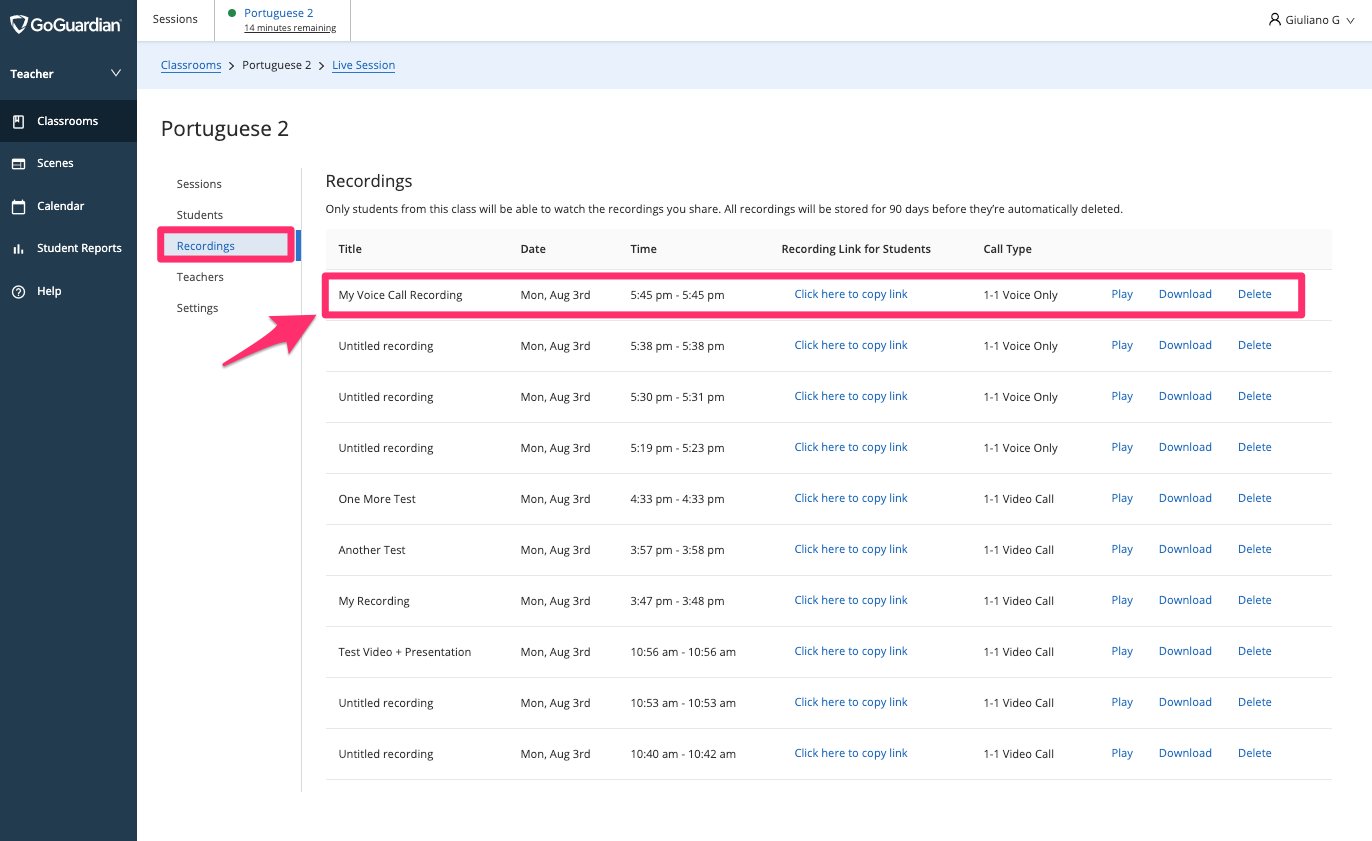
Recorded calls are saved in the **Recordings** tab of the classroom. From there, you can copy a shareable link, play, download, or delete recordings.
## Co-Teachers
To join an active group call as a co-teacher, go to the **Call Students** tab and click **Join \[teacher name]'s Call**.
More than 1 student must be present in the call before co-teachers can join. A maximum of 10 teachers (including the teacher who started the call) can be on a call at the same time.
## End the Call and Save a Recording
Click **End Call** when done. If the call was recorded, you are prompted to give the recording a title. Click **Save Recording** or **Delete recording**. A shareable link is available — only students in the classroom can access it.
## Access Past Recordings
Recorded calls are saved in the **Recordings** tab of the classroom. From there, you can copy a shareable link, play, download, or delete recordings.
 ## Resources
Configure call settings for your organization (Super Users).
Start a video call with cameras and screen sharing.
Send messages to students without a call.
## Resources
Configure call settings for your organization (Super Users).
Start a video call with cameras and screen sharing.
Send messages to students without a call.