

The Transform feature is free to all Pear Deck Learning users.
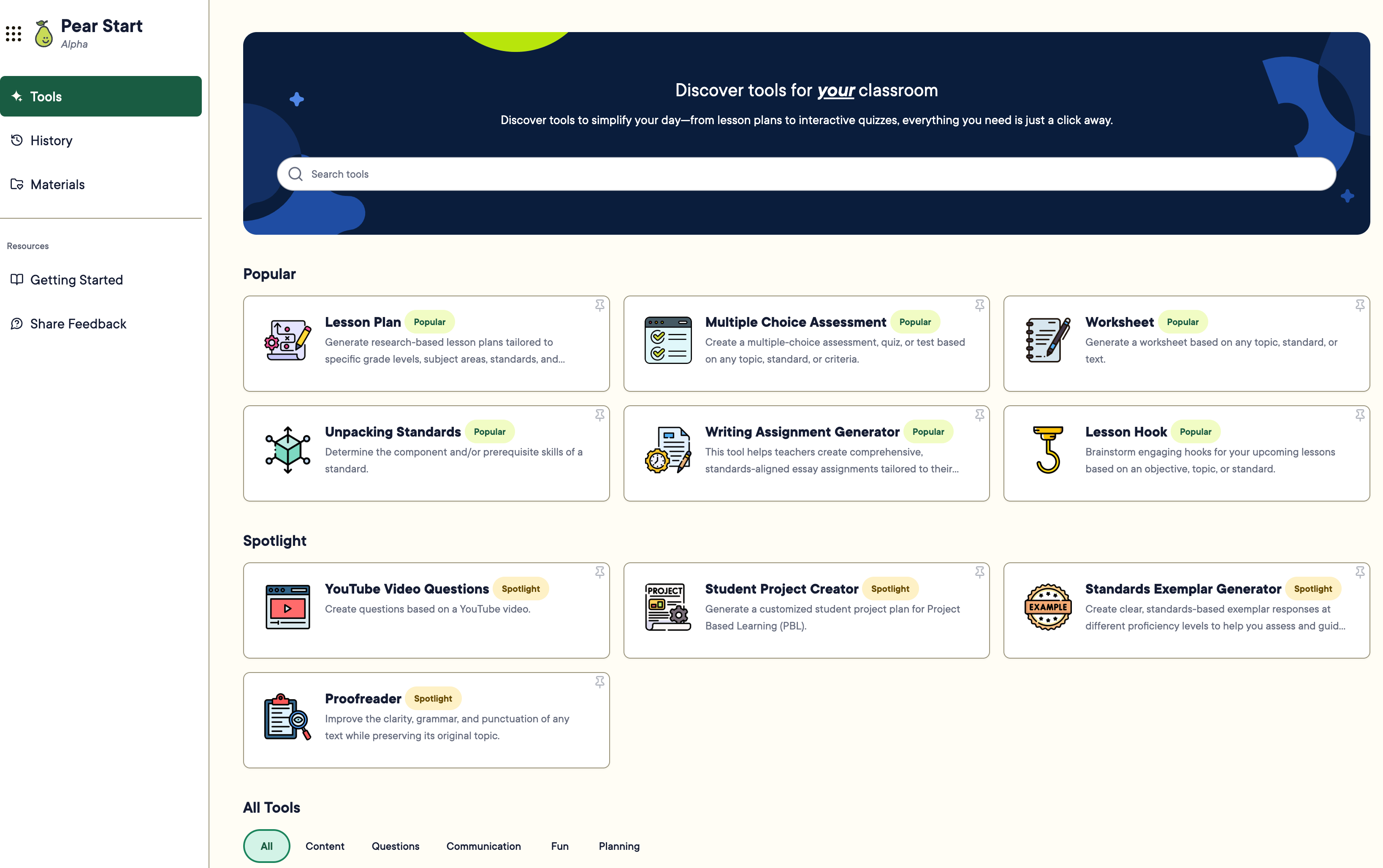
Use the Tools Library
- Click the Tools tab in the navigation bar.
-
Click the name of the tool that best fits your needs.
Tools are separated into two sections:
- Popular : tools you’ve used in the last 30 days or pinned as favorites
- All Tools : organized into Content, Questions, Communication, Fun, and Planning categories
-
Review the tool description, which explains its purpose and the type of content it creates. Click Use Example to pre-fill the fields with a popular use case.
Most tools share a consistent structure:
- Grade level
- Content or resource
- Format
- Fill out the required fields, then click Generate to create content in real time.
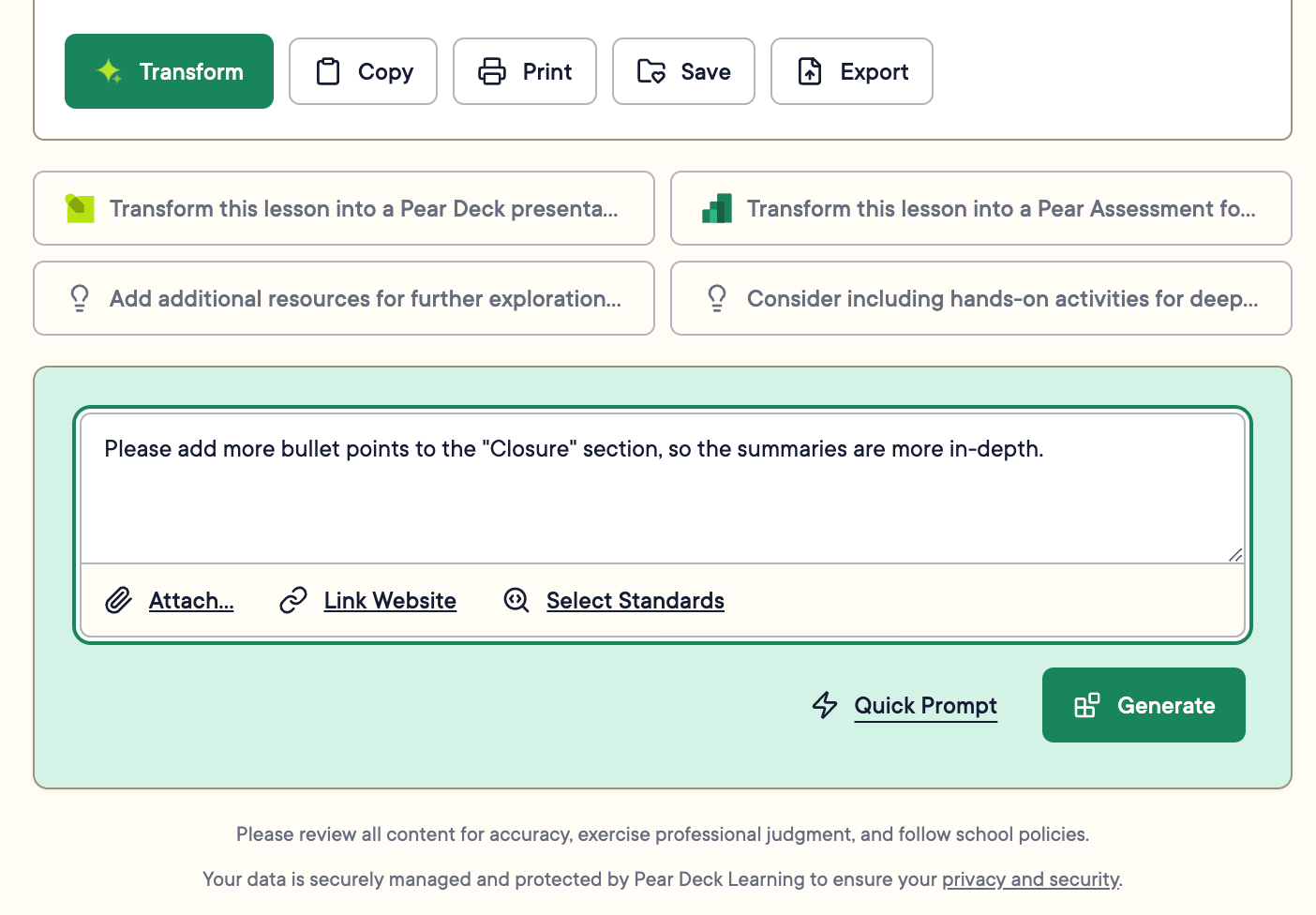
- Review and edit the output before using it. To revise, click Edit Prompt in the upper-right corner of the tool, or request changes in the text field at the bottom. In the text field, use the Quick Prompt feature for popular changes, or enter your own change and click Generate. The new section is integrated into your content.



Transform Content into Classroom Materials
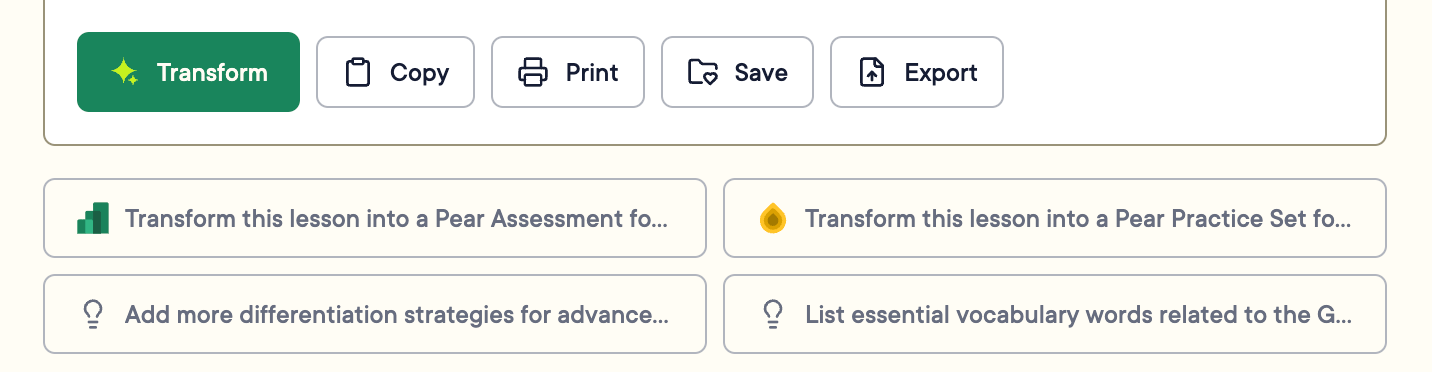
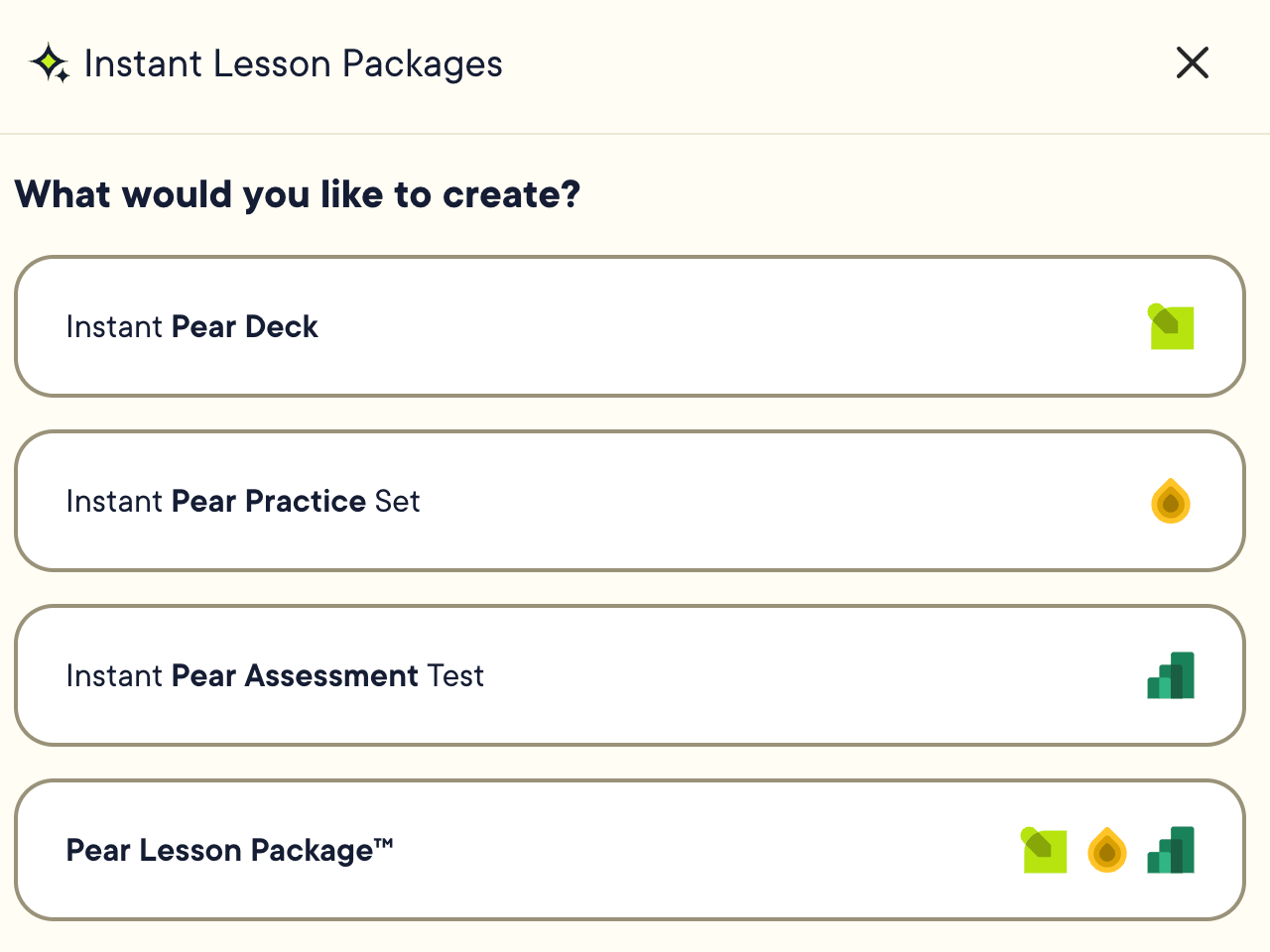
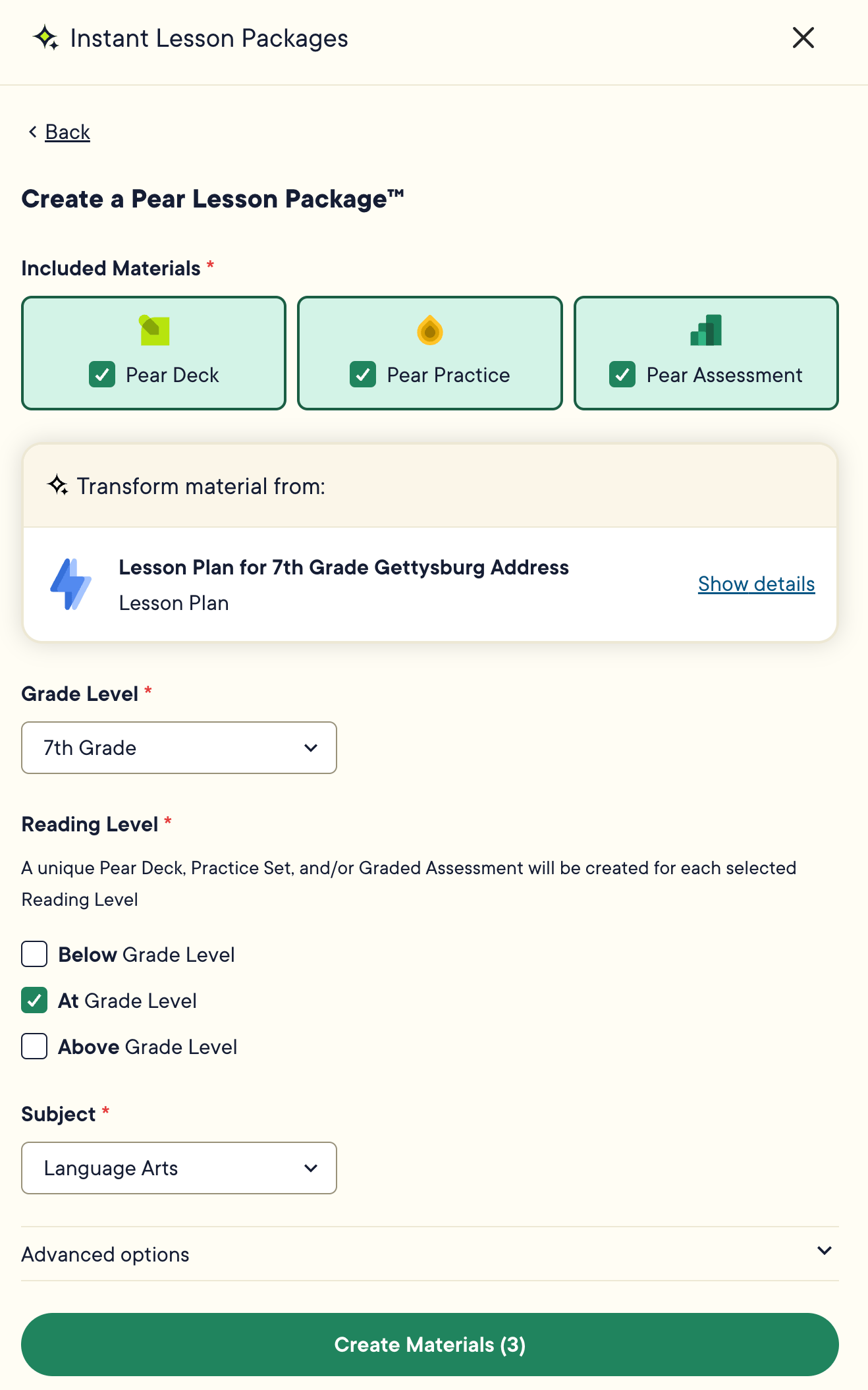
- When your content is ready, click Transform : or select a suggested transformation , then select the Pear Deck Learning app where the Instant Lesson Package will be created.
- Click Show details to review or adjust grade level, reading level, and subject. Pear Start automatically detects these from the generated content.
- Click Create Materials.
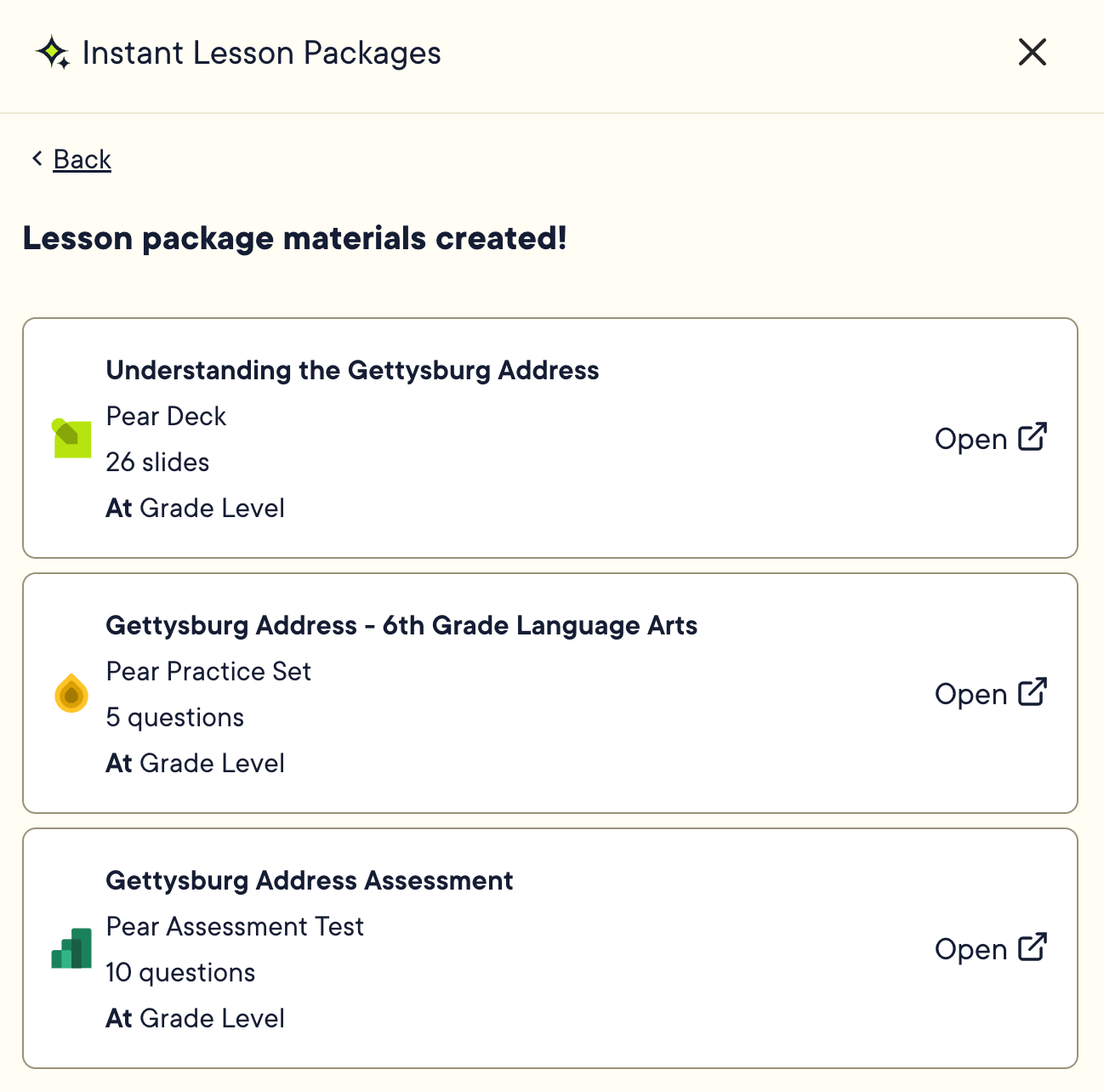
- Open the materials in a new tab from Pear Start, or access them by clicking the waffle tray in the upper-left corner and opening the relevant Pear Deck Learning app.
Resources
Create Instant Lesson Packages
Transform generated content into Pear Deck, Pear Practice, and Pear Assessment materials in one click.
Find Content You've Created
Locate and reuse your saved outputs from History and Materials.
Feedback and Tool Requests
Share feedback or request a new tool through the Pear Start feedback form.