

Find Speaker Notes in Google Slides
- Install the Pear Deck for Google Slides Add-on.
- Edit your slides in the Google Slides editor.
-
Open the Pear Deck Add-on to insert Interactive Slides and Formative Assessments into your presentation.
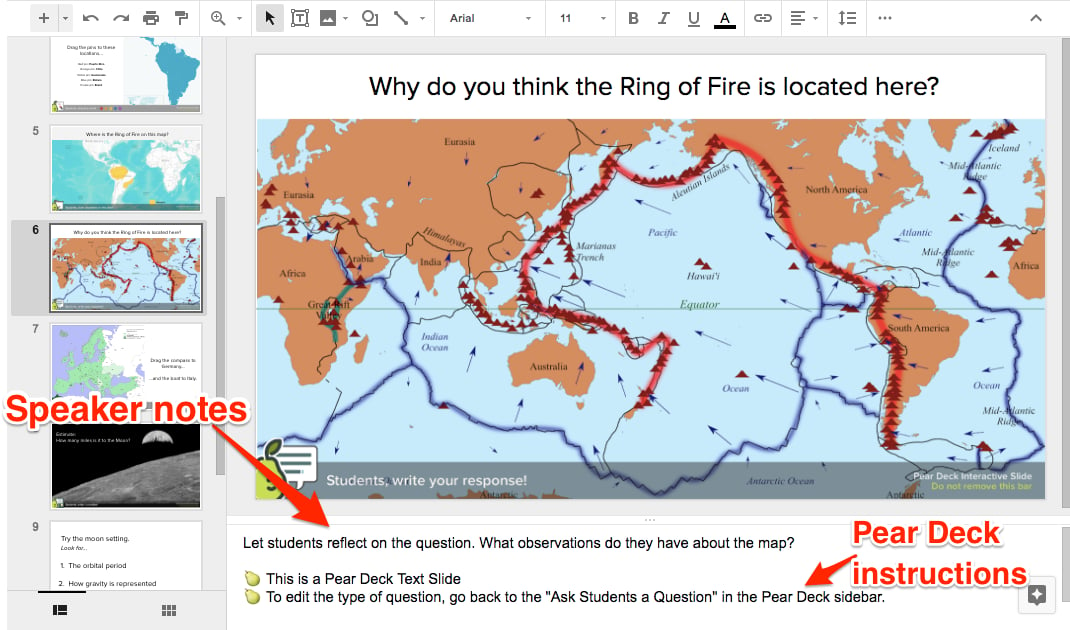
- Optional: Add notes to the Speaker Notes section beneath the slide. Pear Deck inserts slide instructions into the Speaker Notes section as well, but these notes will not appear in your presentation.
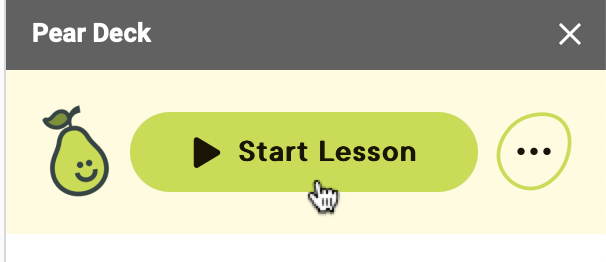
- When you’re ready to present, open the Pear Deck Add-on and click Start Lesson.
- During the presentation session, the Notes button appears on the Navigation Bar.
- Open and close your notes by clicking the Notes button. You can open them on both the Projector View and the Teacher Dashboard.

Resources
Start a Lesson
Learn how to launch a Pear Deck session from Google Slides.