

Administrators need access to Pear Start Workspace to enable or disable tools. Workspace access includes Manage Tools in the navigation menu and shows the district name under the administrator’s name.
Enable a Tool for All Teachers
- Sign in to Pear Start as a Workspace administrator.
- Click Manage Tools.
- Click the name of the tool you want to enable.
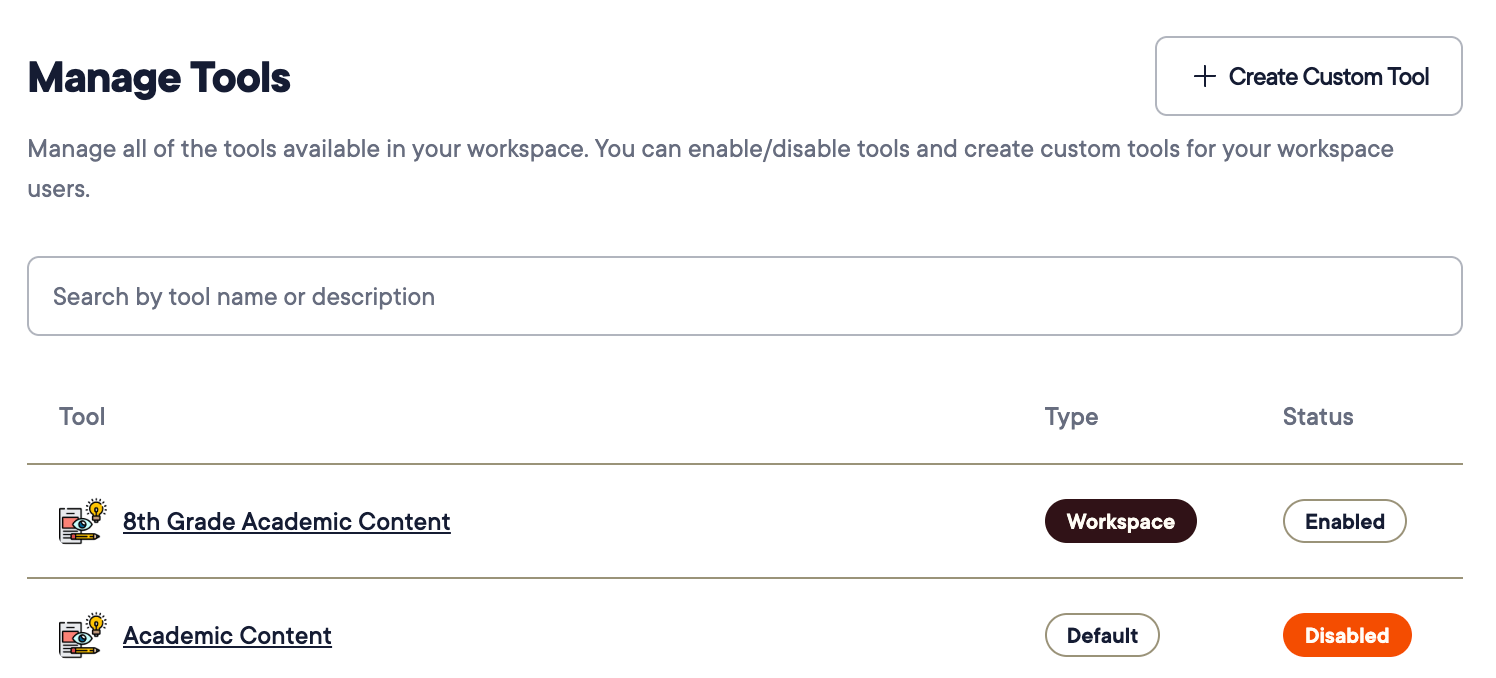
- Toggle on Is Enabled.
Disable a Tool for All Teachers
Teachers can still review their use of a disabled tool in the History tab.
- Sign in to Pear Start as a Workspace administrator.
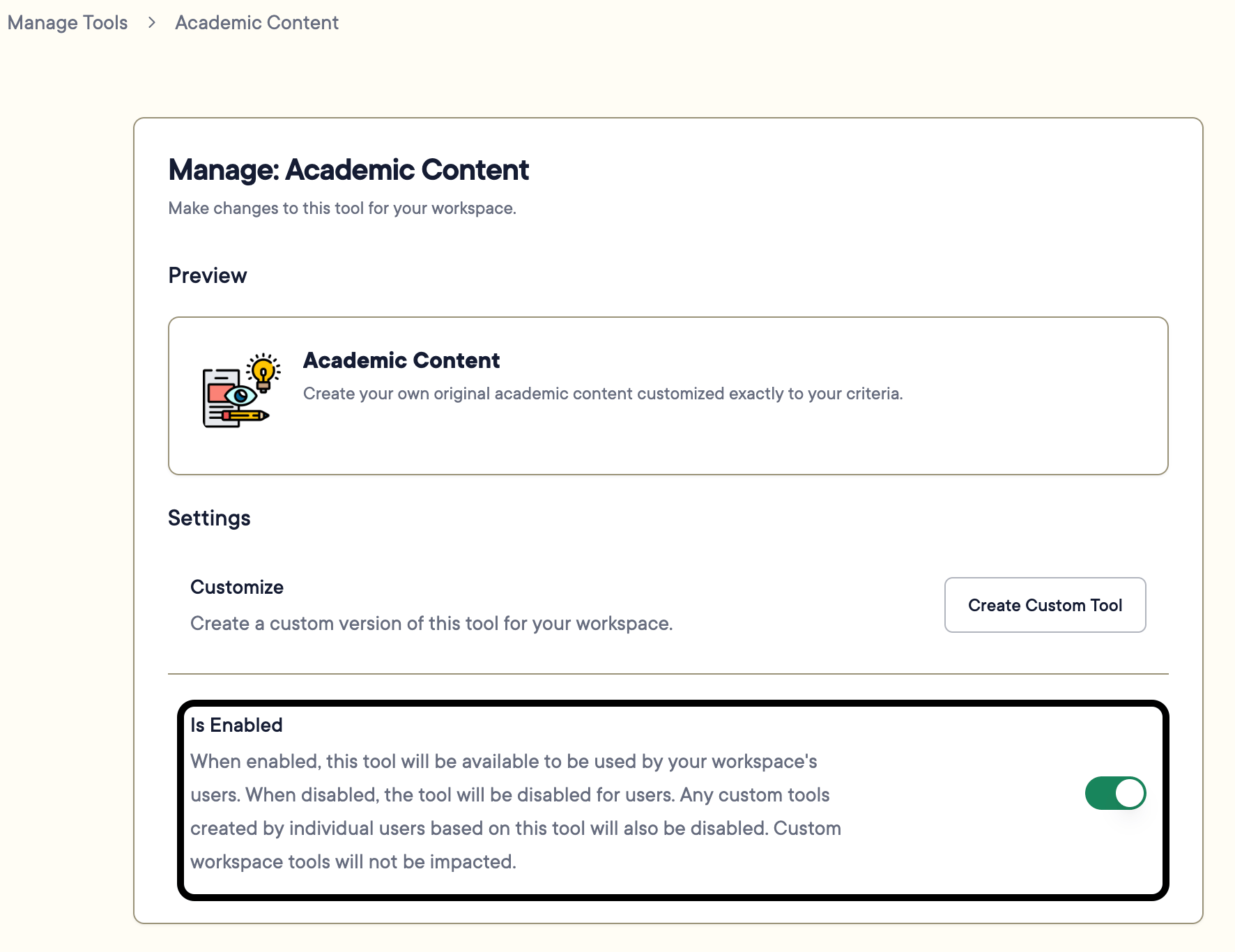
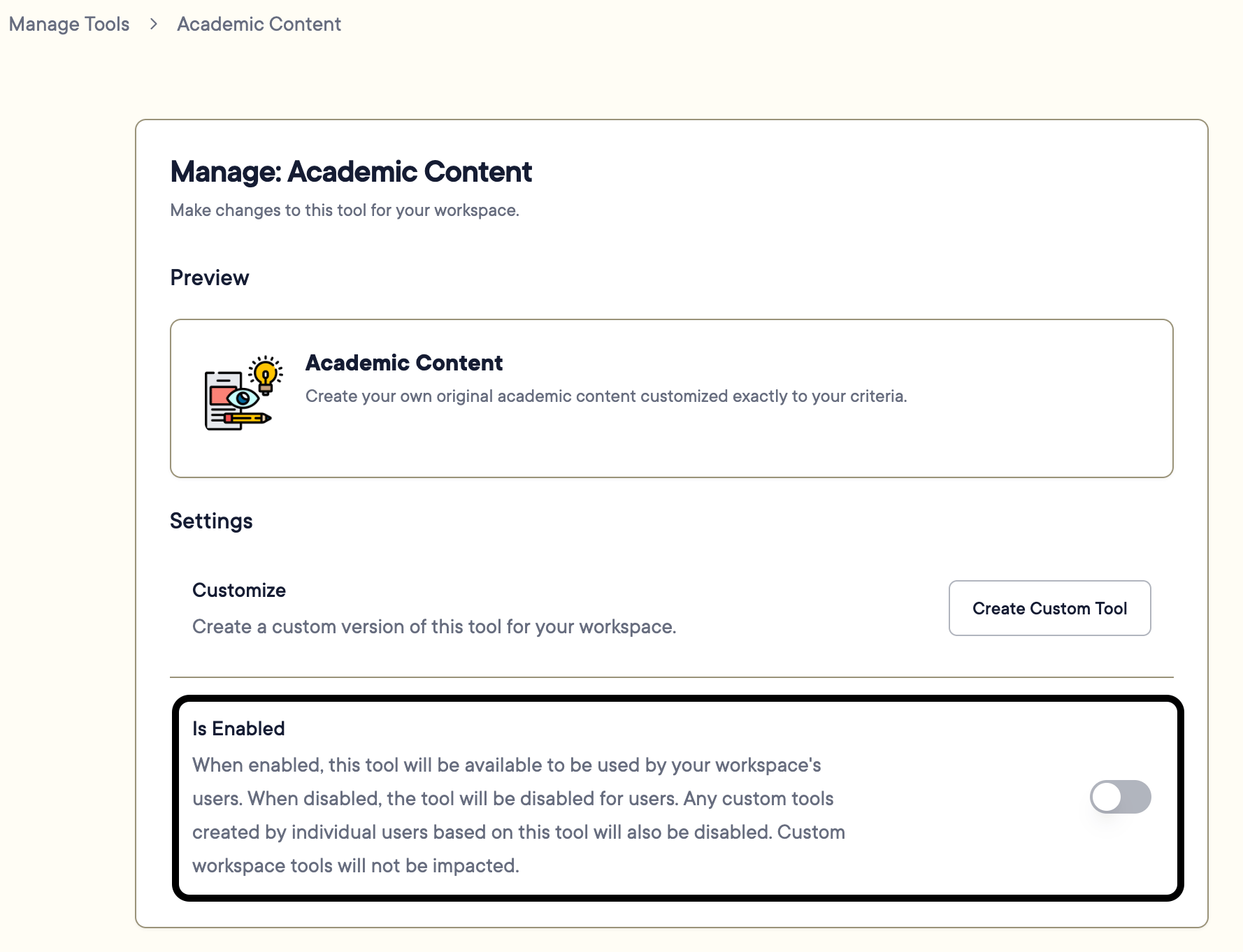
- Click Manage Tools.
- Click the name of the tool you want to disable.
- Toggle off Is Enabled.
Resources
Manage District Tools
Review all tools available to teachers and manage Workspace tools from one place.
Create Custom Tools as Administrator
Build district-wide AI tools for teachers.