

- Enable or disable tools to streamline operations
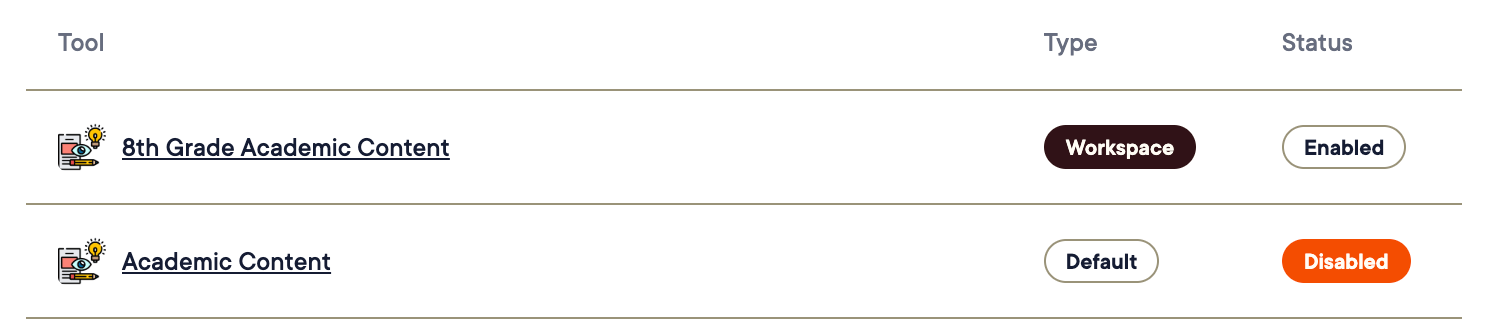
- Create district-wide Custom Tools labeled with a “Workspace” badge
Understand the District Management Tools View
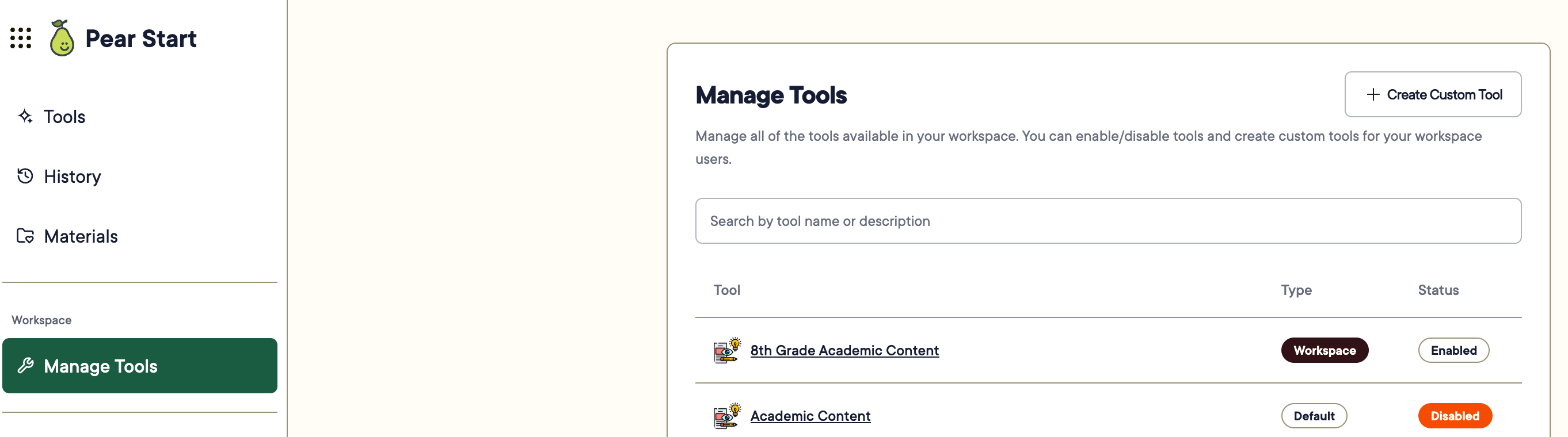
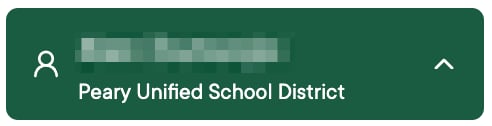
When administrators access District Management Tools, they see:- Their district’s name below their full name in the navigation menu
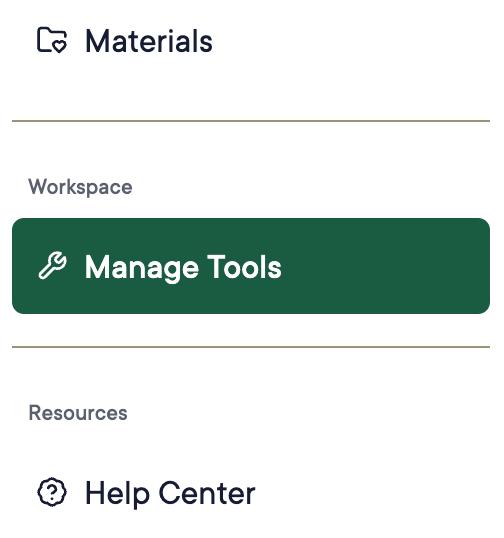
- The Manage Tools option in the navigation menu
Tool types also appear as badges next to the tool’s name on the Tools page for teachers.
Resources
Enable or Disable Tools
Turn individual tools on or off for all teachers.
Create Custom Tools as Administrator
Build district-wide AI tools for teachers.