

View All Outputs in History
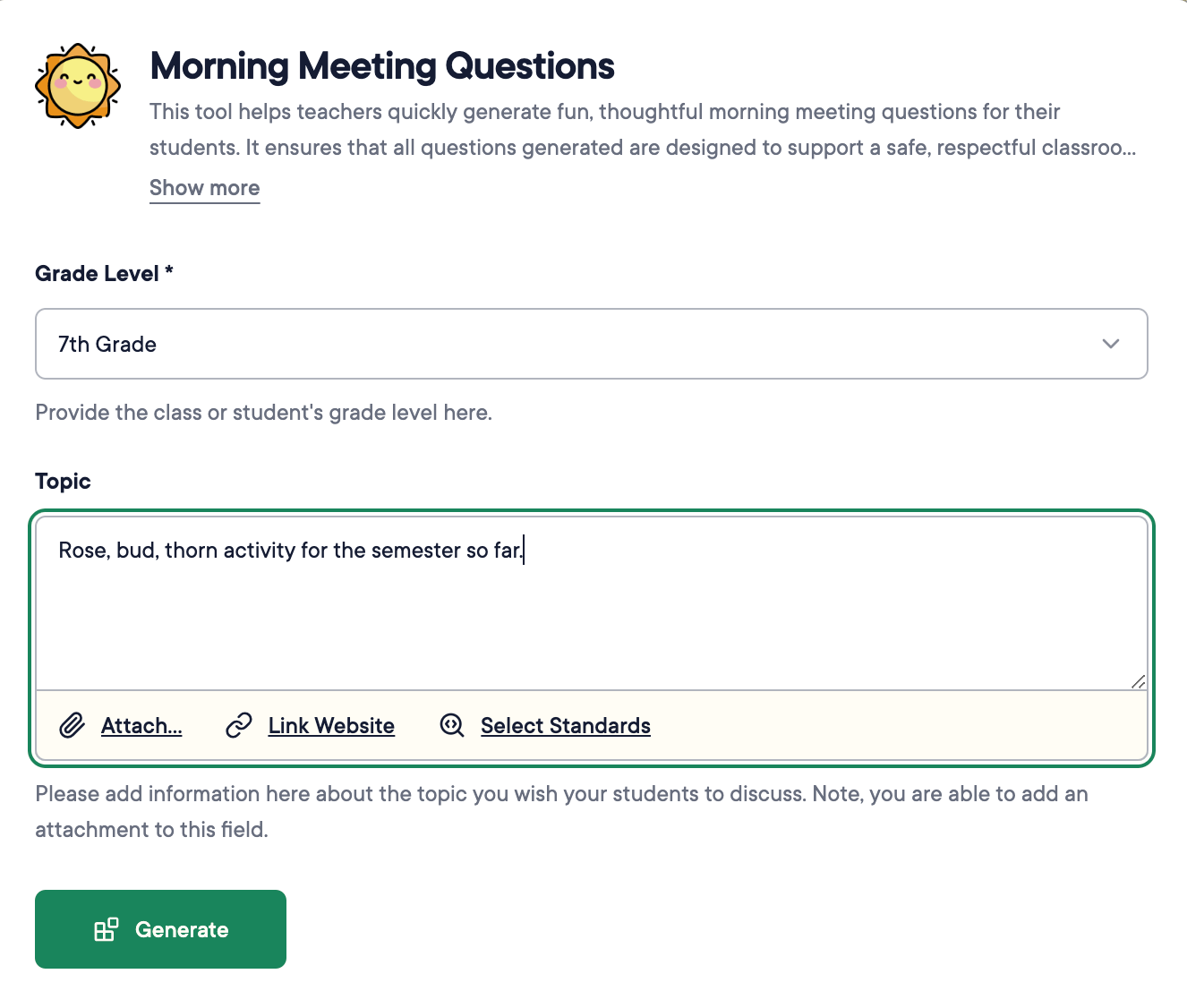
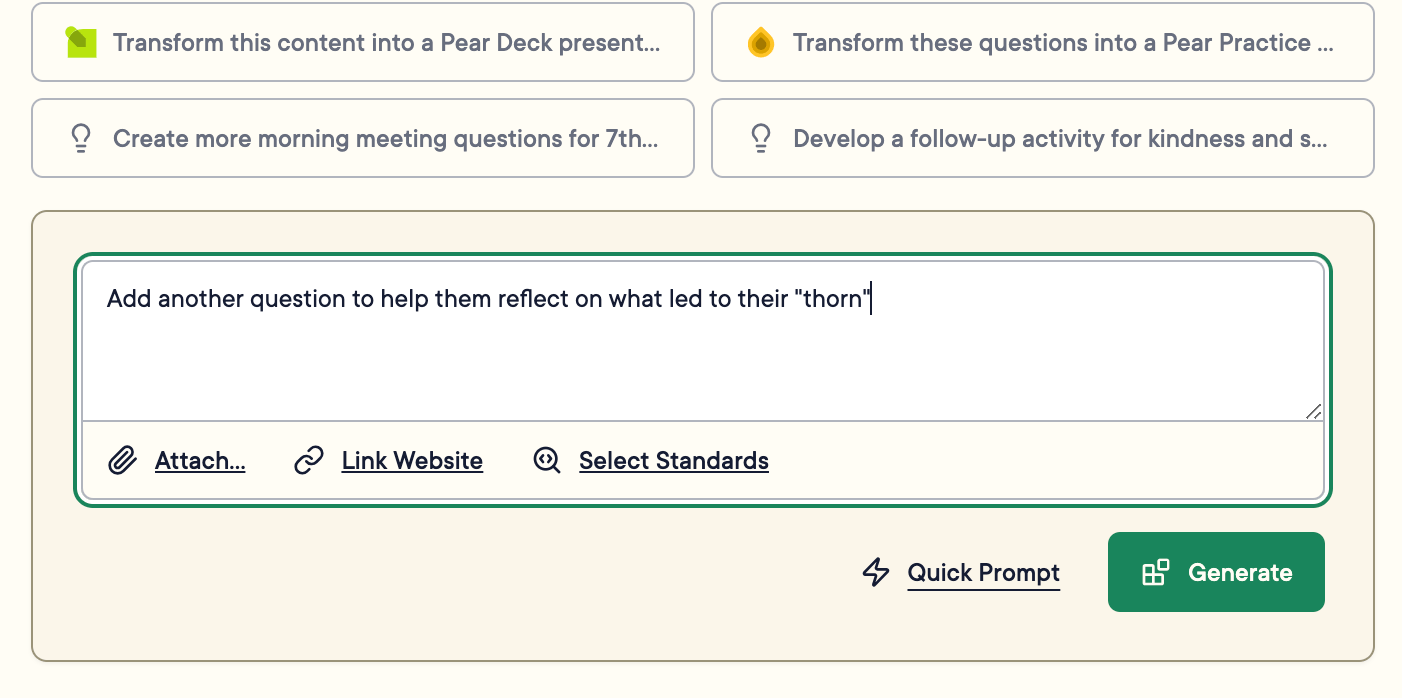
Click Generate in any tool to log the output automatically in History.Adding to or revising an output using the prompt box at the bottom of the generated content does not create a new History entry , it updates the existing output.

Save Specific Outputs in Materials
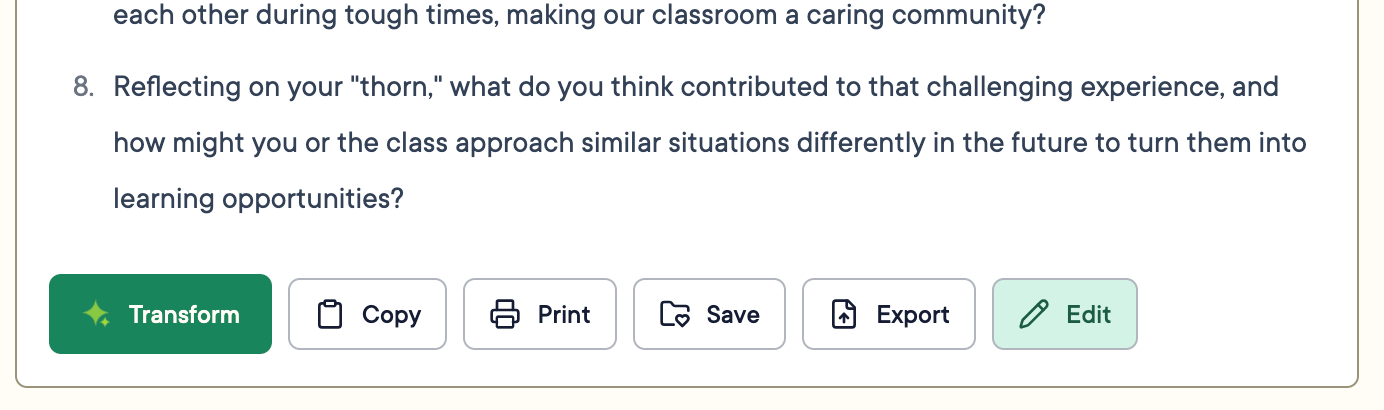
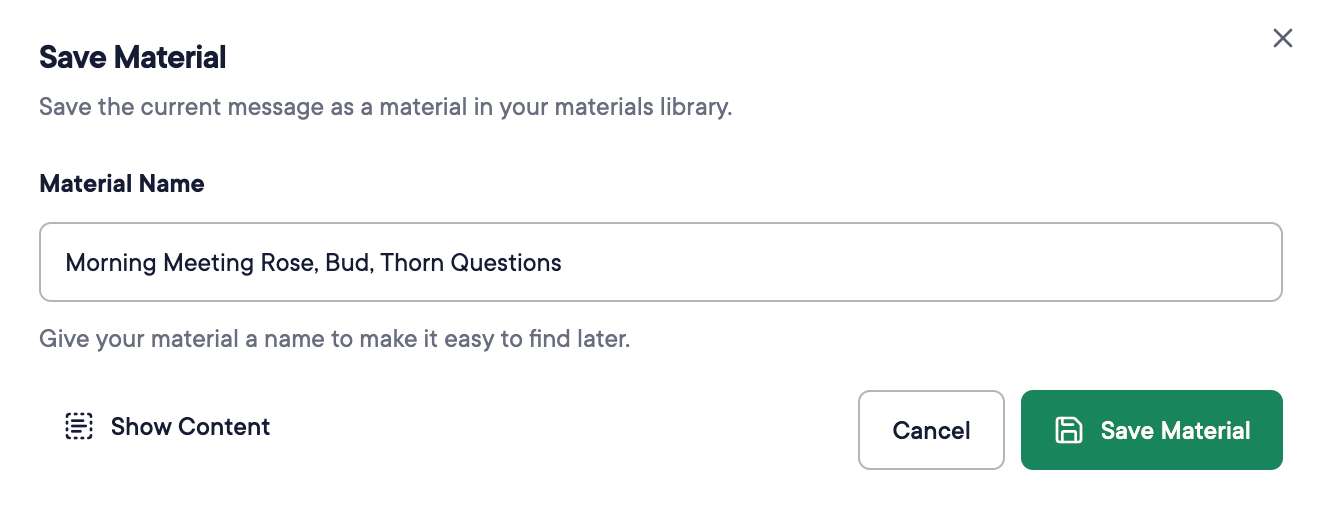
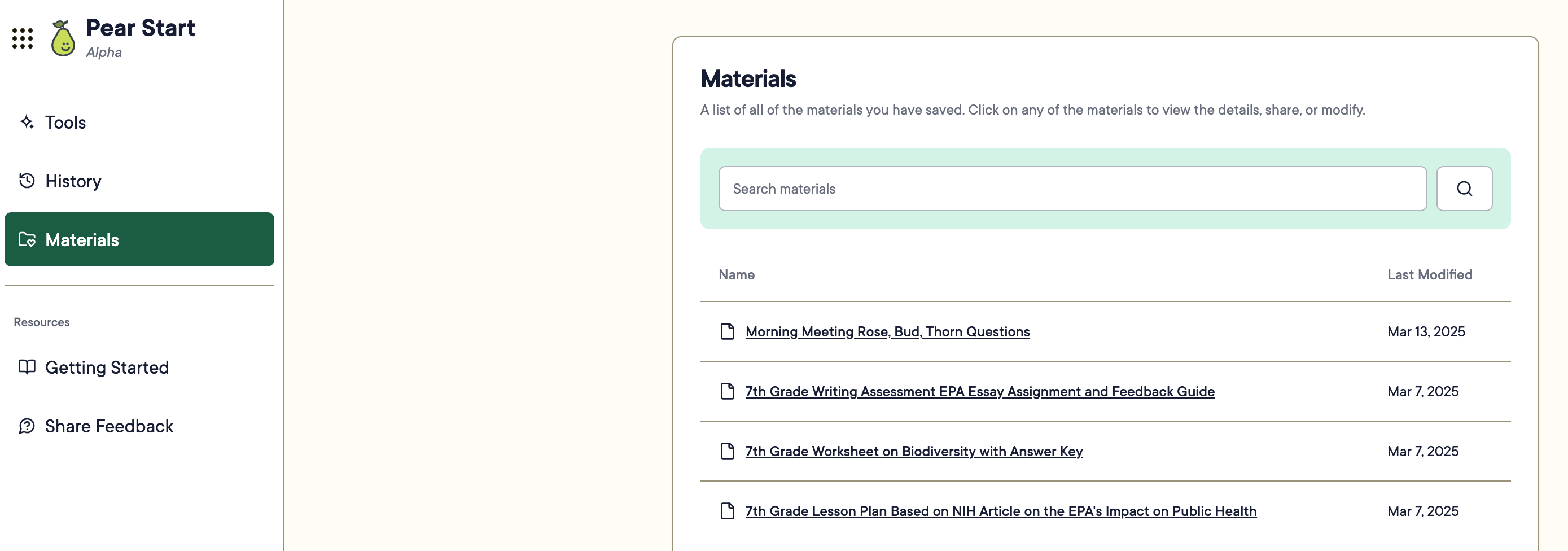
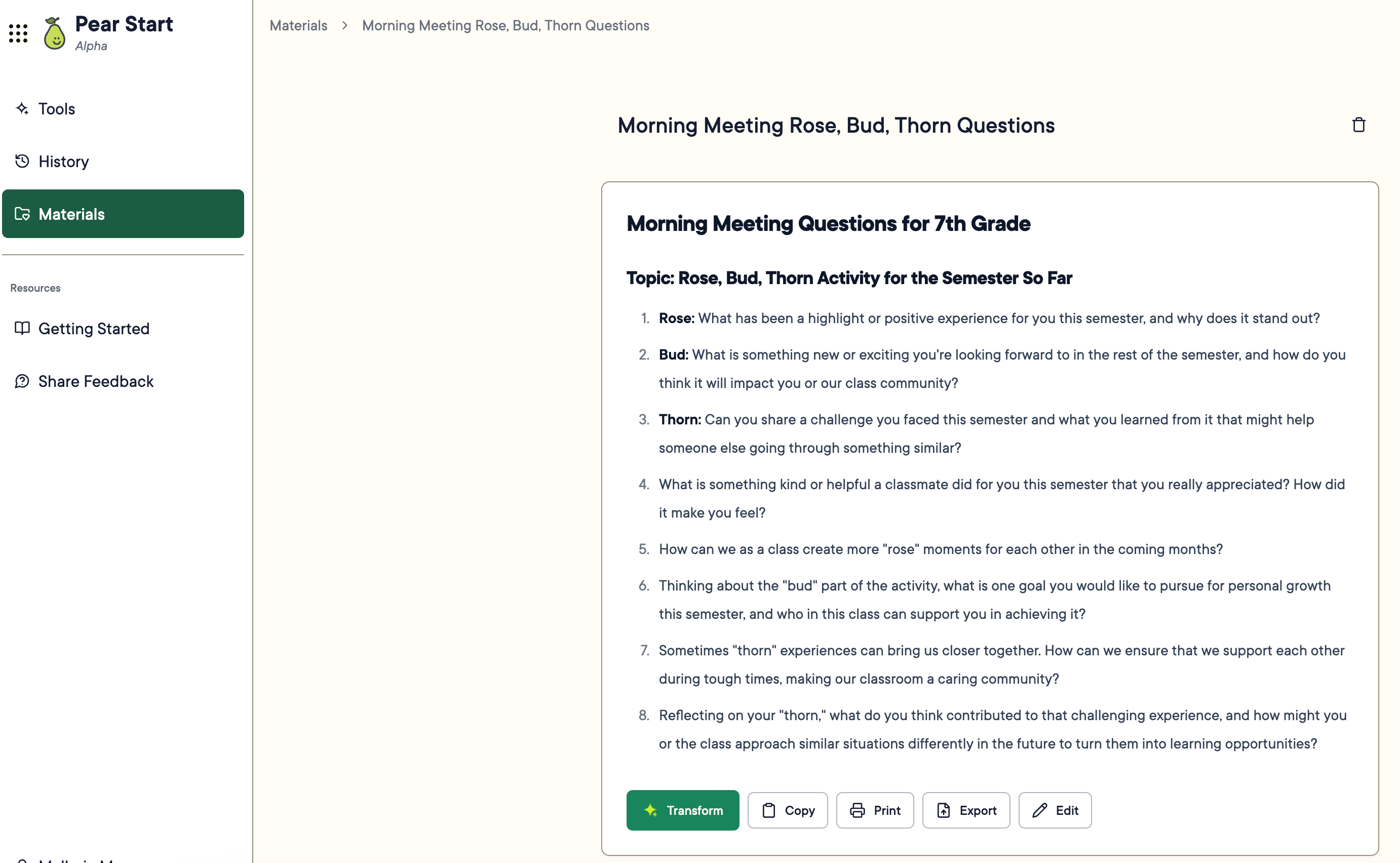
After generating an output or selecting one from History, click Save to add it to your Materials tab. Review and adjust the title, then click Save Material. Navigate to the Materials tab to view your saved outputs. They are organized by Last Modified date. Use the search bar to find specific outputs. Click an output to reopen it. From there, you can Transform, Copy, Print, Export, or Edit the content.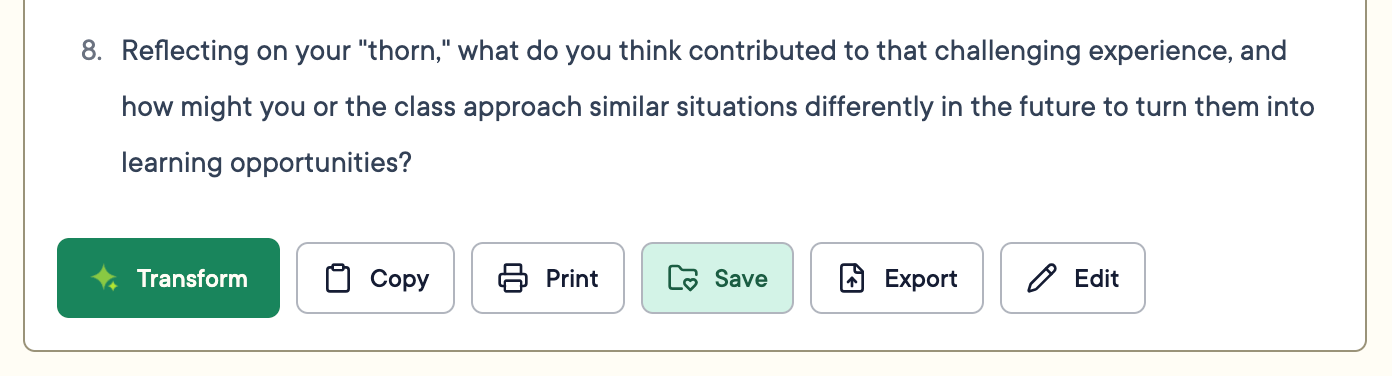
Use Materials as Attachments
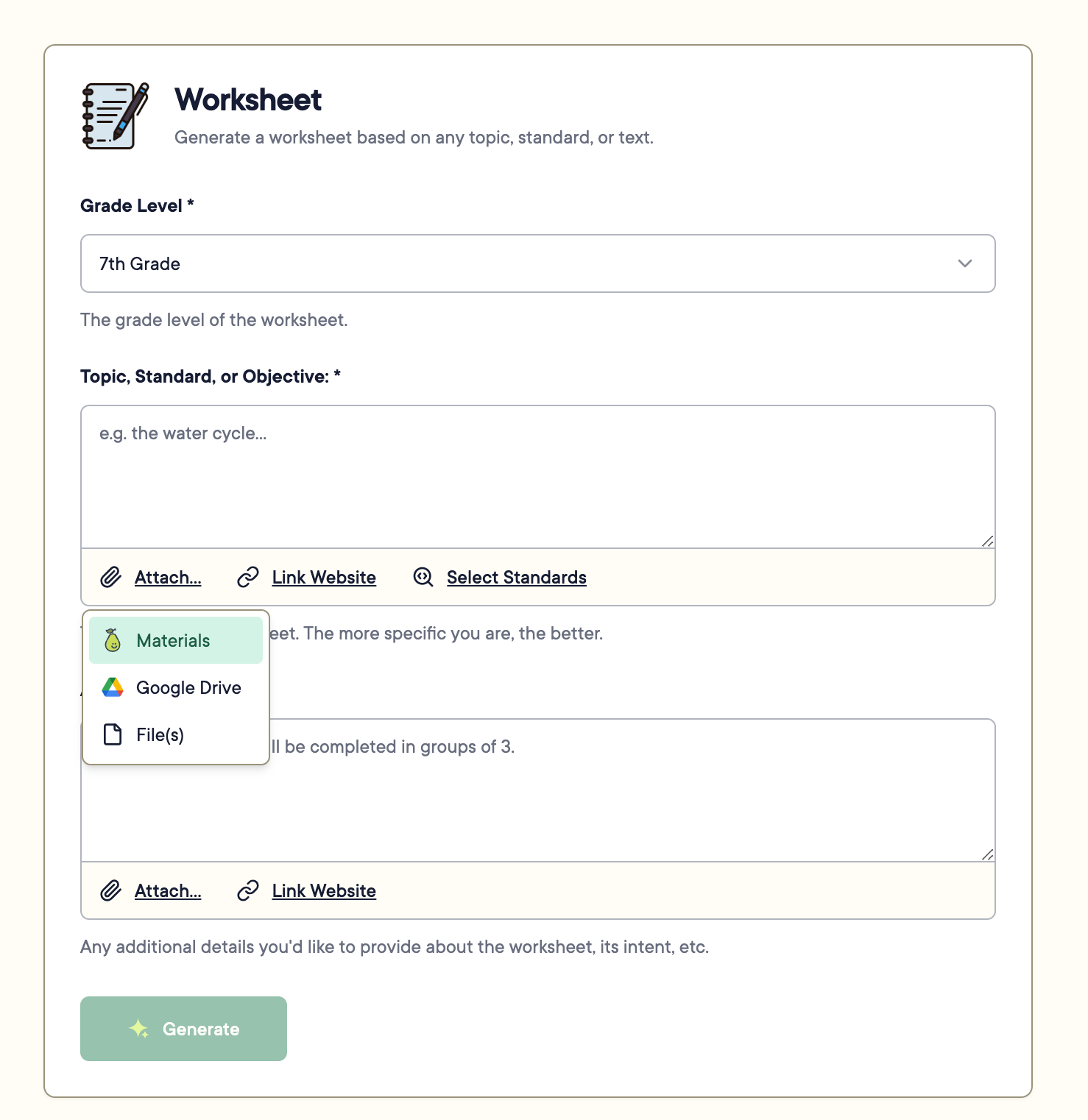
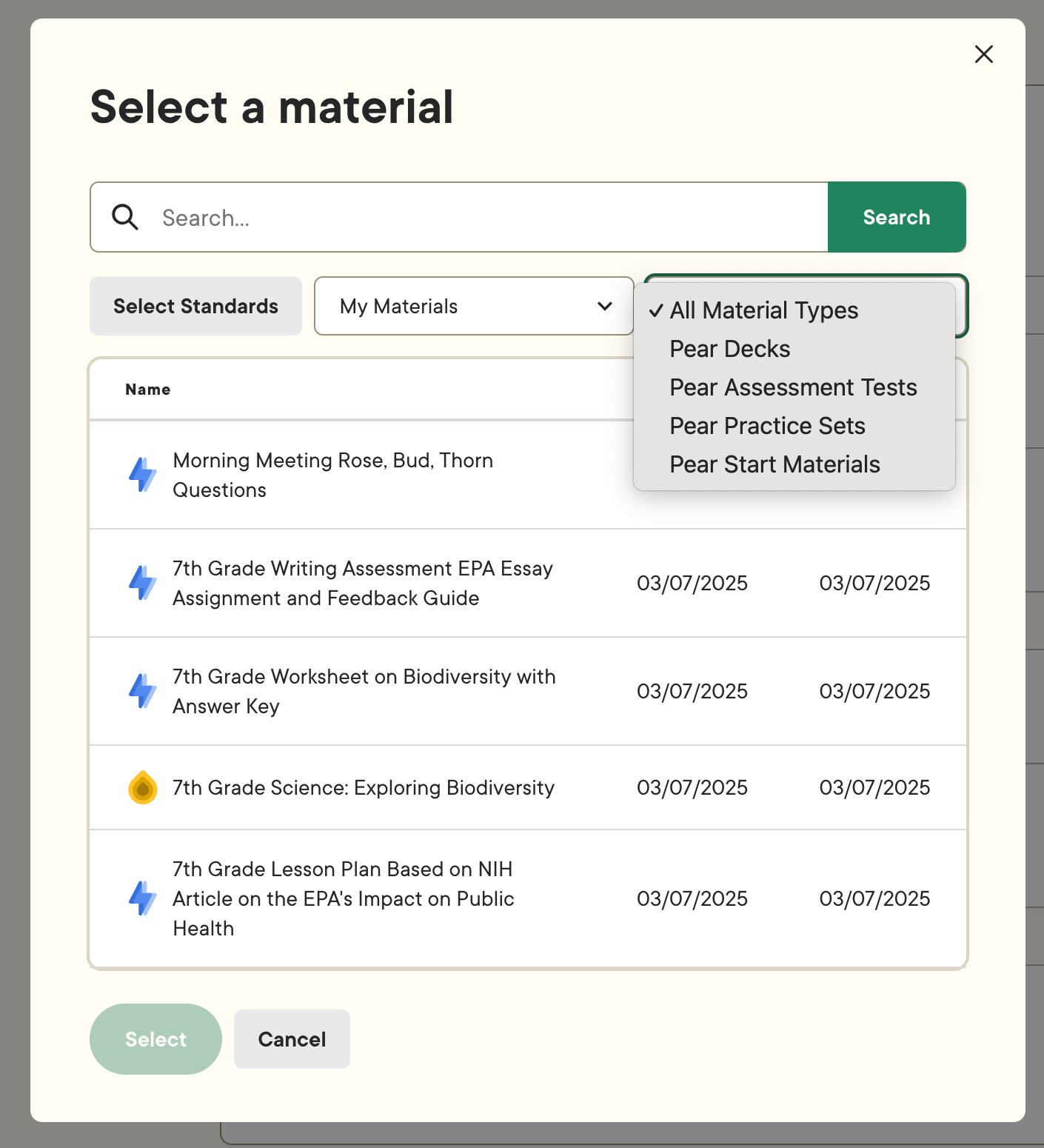
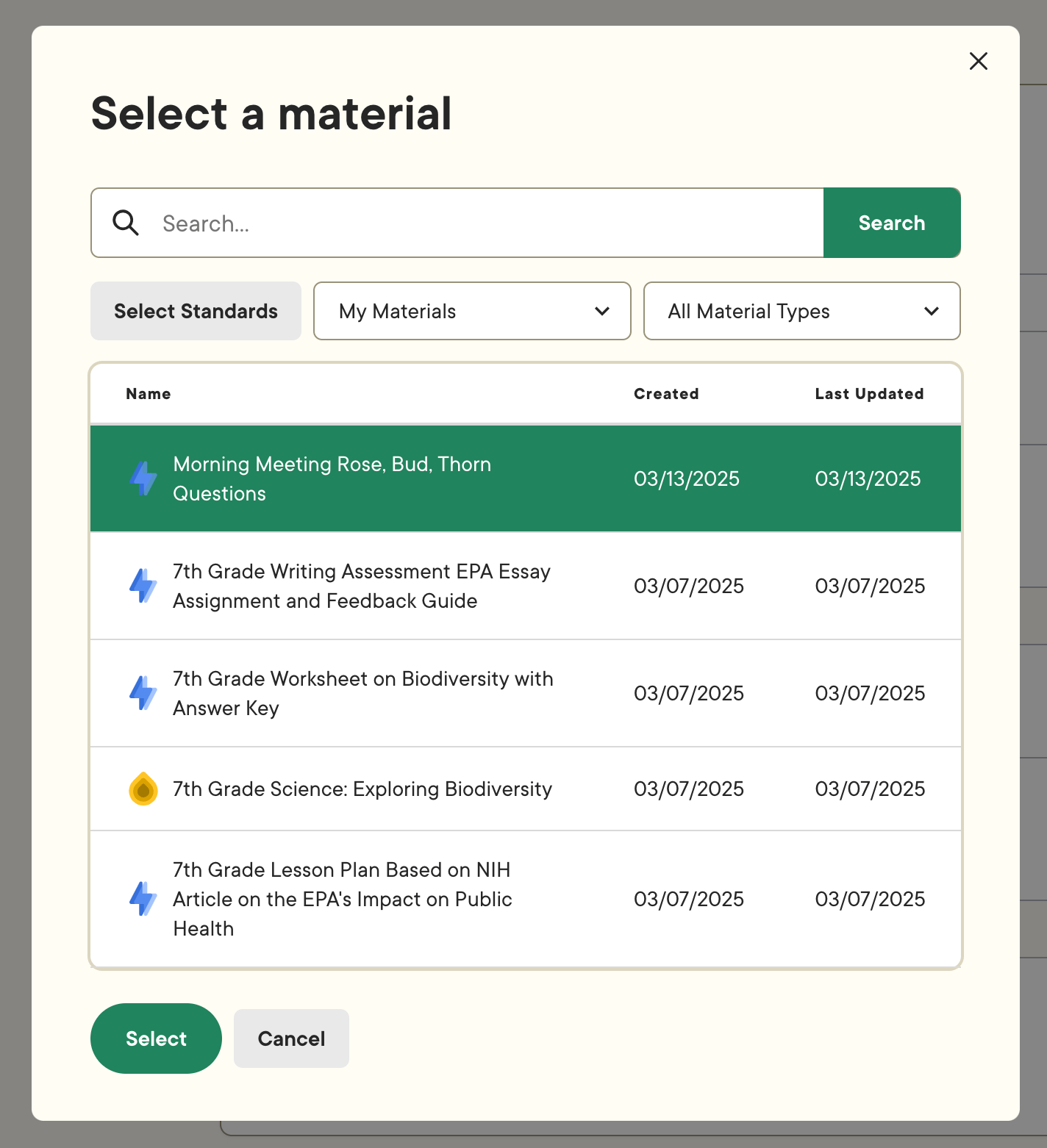
Saved materials can be attached to Pear Start Tools or Instant Lesson Packages to generate additional content.- Click Attach… and select Materials.
- Search or filter by material type to find the content you want.
- Click the material and then click Select.
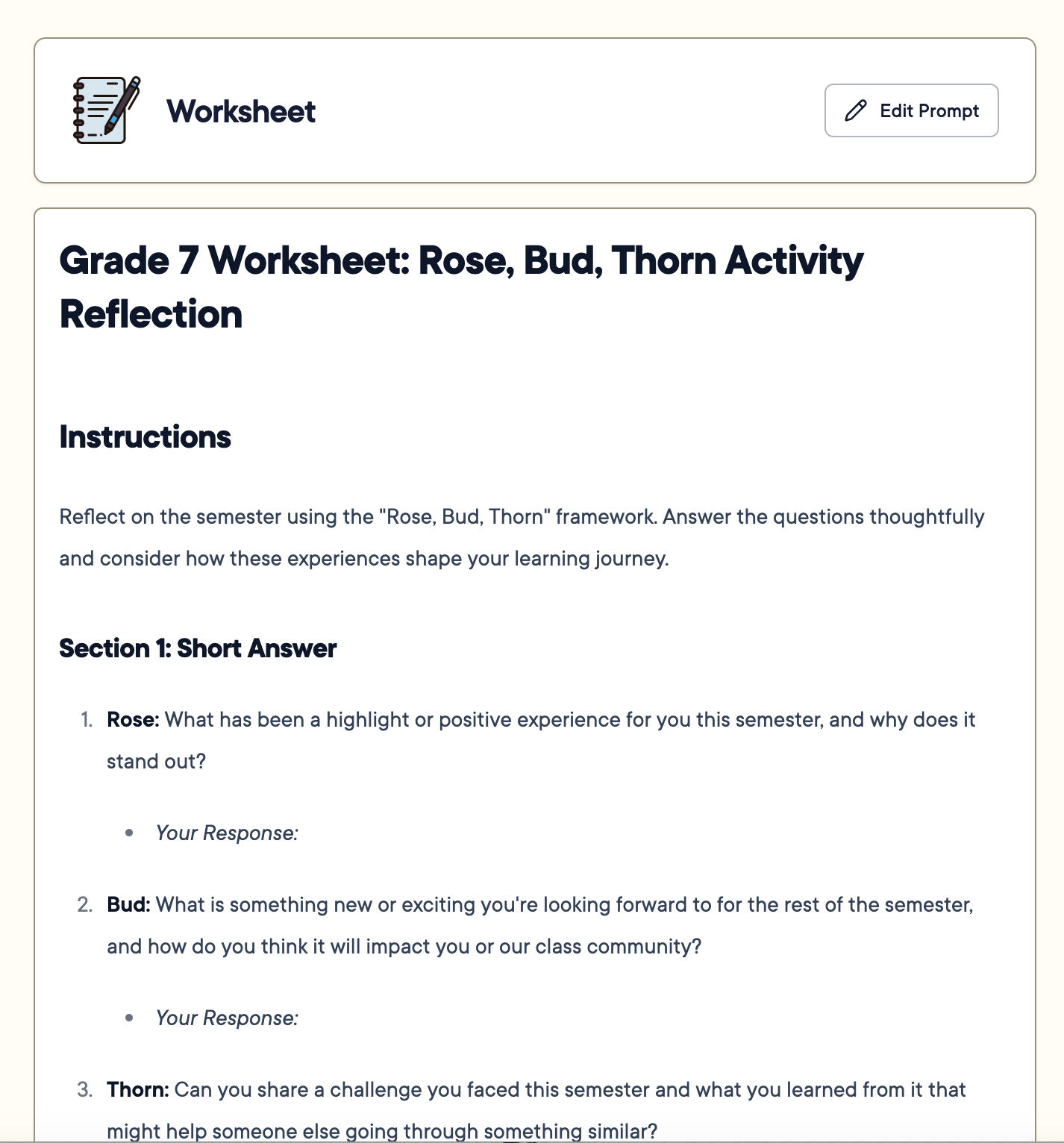
- Adjust any additional fields, then click Generate.

Resources
Create Instant Lesson Packages
Transform saved materials into Pear Deck, Pear Practice, and Pear Assessment content.
Tools Overview
Learn how Pear Start Tools work and how to use Generate and Transform.