

Convert a YouTube Transcript to Assignment Questions
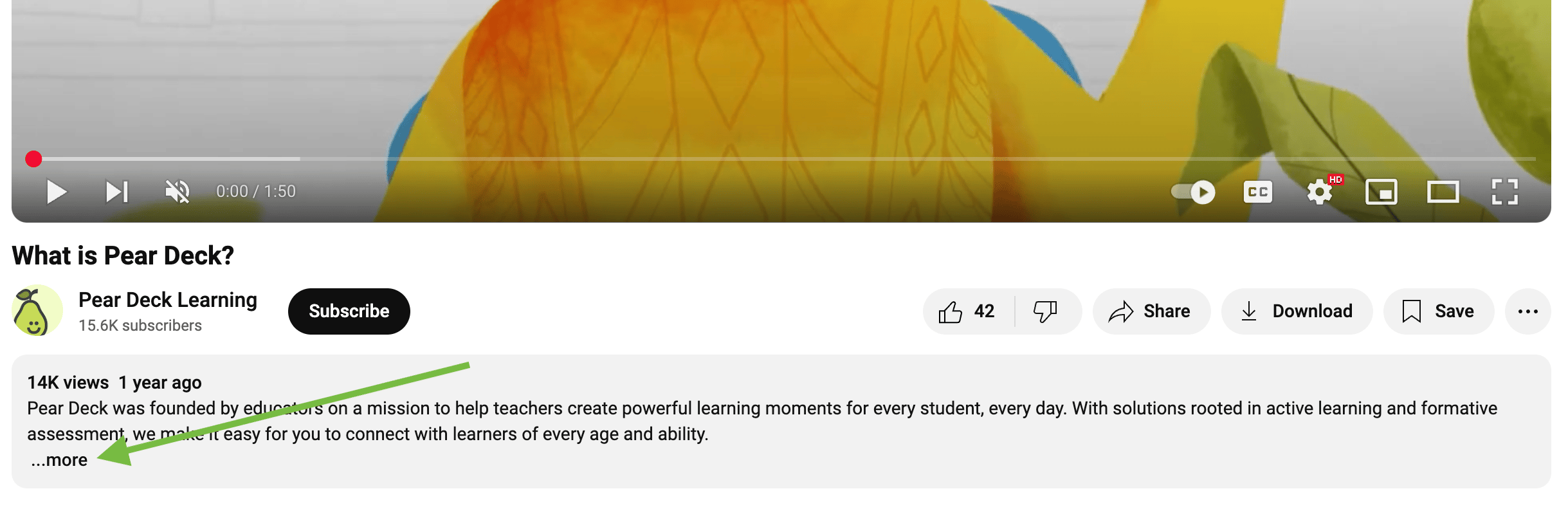
- Navigate to your preferred video on YouTube.com.
- In the video’s description, click More.
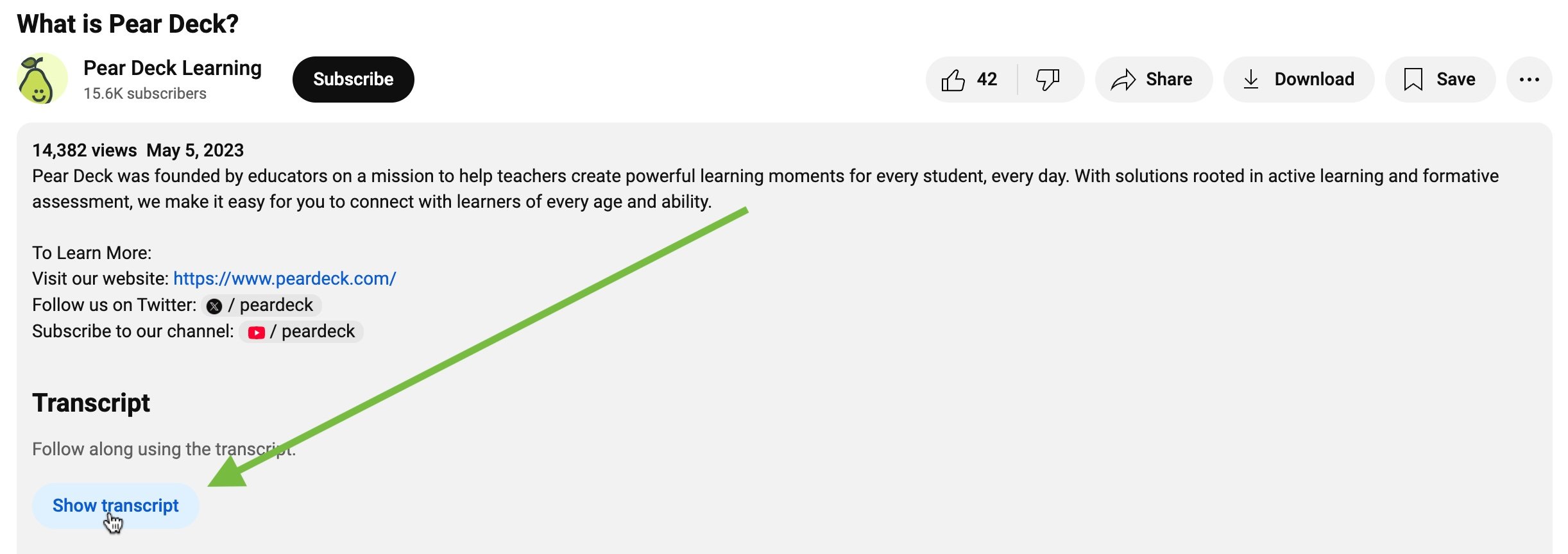
- Below the description, under the Transcript header, click Show transcript.
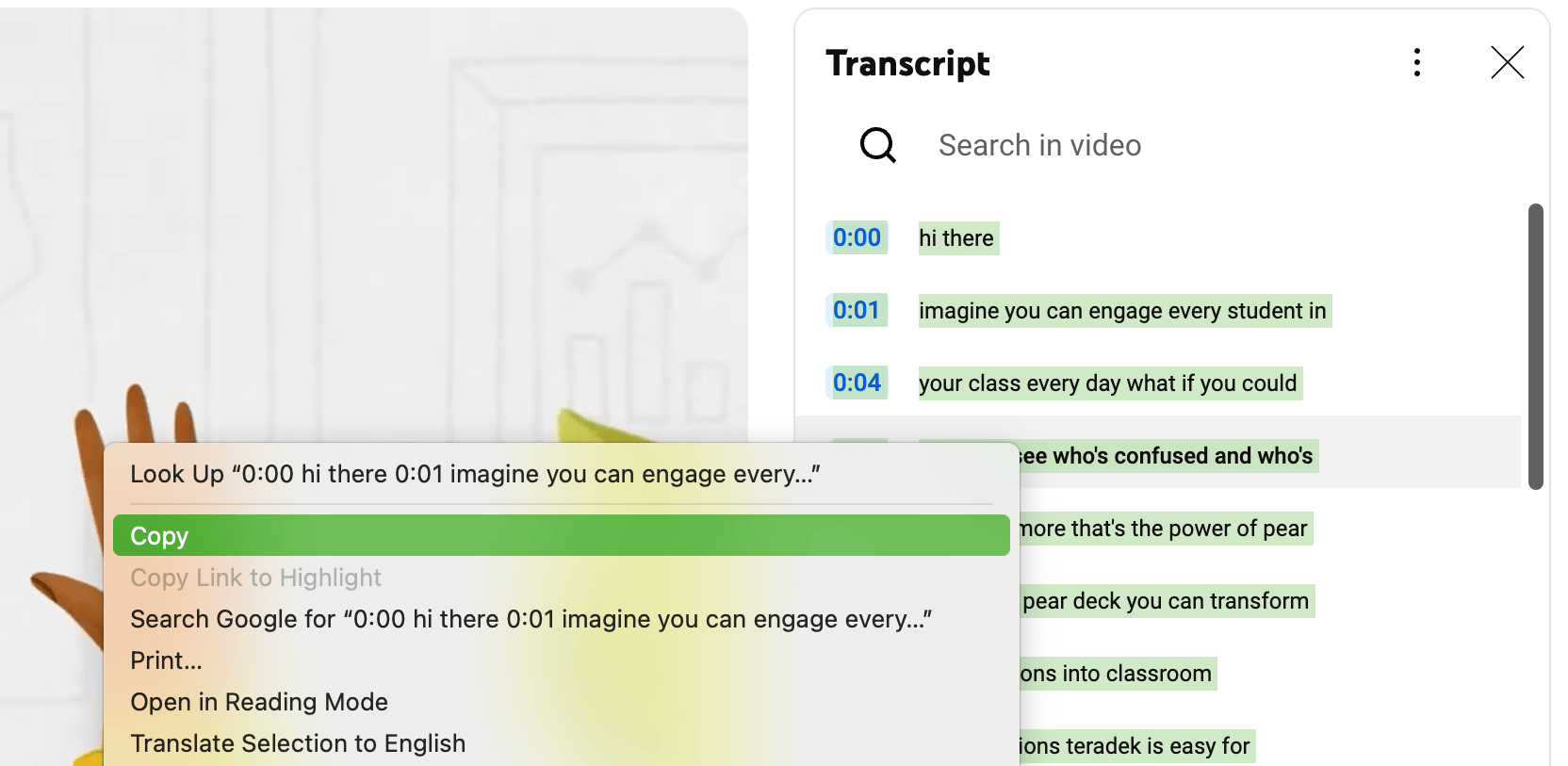
- Right-click the highlighted transcript and click Copy.
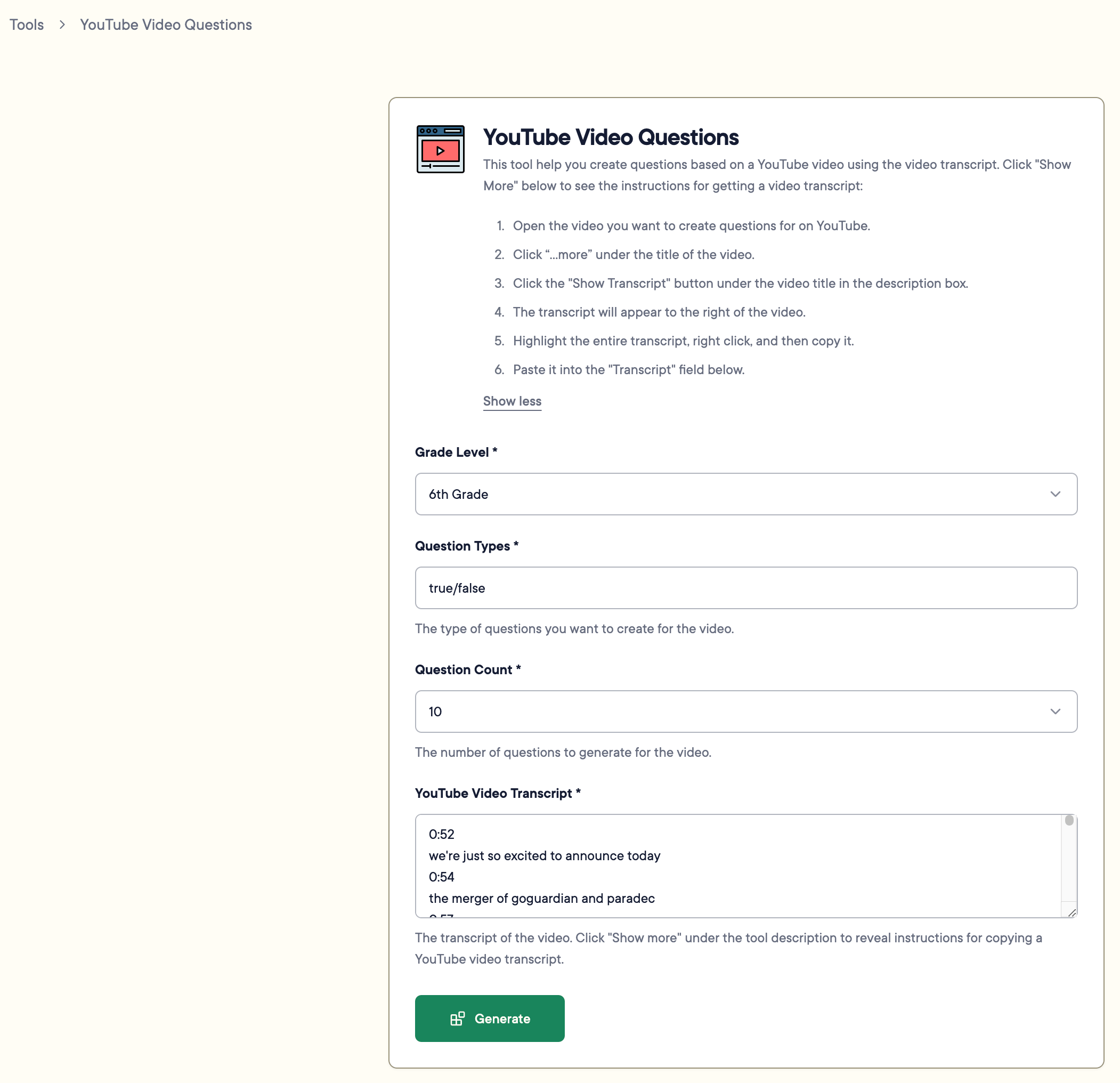
- In Pear Start, click Tools > YouTube Video Questions.
- Select a grade level.
- Enter a preferred question format , for example, multiple choice, open response, or classification.
- Select the number of questions to generate.
- Right-click in the YouTube Video Transcript field and click Paste. The transcript formats automatically with a timestamp on one line and text on the next. Pear Start supports up to 45,000 characters.
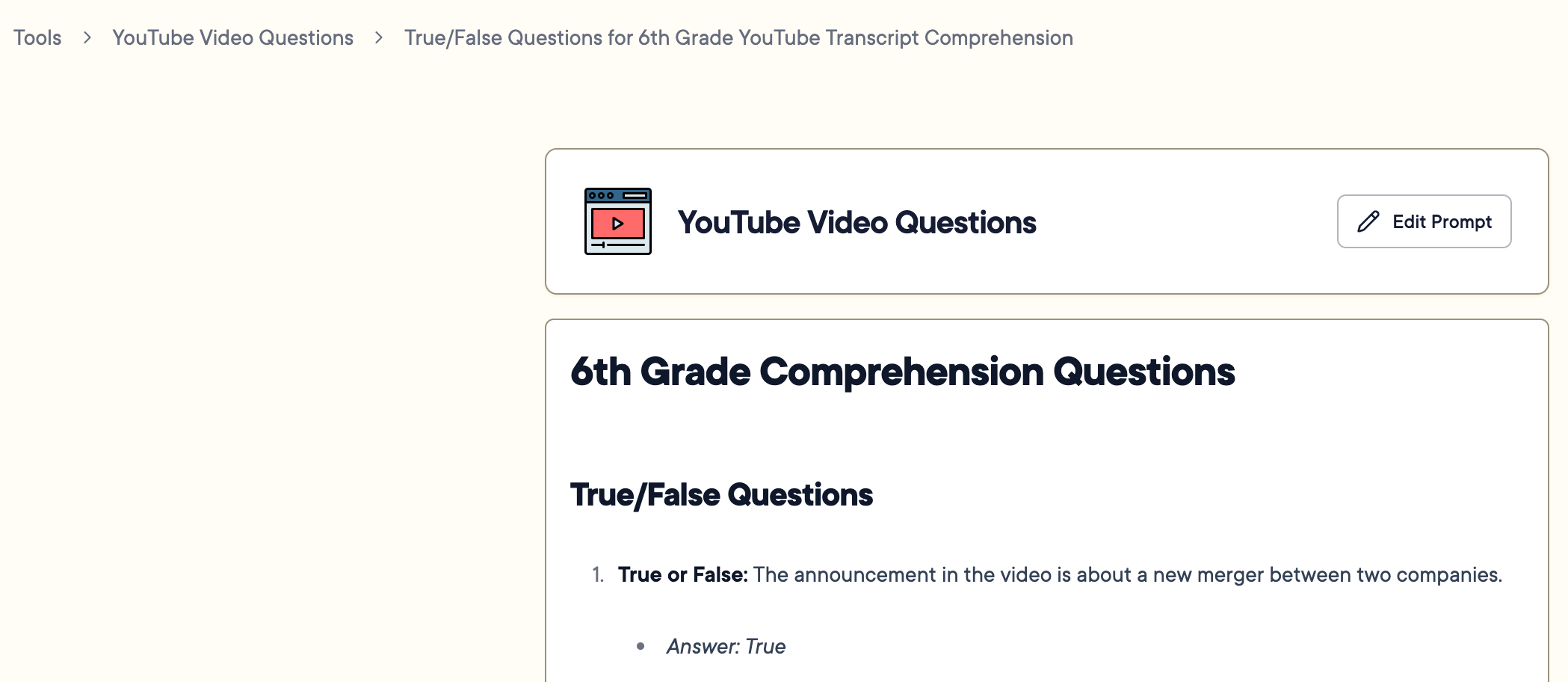
- Click Generate.
Resources
Tools Overview
Learn how to edit, refine, and transform AI-generated content into classroom materials.