

- LaTeX : a standardized format for rendering complex math formulas as properly formatted equations, commonly used in math and science
- Plain Text : a basic format containing standard symbols and characters, compatible with common text editors
Due to a Google Docs limitation with rendering advanced math formulas, install an administrator-approved Google Docs extension for precise LaTeX rendering. See the Resources section for a recommended extension.
Export to LaTeX Format
- Click Tools.
- Under All Tools, click a tool that uses formulas , for example, Math Mixed Assessment Practice.
- Fill out the required fields and click Generate.
- Click Export in the toolbar at the end of the generated content > Export to Google Doc.
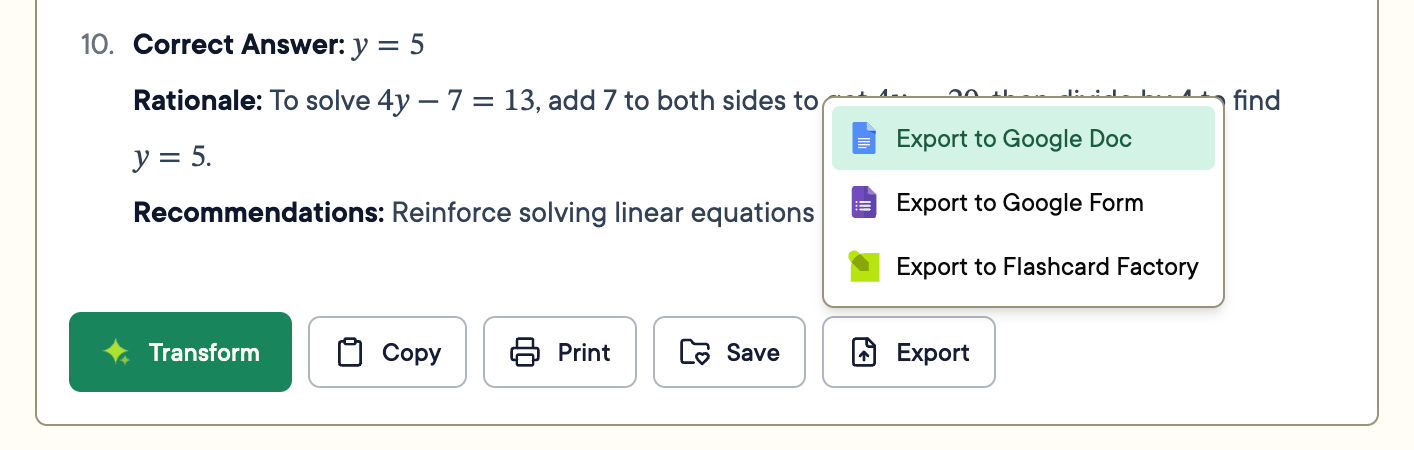
- Give the document a recognizable name.
-
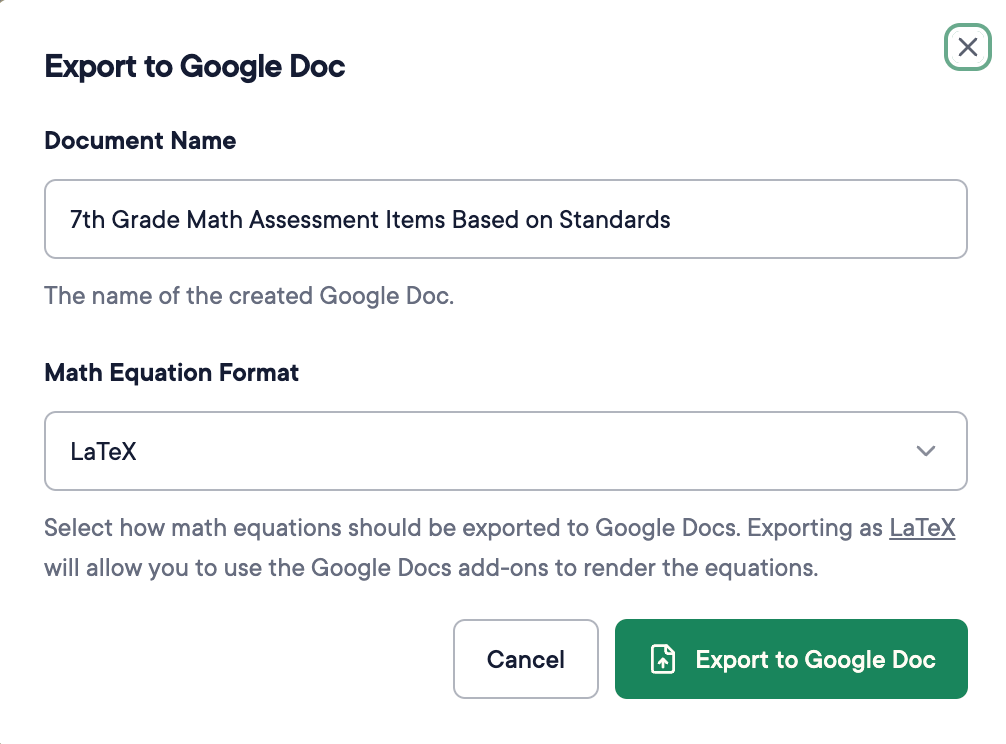
Select LaTeX for Math Equation Format.
The LaTeX option appears only when a formula is detected in the content.
- Click Export to Google Doc.
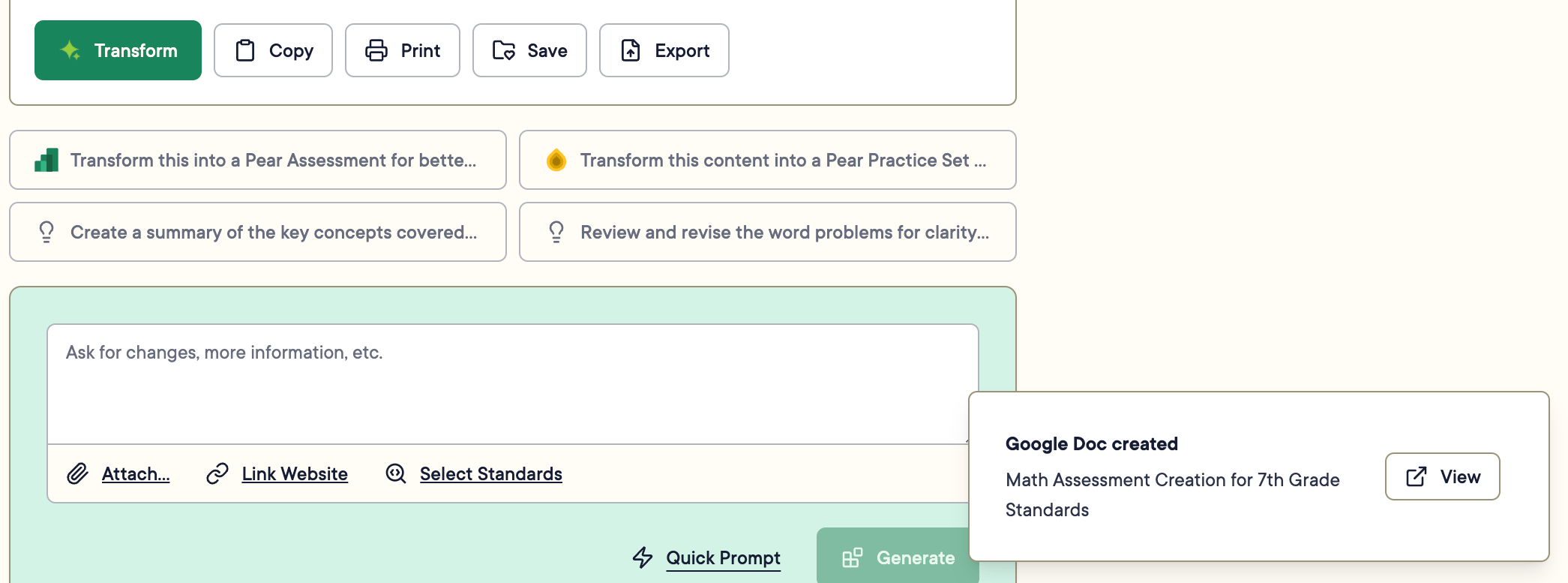
- Click View in the lower-right notification to open the Google Doc in a new tab.
Export to Plain Text
- Click Tools.
- Under All Tools, click a tool that uses formulas.
- Fill out the required fields and click Generate.
- Click Export > Export to Google Docs.
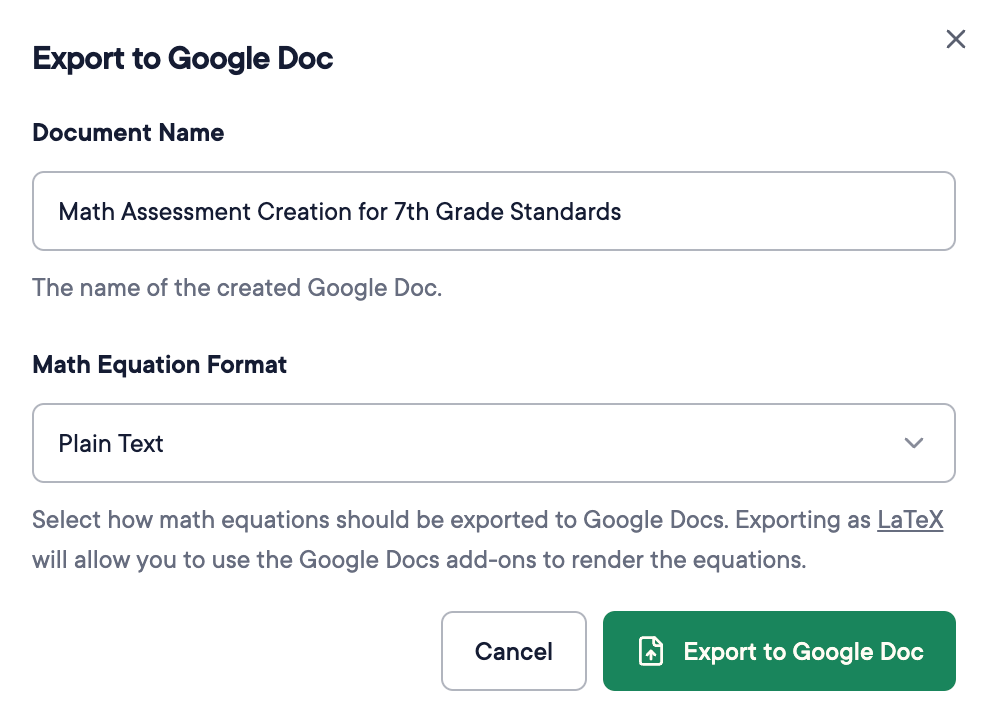
- Give the document a recognizable name.
- Select Plain Text for Math Equation Format.
- Click Export to Google Doc.
- Click View in the lower-right notification to open the Google Doc in a new tab.
Resources
Auto-LaTeX Equations
A Pear Start compatible Google Docs extension for LaTeX rendering.
The LaTeX Project
Official documentation for the LaTeX typesetting system.