

Add Subnet Filtering
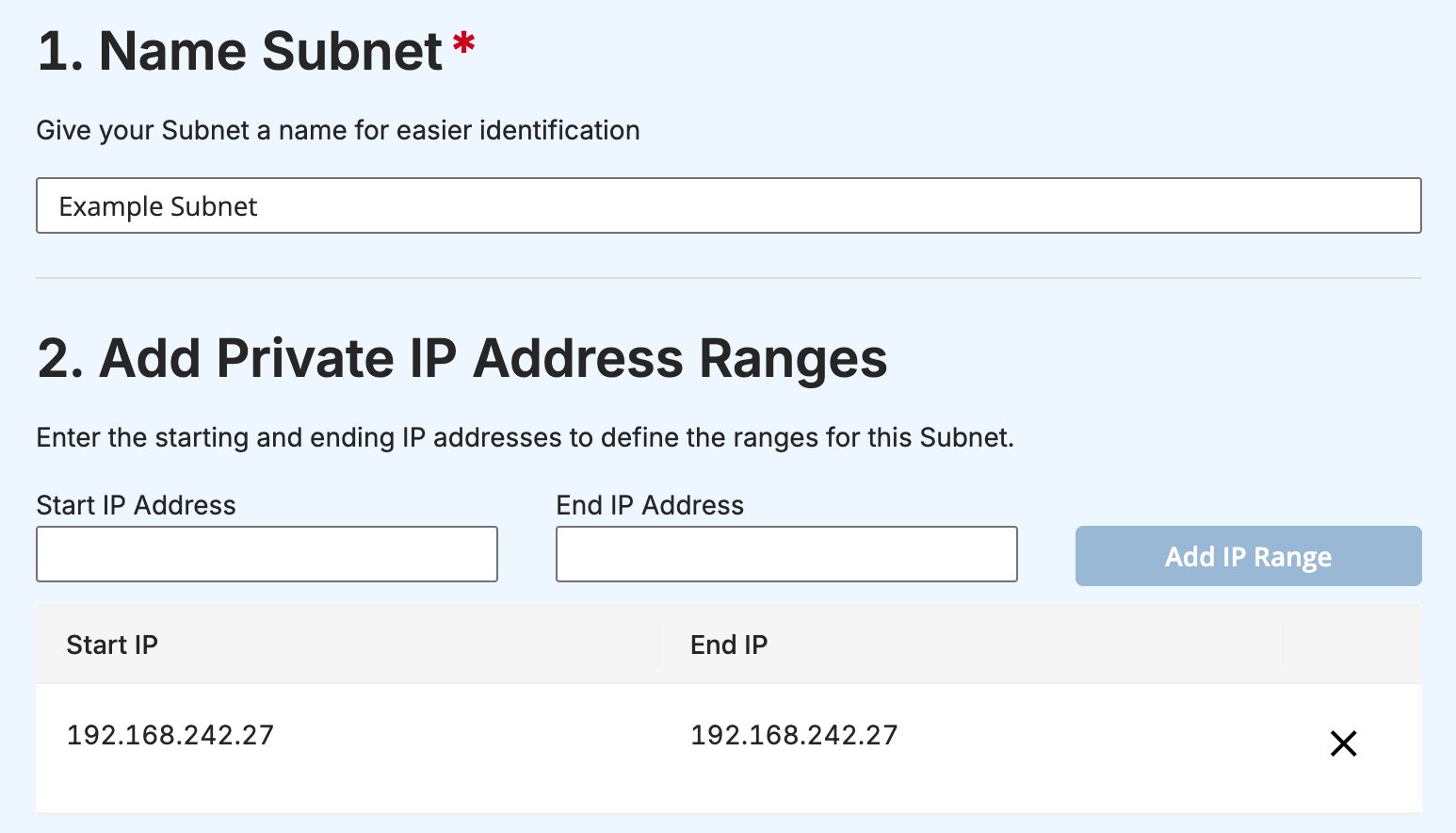
Once the GoGuardian DNS On-Prem application is installed, you can add subnets from the Subnets tab of any network.- Click Add Subnet.
- In the Name Subnet section, enter a name for the subnet.
- In the Add Private IP Address Ranges section, enter a Start IP Address and End IP Address, then click Add IP Range. Repeat for each additional range.
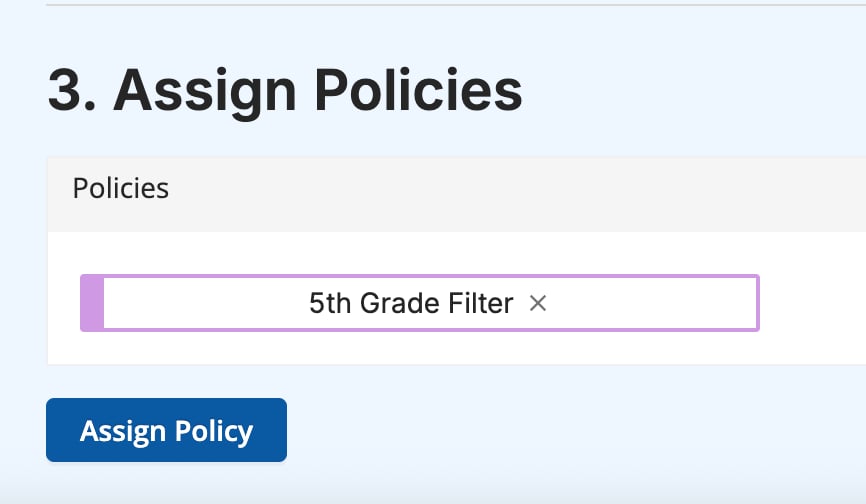
- In the Assign Policies section, enter a policy name and click Assign Policy.
Enable Agent Awareness
Agent Awareness is an optional feature that bypasses network-level filtering in favor of filtering by organizational unit (OU). It keeps DNS filtering in place for guests, personal devices, and BYOD environments without affecting users who already have the GoGuardian extensions or The GoGuardian App installed. To enable Agent Awareness, turn on the DNS On-Prem Agent Awareness toggle on any network.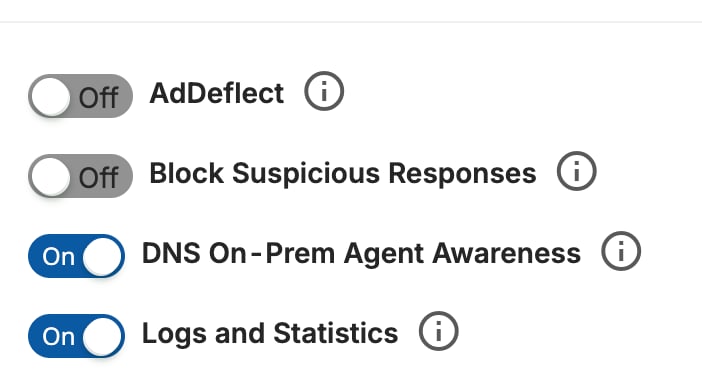
DNS Traffic Updates
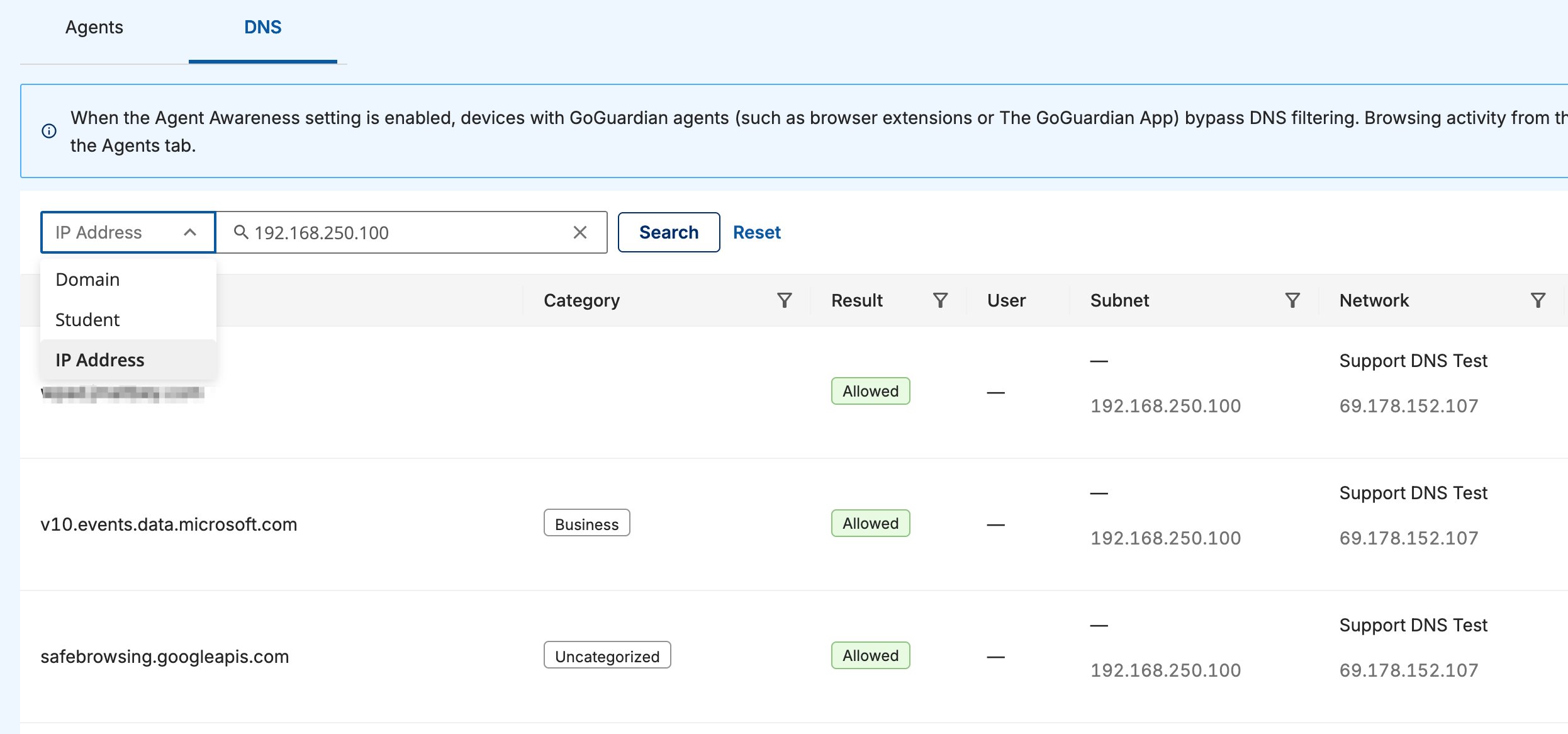
Browsing activity for a network with DNS Precision Filtering deployed is split across two tabs: Agents and DNS.- The Agents tab shows activity from devices with a GoGuardian agent installed. These devices bypass DNS filtering when Agent Awareness is enabled.
- The DNS tab shows network-level activity for devices without an agent installed. Search by Domain, Student, or IP Address. Each result shows its category, filtering result, user, subnet, and network.
DNS Precision Filtering also adds per-student reporting and per-student filtering to GoGuardian DNS, which is otherwise network-level only. Contact your GoGuardian Account Manager to learn whether DNS Precision Filtering is available for your deployment.