

Understand How At Home Mode Works
By default, At Home Mode is off. While off, GoGuardian Admin filtering rules configured on the At School assign page apply 24 hours a day, 7 days a week, on and off campus. When At Home Mode is turned on, the GoGuardian Admin At Home filtering page (admin.goguardian.com/policy/assign/out-of-school) becomes active. A separate set of filtering policies applies whenever “At Home” conditions are met.At Home Mode also affects GoGuardian Teacher class sessions. Students who are “at home” according to your configuration are not visible to a teacher during a class session. Instead, their screen displays “Monitoring Restricted.”


Configure In School Hours
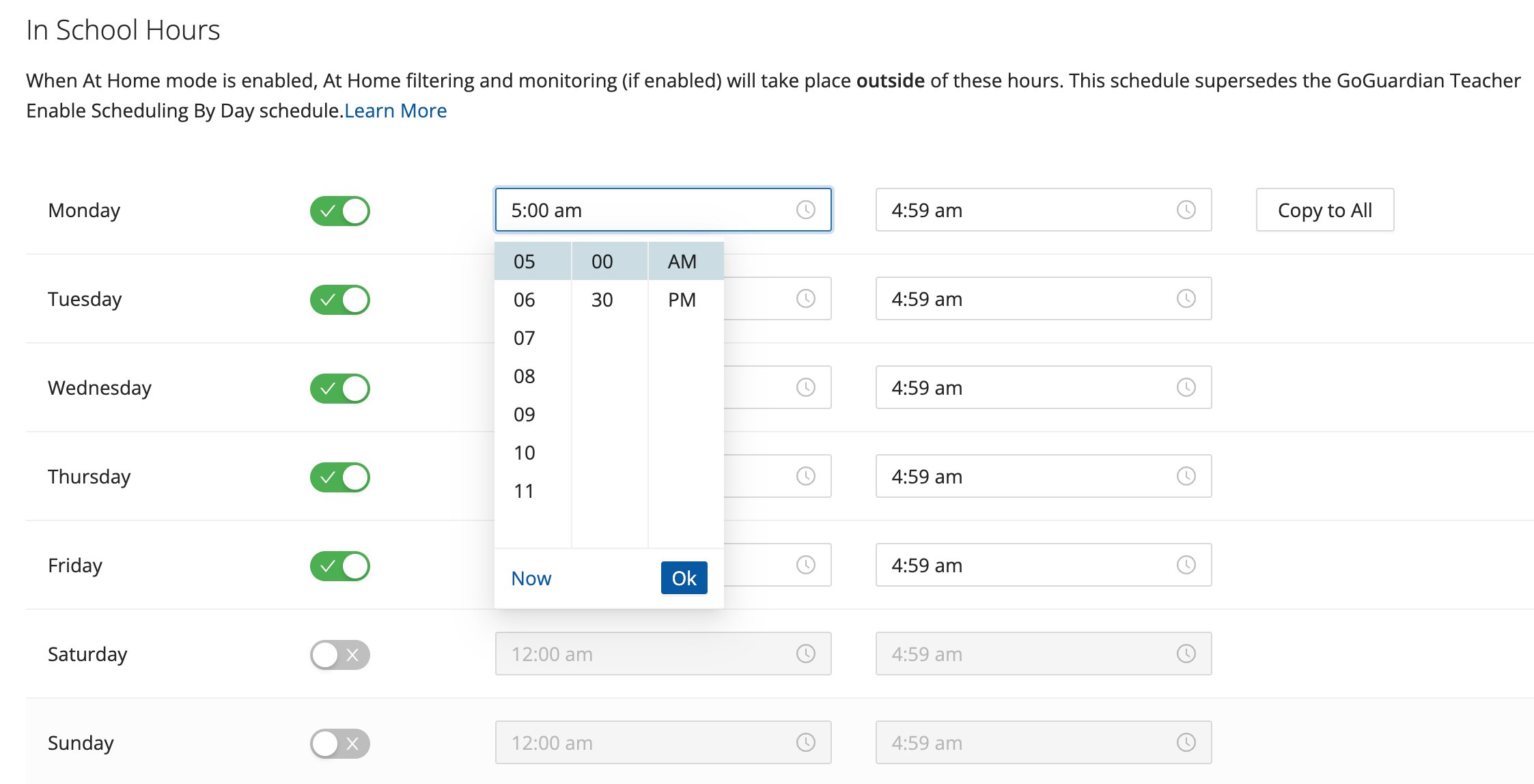
In School Hours define when students are considered “in school.” These settings are required before School IP Ranges take effect.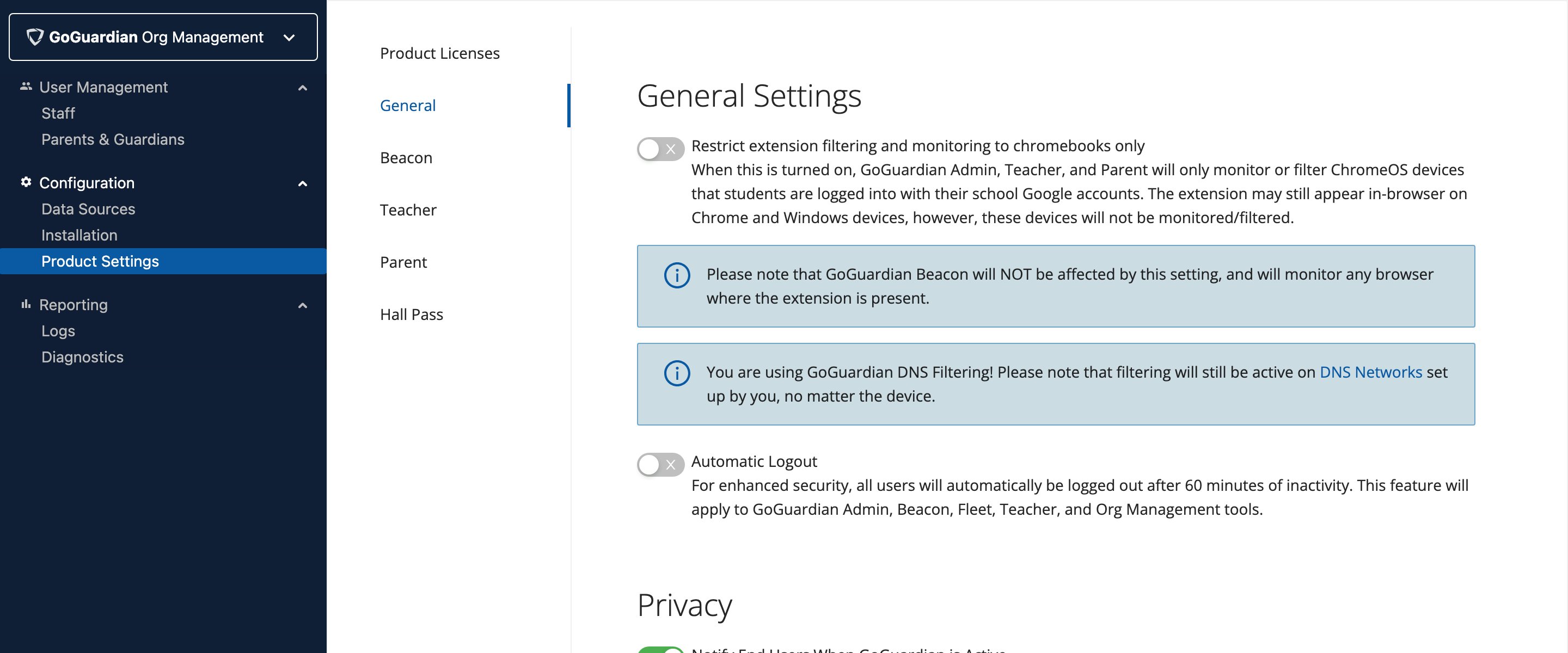
- Turn on At Home Mode.
- Select each day of the week your organization considers in school.
- Select school start and end hours for each day, then click OK.
Add School IP Ranges
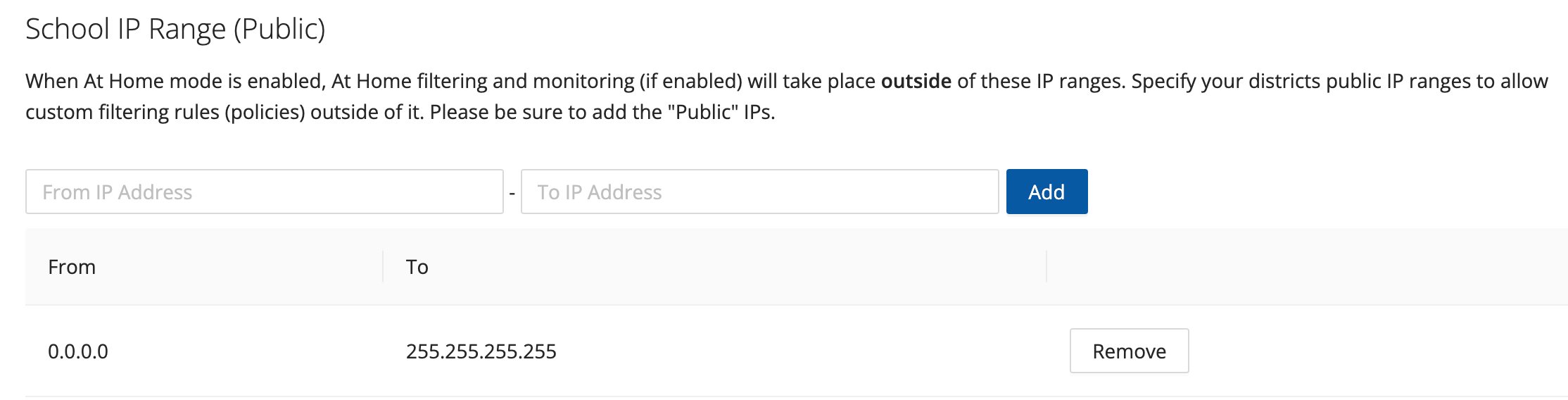
School IP Ranges are supplemental to In School Hours. A student must be within the defined school hours before their IP address is checked. IP ranges alone do not determine in-school status.
- Confirm At Home Mode is on and In School Hours are set.
- Enter a From IP address as the starting point for your IP range.
- Enter a To IP address as the ending point.
- Click Add.
- Verify the result: The IP range appears in the list. Students on the school network during school hours are considered “In School.”
Provide your network’s public IP range. Internal (private) IP ranges are not supported.
Disable Filtering or Activity Review During At Home Hours
If At Home Mode is on, you can independently disable filtering and activity review during At Home hours. Turn off the Filter at Home toggle to stop applying filtering policies when students are not in school. Turn off the Monitor at Home toggle to stop reviewing student browsing activity during At Home hours.Enable At Home Mode Around the Clock
To have students always considered “At Home,” turn on At Home Mode and turn off every day in In School Hours so no days are active. Example: An organization may turn on At Home Mode around the clock during winter break and turn off both Filter at Home and Monitor at Home to suspend filtering and activity review without removing the GoGuardian extensions from devices.Review Common Configuration Scenarios
Configure GoGuardian Parent App Options
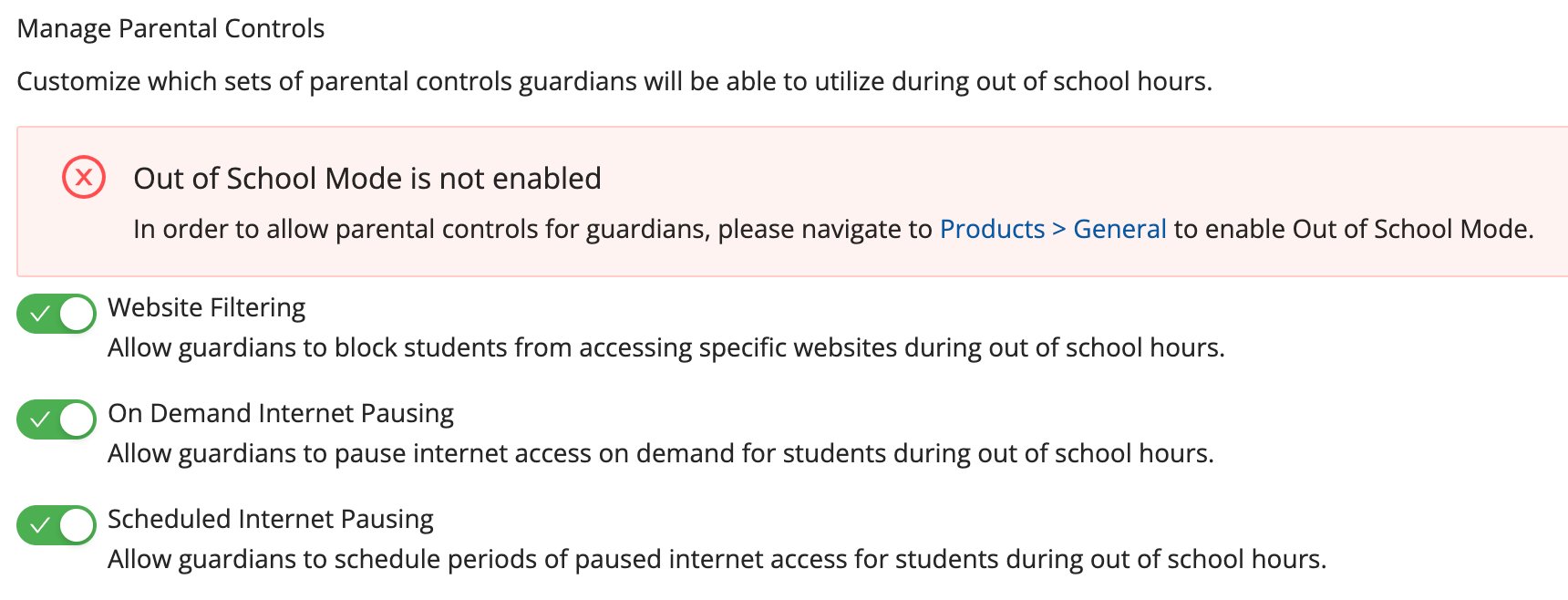
When At Home Mode is on, administrators can enable three filtering options in the GoGuardian Parent App: Website Filtering, On Demand Internet Pausing, and Scheduled Internet Pausing. Each option can be enabled or disabled individually. Parent App filtering options are available to parents only while a student is in At Home mode, based on In School Hours settings.School IP Ranges do not influence in-school or out-of-school status for GoGuardian Parent App features.