Move a class out of your active list while preserving all historical student data and assignments for future reference or restoration.
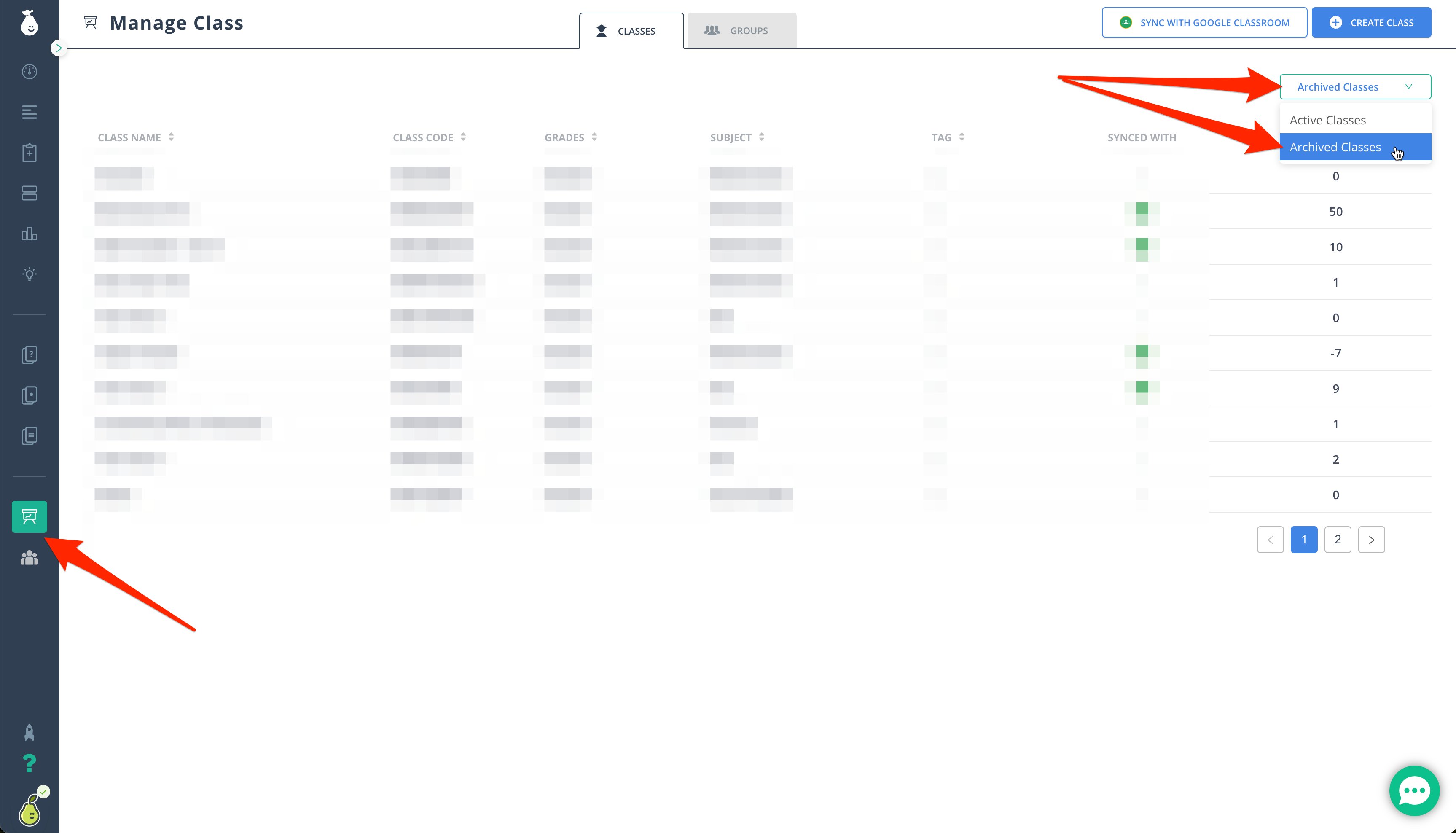
Pear Assessment allows teachers to archive classes to maintain organization and focus on current coursework. To archive a class, a teacher can first sign in to their account and navigate to the Classes section. Selecting the desired class and clicking on the Settings gear icon reveals an Archive Class option. Confirming this selection removes the class from the active list but ensures it can be accessed and restored later through the Archived Classes section. This archived status allows teachers to retrieve historical data or materials whenever needed.
Pear Assessment stores classes in an archived state instead of deleting them, allowing access to year-over-year student data. Teachers can manually archive classes, except in districts where enrollment is managed through a Student Information System (SIS) via integrations like Clever, Canvas, Schoology, etc.If your district utilizes an active roster integration besides Google Classroom, archiving a class will require using that specific integration method to archive the classes. This ensures the changes are synced correctly with Pear Assessment.