

Connect Each Clever-Synced Class
Repeat these steps for every Clever-synced class that needs Google Classroom assignment sharing and grade passback:- In Pear Assessment, open Manage Class.
- Select the Clever-synced class you want to connect.
- From inside the class, open the class menu.
- Select Sync with Google Classroom.
- Choose the matching Google Classroom section and complete the connection.
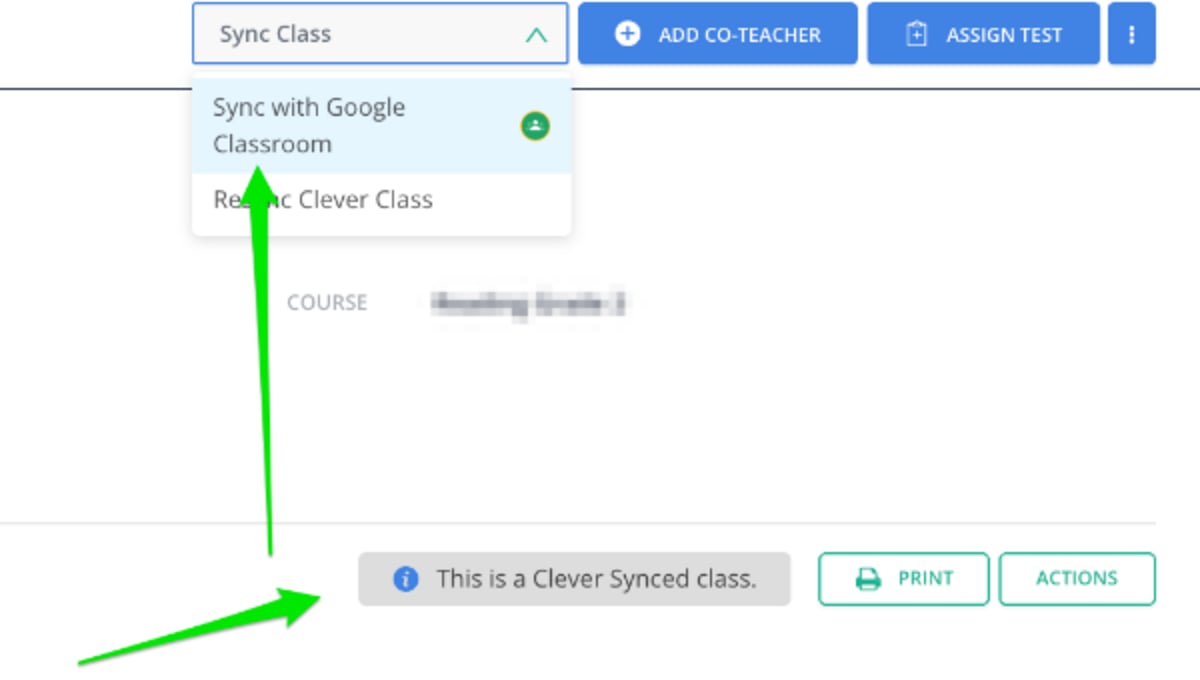
Avoid Starting a Roster Import
Do not select Sync with Google Classroom from either of these locations:- The main Manage Class screen
- The Dashboard


Verify the Connection
Share an assessment with the connected Google Classroom class. Ask students to open and submit the assessment from Google Classroom. After you release scores in Pear Assessment, confirm that the grades appear in the matching Google Classroom gradebook. If grades do not appear, follow Sync Scores to Google Classroom to send them manually.Resources
Use Clever Sync with Pear Assessment
Review how Clever manages Pear Assessment classes and rosters.
Sync Scores to Google Classroom
Set up automatic grade sharing or send grades manually.