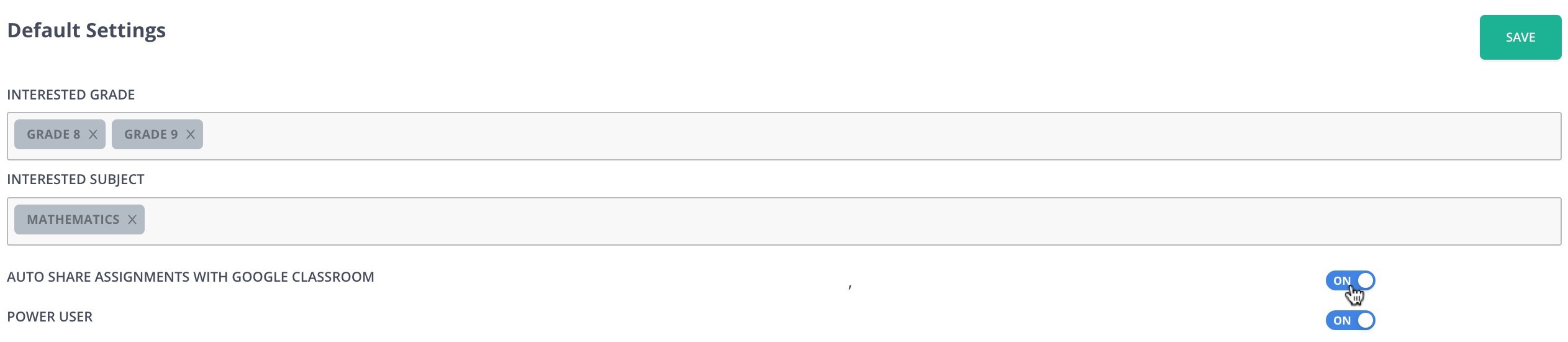
Sync Pear Assessment scores to Google Classroom using auto-share or manual grade sync
Teachers can sync assessment scores to Google Classroom by signing in with their Google account via single sign-on (SSO) and enabling auto-sharing or manually sending grades to Google Classroom. If you have previously synced a roster from Google Classroom to Pear Assessment, scores sync automatically. If Clever manages your roster, first connect each Clever-synced class to its matching Google Classroom class.