

The steps below use Google Chrome as an example. The location of these settings varies by browser.
Fix Google Classroom Sync
- Open Pear Assessment and select the lock icon to the left of the URL in your browser’s address bar.
- Select Site settings.
- Enable Pop-ups and redirects.
- Enable Automatic downloads.
- Enable third-party cookies. In Google Chrome, this setting is on the Privacy and security page rather than the per-site settings panel.
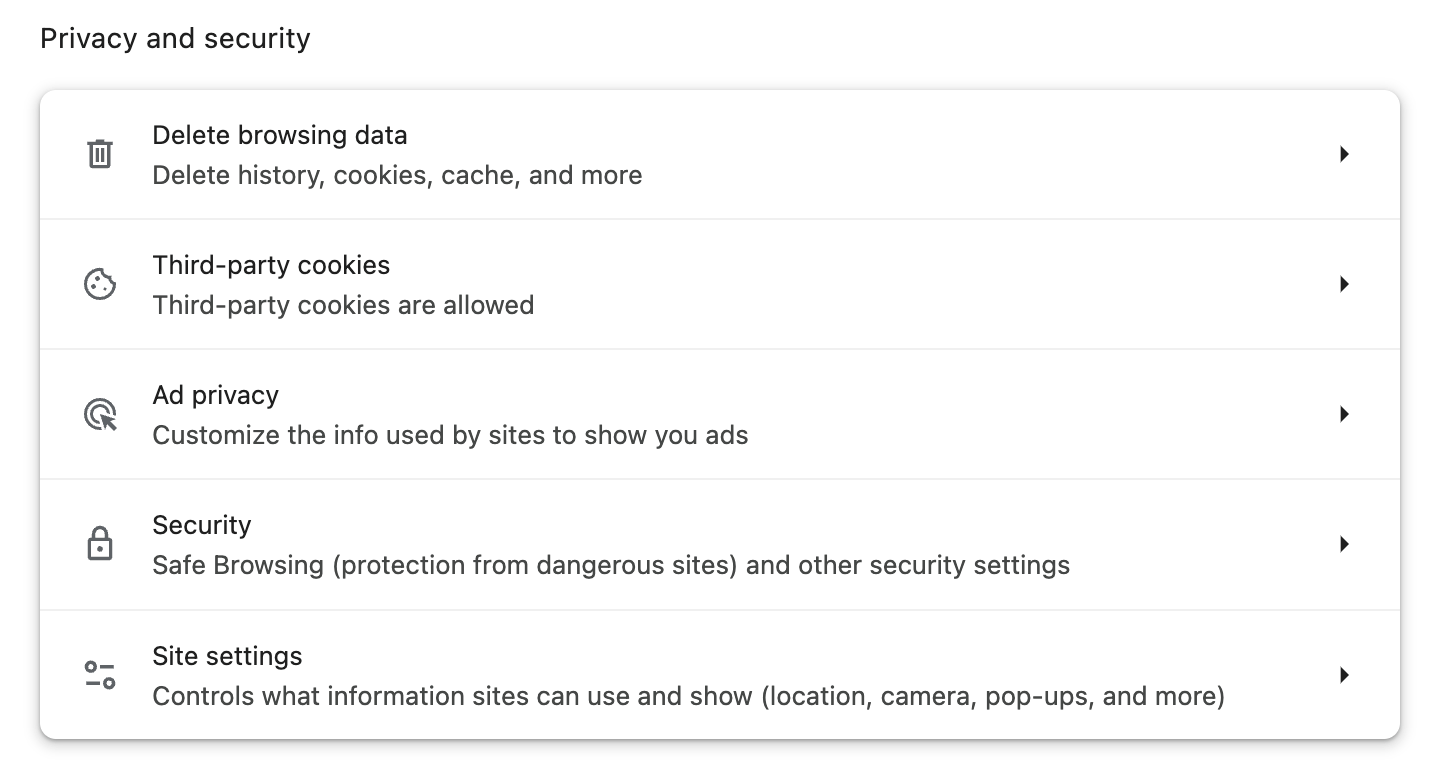
- Refresh the page.
- Select Manage Class.
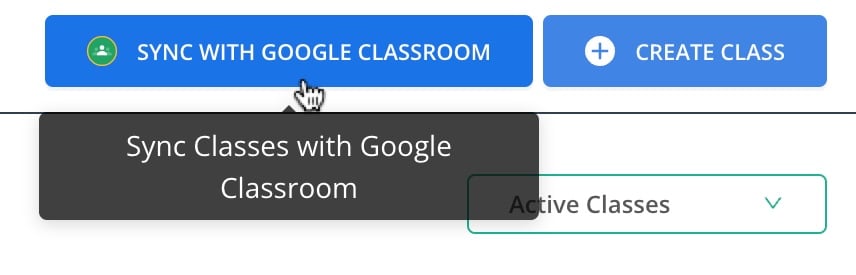
- Select Sync with Google Classroom and confirm the sync completes as expected.

Resources
Sync Pear Assessment Scores to Google Classroom
Send assessment scores directly to Google Classroom from Pear Assessment.
Sync Scores to Google Classroom FAQ
Answers to common questions about syncing scores to Google Classroom.