Releasing scores, responses, and correct answers gives students instant feedback after they submit a test or assignment. In Pear Assessment you can release this information automatically when students submit, or hold it and release scores manually when you are ready.
Release Scores
- When creating a test, locate the Release Scores option in Settings.
- To hold scores until you are ready, set Release Scores to Do Not Release Scores or Responses.
- After students have taken the test, go to the Live Class Board to manually adjust the release settings.
- Click the three dots at the top right of the page, then select Release Score.
- Select one of the three available release options.
- Click Apply.
Release Scores Options
- Do Not Release Scores or Responses: Student responses and scores are visible to teachers only.
- Release Scores Only: Students see their scores only. Requires a premium subscription.
- Release Scores and Student Responses: Students see their test scores and answer choices. Requires a premium subscription.
- Release Scores, Student Responses and Correct Answers: Students see their test scores, scores per question, their responses, and the correct answers.
Student View
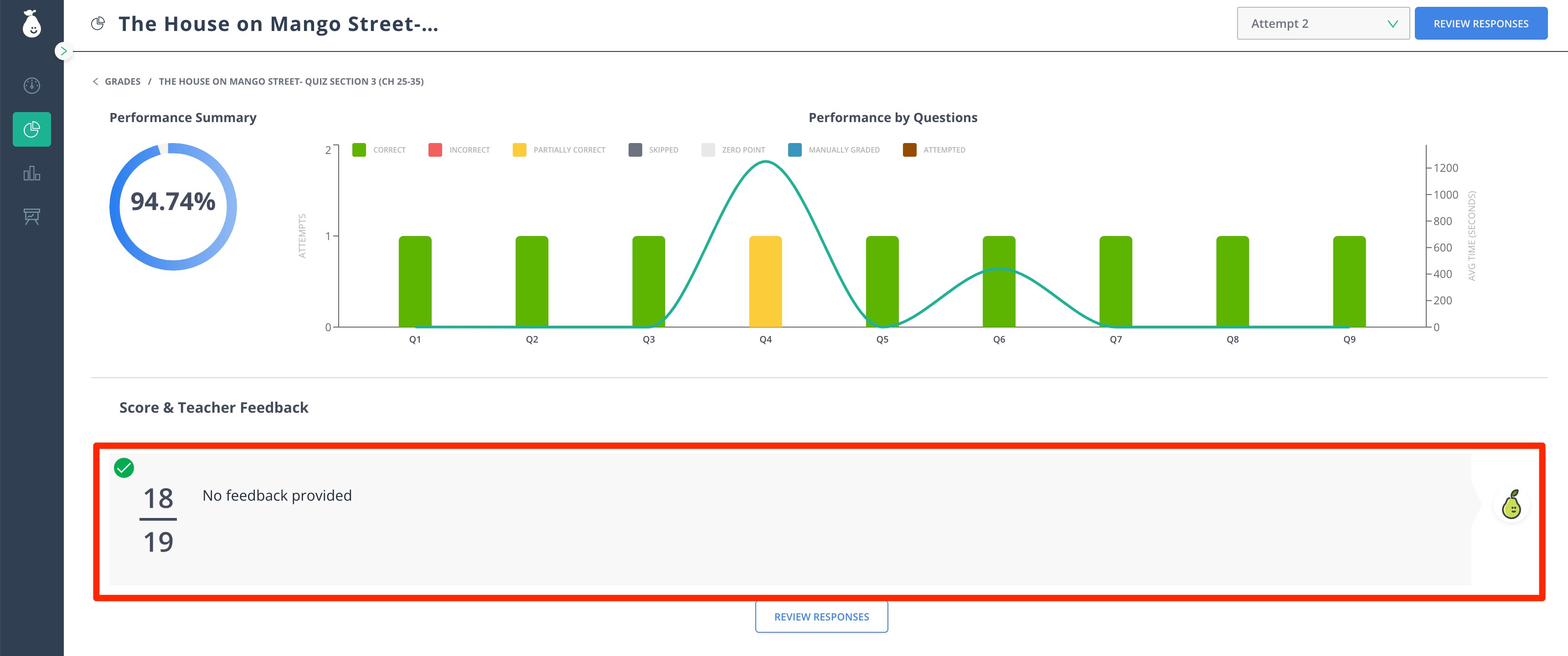
After scores are released, students see the following:
- The student’s score appears on their main screen.
- To review the test in more detail, the student clicks Review.
- A performance summary appears. If overall feedback was provided, it is displayed here.
- The student clicks Review Responses to navigate through each question and review all selected answer options.

Last modified on July 16, 2026