Configure and release test scores, responses, and correct answers to students in Pear Assessment
Pear Assessment gives you control over when and how students see their scores. You can release scores automatically when students submit, or hold them and release manually after the class has finished: along with responses and correct answers if your subscription includes those options.
When creating a test, click Settings, then locate the Release Scores option under Test Behavior.
To release scores manually, change Release Scores to Do Not Release Scores or Responses. After students have taken the test, adjust the setting from the Live Class Board.
Select the menu icon at the top right of the page, then select Release Score.
Click one of the four release options available, then click Apply.
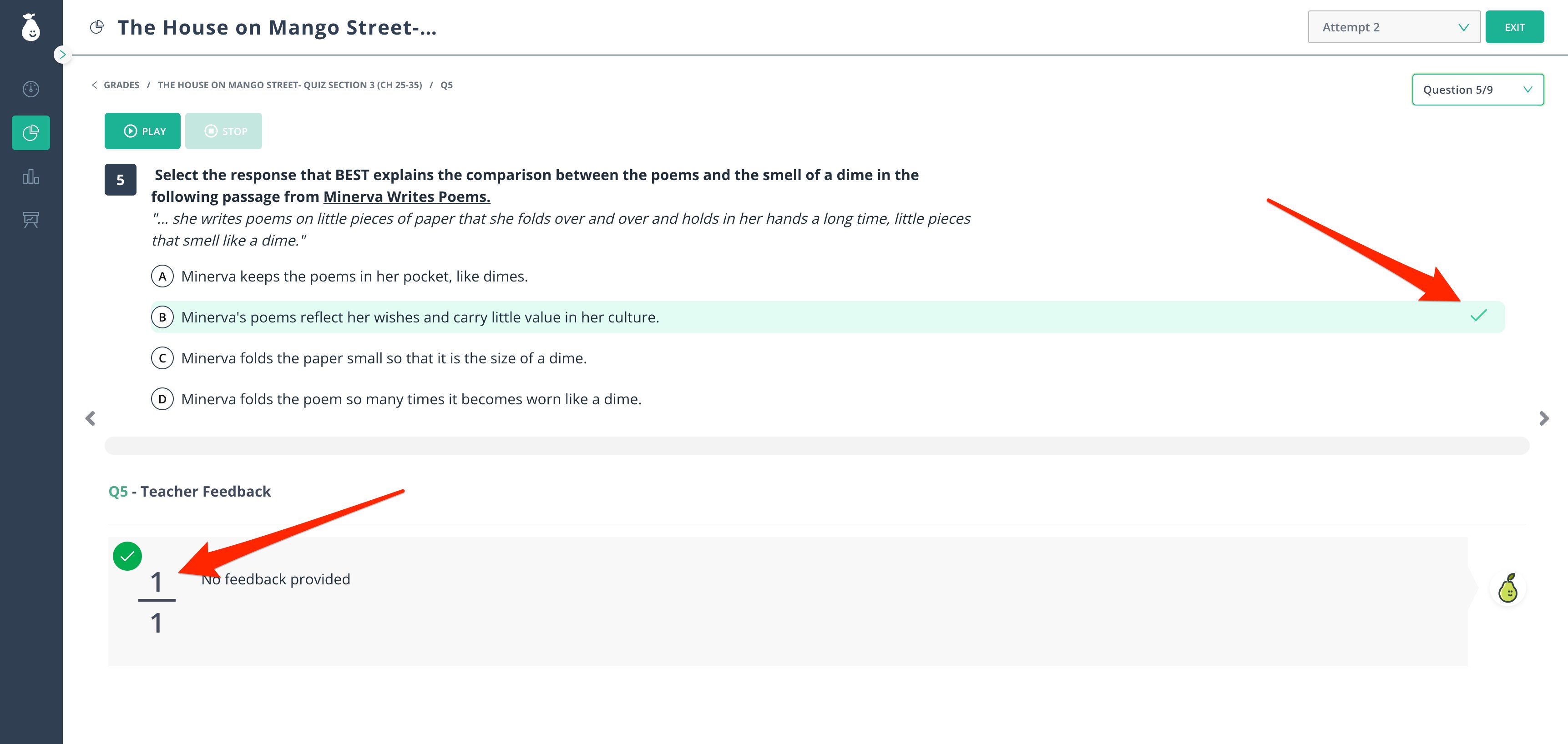
Once you release scores, students see their score and a performance summary on the Grades page. Students can select Review Responses to navigate through each question and review all the answer choices available to them, along with any teacher feedback.From the review screen, students can browse each question one at a time to see their selected answer, the correct answer, and any teacher feedback for that question.