

Before You Begin
You need:- Canvas Admin access
- Access to the existing Pear Assessment or Edulastic Developer Key in Canvas
- Access to Pear Assessment District Admin settings
Regenerate the Secret Key in Canvas
- In Canvas, go to Admin > Developer Keys.
- Locate the existing Pear Assessment or Edulastic Developer Key.
- Open the key and regenerate the Secret Key.
- Copy the Client ID and newly generated Secret Key.
Configure the Developer Key in Pear Assessment
- Sign in to Pear Assessment as a District Admin.
- Go to Manage District > Settings > District Policies > Domains > 3rd Party Integrations.
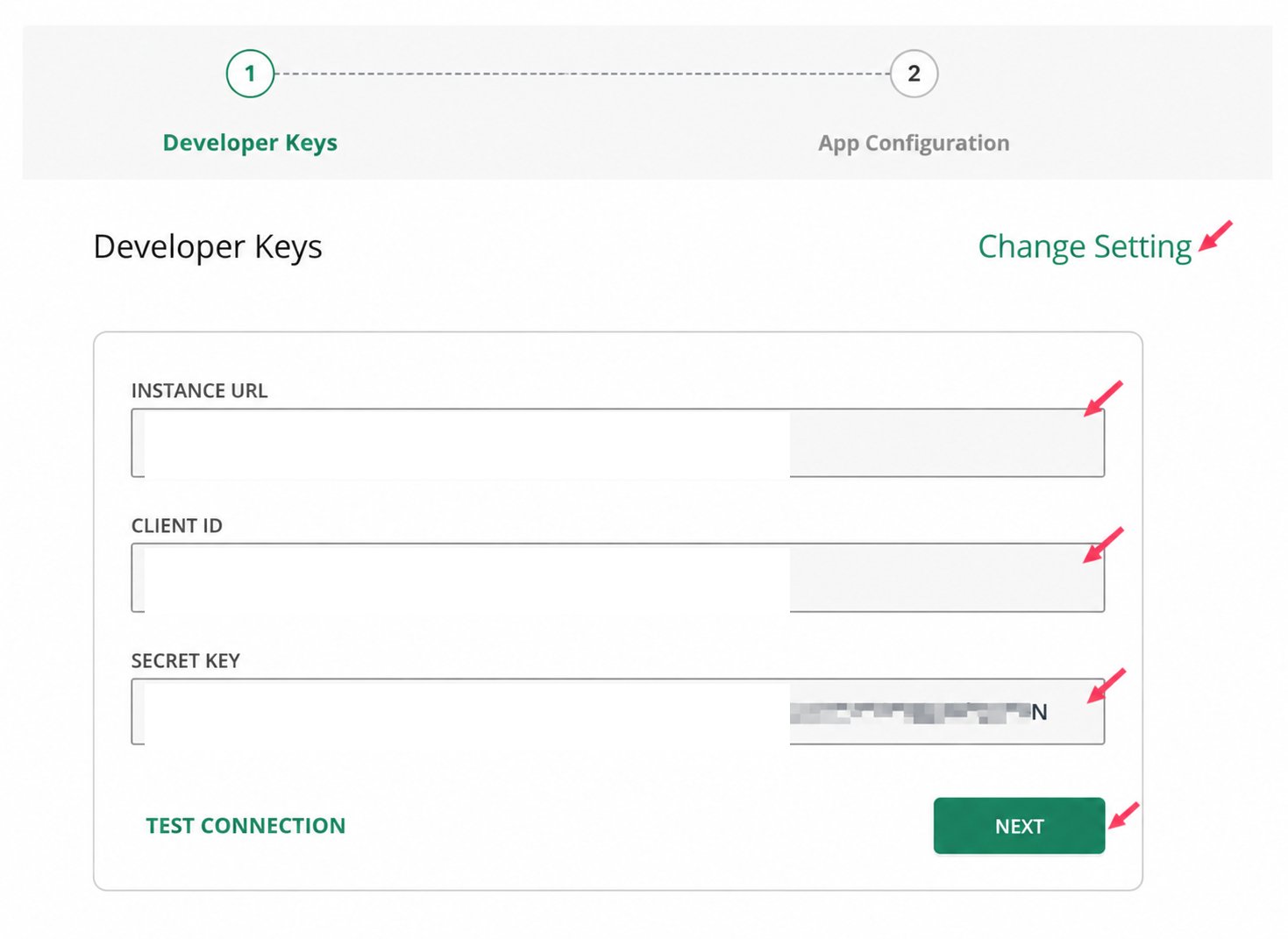
- Select Canvas, then click View Configuration.
-
Enter the following values:
- Canvas Instance URL
- Client ID
- Secret Key
- Click Test Connection.
-
Confirm that the Canvas Instance URL does not include a trailing slash.
Correct:
https://yourschool.instructure.comIncorrect:https://yourschool.instructure.com/ - Click Next.
Copy the Consumer Key and Shared Secret
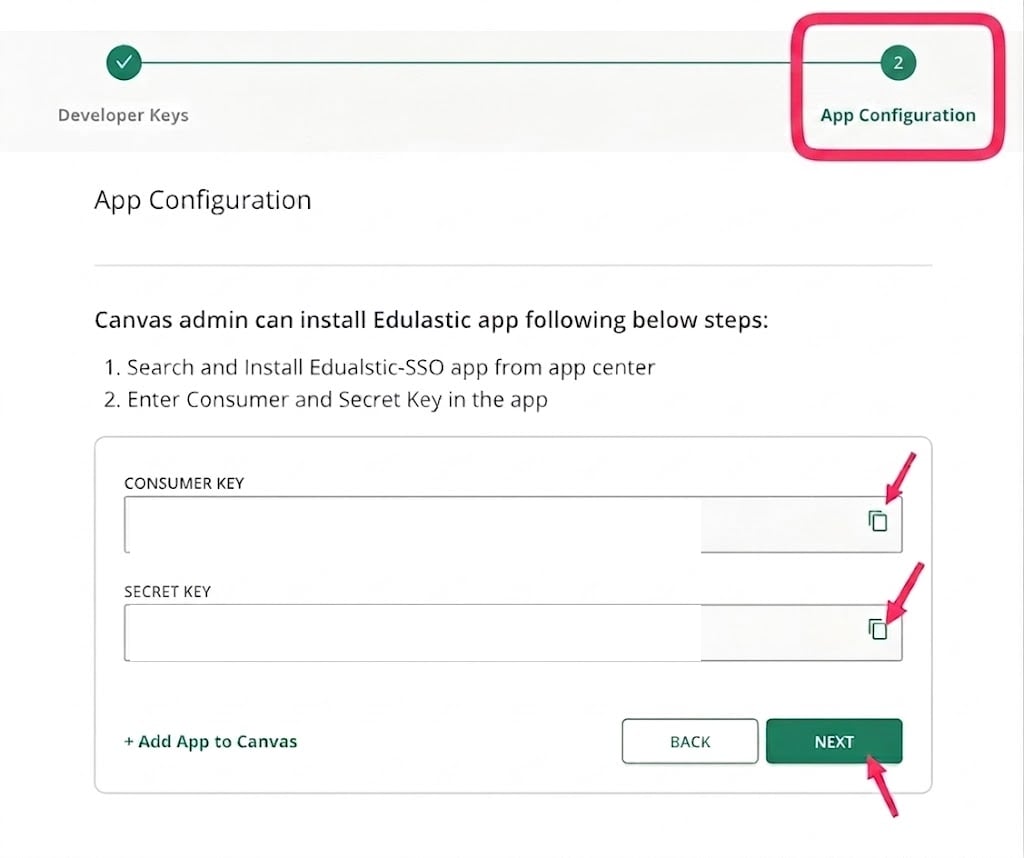
- Copy the Consumer Key and Shared Secret generated by Pear Assessment.
- Click Next.
Update the Existing App in Canvas
- In Canvas, go to Settings > Apps > View App Configurations.
- Locate the existing Pear Assessment or Edulastic app.
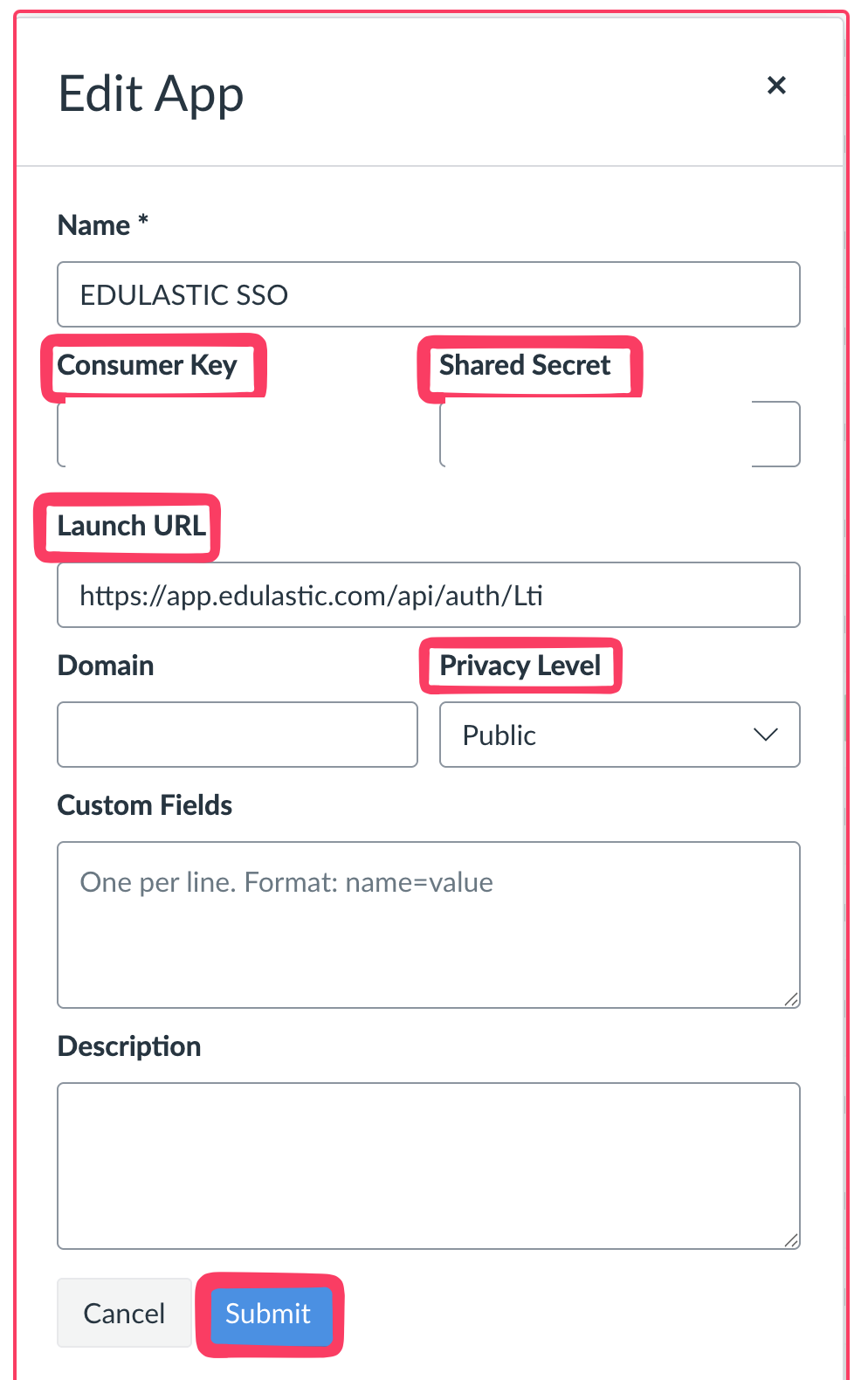
- Open the app menu and click Edit.

- Update these fields:
- Consumer Key: Enter the Consumer Key copied from Pear Assessment.
- Shared Secret: Enter the Shared Secret copied from Pear Assessment.
- Launch URL: Enter the URL for your Pear Assessment environment. Use the Launch URL and Redirect URI table below.
- Privacy Level: Select Public.
- Click Submit.
Reauthorize Teacher Accounts
Ask each teacher to open 1 Canvas class from Manage Class, then click Sync with Canvas Classroom. Resyncing 1 class reauthorizes the teacher’s Canvas connection and restores automatic assignment and grade syncing.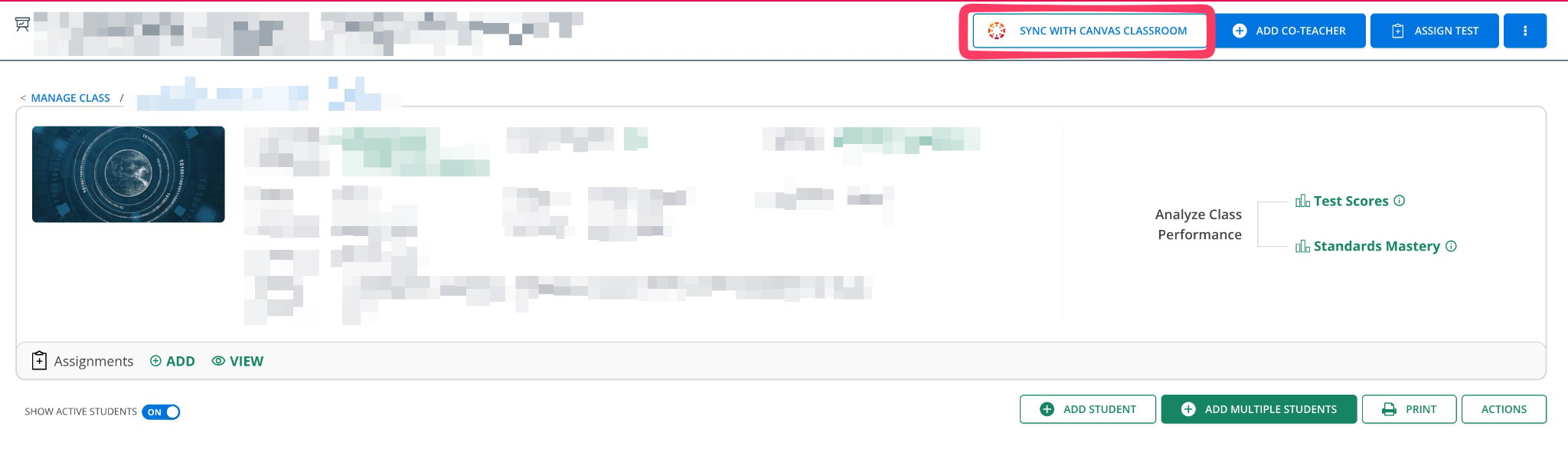
Match the Launch URL and Redirect URI
The Launch URL in Canvas and the Redirect URI under Developer Keys must use the same Pear Assessment environment. Teachers must also create assignments from that environment.Verify the Integration
Confirm the following:- Canvas contains 1 active Pear Assessment or Edulastic Developer Key.
- Canvas contains 1 active Pear Assessment or Edulastic app configuration.
- The Canvas Instance URL does not include a trailing slash.
- The Launch URL and Redirect URI use the same environment.
- A teacher can resync a Canvas class from Manage Class.