

Before You Begin
You need:- Pear Assessment District Admin access
- Canvas Admin access
- Your district’s Pear Assessment environment:
app.edulastic.comorassessment.peardeck.com
Enable Canvas Integration
- Sign in to Pear Assessment with a District Admin account.
- Go to Manage District > Settings > District Policies.
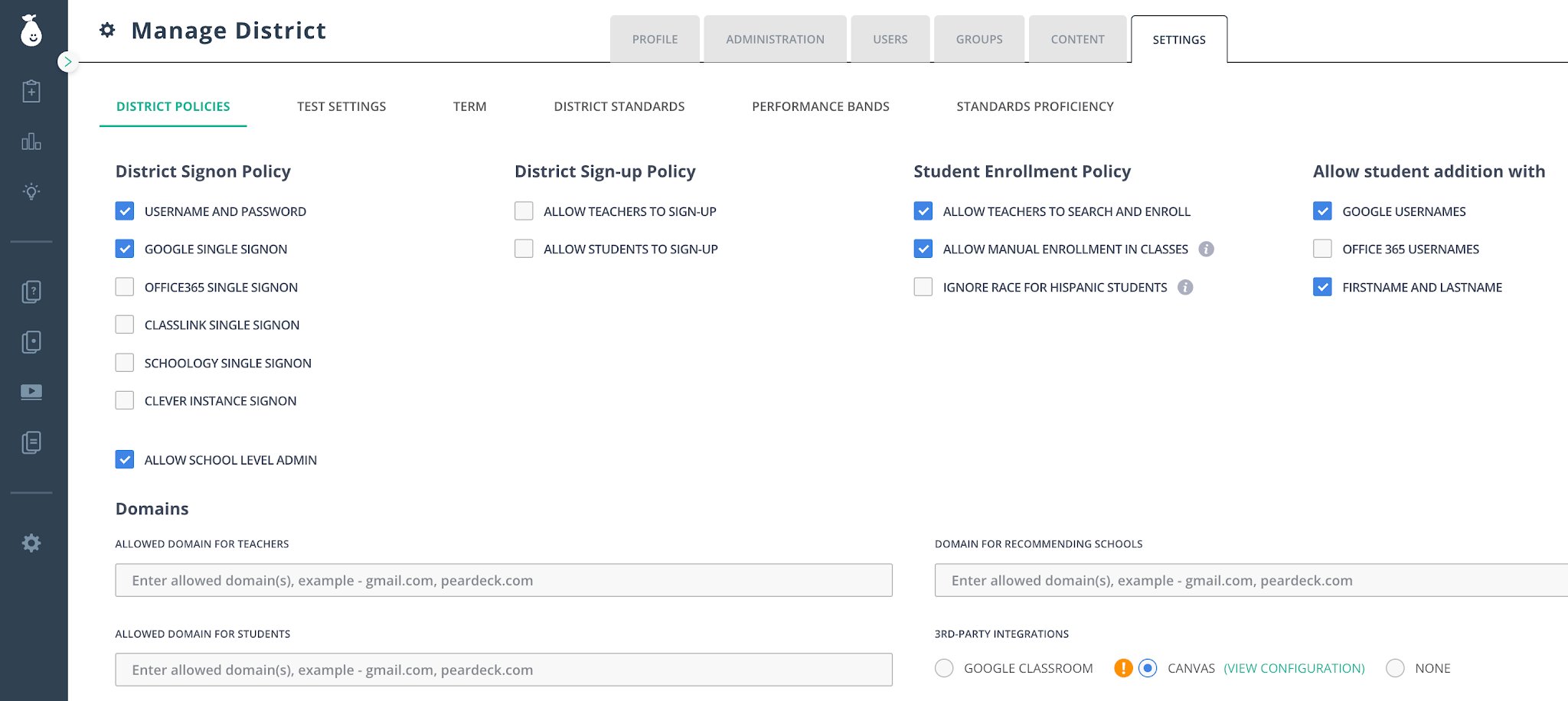
- Under Domains > 3rd Party Integrations, select Canvas.
- Click View Configuration to open the Canvas integration settings in a new tab.

- Keep the Canvas integration tab open, then open your district’s Canvas instance in another tab.
Create a Developer Key in Canvas
- Sign in to your district’s Canvas instance as a Canvas Admin.
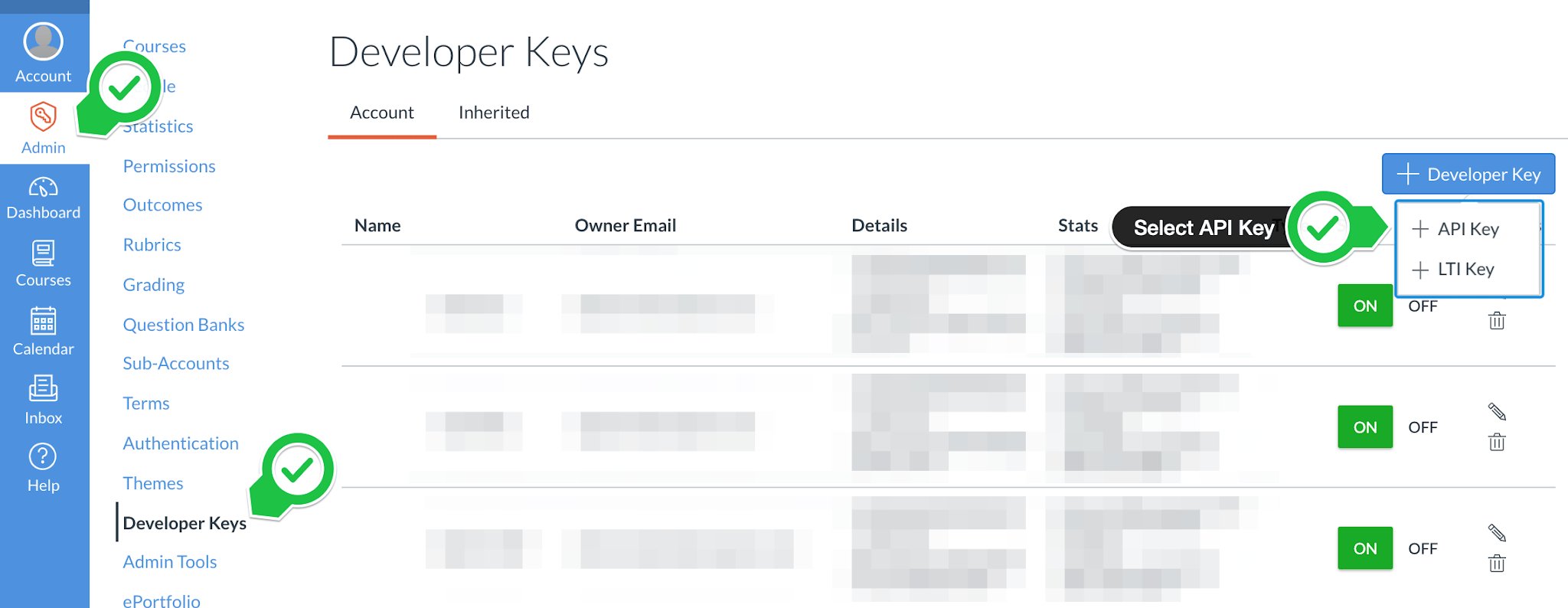
- Go to Admin > your managed account > Developer Keys.
- Click + Developer Key, then select + API Key.
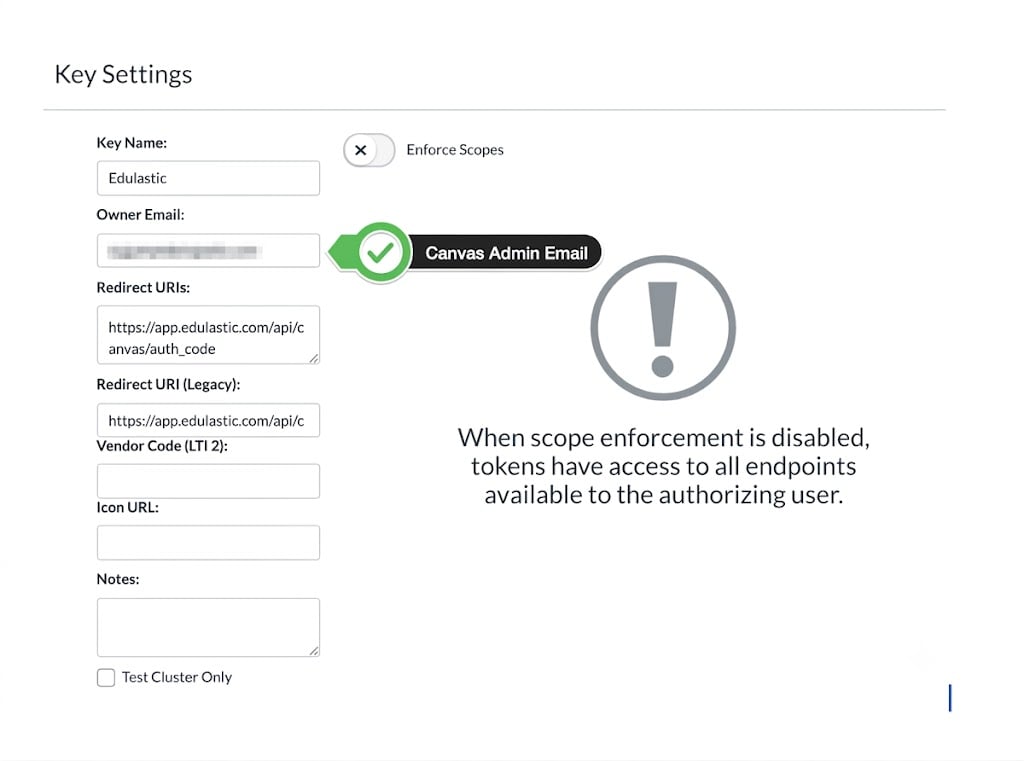
- Enter the following values:
- Key Name: Enter Edulastic if your district uses
app.edulastic.com. Enter Pear Assessment if your district usesassessment.peardeck.com. This name is visible to users. - Owner Email: Enter the Canvas Admin’s email address.
- Redirect URI: Enter the URI for your environment.
- Key Name: Enter Edulastic if your district uses
Use the Redirect URI for your district’s Pear Assessment environment. You will confirm that all environment values match in the final configuration checks.
- Save the Developer Key.
- Copy the Client ID and Developer Key. Click Show Key to display the Developer Key.
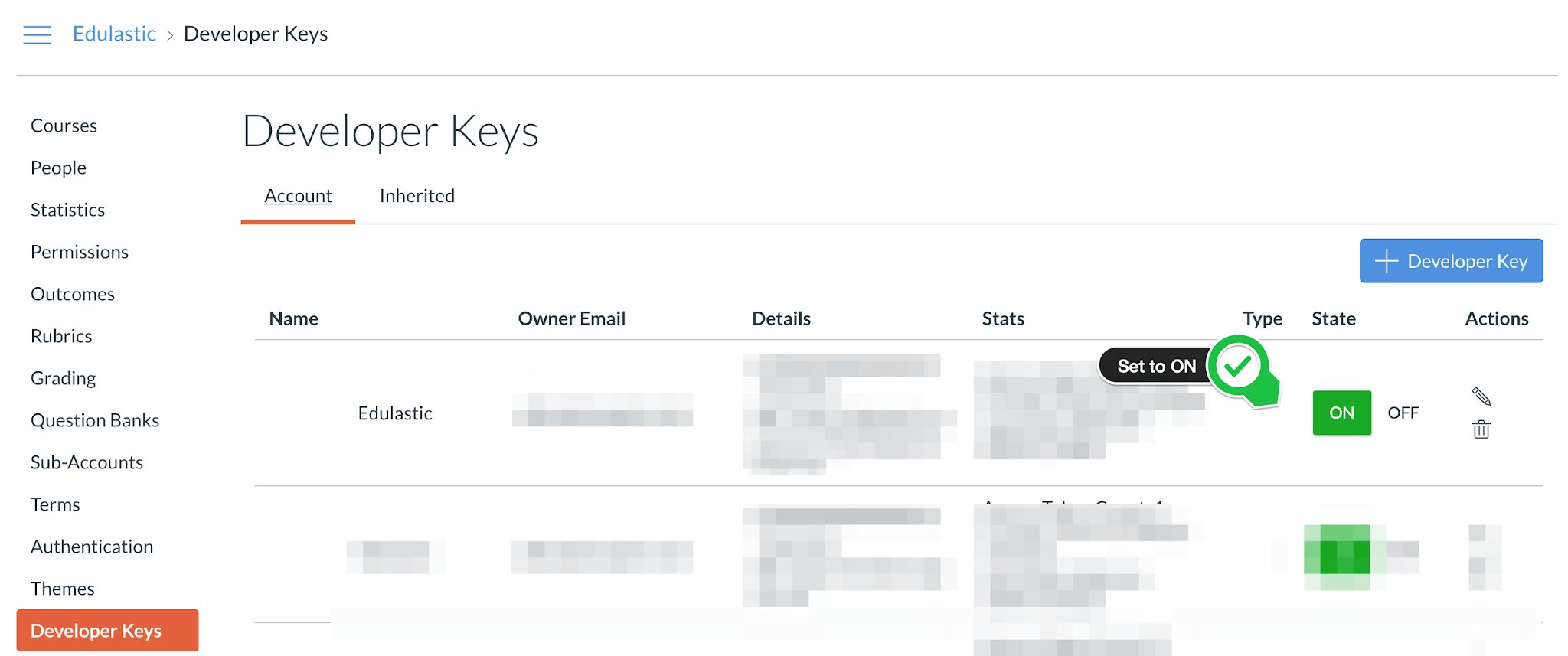
- On the Account tab, turn on the Developer Key.
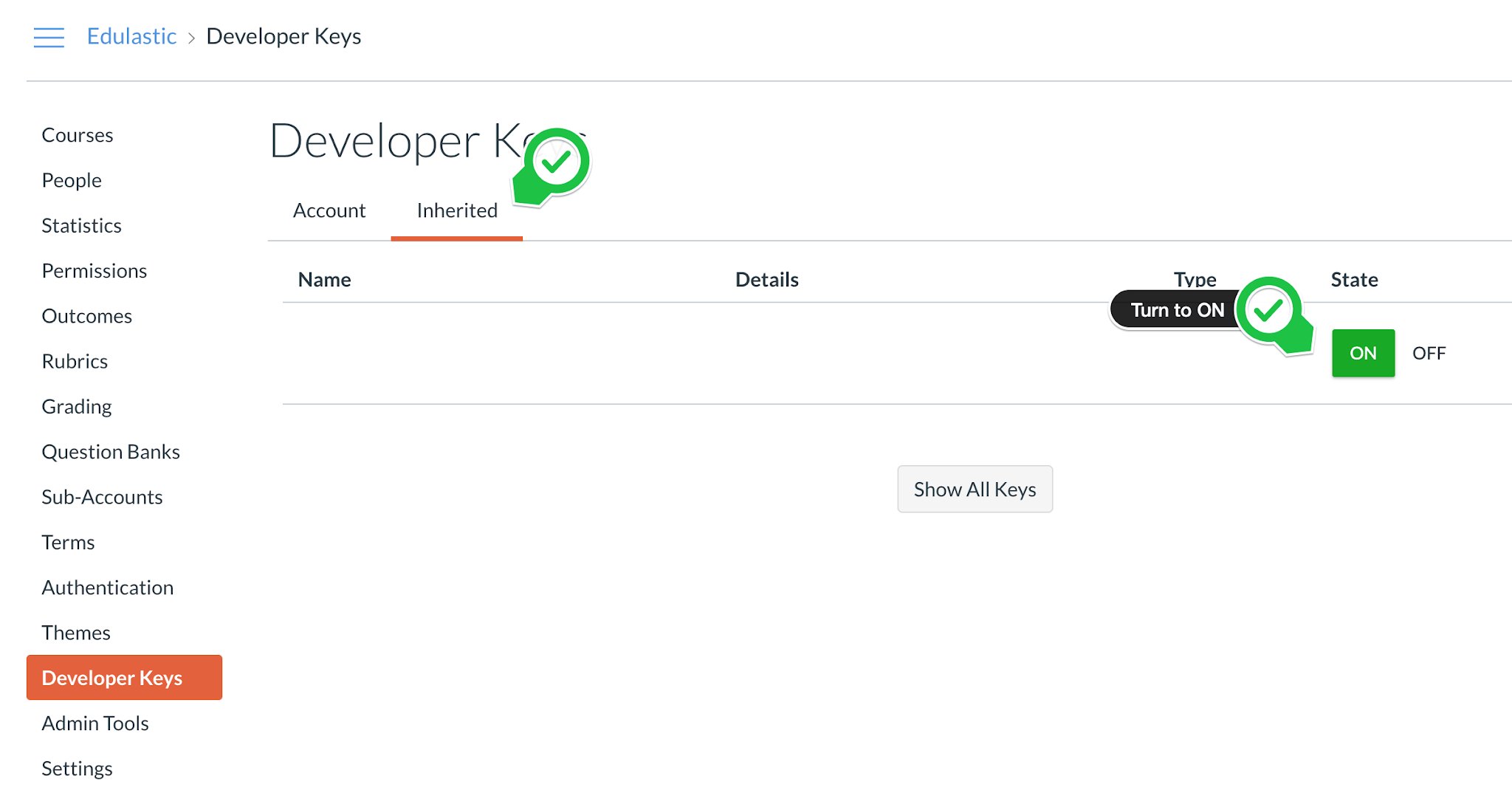
- If the key appears on the Inherited tab, open that tab and turn on the key.
Add Canvas Credentials to Pear Assessment
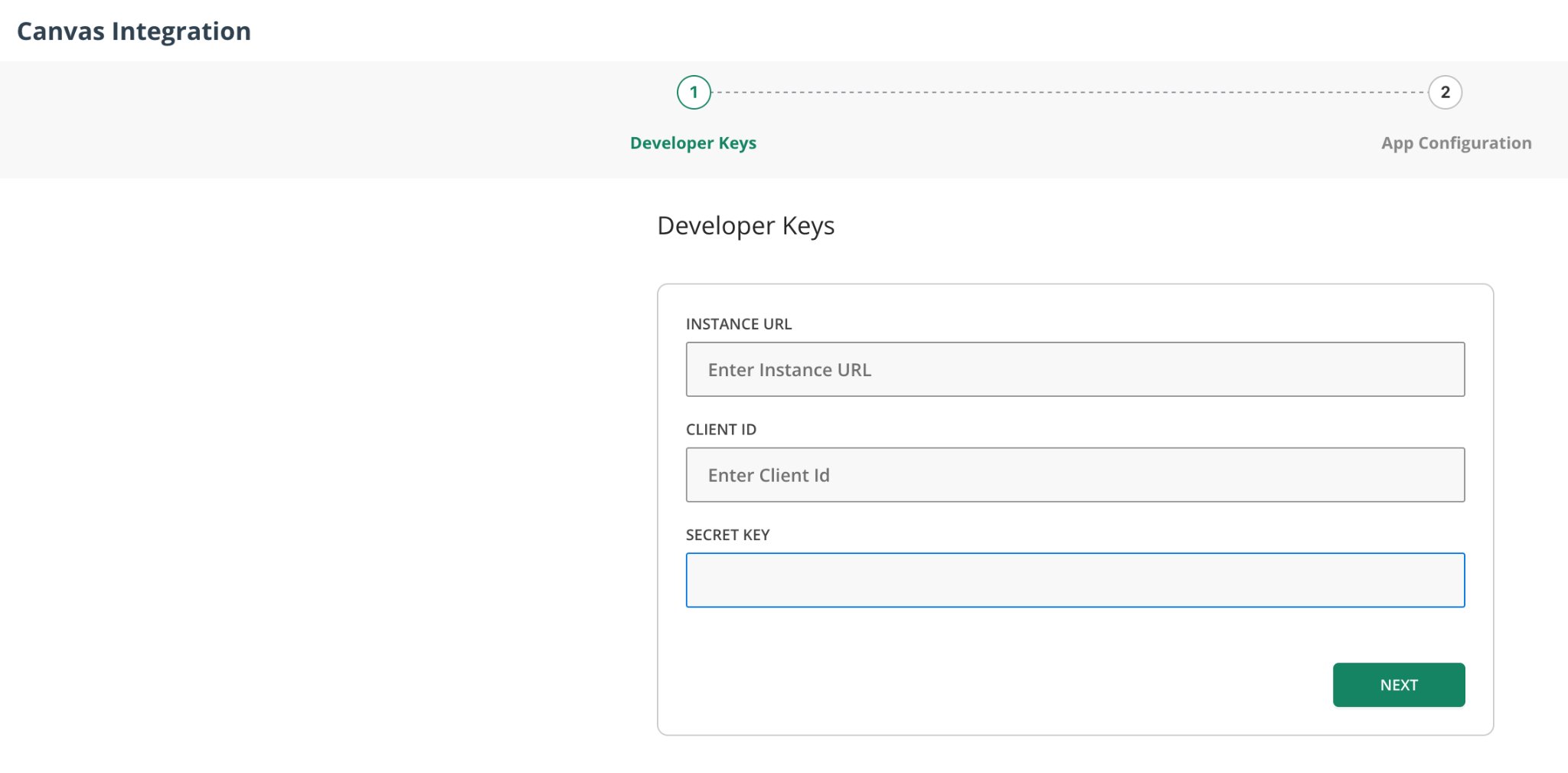
- Return to the Pear Assessment Canvas integration tab.
-
Enter the following values on the Developer Keys tab:
- Instance URL: Your Canvas Instance URL
- Client ID: The Client ID from Canvas
- Secret Key: The Developer Key from Canvas
-
Confirm that the Canvas Instance URL does not include a trailing slash.
Correct:
https://yourschool.instructure.comIncorrect:https://yourschool.instructure.com/ - Click Test Connection.
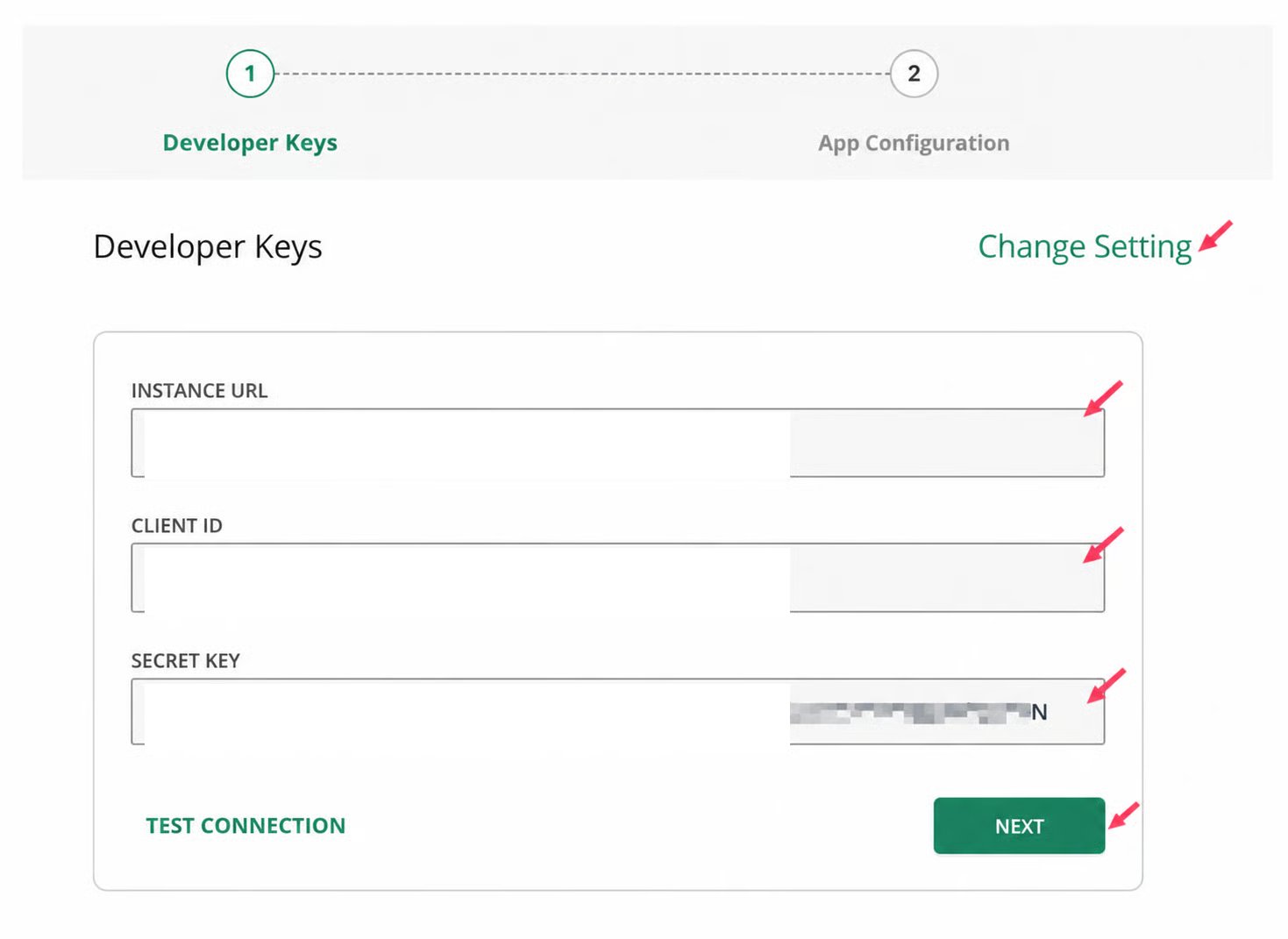
- If the test fails, confirm that the values match the Developer Key in Canvas.
- After the test succeeds, click Next.
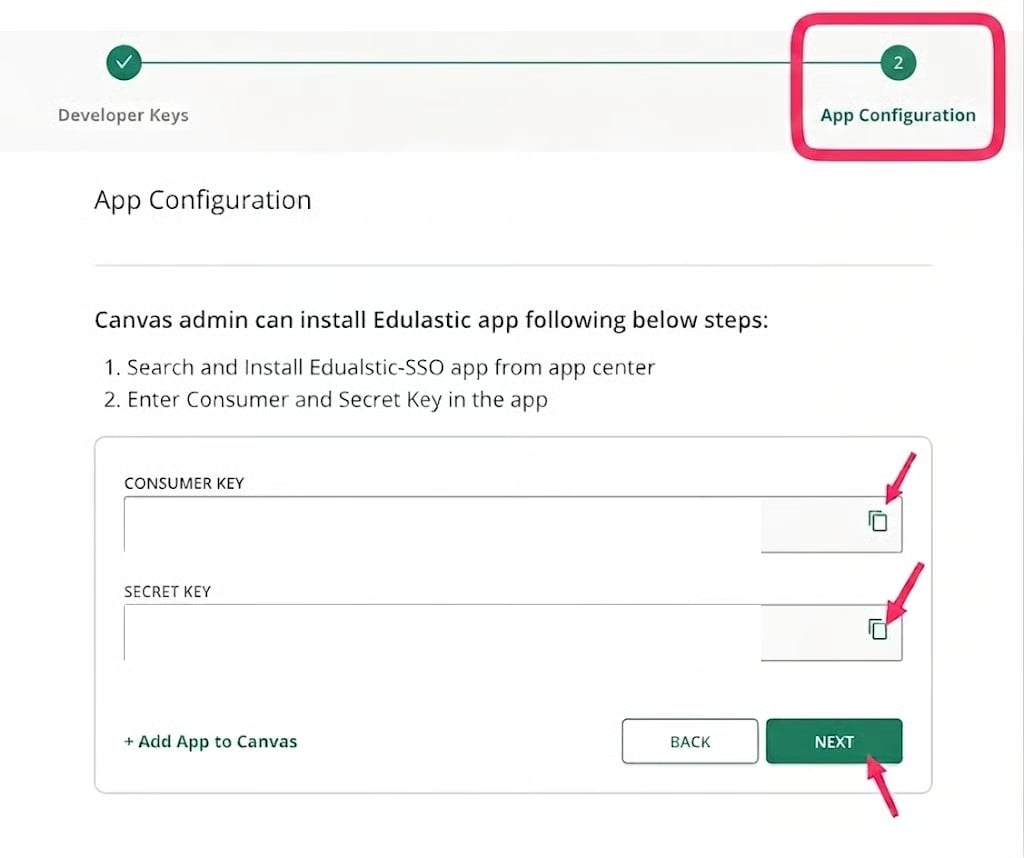
- Copy the Consumer Key and Secret Key from the App Configuration tab.
- Keep the Pear Assessment tab open, then return to Canvas.
Install the Pear Assessment App in Canvas
- In Canvas, go to Settings > Apps.
- Search for Pear Assessment, then open the Pear Assessment app.
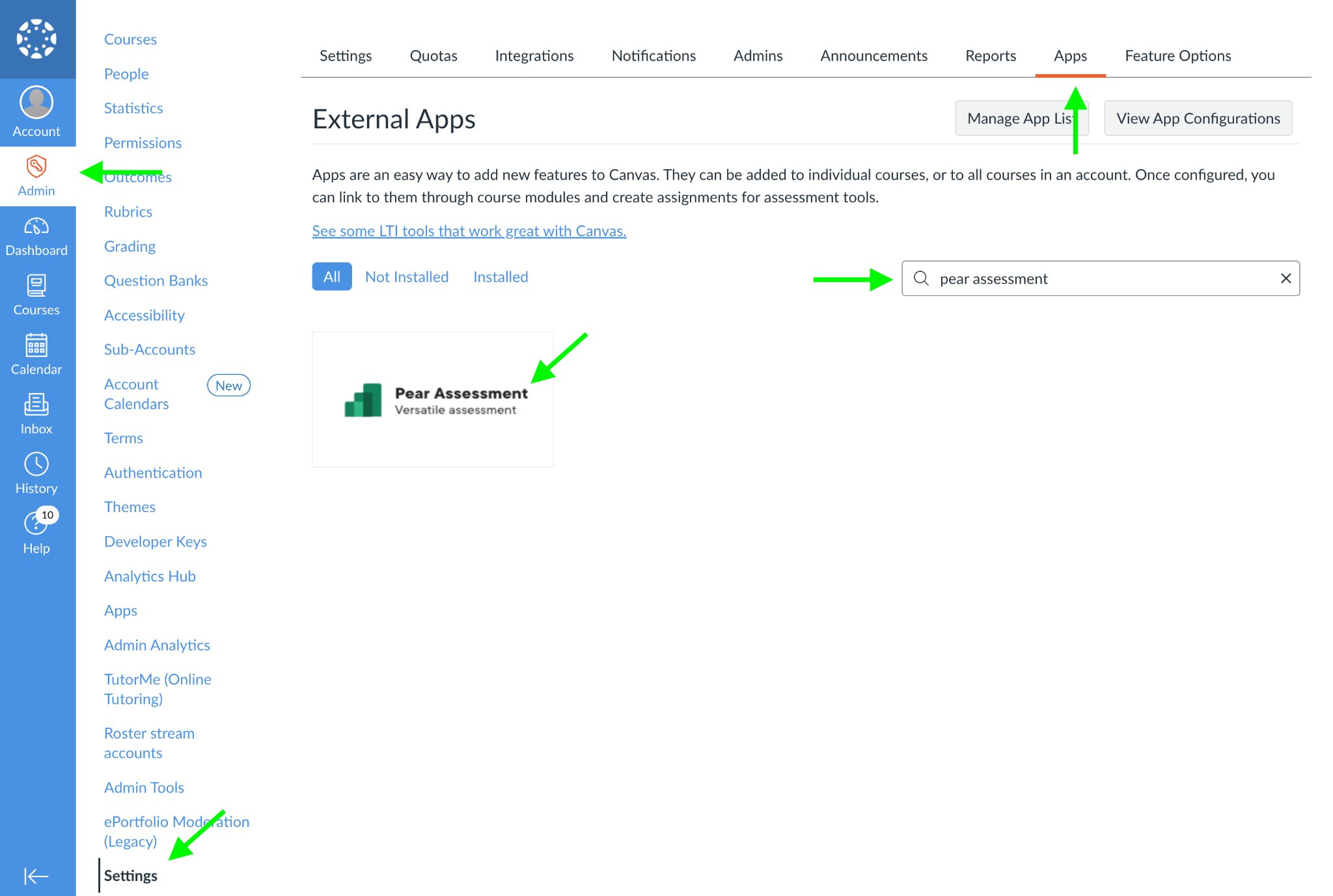
- Click + Add App.
- Enter the Consumer Key and Shared Secret copied from Pear Assessment.
- Enter the Launch URL for your environment.
- Complete the app configuration and add the app.
Important Canvas Configuration Checks
Keep Only One Canvas Configuration
Your Canvas instance should have only 1 active Developer Key and 1 app configuration for Pear Assessment or Edulastic.- In Canvas, go to Admin > Developer Keys.
- Retain the Developer Key associated with the Client ID entered on the Developer Keys page in Pear Assessment.
- Delete any additional or duplicate Developer Keys for Pear Assessment or Edulastic.
- Go to Settings > Apps > View App Configurations.
- Retain 1 Pear Assessment or Edulastic app and remove any duplicates.
- Edit the retained app.
- Enter the Consumer Key and Shared Secret from the App Configuration page in Pear Assessment.
- Save the changes.