

Install Kiosk Mode on Managed Chromebooks
These steps apply to Chromebooks running Chrome OS version 81 and later. Install the PWA only on school-owned and managed devices.- Sign in to Google Admin.
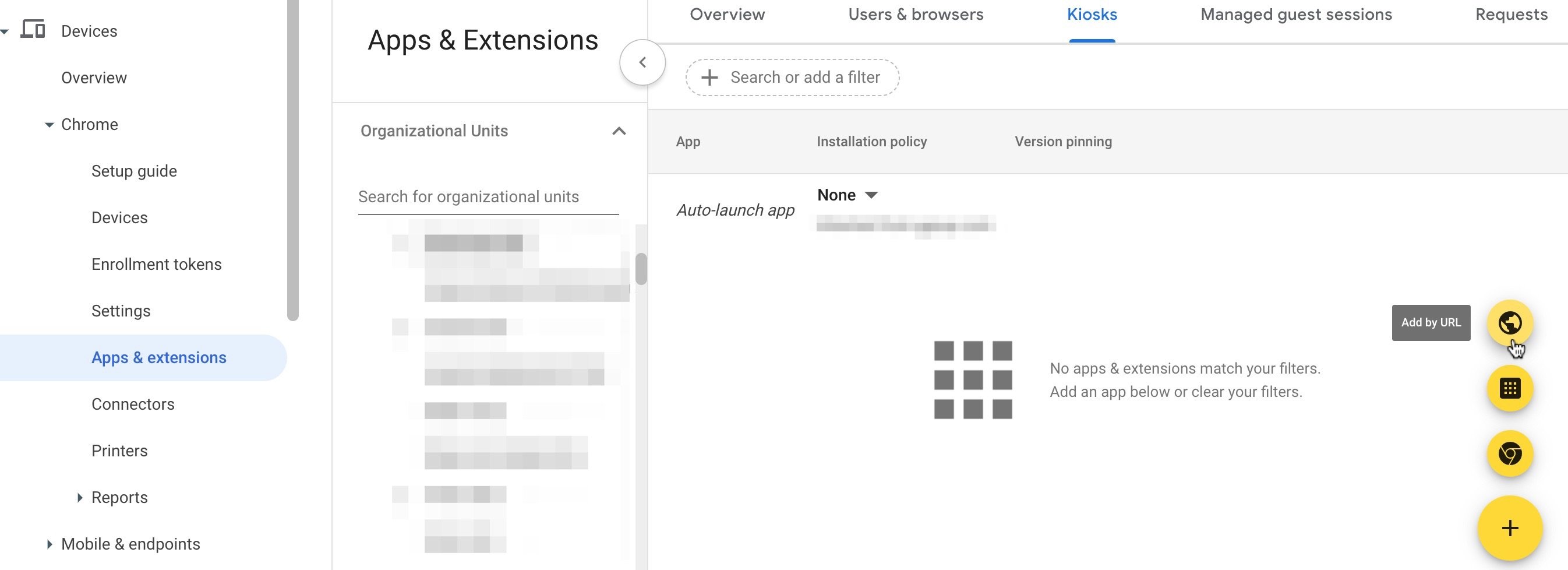
- In the left-hand menu, click Devices > Chrome > Apps & Extensions.
- Click the organizational unit (OU) where the Pear Assessment Kiosk Mode PWA will be deployed.
- In the lower-right corner of the window, click the plus button, then click the globe button (labeled Add by URL when hovered).
- Enter
https://assessment.peardeck.com/or your district’s Pear Assessment URL found in Manage District > Profile > District URL.
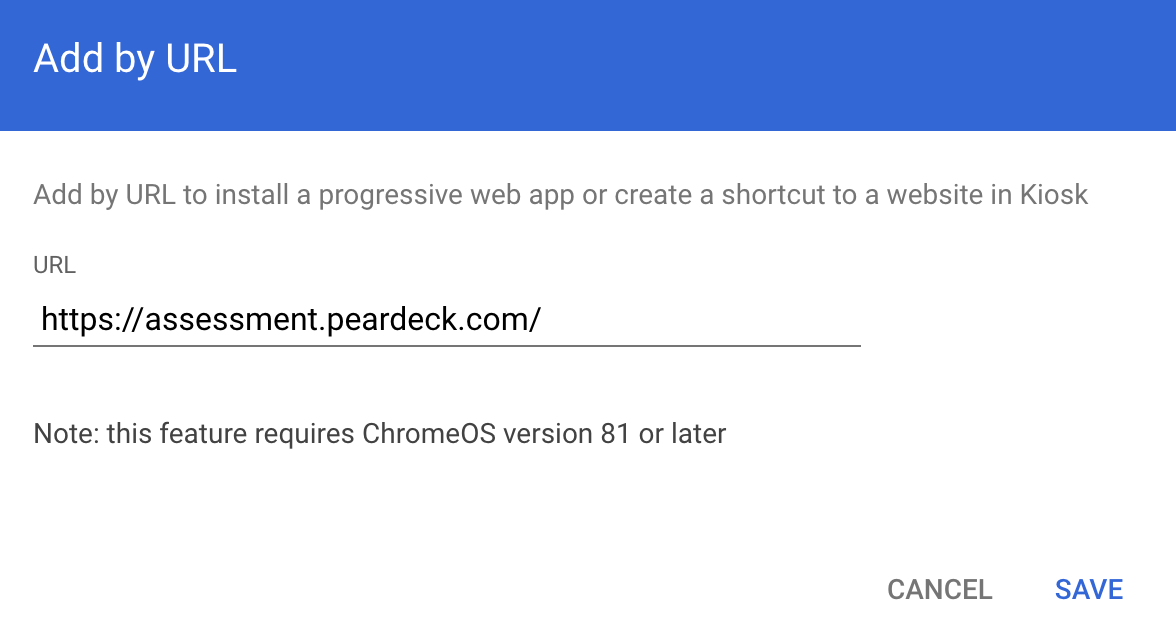
- Review the terms as required by Google.
- Under Kiosk Settings > Managed Configuration, enter the following:
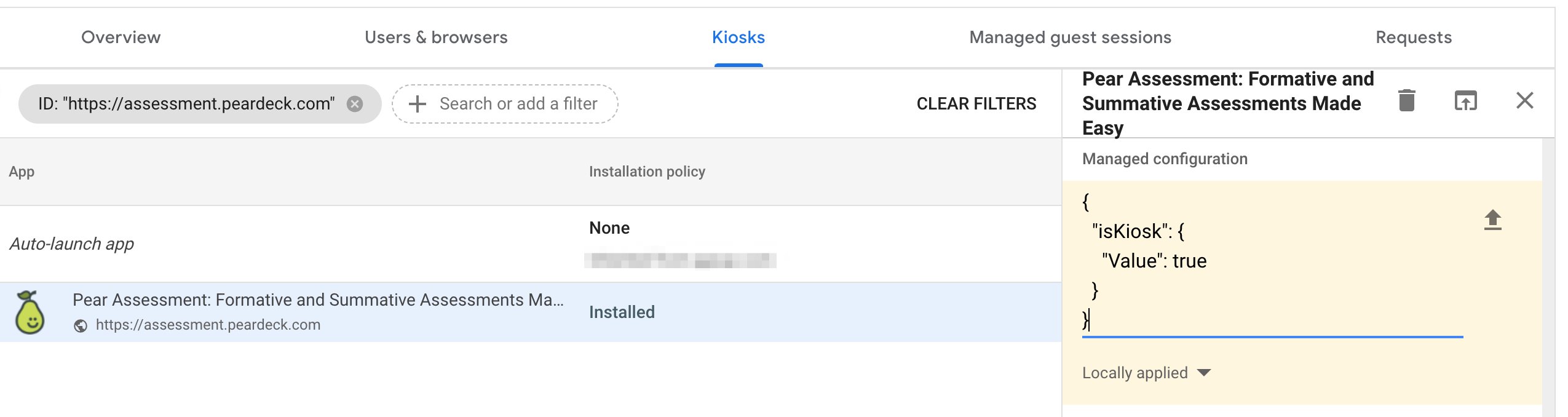
- Click Save. The kiosk app appears in Google Admin as Pear Assessment: Formative and Summative Assessments Made Easy.
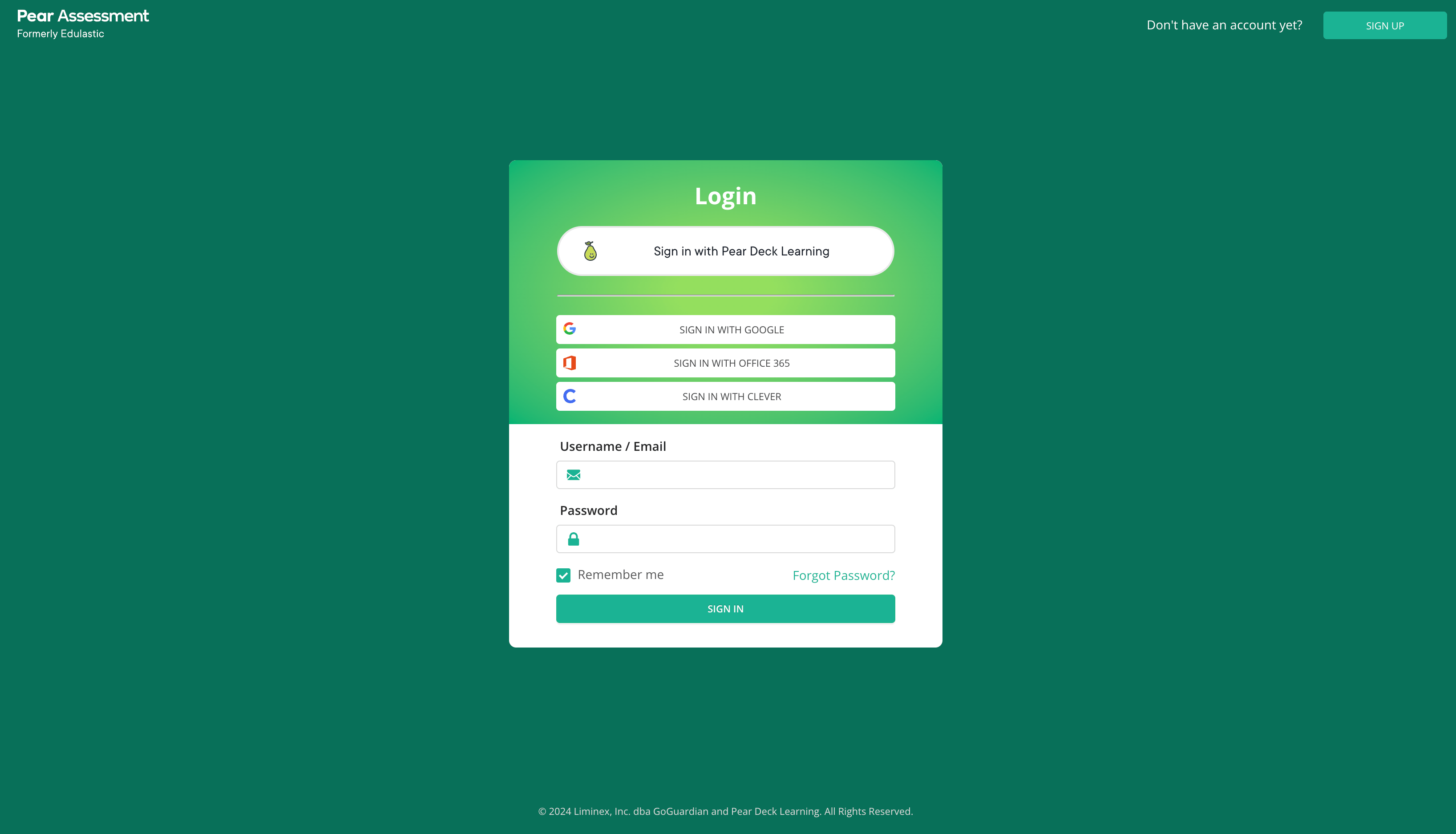
- On the student Chromebook sign-in screen, click Apps > Pear Assessment (Formerly Pear Assessment) if the kiosk does not load automatically.
- Confirm the Pear Assessment (Formerly Pear Assessment) kiosk appears on the student Chromebooks.
- Confirm students can sign in using third-party single sign-on (SSO) or their Pear Assessment username and password, depending on your environment’s setup.
To deploy to additional organizational units, repeat the steps above for each root or sub-OU. To sign out of Kiosk Mode, press the power button on the keyboard and click Sign Out.
Configure a Custom District URL for Kiosk Mode
- Sign in to the Google Admin console using an administrator account.
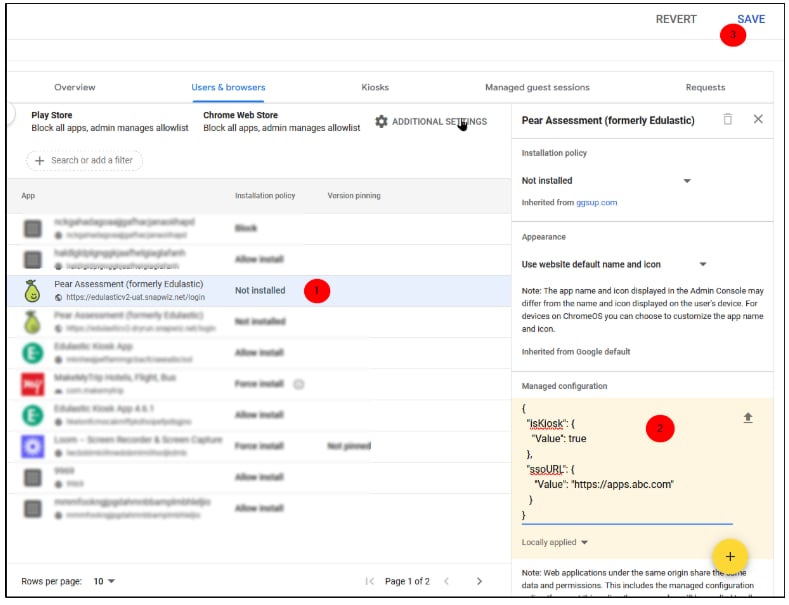
- Navigate to Devices > Apps & Extensions > Kiosks.
- Select the OU where the app is installed.
- Click the app name to open the side panel with policy details.
- In the Managed Configuration section, paste the following JSON:
Replace
https://apps.abc.com with your district’s custom URL.- Click Save in the upper-right corner.
Uninstall the Legacy Kiosk Mode Extension
The legacy Kiosk Mode extension (Pear Assessment Kiosk App) is no longer a recommended deployment method. Use the following steps to remove it after deploying the PWA.- Sign in to Google Admin.
- In the left-hand menu, click Devices > Chrome > Apps & Extensions.
- Click the OU where the legacy Pear Assessment Kiosk Mode app was deployed.
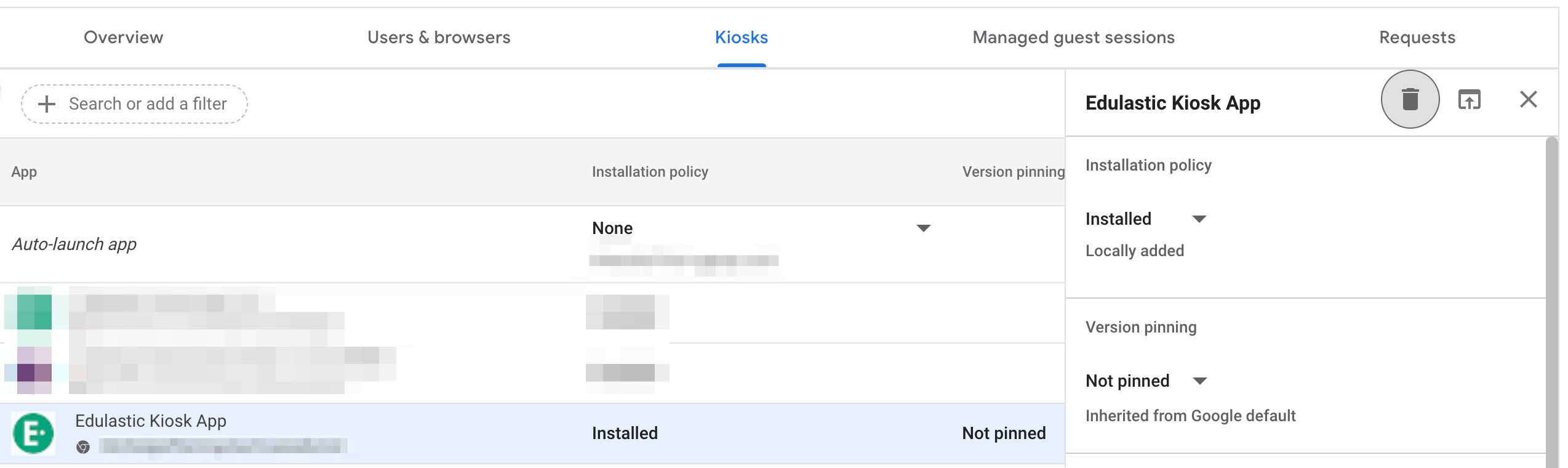
- Click the Kiosks tab.
- Click the Pear Assessment Kiosk App name.
- Click the trash button in the upper-right corner of the panel.
Repeat these steps for any sub-OUs that are not inheriting settings from the root OU.