

Launch Kiosk Mode
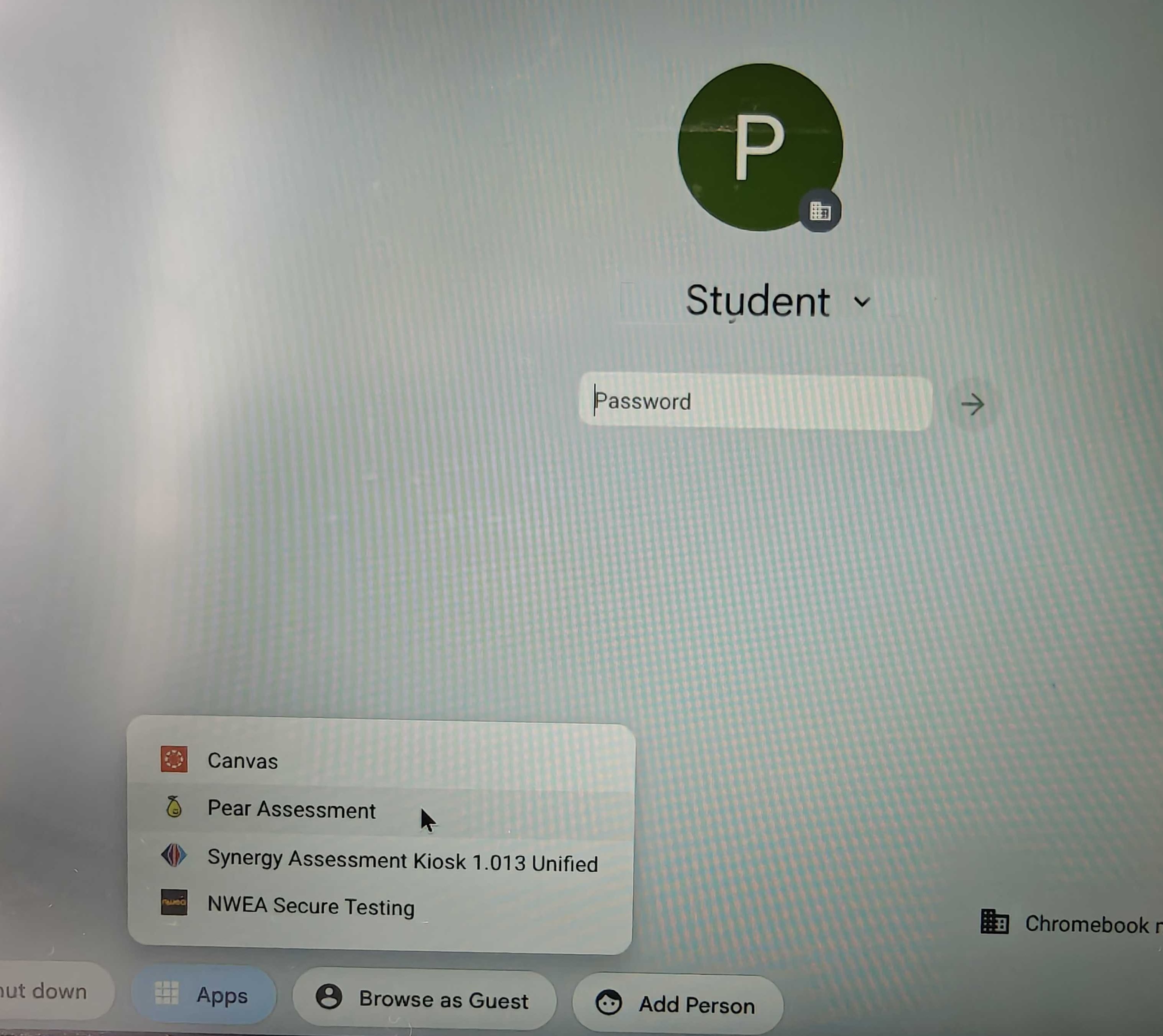
- Do not sign in to your Chromebook. On the sign-in screen, open the app tray at the bottom of the screen.
- Select the Pear Assessment Kiosk app from the tray to launch it.
Sign in and Take Your Test
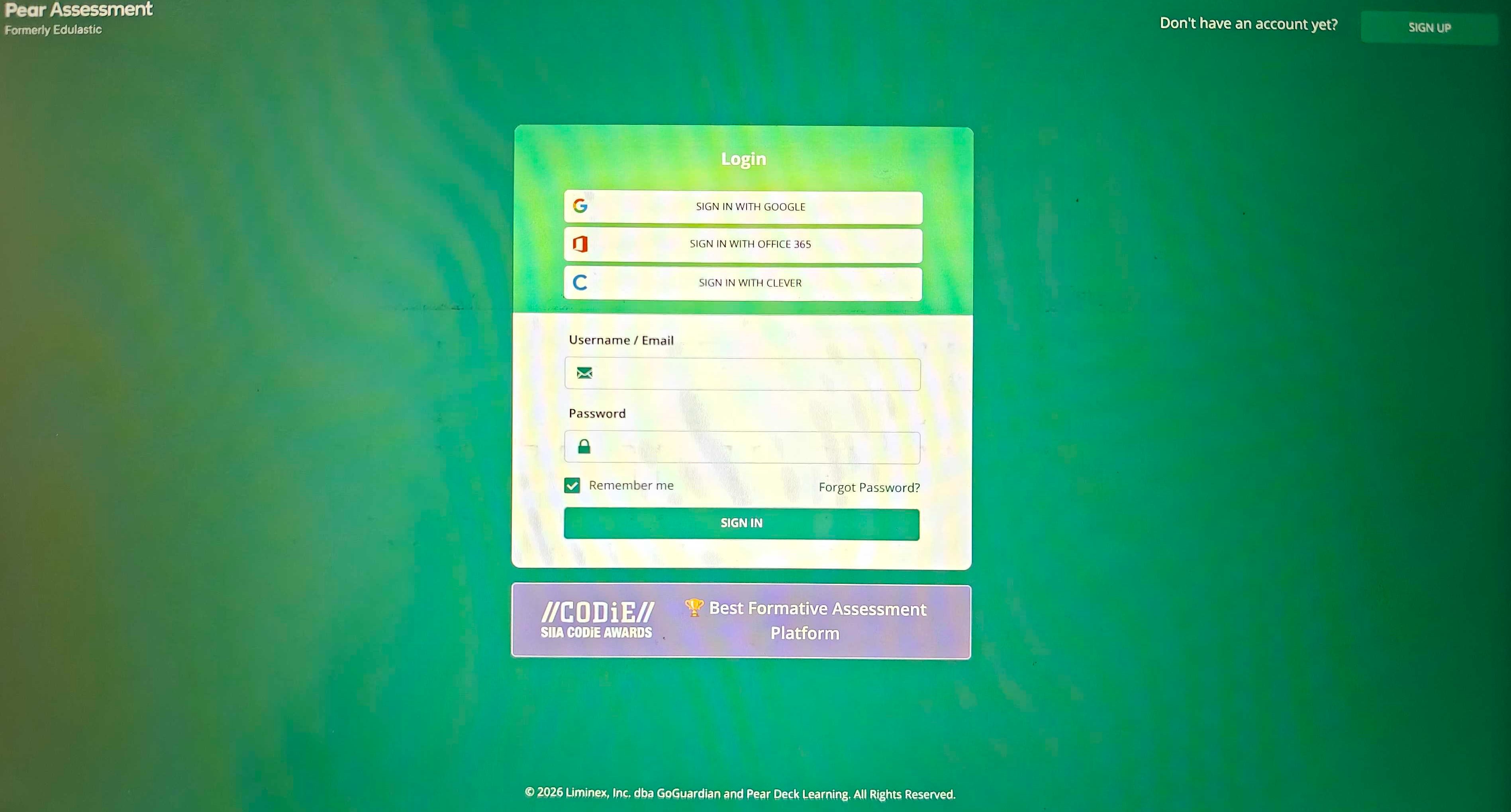
- When the Kiosk app opens, sign in with the credentials your teacher provided.
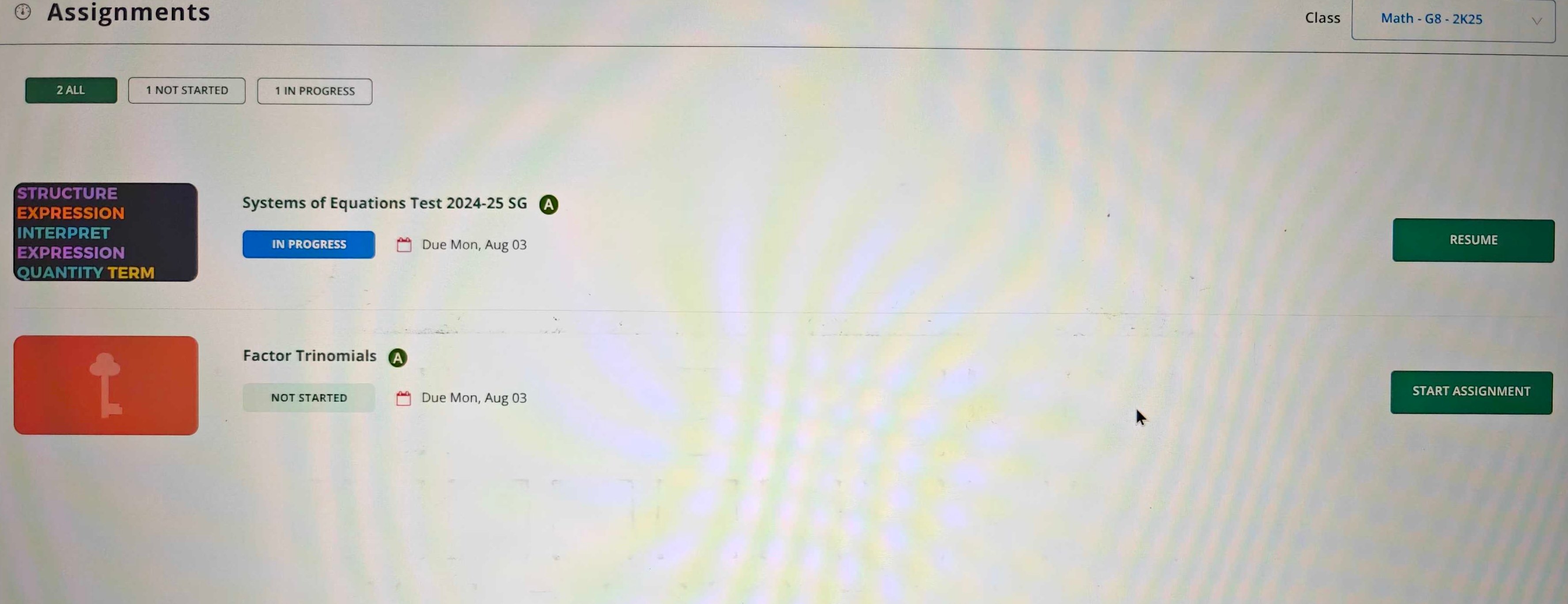
- Select the test assigned to you and complete it.
Resources
Set Up Kiosk Mode on Chromebook
IT administrator steps for pushing the Kiosk app to Chromebook devices.
Assessment Security
Overview of security features available during Pear Assessment tests.