Troubleshooting Kiosk Mode Access Issues and Preventing Unauthorized Access
Block students from bypassing Kiosk Mode via Microsoft SSO or external links, and configure camera permissions to support Clever Badge sign-in.
In Kiosk mode, students may attempt to bypass restrictions by using alternate sign-in methods such as Microsoft (Office 365) SSO or by navigating to external links like GitHub, Google, or YouTube. This section outlines common access-related issues observed in Kiosk environments and provides recommended configuration options to prevent unauthorized access. It also explains known limitations, such as camera access restrictions during Clever Badge sign-in, and the required setup to address them.
Blocking Google Access Through Microsoft SSO in the Kiosk App
Students may be able to access platforms such as Google or YouTube by selecting the Microsoft (MSO) SSO sign-in option while using the Kiosk app. To prevent this behavior, districts can use one of the following approaches:
Option 1: Restrict sign-in options within district settings and use the authorized district URL when configuring the Kiosk app
Option 2: Block specific URLs for Kiosk apps using the Google Admin console
Detailed instructions for both options are outlined below.Option 1: Restrict Sign-In via District Settings (Recommended)Some districts have reported that students can bypass Kiosk Mode by selecting Microsoft SSO and navigating through links such as GitHub or Help pages. To prevent this workaround, we recommend the following steps:
Remove Office 365 (Microsoft) SSO from your Sign-On Policies to eliminate the entry point students are using to exit the intended Kiosk flow.
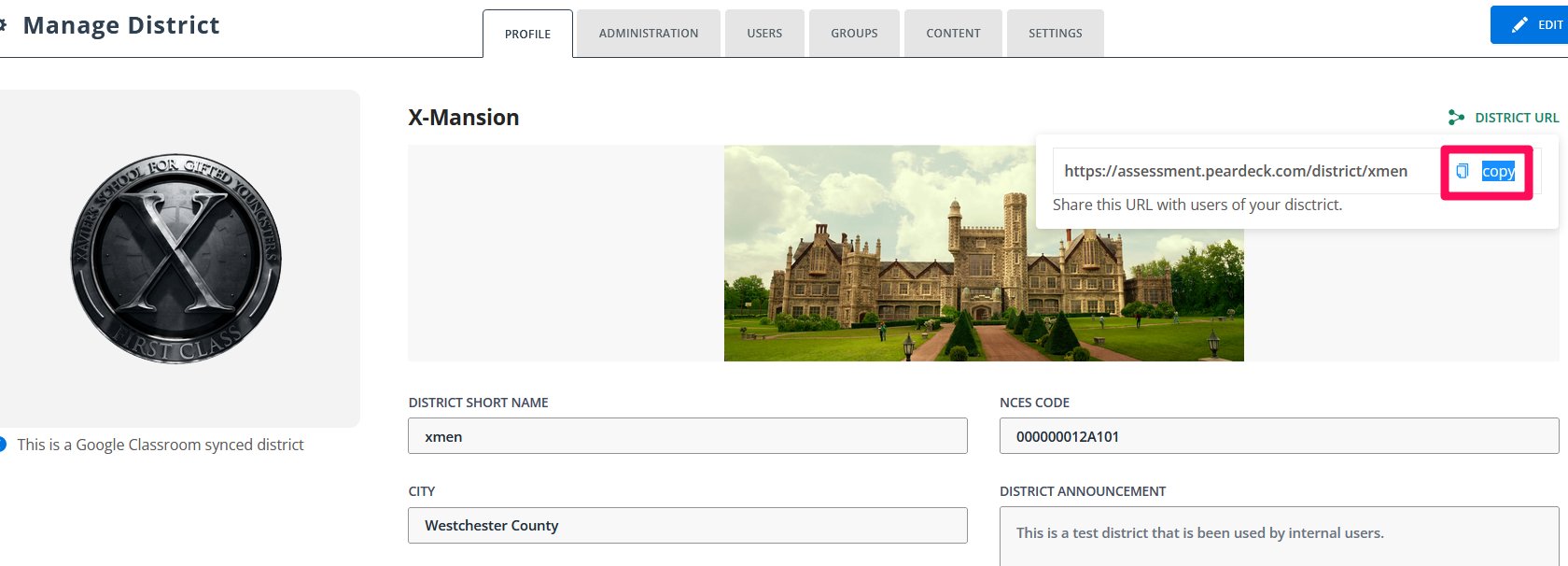
Use your district-specific URL when configuring the Kiosk app, as outlined in Step 5 of this help article: How do I set up Kiosk Mode on Chromebook?
This option is best suited for districts that primarily use Microsoft for authentication.
Sign in to the Google Admin console and navigate to the URL Blocking settings.
Apply the settings to the Student OU.
Add the following URLs to the blocked list: github.com apple.com
Click Save to apply the changes.
Note: These URL blocks apply only while the device is in Kiosk mode.For additional reference, see Google’s documentation on URL blocking for Chrome devices.
Camera Access Not Allowed for Clever Badge Sign-In
In a Kiosk application environment, camera functionality works correctly when initiated by the application itself. However, Chrome-based browsers normally require manual user approval to grant camera or microphone access. Since Kiosk mode runs in fullscreen, this manual approval step is not possible.As a result, the Kiosk app automatically grants camera permission only to its own domain, such as:
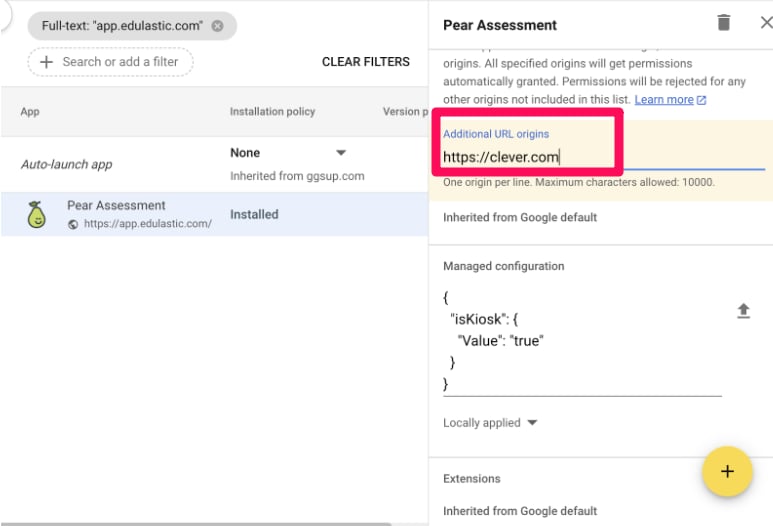
This limitation causes an issue with Clever Badge sign-in, as the camera request originates from a different domain (https://www.clever.com), which is not automatically permitted.To allow Clever Badge sign-in to function correctly:
Open the Kiosk app configuration in the Google Admin console.