

View Assignment Progress
To check the progress of an assignment:- Click the Assignments tab in the navigation menu.
- Click the name of an assignment in the list.
- Review the progress summary at the bottom of the screen, which shows how many students have been assigned, how many have submitted, and how many have been graded.

Assignment Statuses
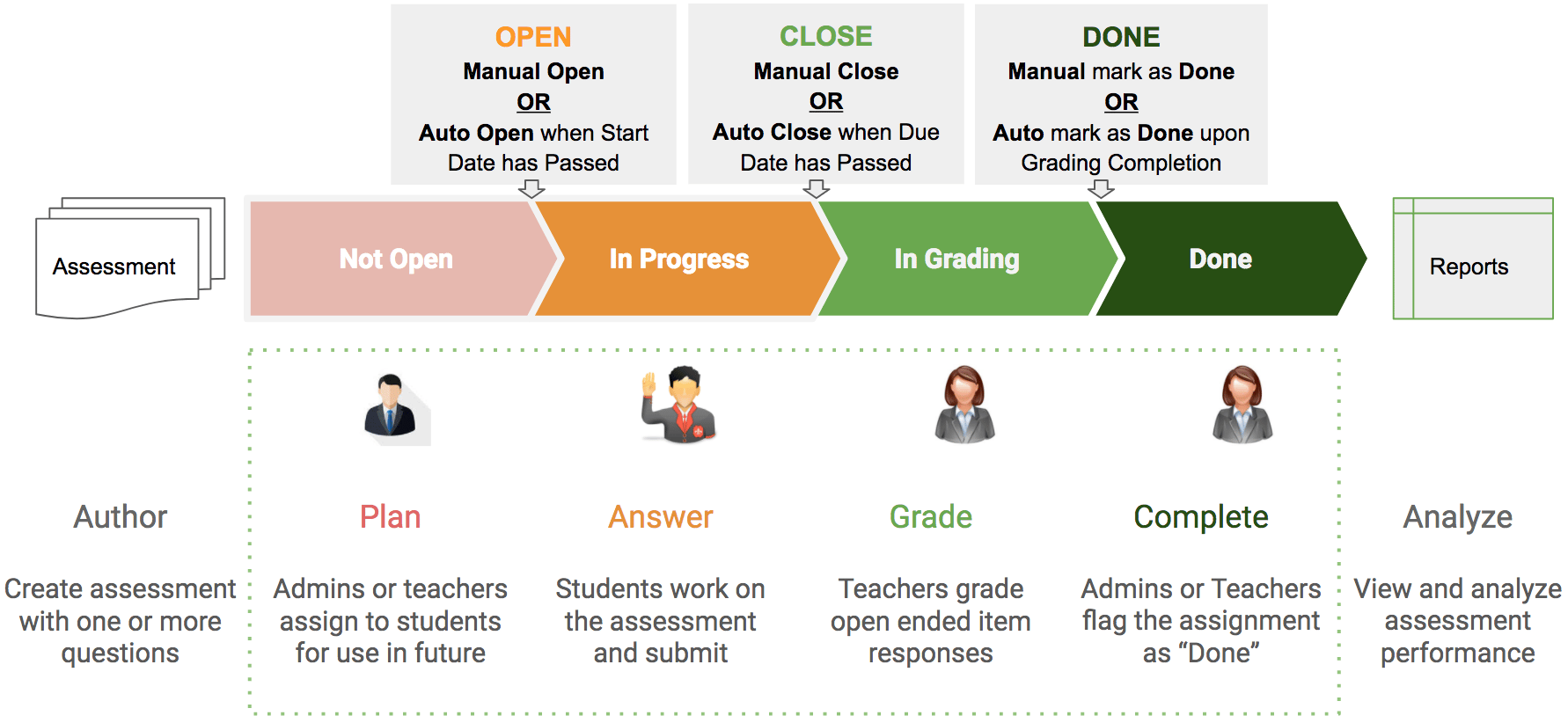
- Not Open: The assignment is not yet available to students. This status is used when planning a future assessment , for example, when the start date is in the future. The teacher or administrator must open the assignment before students can begin.
- In Progress: The assignment is open and available for students to work on. The status changes to In Grading when the due date passes, the assignment is manually closed, or all students in the class have submitted.
- In Grading: All students have submitted their work or the due date has passed. Teachers finalize scores, enter feedback, and manually grade any open-response questions such as essays or drawing responses. Click Mark as Done to move the assignment to Done. To share grades with students, enable Release Scores.
- Done: Grading is complete. Pear Assessment generates reports automatically when an assignment reaches this status.
An assignment can return to In Progress from In Grading if the Redirect feature is used to ask students to redo their work.