

- Rejoin your Session with the same account, unless you unblock them
- See or respond to any slides, whether Normal or Interactive, on the Student View
- Receive a Takeaway (a Premium feature, available to students who sign in with a Google account)
Block a Student From Your Session
- Open the Teacher Dashboard.
- Go to the top right corner of the screen and click the Session Roster button.
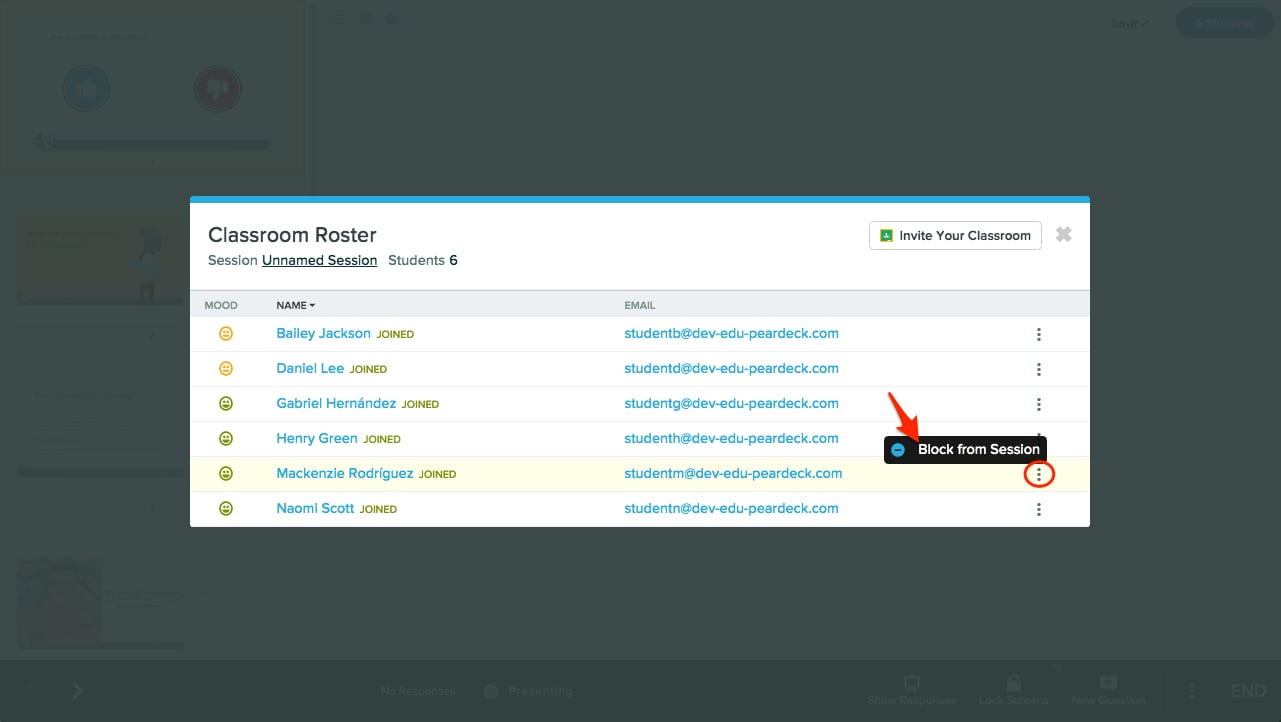
- Find the student, then click the More Actions (three-dots) button next to their email address. Select Block from Session.
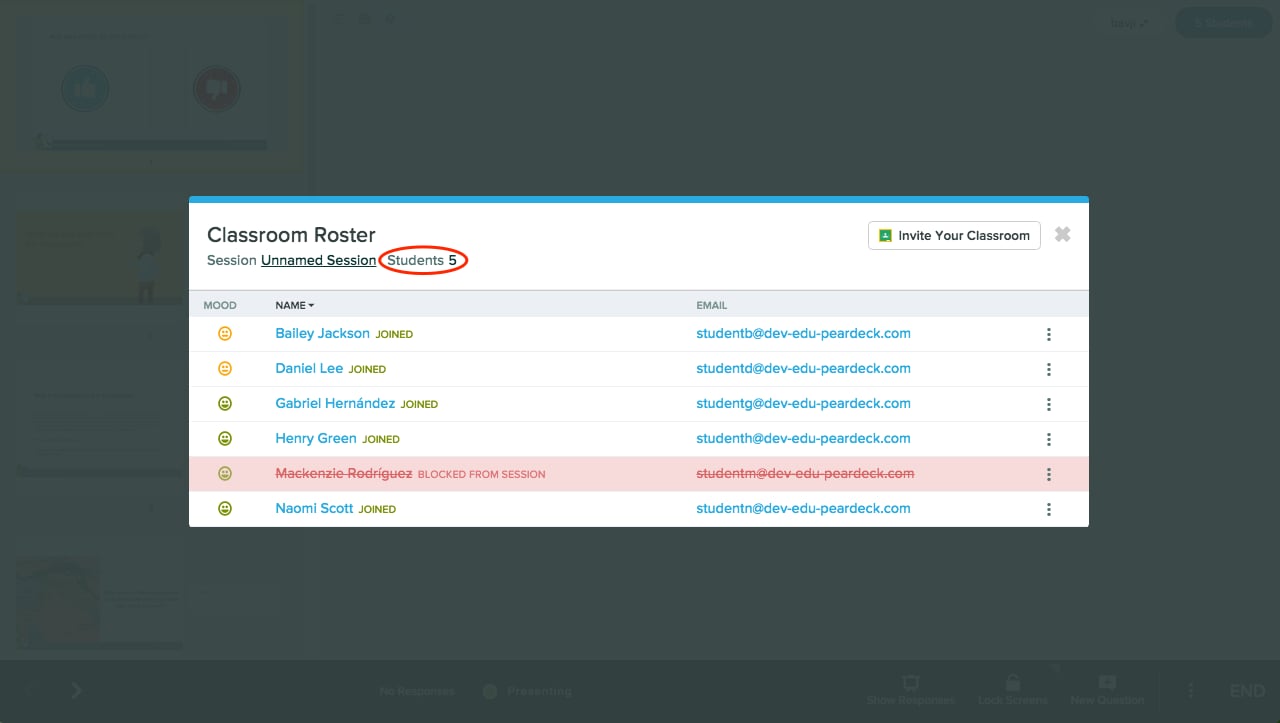
- The blocked student appears in red in your Roster and is removed from the student total.

Allow a Student Back Into Your Session
- Open the Session Roster again.
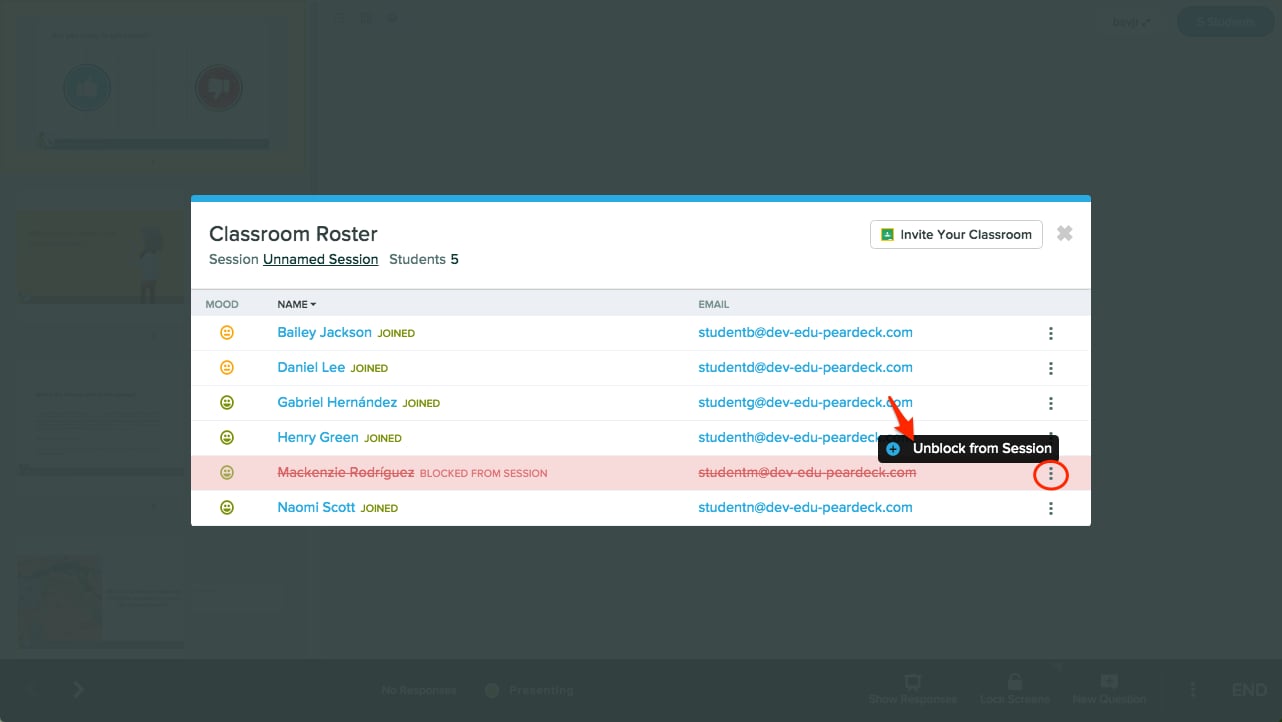
- Click the More Actions button next to the blocked student and select Unblock from Session.
- The student can rejoin the Session at joinpd.com using the same Session Join Code.
What the Blocked Student Sees
When a student loses access to your Session, they see a screen indicating they have been removed.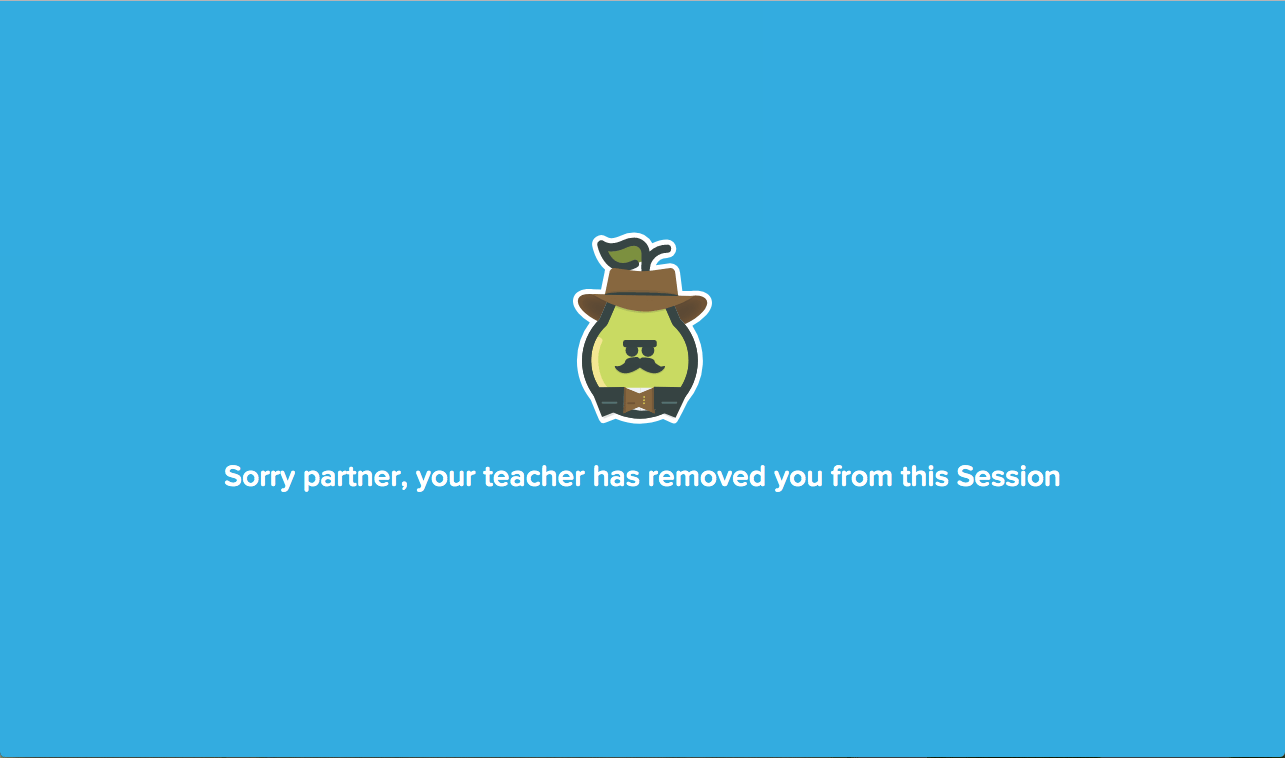
Resources
Start a Pear Deck Session
Learn how to launch a new Session from the Teacher Dashboard.
Manage Your Session Roster
View and manage student participation during a live Session.