

Open Reflect & Review and Share the Link
You can access Reflect & Review as soon as you end a session, or return to it at any time. When a session ends, it moves to Closed status. Students can no longer enter the session or change responses, but they can review their own responses and see your feedback using the Student Reflect & Review link. If you want students to continue responding, you can reopen the session in Instructor or Student-Paced Mode at any time. Learn more about session statuses.When You End the Session
- In the Projector or Dashboard View, go to the Navigation Bar and select END. Or open the More Actions (three-dots) menu and select End This Session.

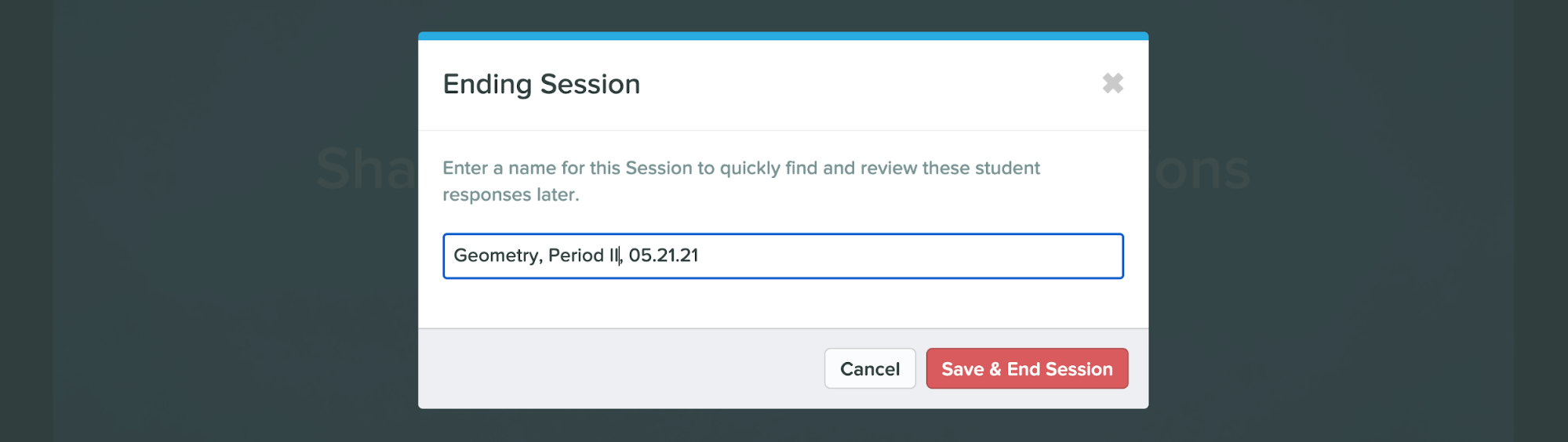
- Enter a name for your session, then select Save & End Session.
- Reflect & Review is ready.
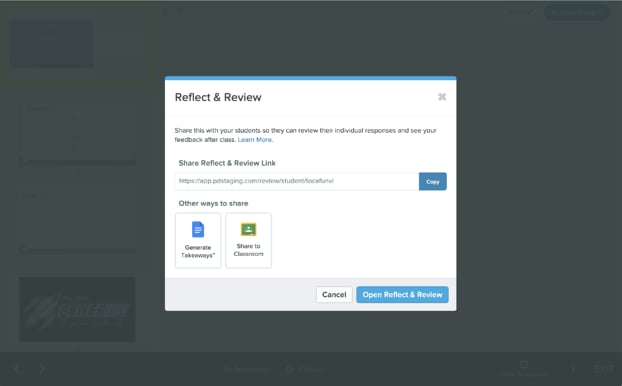
- Select Open Reflect and Review to enter and review your students’ responses.
- To share the link with students, select Copy, then paste it anywhere students can access it, for example in an email, a video call chat, or your LMS. If you have Google Classroom, select Share to Google Classroom and choose how to share the link. Make sure you are signed in to Pear Deck with the same Google account connected to your Google Classroom environment.
At a Later Time
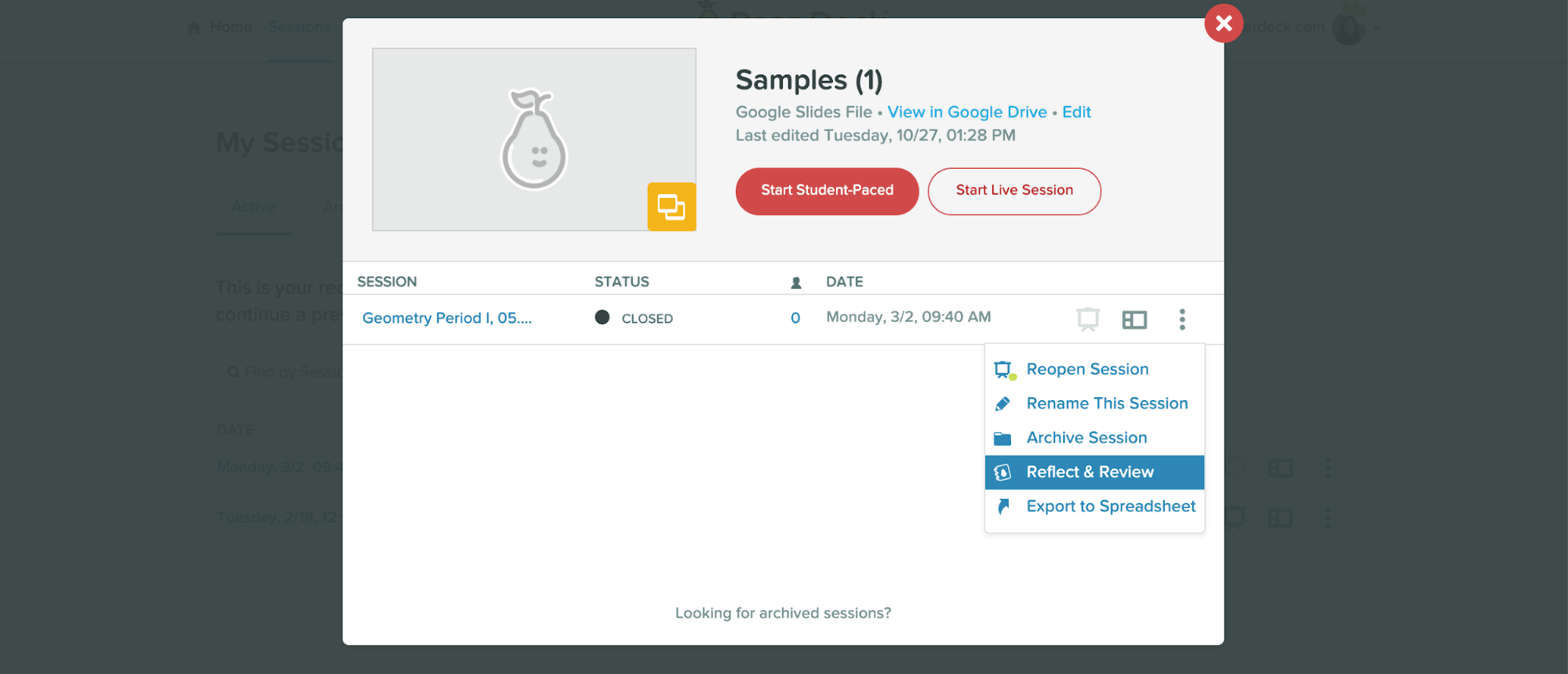
The Reflect & Review link is saved permanently with your Pear Deck sessions. You can return to it from the Sessions menu, the Deck Modal, or the closed session Dashboard. From your Sessions menu:- Open your Sessions.
- Find the session and confirm it has Closed status. If it is still Live, select the More Actions (three-dots) button to close it.
- Select the More Actions button.
- Select Reflect and Review. If your session does not appear on the Active tab, it is archived. Click the Archived tab, select the session’s More Actions menu, and restore it. The session reappears on the Active tab so you can open Reflect & Review.
- Go to your Pear Deck Home.
- Scroll down to Present a File from Drive / OneDrive.
- Click the title of the deck or file name to open the Deck Modal.
- Open the More Actions menu and select Reflect & Review.
- Confirm the Dashboard shows Closed status on the Navigation Bar. If the session is still Active, select END or use the More Actions menu to close it.
- Open the More Actions menu.
- Select Go to Reflect & Review.


Review Student Responses
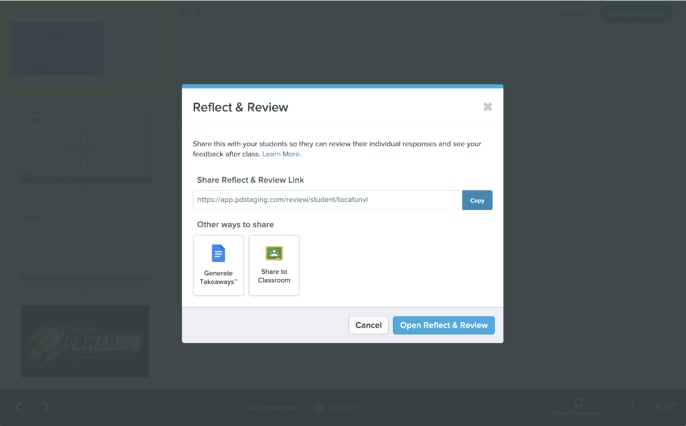
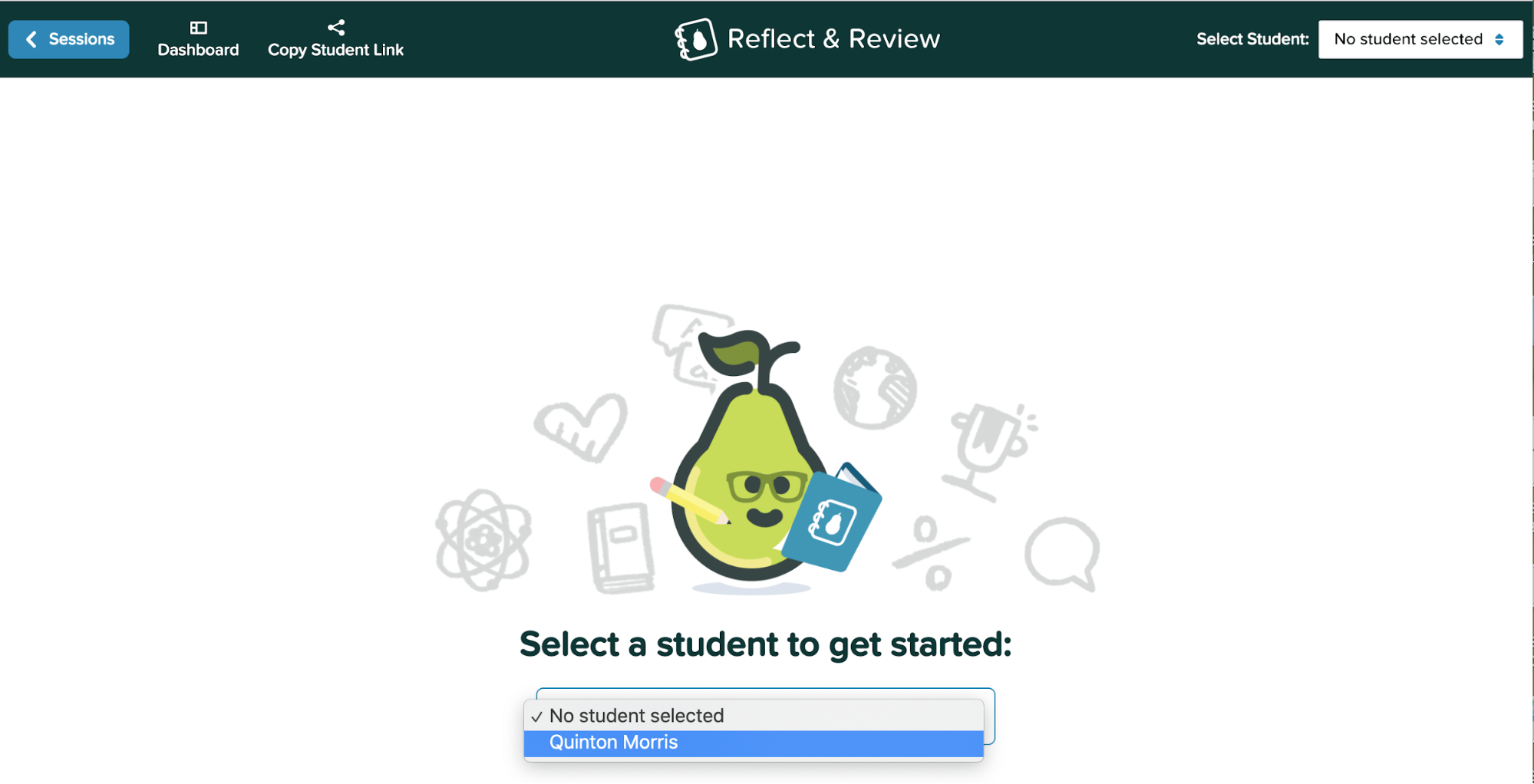
In Reflect & Review, you review one student’s responses at a time.- Follow the steps in the previous section to open the Reflect & Review modal, then select Open Reflect & Review.
- Select a student from the menu. Every student who joined the session appears in the list.
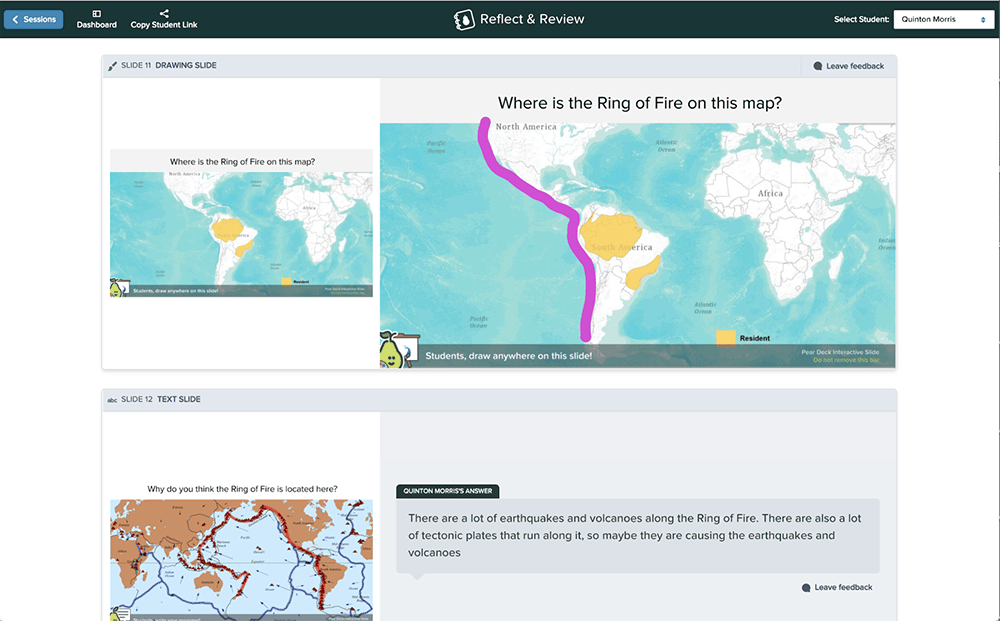
- Scroll through the review. Slides appear on the left, and the corresponding responses appear on the right.
Give Students Feedback
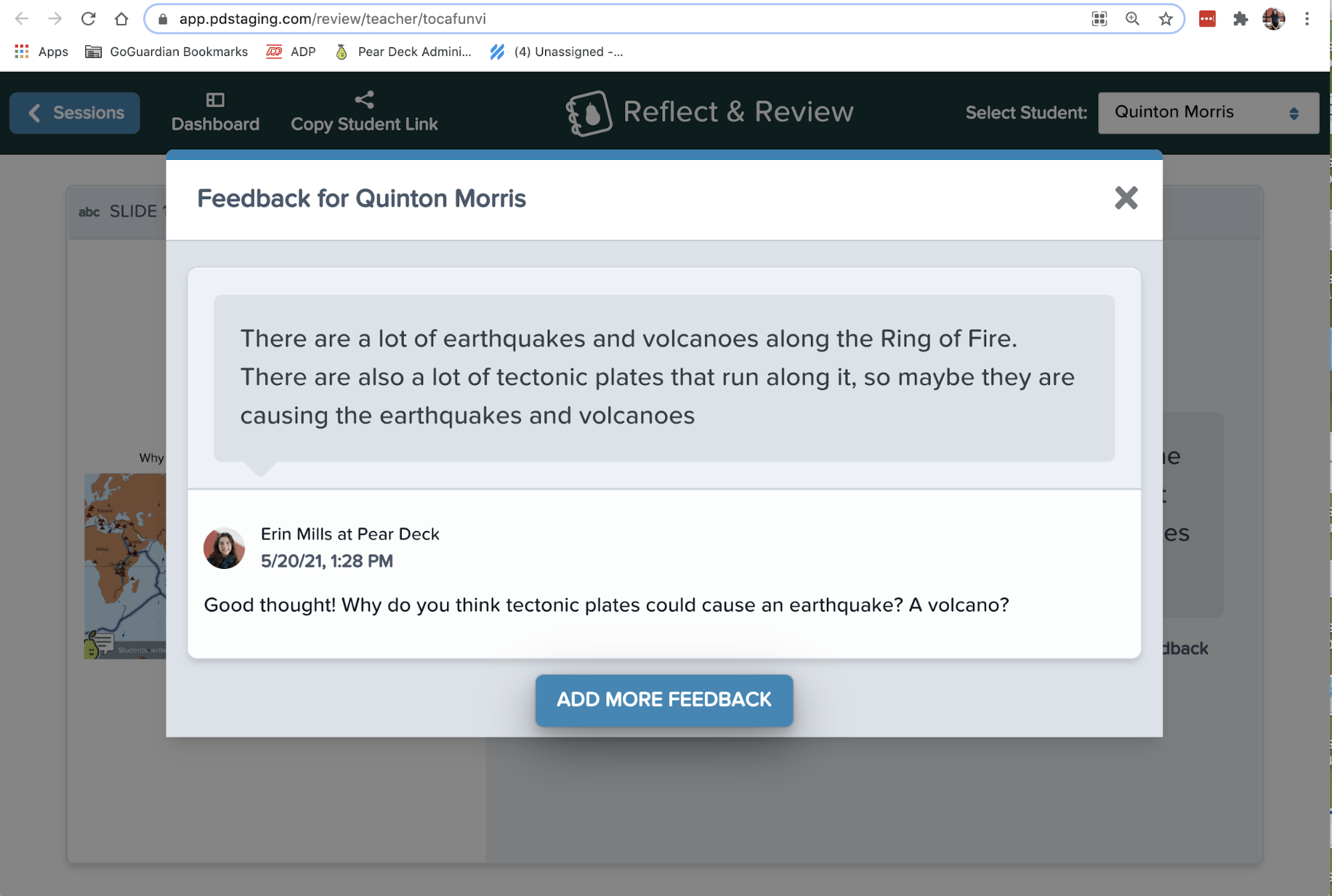
You can send written feedback to a student on any Interactive Slide from both the Dashboard and the Reflect & Review screen. Feedback is automatically saved in your sessions. Students can find their feedback in the Student View of a live session, or in their own Reflect & Review screen when the session is closed.Send Feedback from Reflect & Review
-
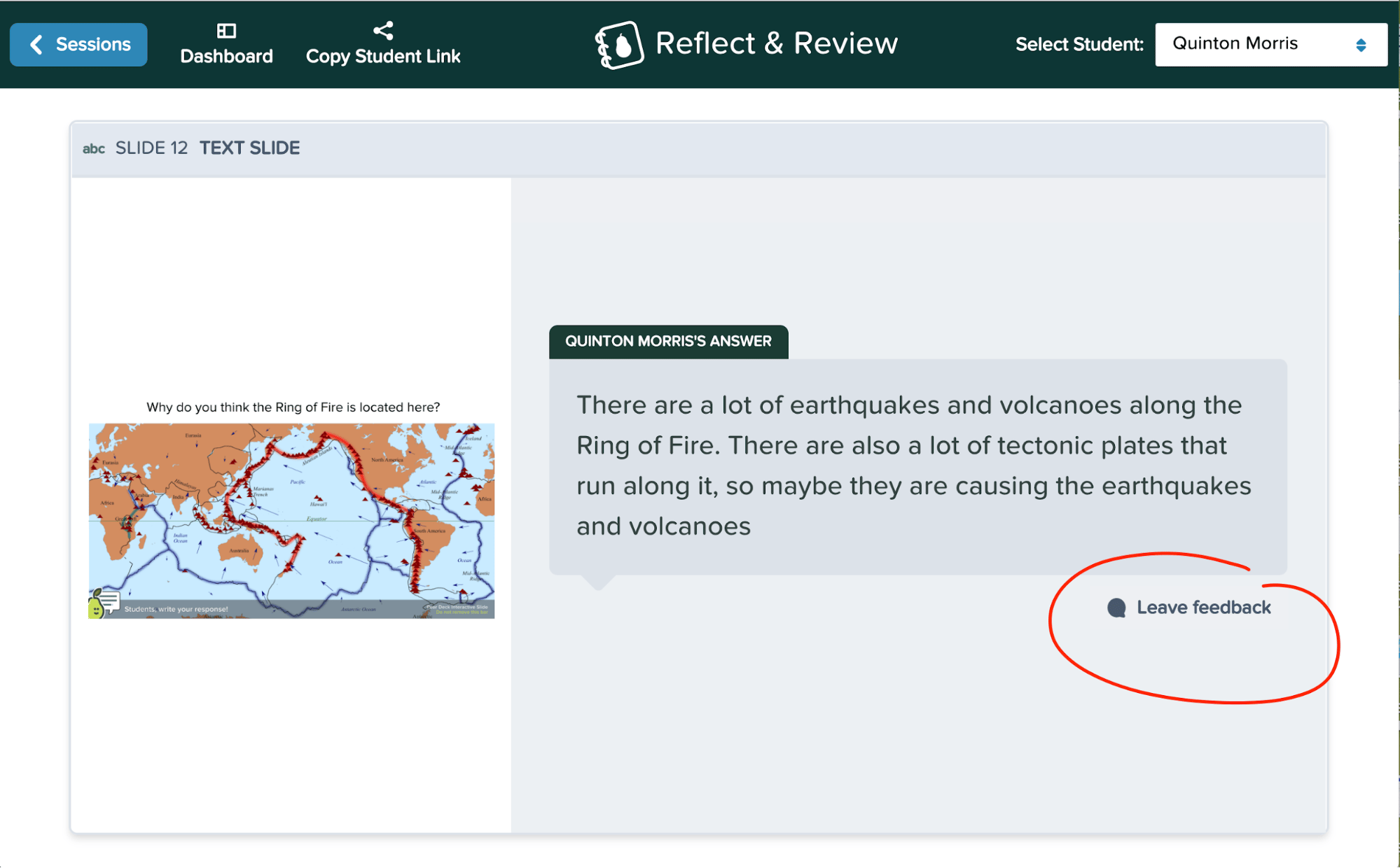
On an Interactive Slide, select Leave Feedback.
-
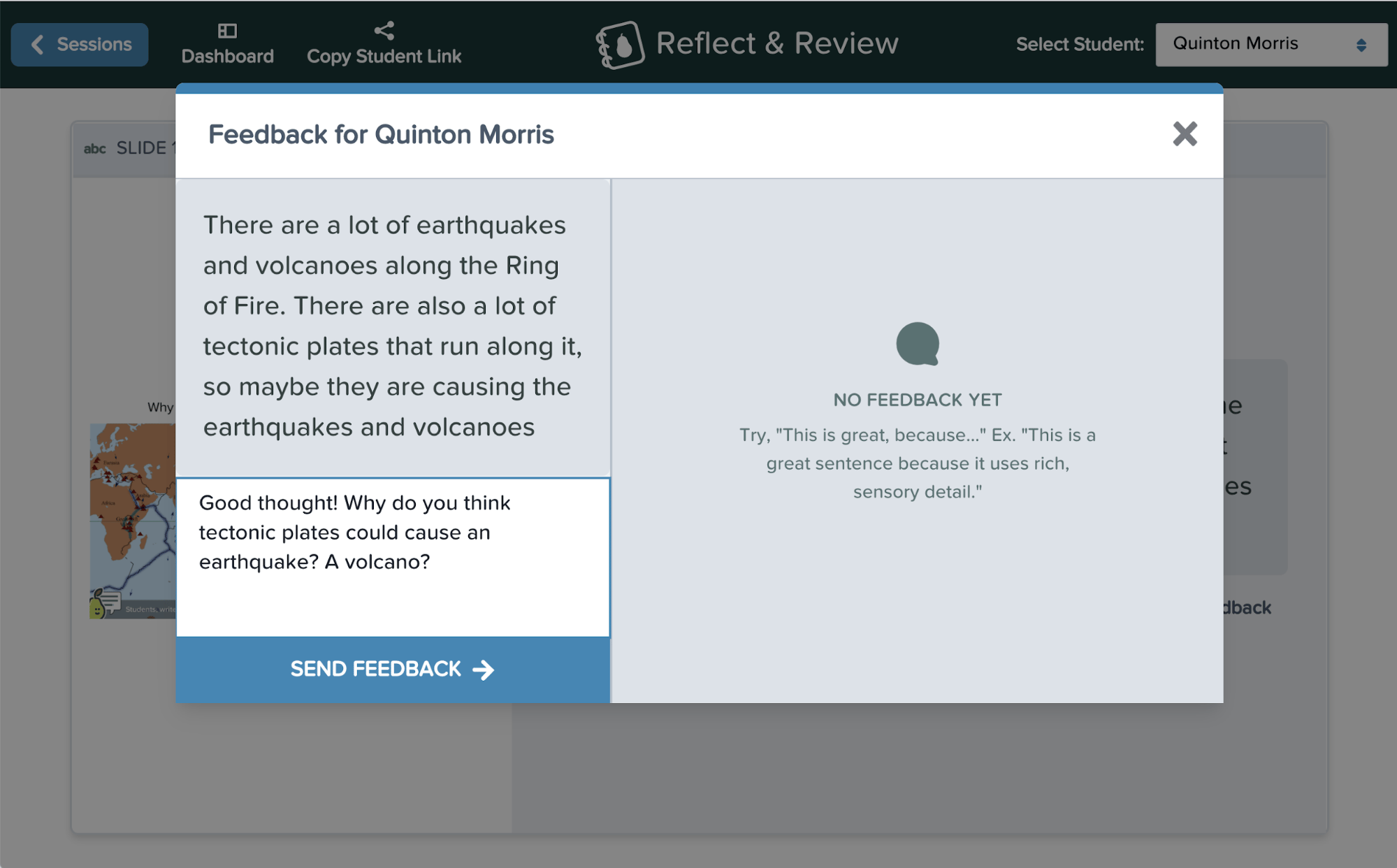
Type your reply, then select Send Feedback.
-
The student receives the feedback in their Reflect & Review screen and in the Student View of your session if you reopen it later. Your feedback is saved automatically. To view or add another comment, select Leave Feedback again.
Send Feedback from the Dashboard
You can send feedback from the Dashboard whether the session is Active or Closed. Sending feedback during an Active session is useful because students receive it in real time in the Student View. Feedback sent from the Dashboard also appears automatically in Reflect & Review for both you and the student. Learn about sending feedback from the Dashboard.Students: Open Student Reflect & Review
Share the Student Reflect & Review link with students after you end the session. Here is what students do to enter their review:-
Click the Reflect & Review link from their teacher.
- If the student is already signed in, the link recognizes the account and takes the student directly to their review screen.
- If the student is not signed in, they are prompted to sign in using the email account they used originally to join the session.
- If Pear Deck signs the student in with the wrong account, the student needs to switch accounts. To do this, a student can clear their browser cache, open an incognito window, or open a different browser, then click the link again to enter the correct account.
- If the presenter turned off Email Sign-In, students are anonymous in your sessions and in Student Reflect & Review, and they see their assigned avatar instead of their name. Anonymous students must access the review from the same computer without clearing cookies. Otherwise they lose access to their responses.
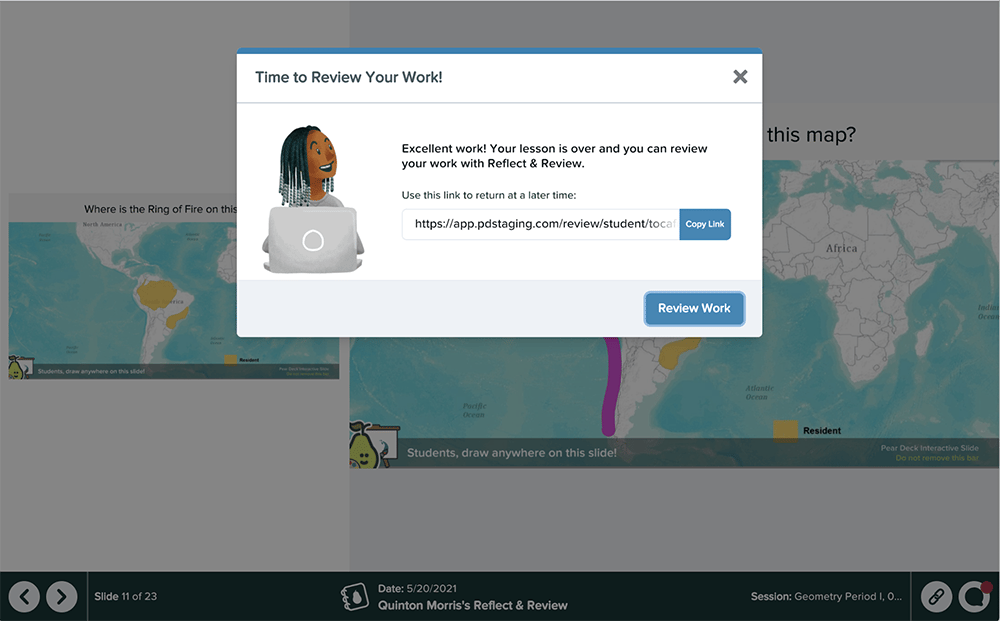
- Select Review Work to see responses now, or Copy Link to return to the review later.
-
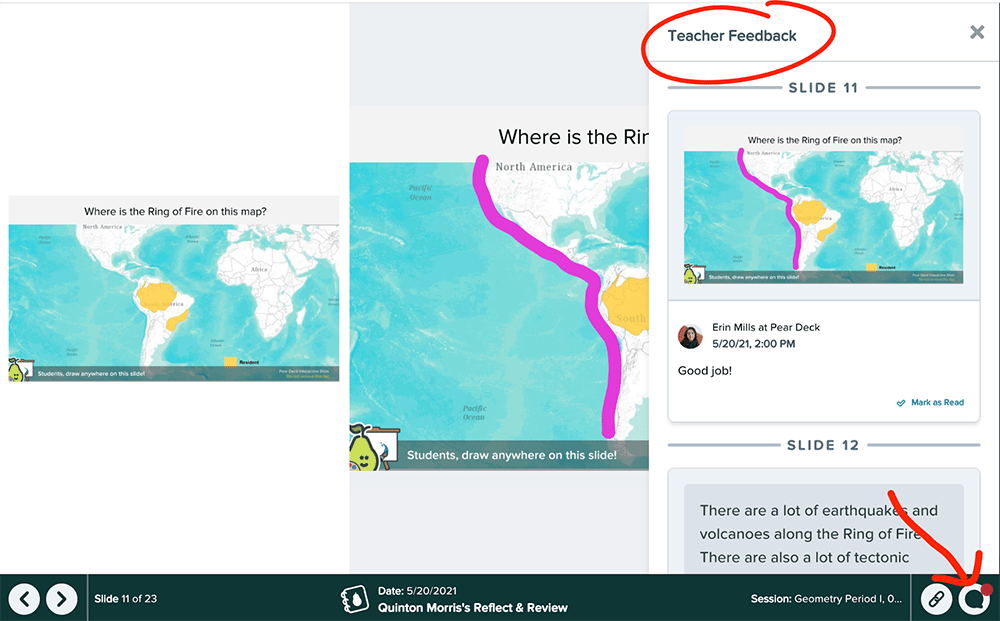
In Student Reflect & Review, slides appear on the left and the student’s responses appear on the right. Scroll through to see all responses. Select the Feedback button in the bottom-right corner to open the Teacher Feedback panel.
FAQs
Does Reflect & Review Work If I Turned Off Email Sign-In and Students Joined Anonymously?
Yes. Anonymous students see their assigned avatar along with their responses and feedback. As the teacher, you see their avatars in Reflect & Review rather than their names. Anonymous students must access the review from the same computer without clearing cookies. Otherwise they lose access. To ensure students have permanent access and you can see their names, turn on Email Sign-In before presenting.Can Students See Their Classmates’ Responses or Feedback in Reflect & Review?
No. Students see only their own responses and feedback. To review responses as a group, reopen the session and share responses with the class using the Projector View.Why Can’t I See the Option to Open Reflect & Review?
The session is likely still Active. The session must be in Closed status before Reflect & Review becomes available. You can end a session from the Navigation Bar in the Projector or Dashboard View, or from your Sessions menu using the More Actions menu.How Do I Review and Compare Everyone’s Responses at Once?
Open the Dashboard View of the session (whether it is Active or Closed) and click a slide to see all responses along with student names (names appear only if Email Sign-In was active before the session started). If you use a Google account, you can also export responses to a spreadsheet, which displays Text, Multiple Choice, and Number responses (not Drawing or Draggable) with student names.Can Students Send Feedback to Their Teacher?
No. When you reopen your session, students can re-enter with the Join Link or code and update their responses.Can My Co-Teachers See My Reflect & Review?
Yes. Co-teachers you invite to your sessions through the Shared Teacher Dashboard feature can see your Reflect & Review. You must invite them to the Dashboard while the session is Active for them to have access. Learn about the Shared Teacher Dashboard.Resources
Export Student Responses
Download a spreadsheet of student responses after a session ends.