

Export Responses from the Dashboard or Projector View
- Open the More Actions menu in the Projector View or Teacher Dashboard View.
- Click End This Session. You will have the option to name the session and will then be brought to the Reflect & Review menu, which you can exit.
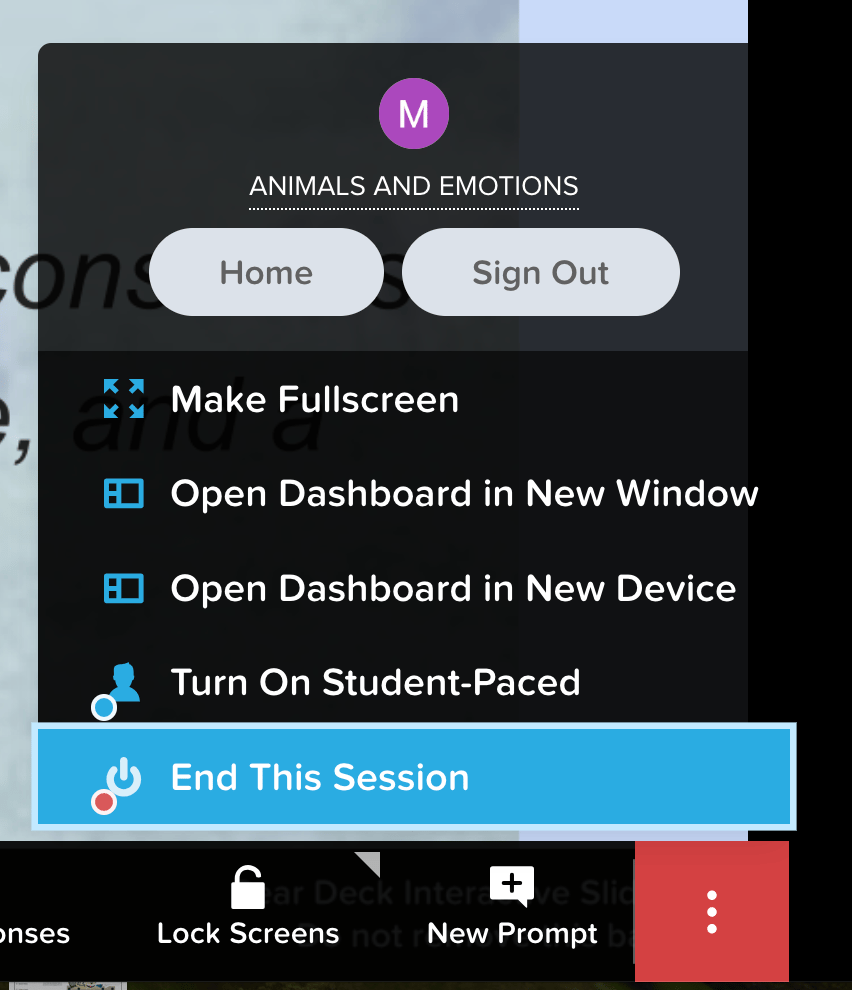
- Open the More Actions menu again and click Export to Spreadsheet.

Export Responses from the Sessions Menu
- Go to Pear Deck Home.
- Open your Sessions.
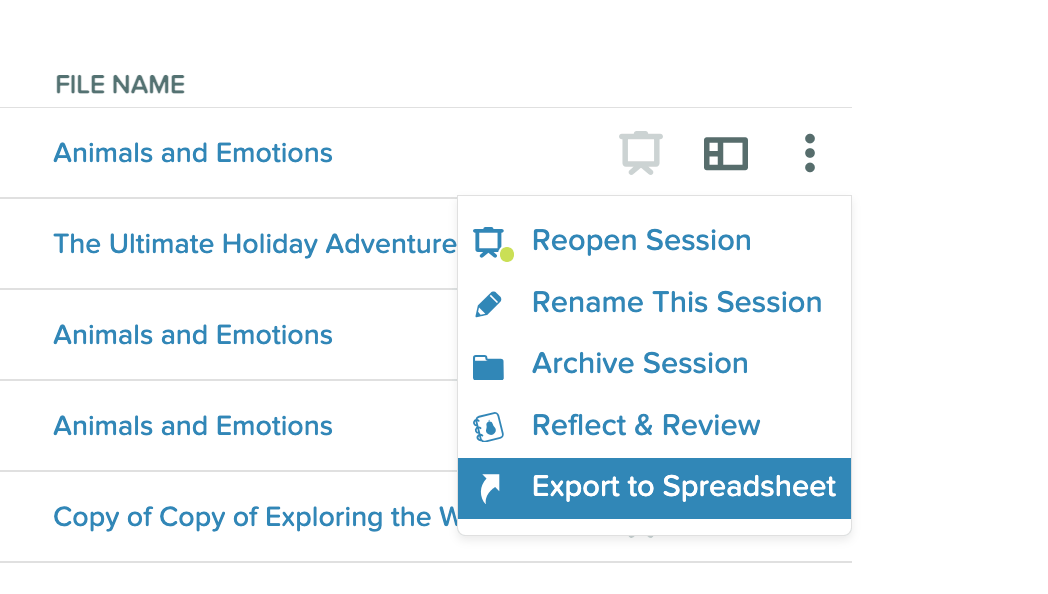
- Open the More Actions (three-dot) menu next to the session you want to export. If the session status is live, click End Session to close it first.
- Click Export to Spreadsheet. Your spreadsheet will open in a new tab.
Find Your Spreadsheet Later
When you export responses, the Google Sheet is automatically saved in your Google Drive under Pear Deck > Exports. This folder is created after your first export, and all subsequent exports are saved there as well.Understand the Spreadsheet Format
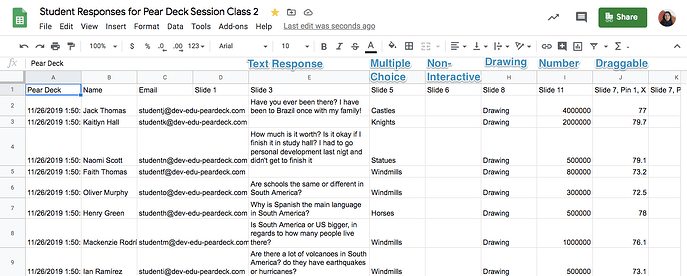
Spreadsheet exports include Text, Multiple Choice, and Number responses. Draggable and Drawing responses are not fully exported. Draggable answers export as coordinates, and Drawing answers do not appear at all (the spreadsheet indicates whether a student left a response to those question types). Each response type is labeled in the exported spreadsheet.Resources
The Teacher Dashboard
Review session activity and manage your presentations from the Teacher Dashboard.
The Five Interactive Question Types
Learn about Text, Multiple Choice, Number, Draggable, and Drawing question types in Pear Deck.