

Show Responses Anonymously on the Projector View
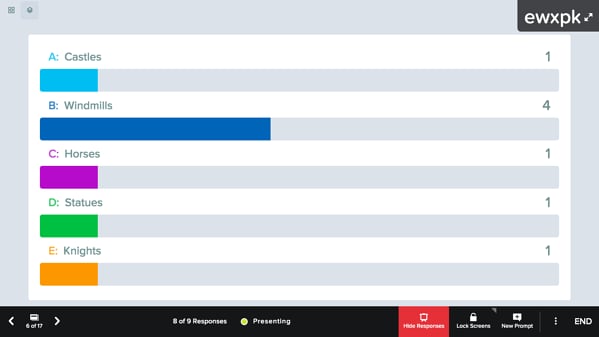
The Projector View displays all responses anonymously by default so students can focus on the concepts without worrying about getting an answer wrong. Sharing this view with your class on a remote call or in a classroom lets everyone see what their peers think. When students begin responding to interactive questions on their Student View, the Projector View shows only your slide. This gives students time to respond on their own before seeing what others submitted. To open the Projector View and show all responses:- Start a new Pear Deck lesson, or reopen a previous one from your Sessions menu.
- If you start a new lesson, choose Instructor Paced to automatically open the Projector View.
- Hover over the bottom of the slide. The Navigation bar appears.
- Click Show Responses.

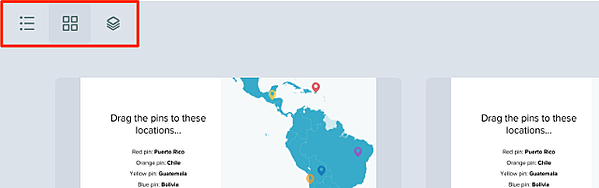
See Student Names with Responses in the Teacher Dashboard
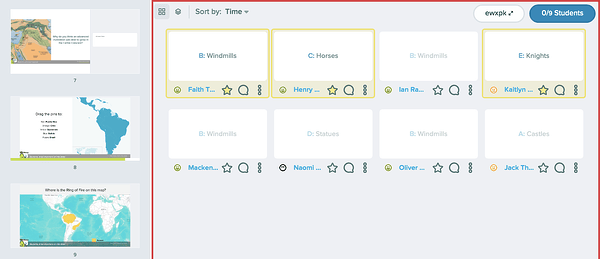
To see names alongside responses during or after class, open the private Teacher Dashboard. You can open it in a new window from the Projector View, or in a new tab from the Sessions menu.Open from the Projector View
Opening the Dashboard from the Projector View launches it in a new window so you can keep it private while presenting a live Session.- On the Projector View, click the More Actions (three-dot) button.
- Click Open Dashboard in New Window. You can also open it on a separate device by going to peardeck.com/dash on that device.
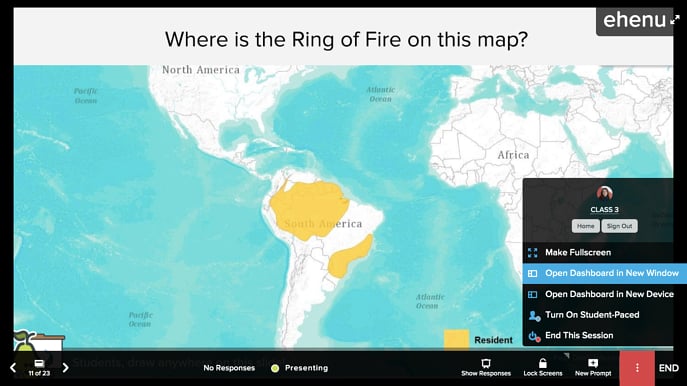
- The Dashboard opens in a new window.
Open from the Sessions Menu
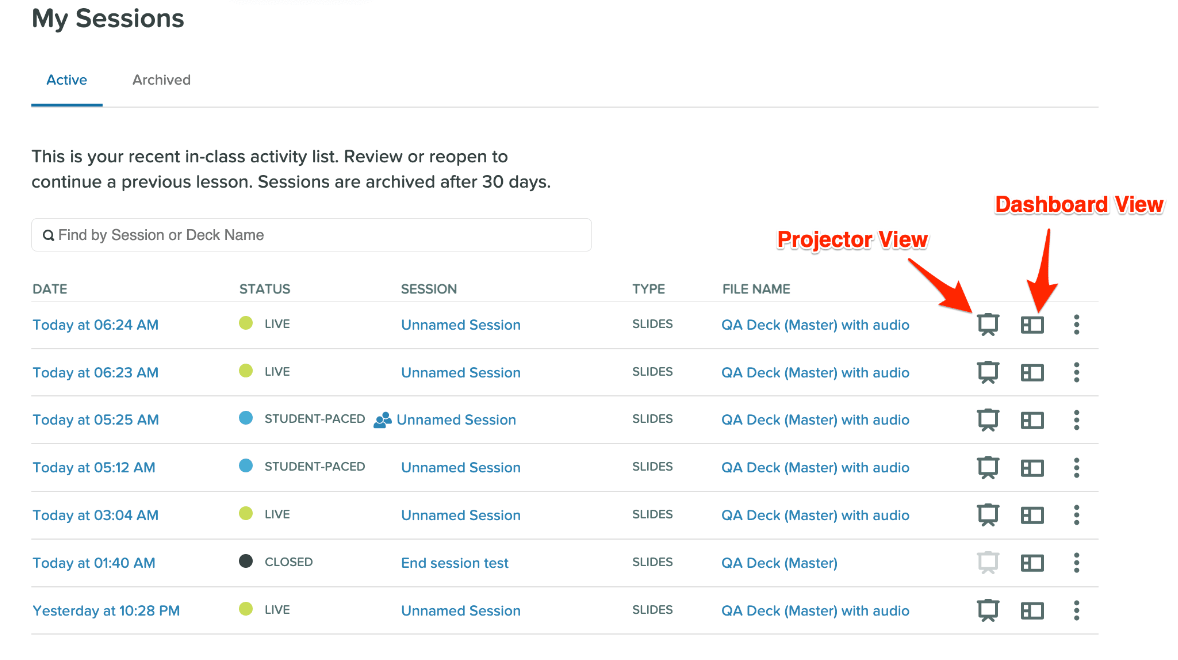
Use this approach to review answers after class or during a Student Paced Session.- Go to your Sessions page.
- Find the Session.
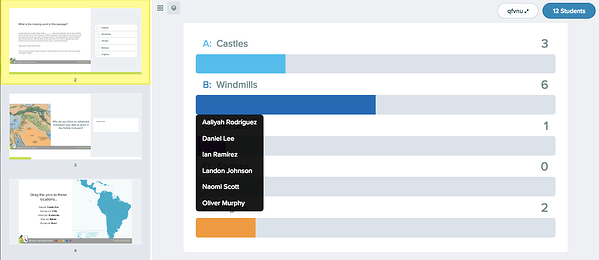
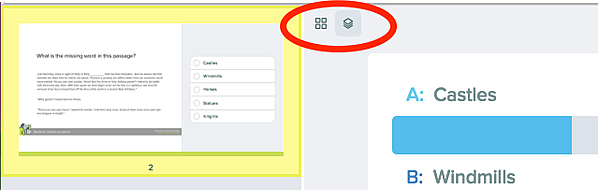
- Click the Dashboard View icon.
Review Responses Later
Responses are automatically saved in your Sessions menu. To review them later, find the Session and open the Projector View (for anonymous responses) or the Dashboard (for named responses). A Session with Closed status means students can no longer join. Sessions with Live or Student-Paced Mode status still allow students to join and respond. Change the status by opening one of the views or by clicking the More Actions button.Publish Responses after the Lesson
Share Responses with Reflect & Review
Reflect & Review is a Premium feature for Google and Microsoft 365 users. After you close a session, you can share a link so each student can review their own responses, the slides, and any teacher feedback within Pear Deck. Students cannot see their classmates’ responses or feedback. Turn on email sign-in before presenting to see students’ names and give students permanent access to their responses. Anonymous students must use the same computer without clearing cookies to return to their review. Reflect & Review does not generate an editable Google Doc. See Open Reflect & Review for instructions to open the review and share the student link.Export Responses to a Spreadsheet
If you sign in to Pear Deck with a Google account, you can export student responses to a Google Sheet after closing the session. Turn on email sign-in before presenting to include students’ names in the export. The spreadsheet includes text, multiple choice, and number responses. Draggable responses appear as coordinates. Drawing responses are not included as images, but the spreadsheet indicates whether a student submitted a response. The Google Sheet is saved in your Google Drive under Pear Deck > Exports.Resources
Teacher Dashboard
Learn how to use the private Teacher Dashboard to monitor and respond to student work during a live Session.
Reflect & Review
Give students access to their own responses and teacher feedback after a Session ends.
Export Student Responses
Export responses to a Google Sheet after closing a session.
Recently, the takeaways feature has been retired. Although you can no longer generate individualized Google Docs with students’ responses, you can use Reflect & Review to review work within Pear Deck or separately to export responses to a spreadsheet.