

- Remote learning
- Flipping your lesson
- Differentiating or scaffolding instruction in the classroom
- Giving quizzes
- Assigning homework
- Assigning the lesson to a student who missed class
- Substitute teaching
Start Student-Paced Mode
You can turn on Student Paced Mode in three ways: when you start a new session, from inside a live presentation, or from your Sessions menu.Start a New Session in Student-Paced Mode
Launch your session in Student Paced Mode:-
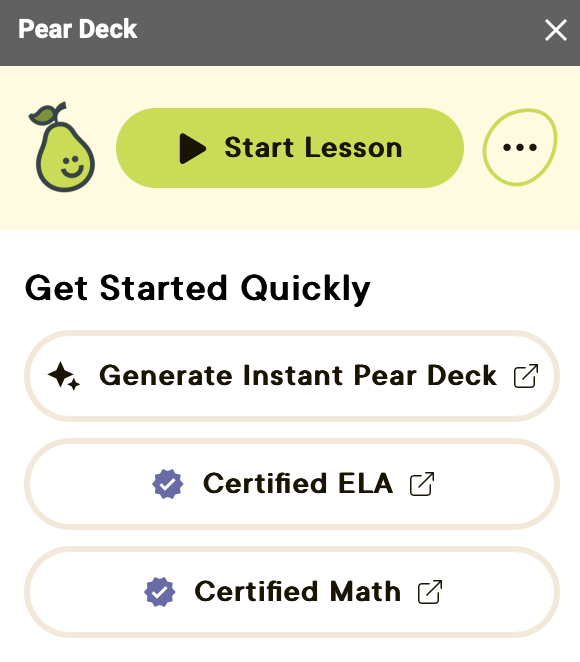
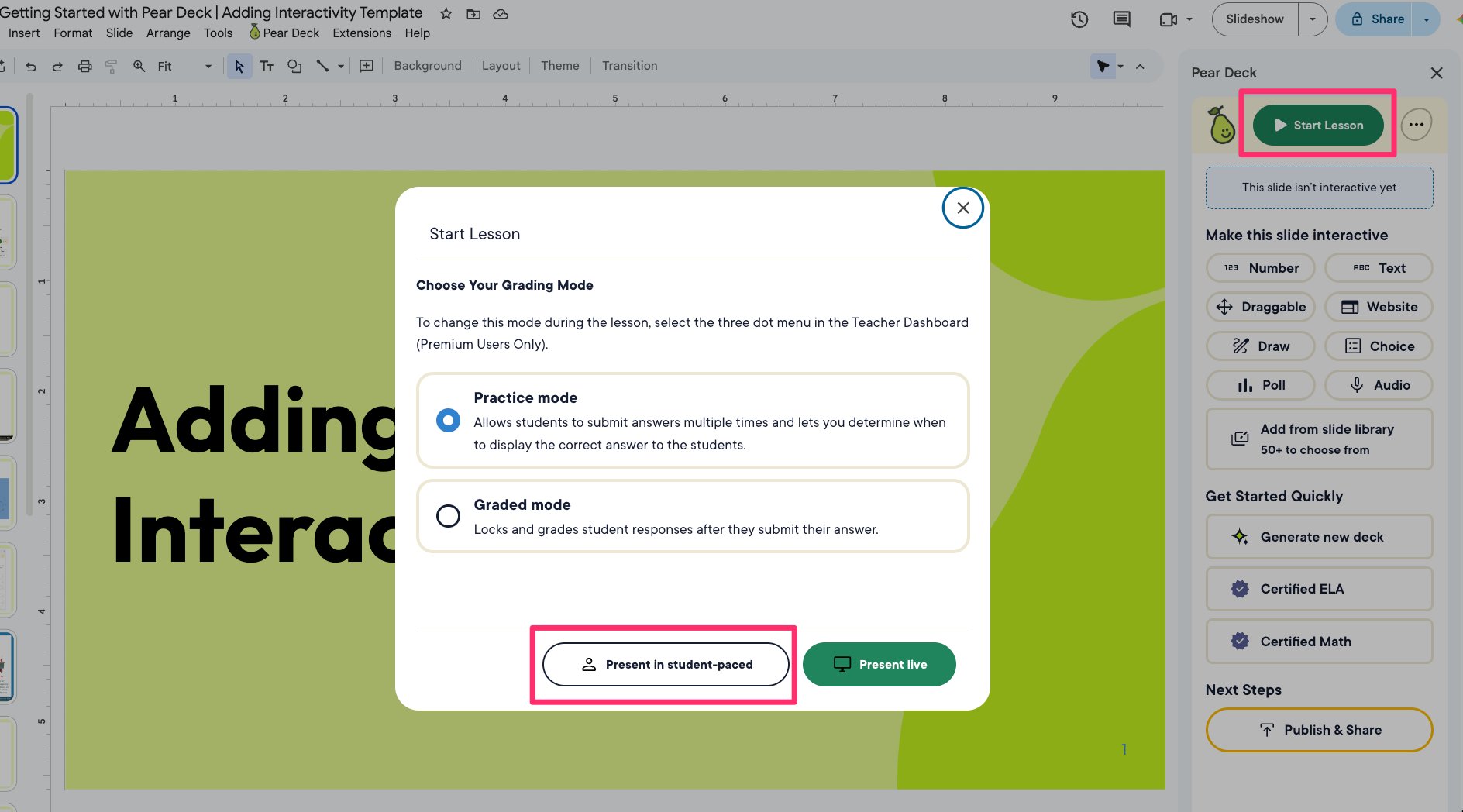
Open the Pear Deck for Google Slides Add-on or the Pear Deck for PowerPoint add-in and click Start Lesson.
-
In the Start Lesson dialog, choose Present in student-paced.
Turn on Student-Paced Mode from a Live Presentation
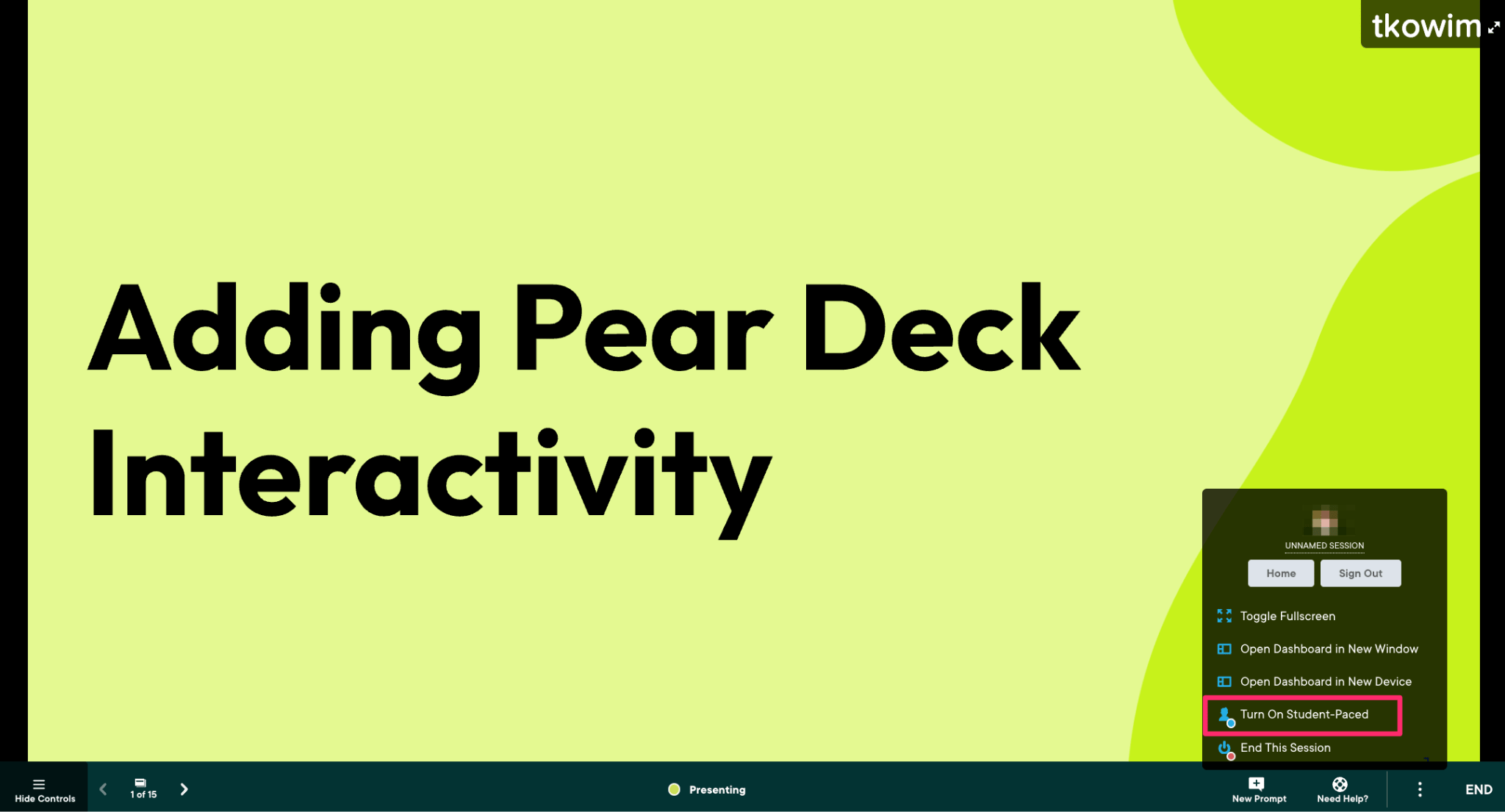
- Hover over the bottom of the slide to open the navigation bar.
- On the navigation bar, click the More Actions (three-dots) button.
- Click Turn on Student-Paced.
Turn on Student-Paced Mode from the Sessions Menu
- Go to your Sessions page.
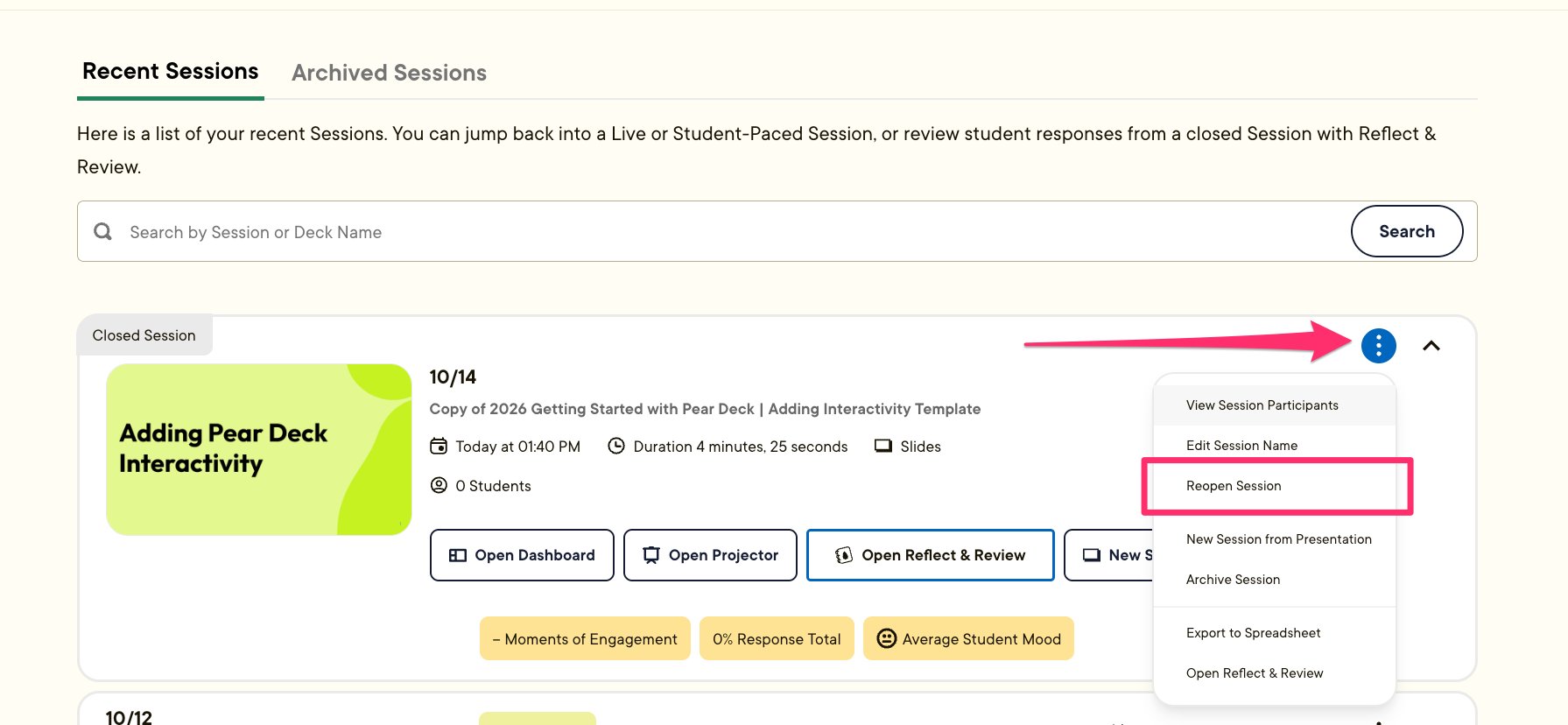
- Confirm your session is live. If it is closed, click the More Actions (three-dots) button next to the session and click Reopen Session.
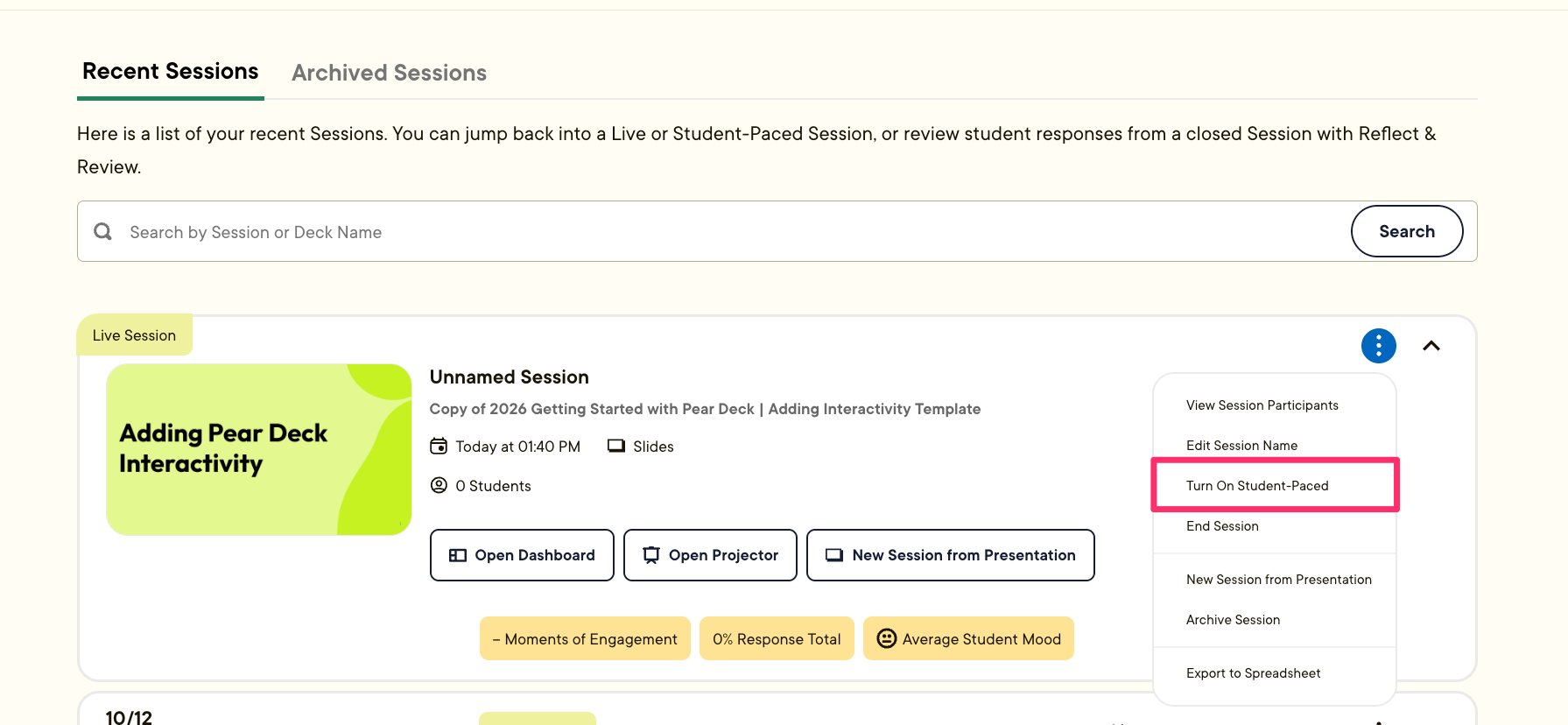
- Click the More Actions button and click Turn On Student-Paced.
Stop Student-Paced Mode
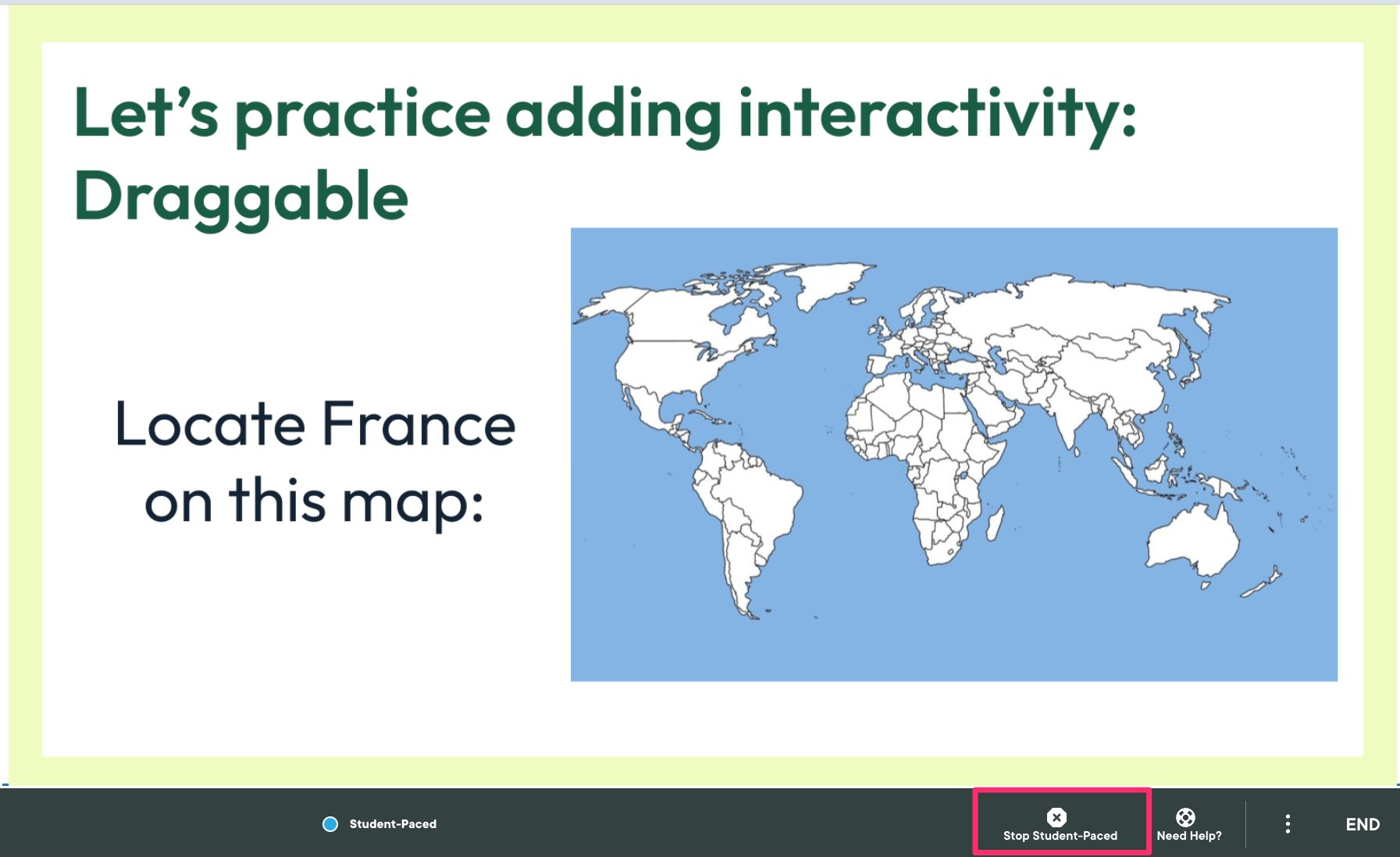
You can stop Student Paced Mode at any time, for example to draw students’ attention back to you and sync their screens to the Projector View. Choose one of these options:- From the navigation bar: click Stop Student-Paced. This stops Student Paced Mode and makes the session live again, giving you control of the slides. The Student View syncs to the slide shown on your Projector View.
- From the Sessions menu: find the session, open the three-dots menu, and click Turn Off Student-Paced.
- End the session entirely: open the More Actions menu and click End This Session. This removes student access entirely.
See What Students Are Doing
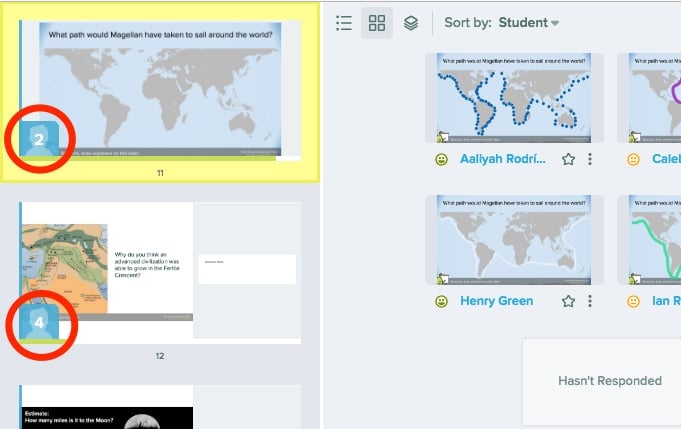
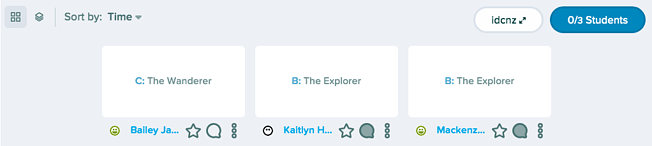
When Student Paced Mode is on, open the Teacher Dashboard (Premium) to track each student, review responses, and send feedback without disrupting the session. When Student Paced Mode is active, a navigation bar appears at the bottom of Student View, allowing students to move through slides and respond to Interactive Questions at their own pace.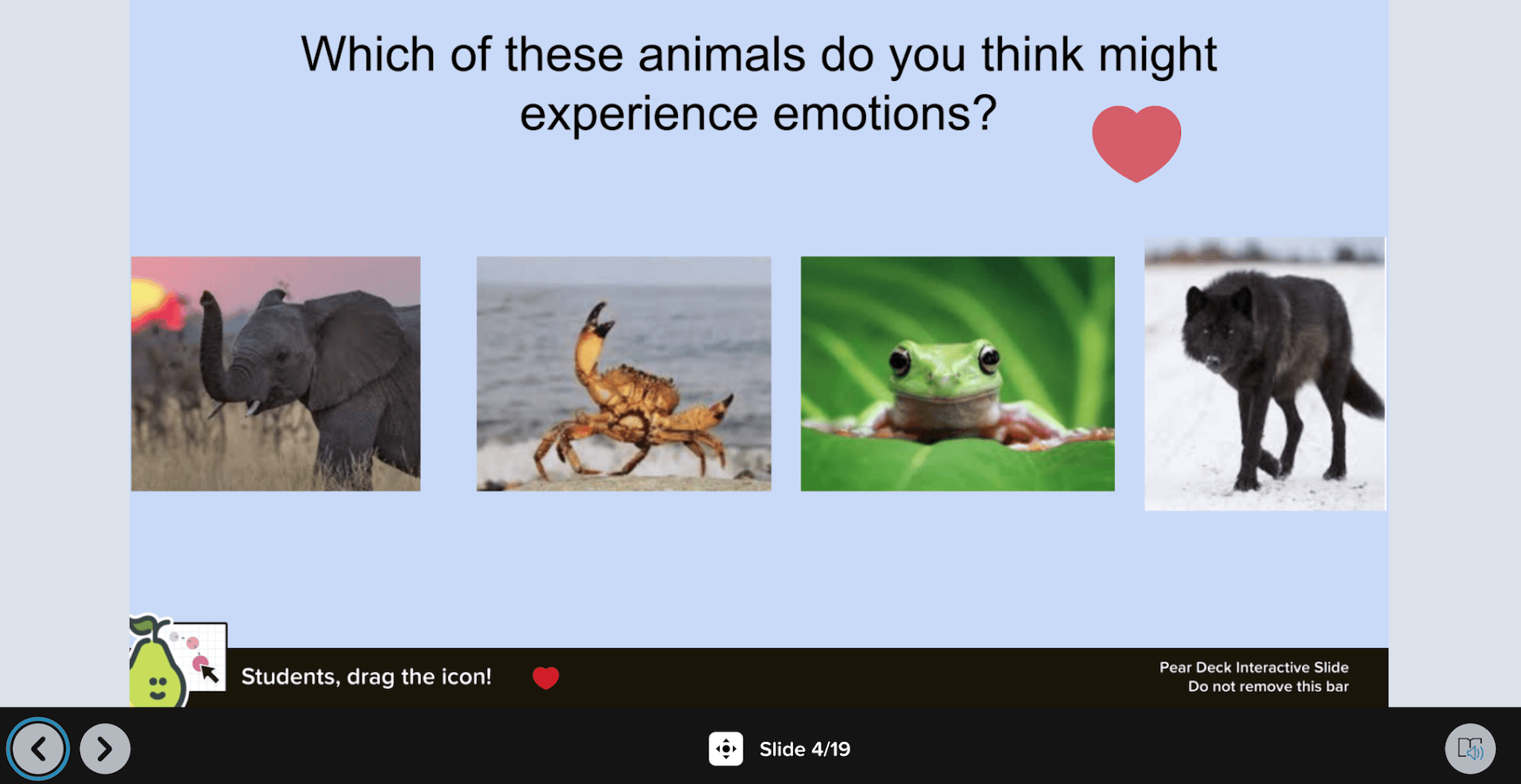

FAQs
What Is the Difference Between Instructor Paced and Student Paced Modes?
In Instructor Paced mode, you control the slides. When you advance to a slide on the Projector View, all students’ screens sync to that slide. In Student Paced Mode, students move through the slides and respond to Interactive Questions at their own pace in Student View.How Do I Save My Students’ Responses?
Responses are saved automatically in every Pear Deck session. Review them by opening the Projector or Dashboard View from your Sessions menu.Are All Sessions Supported in Student Paced Mode?
Yes, any Pear Deck Slides session can be used with Student Paced Mode.Can Students Use Student Paced Mode at Home?
Yes. Start your session, turn on Student Paced Mode, and send students the Join Code or URL. See How Students Join a Pear Deck Session for details.Can I Turn Student Paced Mode on or off in the Middle of a Lesson?
Yes. You can toggle Student Paced Mode on or off at any time without losing data, whether students are signed in or not. If students are in a Student Paced session when you turn it off, their screens sync back to your slide on the Projector View. If you turn Student Paced Mode back on, each student returns to the slide they were on previously.Do Students’ Responses Appear on the Projector in Student Paced Mode?
Pear Deck saves responses automatically, but responses cannot be displayed on the Projector View during a student-paced activity. To show answers to the class later, turn off Student Paced Mode, return to the slide on your Projector View, and view student responses.Can I See What Students Are Working on in Student Paced Mode?
Yes. You can see which slide each student is on using the private Teacher Dashboard.Will It Still Work if I Close My Browser or Turn off My Device?
Yes. You can close your browser or turn off your device and the session continues. You choose when to end Student Paced Mode. To verify or manage session status, go to your Sessions menu and open the three-dots button. The session must be live before you can turn on Student Paced Mode.How Long Does a Student Paced Session Stay Open?
The session stays open or in Student Paced Mode as long as you want. Sessions with no new student responses for 30 days are automatically archived. Archived sessions still appear in the Archived list on your Sessions page. If a teacher or student accesses an archived session via its Projector, Dashboard, or Student Join link, the session restores automatically and students can rejoin.Can I Add Voice Recordings or Audio Instructions to My Slides?
Yes. Two options are available:- Recommended for Student Paced Mode: The Pear Deck for Google Slides Add-on includes a button for inserting a new audio recording or uploading one (10 MB or less) directly into slides. See Add Audio Recordings to Your Slides for instructions.
- For Pear Deck for PowerPoint Online users: Create a website slide and insert a URL with your audio or video recording (from Edpuzzle, YouTube, SoundCloud, or similar). In Student Paced Mode, students can listen to instructions on one slide and answer an interactive question on the next.
Resources
Use the Teacher Dashboard
Track student progress, review responses, and send feedback during a session.
Add Audio Recordings to Your Slides
Insert voice recordings or upload audio files into your Pear Deck slides.