

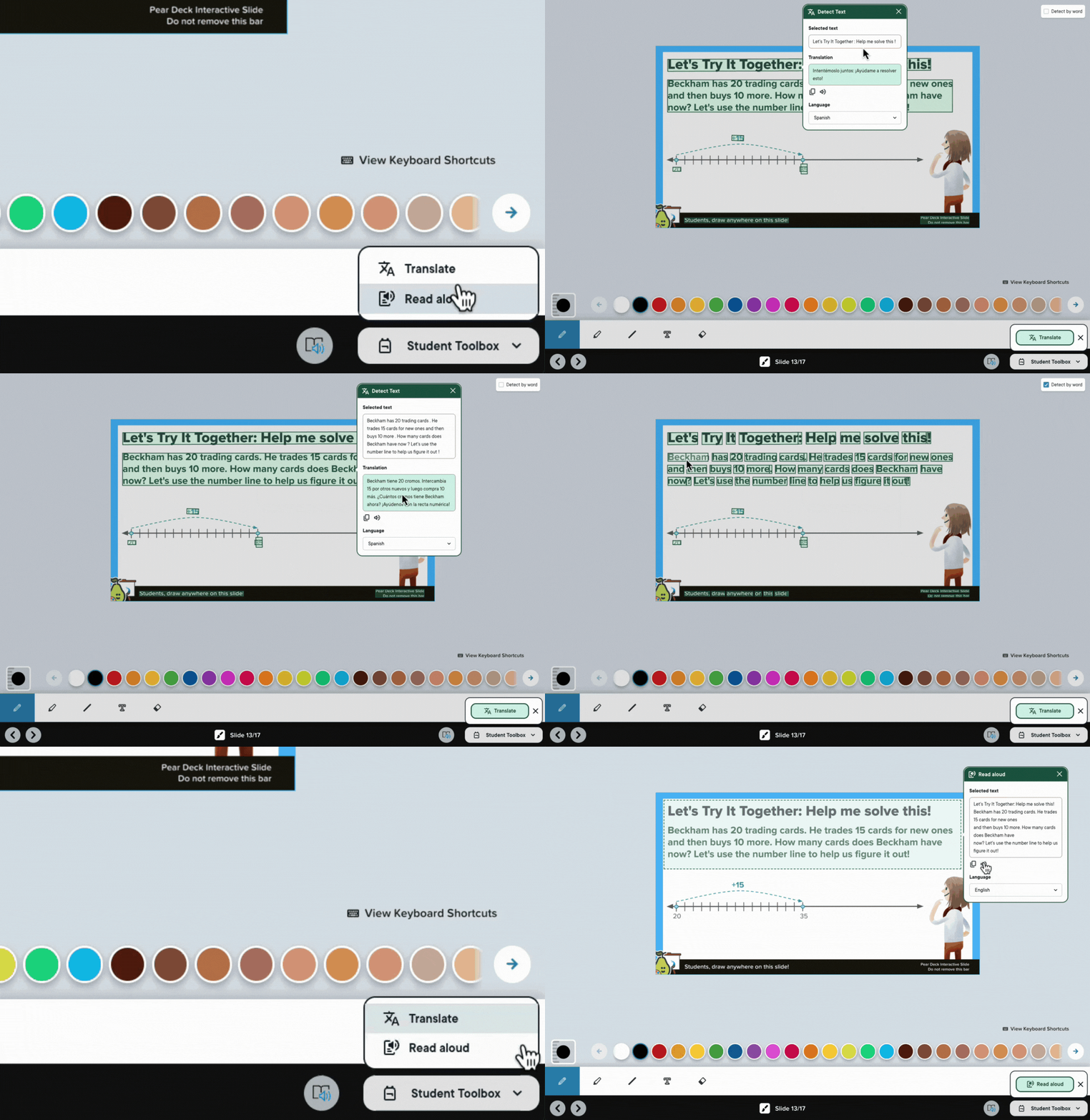
Turn On the Student Toolbox
Teachers control the Student Toolbox from their Pear Deck account settings. The setting applies to new sessions created after the teacher turns it on.- Go to Pear Deck Home.
- Open My Account, then select Settings.
- Turn on Student Toolbox.
- Start a new Pear Deck session.
Use Read Aloud
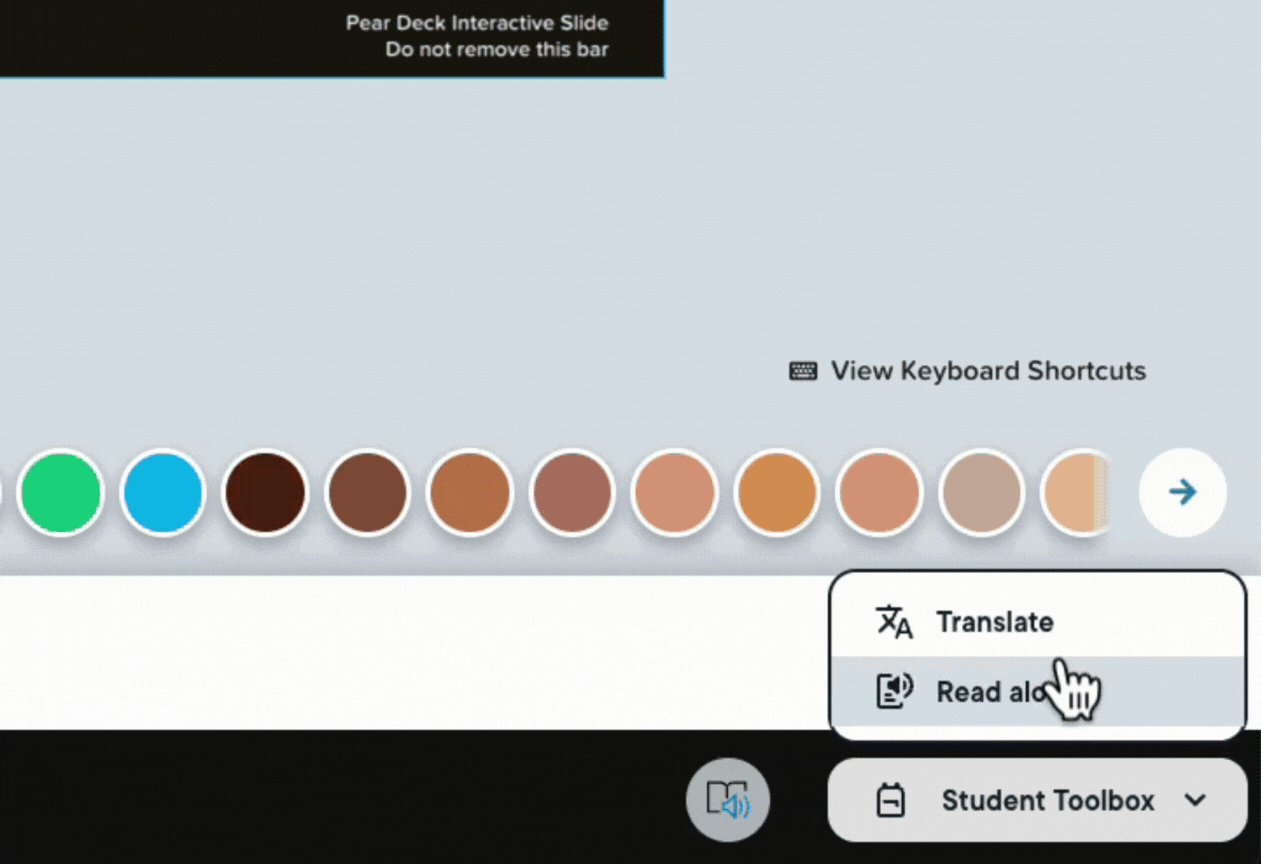
Students can hear selected English text through text-to-speech.- Open Student Toolbox in the lower-right corner of Student View.
- Select Read Aloud.
- Select the text on the slide that you want to hear.
- Stop the audio when needed. Read Aloud plays the selected text once and does not include speed, pause, or skip controls.
Use Translate
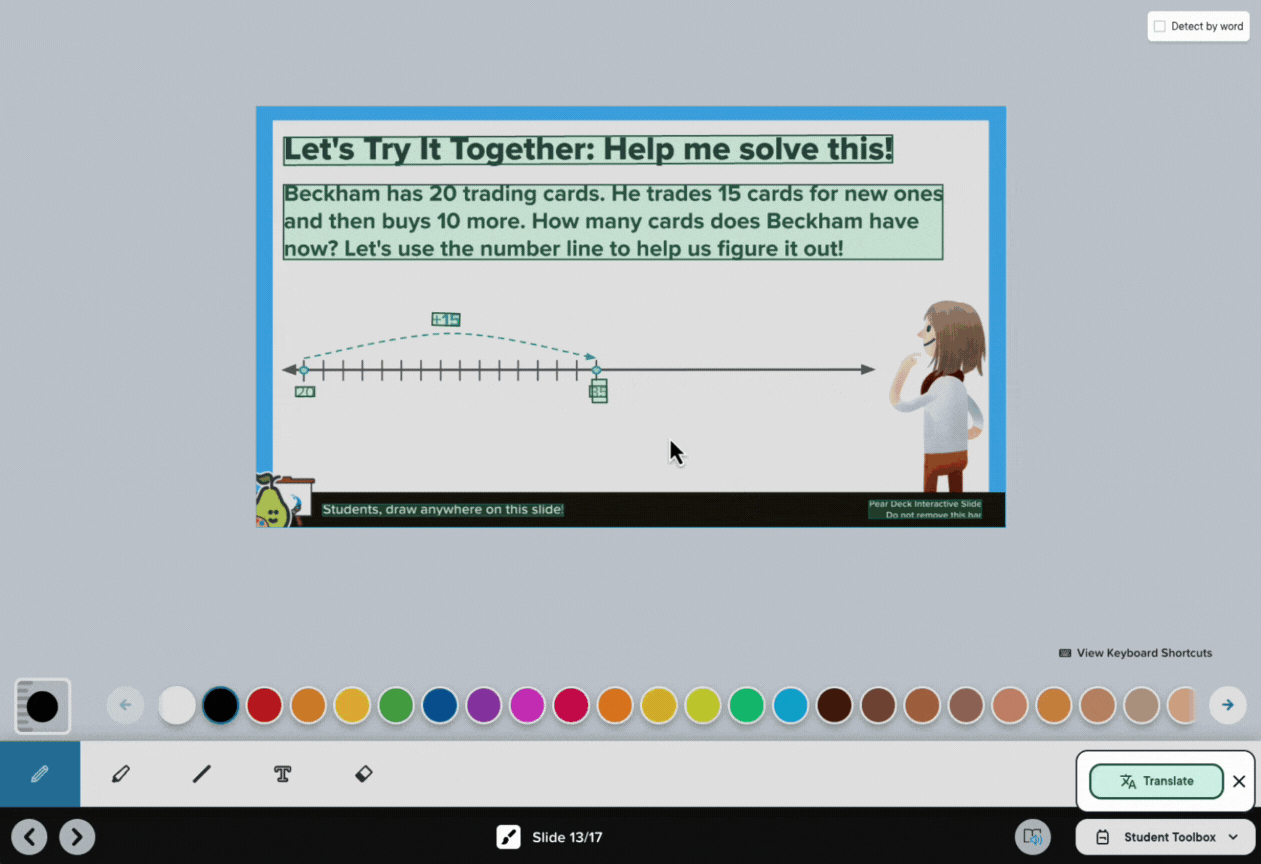
Students can translate selected slide text without leaving their Pear Deck session.- Open Student Toolbox in the lower-right corner of Student View.
- Select Translate.
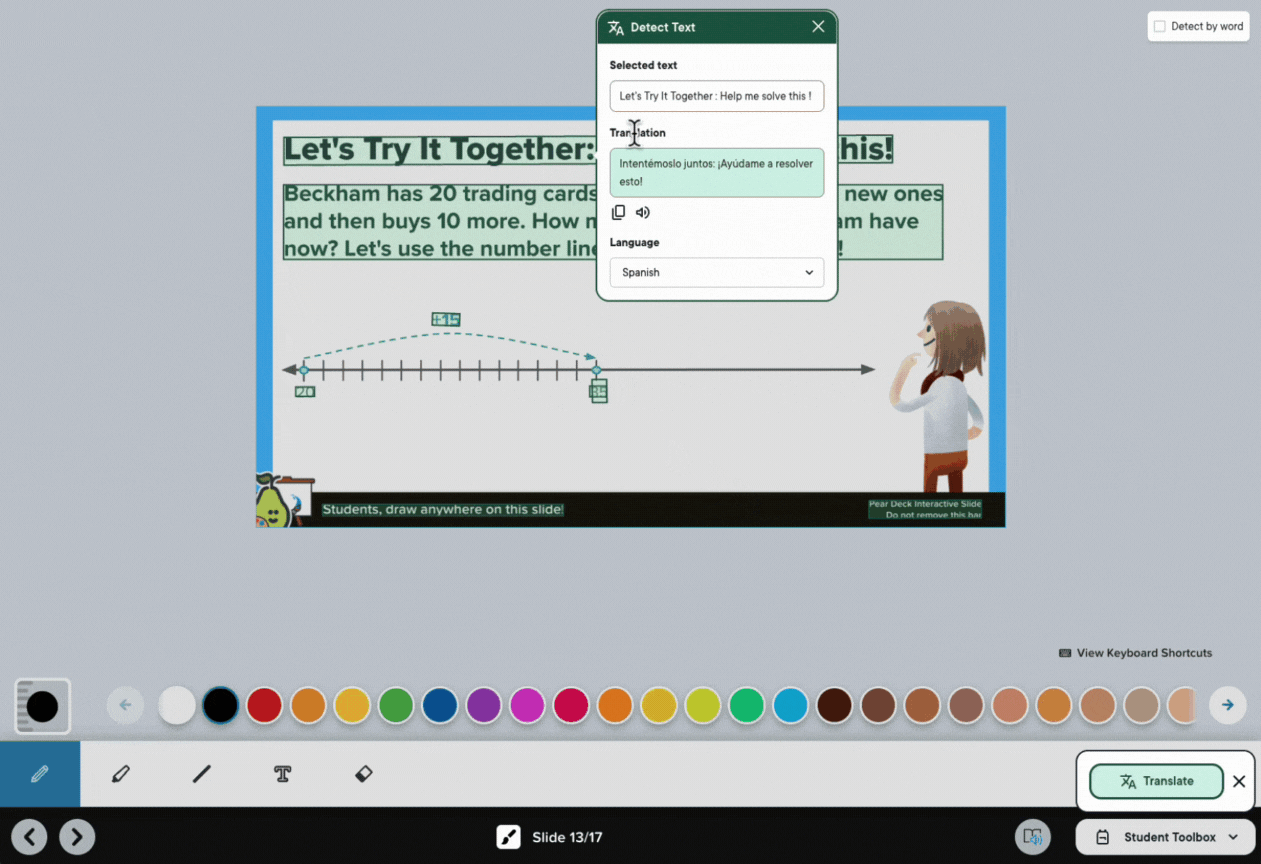
- Choose a supported language.
- Select the text on the slide that you want to translate.
- Copy the translated text or use Read Aloud to hear the translated text.
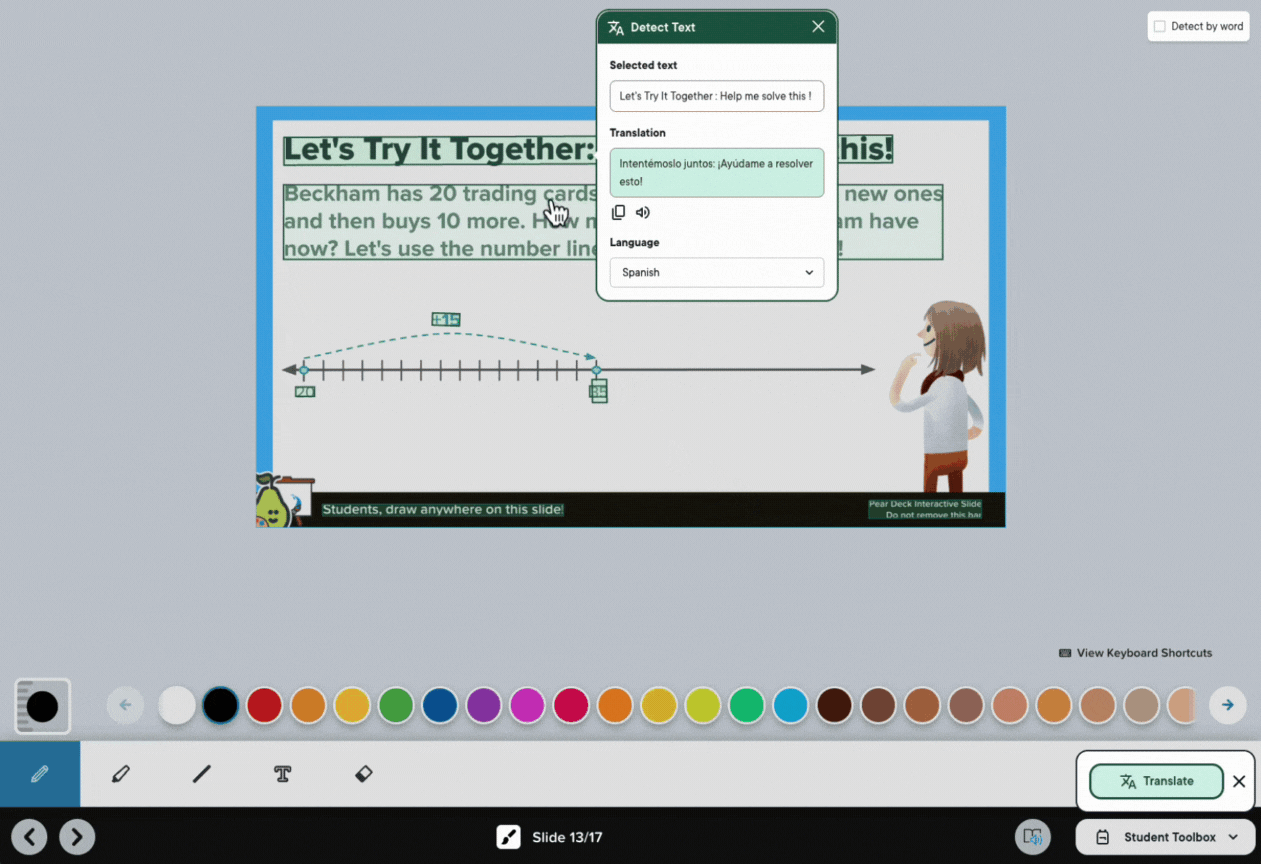
- Arabic
- Cantonese
- Chinese (Simplified)
- Chinese (Traditional)
- English
- Spanish
- Vietnamese
Verify the Student Toolbox Is Available
Join the new session as a student. The Student Toolbox button appears in the lower-right corner of Student View and includes Translate and Read Aloud. If the button does not appear, confirm that the teacher turned on Student Toolbox before creating the session. The setting does not add the toolbox to sessions created before it was turned on.The Student Toolbox is available across all slide types, including interactive slides.
Resources
Student Accommodations in Pear Deck
Review Pear Deck tools for read-aloud, translation, and reading-display support.
Compare Read-Aloud and Translation Tools
Compare Student Toolbox with Immersive Reader.
Present a Session
Start a Pear Deck session and invite students to join.