

Steps for Administrators
When you restrict access to a domain (for example,@peary.school.com), students can only join sessions using an email account from that domain. All other email accounts are blocked.
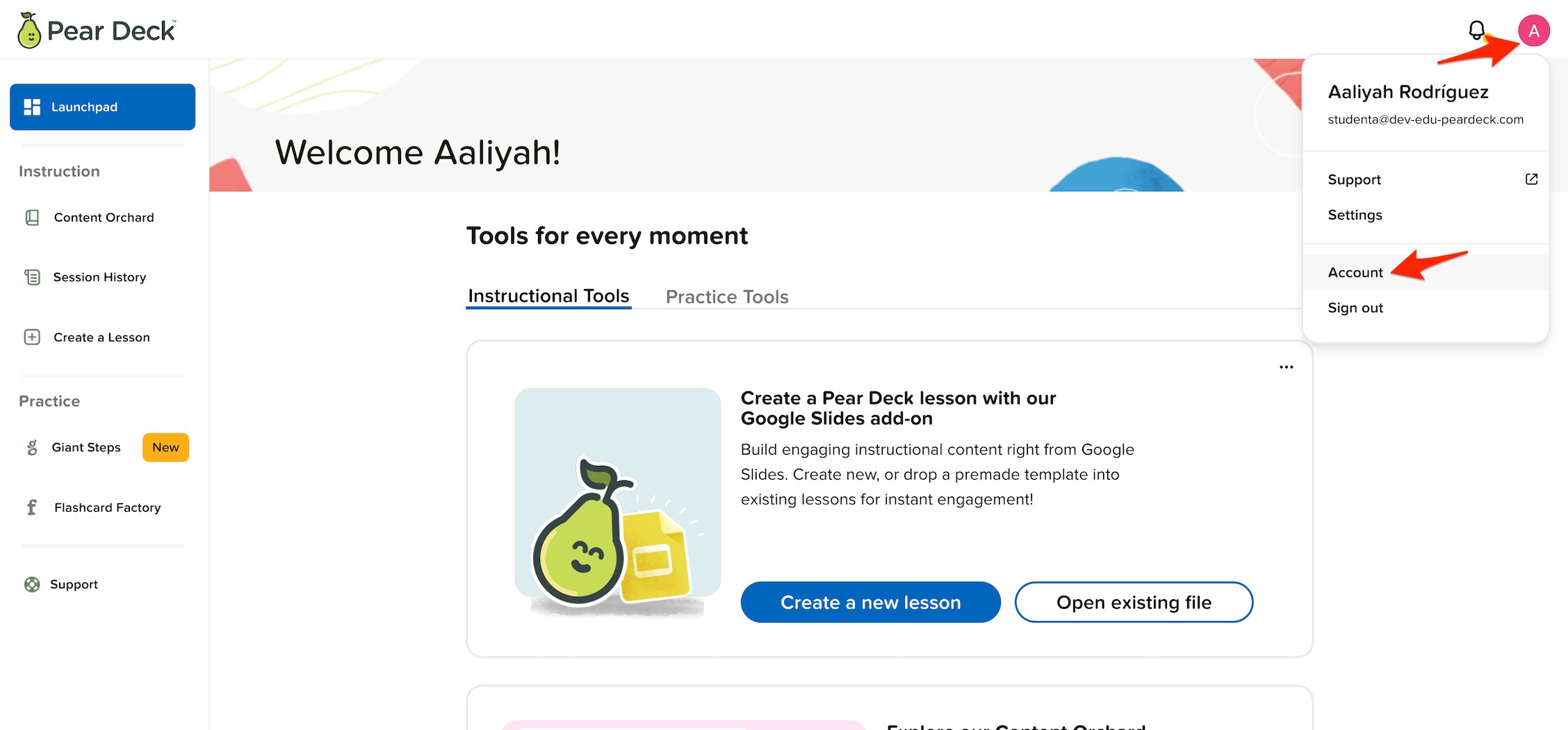
- Go to Pear Deck Home.
- Open your sign-in settings and click My Account.
- Click the Administrator Settings tab.
- Click Turn on Limiting Session Access.
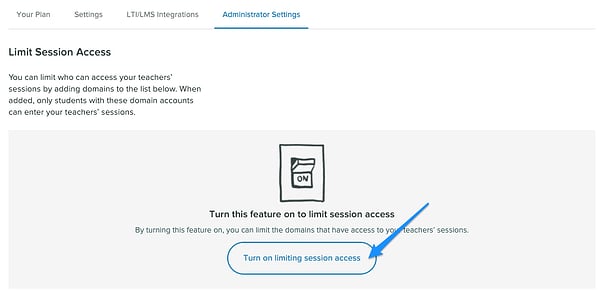
- Click + Add Domains.

- Enter only the domains you want to allow students to use when joining sessions. Separate multiple domains with a comma.
- Click Yes, add these domains.
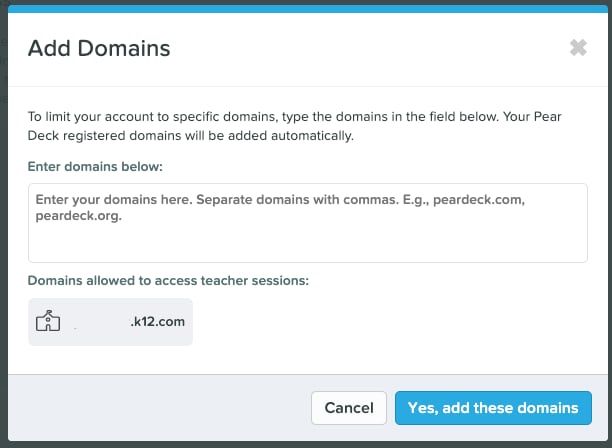
- The updated list of allowed domains appears in your Administrator Settings. Going forward, only students with an email address from a domain on your list can join sessions.
Reverse a Domain Restriction
- To remove a specific domain, click the trash icon next to it. When prompted, click Yes, remove to confirm.
- To disable domain restrictions entirely, go to Administrator Settings on your My Account page. Click Turn limiting session access off. Going forward, no email domains are restricted from joining sessions.

Steps for Teachers
After an administrator restricts domains, the restriction becomes active on all sessions you present going forward. You can see which email domains are allowed on your Pear Deck Home Settings page.- Require student email sign-in on your Settings page before presenting. Without email sign-in, anyone can join your session anonymously using a Join Code or link, even if the administrator has restricted domains.
- Present your session.
- Have students join with the Join Code at joinpd.com, or using the Join Link from your Projector or Dashboard View.
- Students are prompted to join using their Google or Microsoft 365 email account, depending on your account settings. The email domain must be on the administrator’s approved list.
Pear Deck remembers each student’s email sign-in on their device, so students can continue joining sessions without re-entering credentials. If cookies are cleared on their browser, students are prompted to sign in again.


FAQs
Can Individual Premium Subscription Holders Restrict Domain Access?
No. Domain restriction is only available to School and District subscription holders.What Happens If I Add No Domains to the Allowed List?
If no domains are added, there are no restrictions and anyone can join sessions. Teachers can still require email sign-in to see student names next to responses in the Teacher Dashboard, and can block students from the session roster.Is There a Limit to the Number of Domains I Can Approve?
No. Add as many domains as needed on the Administrator Settings page.Do Domain Restrictions Apply to Sessions a Teacher Created Before the Restriction Was Enabled?
No. Sessions created before the restriction was enabled are not affected. Previous sessions cannot be updated with new or updated restrictions.I Am a Teacher. The Administrator Restricted Domains, but I Need Students to Join with an Unapproved Domain. What Can I Do?
If the subscription manager has restricted domains and you are signed into Pear Deck Home with your subscription email, students can only join with an approved email domain. As a workaround, you can turn off email sign-in to allow anonymous join. Domain restrictions do not apply to anonymous sessions. Note that with anonymous join enabled, student names are not visible in your sessions.A Student with an Approved Domain Is Disrupting the Session. What Should I Do?
Open the Teacher Dashboard to hide student responses from the Projector View. You can also open the session roster in the Teacher Dashboard to block the student from the session. If you want to capture a response before it is removed, switch to Instructor Paced Mode and advance to the next slide, or lock the slide, before taking action.Resources
The Teacher Dashboard
Manage student responses and the session roster from the Teacher Dashboard.
Block a Student from a Session
Remove a disruptive student from an active Pear Deck session.