

Print Flashcards
When you ship cards at the end of a Flashcard Factory game, select Print to open a print-ready version of your flashcard set. You can also return to any past session and print from there.- In Pear Deck Home, navigate to the Sessions tab.
- Select the session that contains the set you want to print.
- Go to the Shipping phase.
- Select Print to open the printable flashcard page.
Export to Gimkit
You can export any Flashcard Factory set to Gimkit, a classroom game platform where students answer questions at their own pace on individual devices. Students earn in-game currency for correct answers and can reinvest it in upgrades, giving them repeated exposure to the material. With Gimkit, you can:- Study cards individually or in teams
- Customize game settings by defining the number of players per team, setting the game goal, and playing along with music and sound effects
- Access basic reporting that shows question-level correct and incorrect answer breakdowns
Retrieve Sets Exported to Quizlet
The option to export new Flashcard Factory sets to Quizlet ended on December 5, 2019, after Quizlet ended support for image imports and began requiring student logins to review flashcards. Sets exported before that date are still available. Use the steps below to find them. From Pear Deck- Sign in to Pear Deck Home and navigate to Sessions.
- Find the session in the Active or Archived tab. Sessions older than 30 days appear in the Archived tab.
- Click the projector icon to reopen the session.
- In the Flashcard Factory, select the More Actions (three-dot) button to navigate to the Shipping phase.
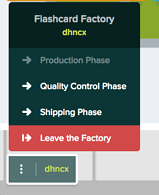
- In the Shipping phase, click the button to publish your cards. This opens the link you published previously.
- Copy the Quizlet link and import it into your Quizlet account.
This only works for Flashcard Factory sessions that were published and exported to Quizlet before December 5, 2019.
Resources
Play the Flashcard Factory Game
Run a live Flashcard Factory session and ship student-created cards.
Gimkit Help: Account FAQ
Learn about Gimkit account tiers, kit quotas, and free plan limits.