

Pear Deck Vocabulary and Flashcard Factory are only available to users who sign in with Google.
What You Need to Play
- Teacher: A computer to run the game. A projector or display to share your screen with students is optional but recommended.
- Students: A computer, tablet, or phone to play the game.
- Both teacher and students need a Google account to sign in.
Launch the Flashcard Factory
- Go to Pear Deck Home.
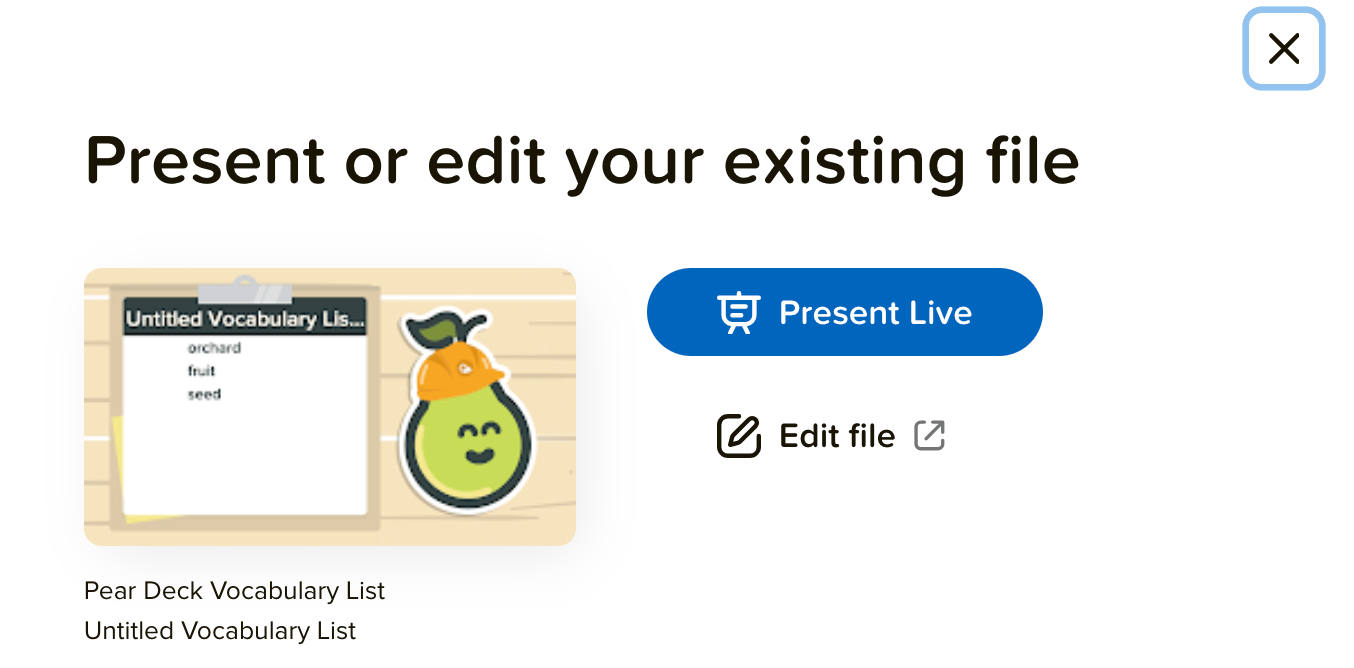
- Open a saved Vocabulary List by clicking Open Existing File and selecting your list, or start a new one.
- In the new window, click Present Live. Or, click Edit to make changes to your list before playing.
Students Clock in
Students join the game by following the instructions on the Join screen. The process depends on whether you are playing together in a classroom or remotely.Clocking in Together in the Classroom
- Students go to joinpd.com.
- Students enter the six-letter Join Code displayed on your Projector View.
- Students sign in with their Google accounts.
- Once everyone has joined, go to the Projector View and click Clock in. Students are paired up automatically. If students arrive late, they can still join but will work on cards alone. The Join Code remains visible at the bottom of the screen throughout the game.

- The terms from your list are randomly assigned to students in the Student View. One student in each pair is assigned as the writer and the other as the illustrator. The writer composes an example sentence or definition for the term, and the illustrator draws a corresponding image. Roles alternate for each new term.
Clocking in Remotely
When you play remotely, students join without being paired up so they can create cards on their own.- Locate your Vocabulary List on Pear Deck Home and click Start Flashcard Factory or Play Flashcard Factory to start a new game.
- Before students join, click Let’s Play to leave the join screen empty.

- You are now in the Production phase.
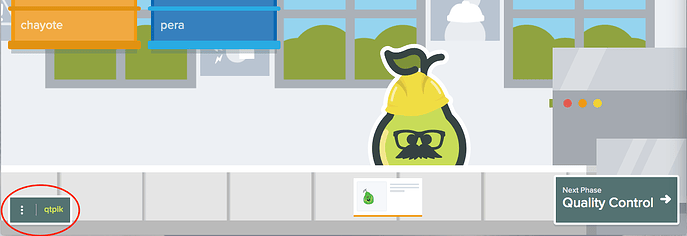
- Students go to joinpd.com, enter the Join Code shown in the bottom-left corner of your Production Phase view, and sign in with their Google accounts.
- In the Student View, students create their own cards and receive prompts to both draw and write examples for each term in the list.
Students Make Cards in the Production Phase
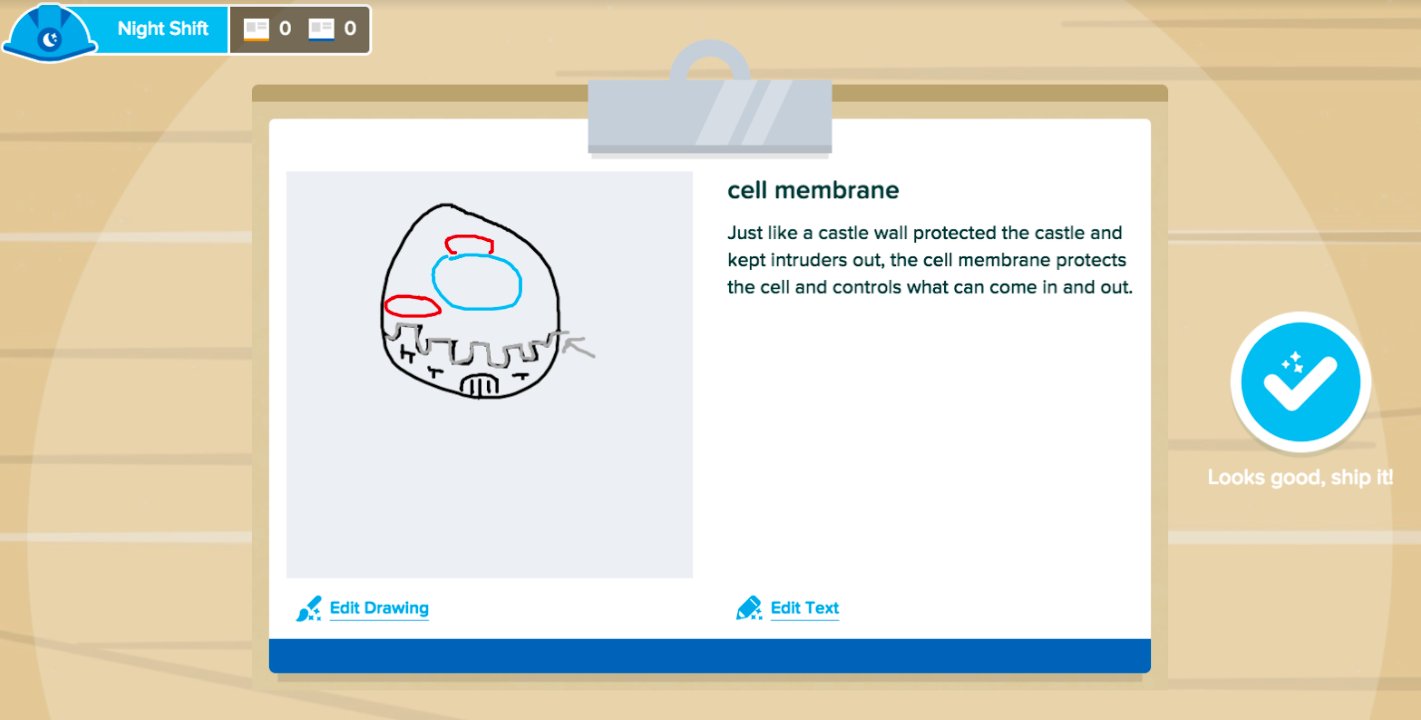
In the Production Phase, students create flashcards that include a drawing and a written example or definition. When they finish a card, students review and submit it for approval. Once students submit the written example and illustration and click Ship it, they can no longer edit that card. After submitting, students are assigned a new term. If working in pairs, the roles switch so the writer becomes the illustrator for the next term. On your Projector View in the Production Phase, you can watch cards move down the chutes and onto the conveyor belt as they are submitted. Do your students need to finish cards later? You can reopen any session from your Sessions menu. Navigate to the Production Phase and share the Join Code with students. Students go to joinpd.com, sign in, and complete any unfinished terms. Note that once a card is submitted it cannot be edited. If you want students to redo cards, start a new session. You can start an unlimited number of sessions.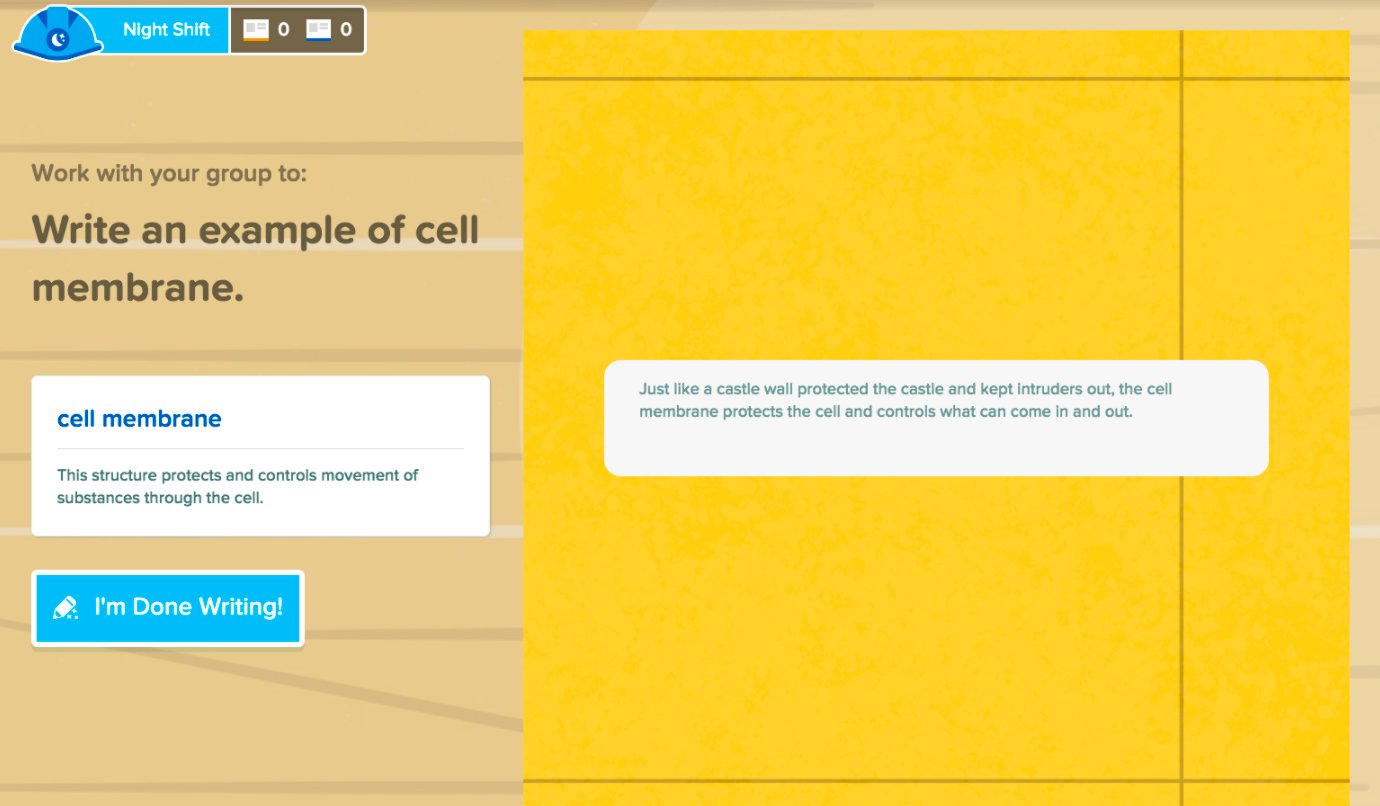
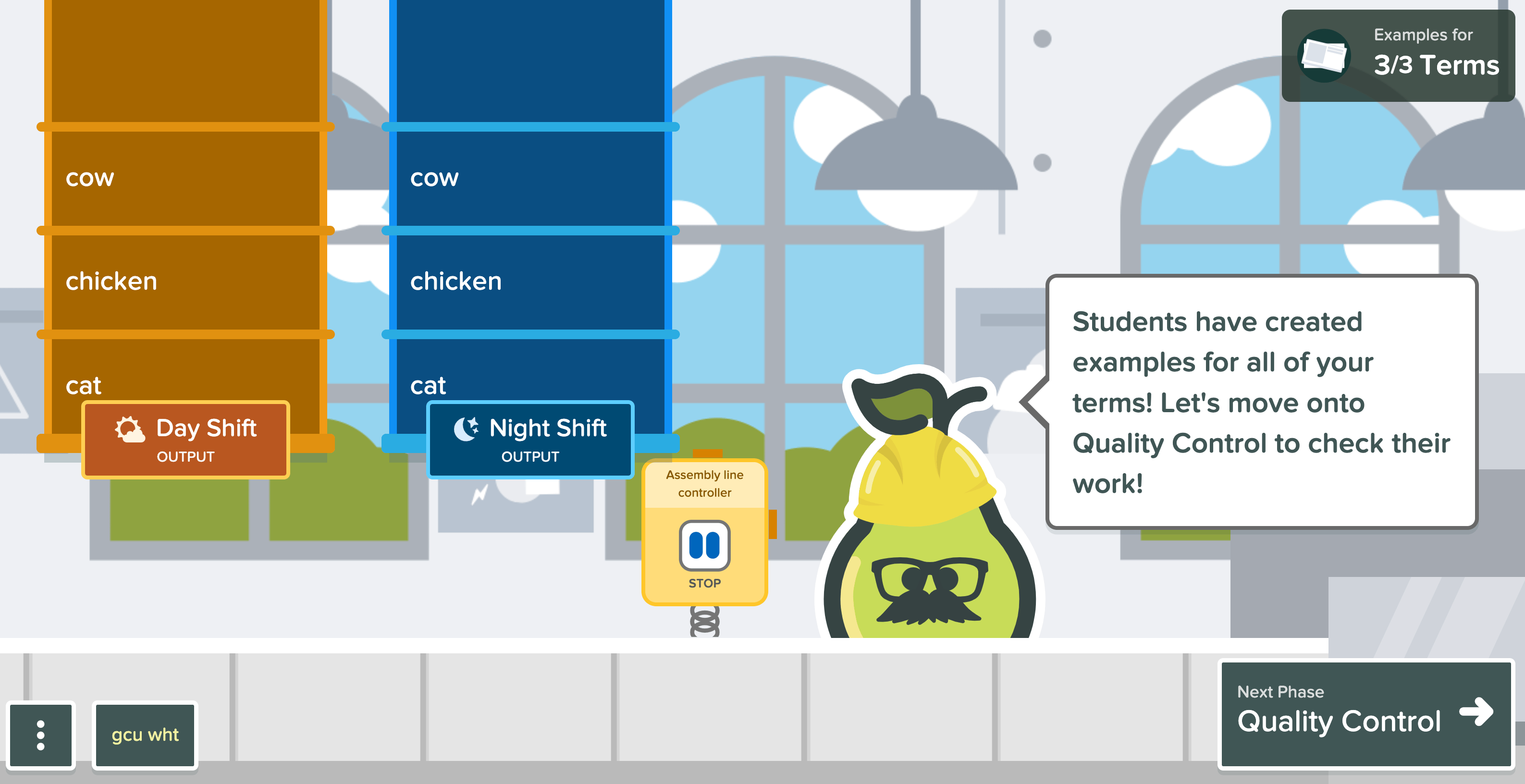
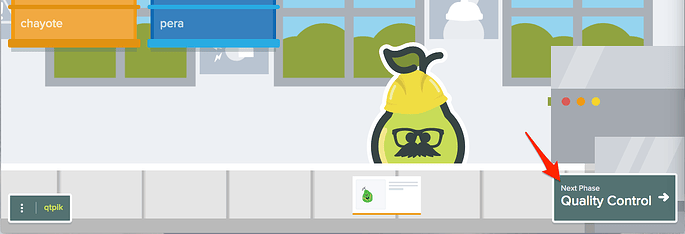
Approve Cards in Quality Control
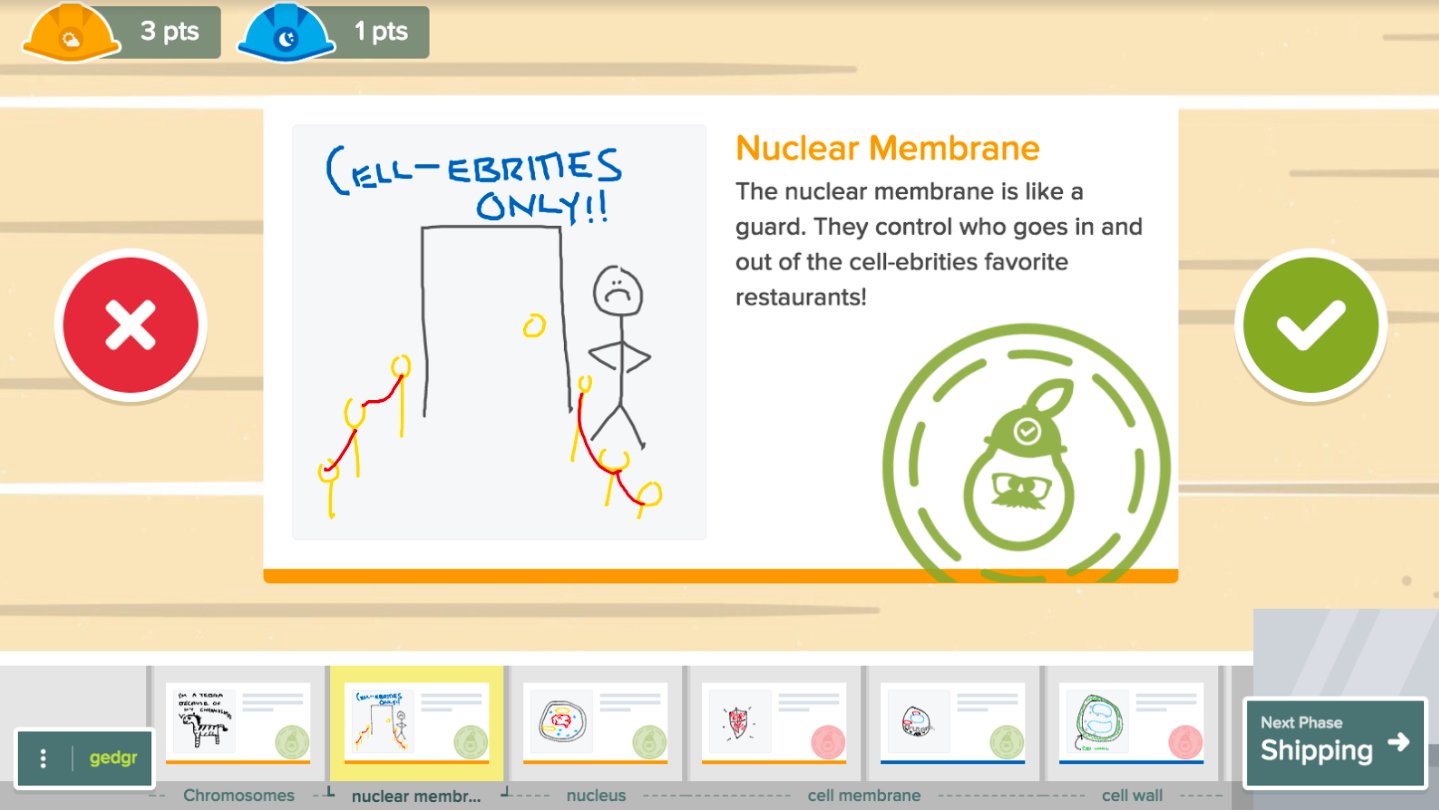
When you are ready to evaluate cards, move to the Quality Control Phase. You can review and approve cards on your own, with students watching in the classroom, or on a virtual call where you share your Projector View. During Quality Control, students’ screens freeze so they can focus on the Projector View.- Click a card thumbnail to open it in the main window.
- Accept or reject the card. You can accept more than one card for the same term. If you reject all examples for a particular term, the term and its definition still appear in the final flashcard set without a student example.
- To see who created a card, hover over it in the conveyor belt. Author attribution is intentionally subtle to help maintain anonymity on the Projector View.

Print or Export the Set to Gimkit
- When you are ready to finalize the set, click Shipping.
- In the Shipping Phase, click Print Set or Export to Gimkit Live.
-
A new window opens. Click Print Flashcard Set or Export to Gimkit.
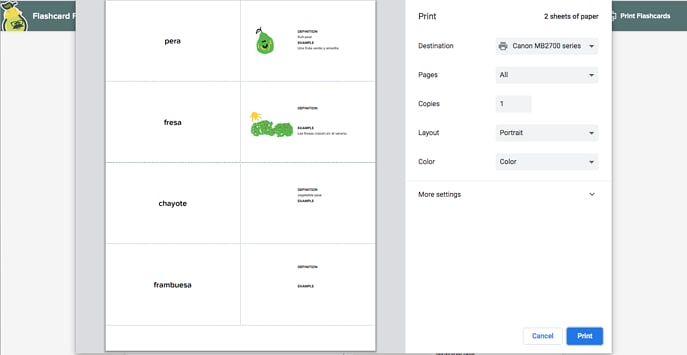
- Print: The print menu opens. If a flashcard does not have a definition, example, or image, the printed card includes blank space for students to fill in by hand.
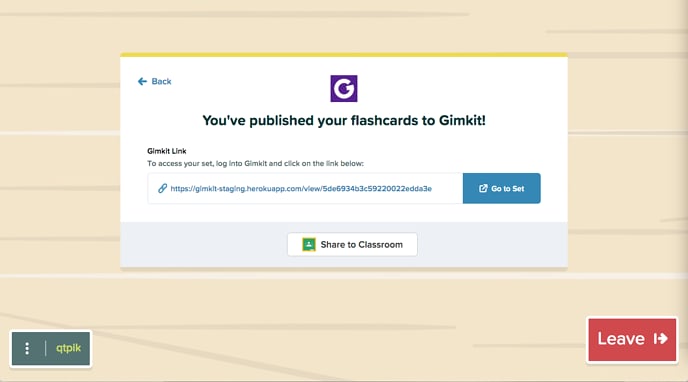
- Export to Gimkit: Your Projector View displays a direct link to your set in Gimkit, and students receive the link on their screens. New Gimkit users need to create a free Gimkit account to play. When you publish a set to Gimkit, it lives in the Pear Deck account and you can always return to play for free. If you copy a set to a personal Gimkit account, it counts toward the quota of five kits on the Gimkit Free plan.

Resources
Create a Vocabulary List
Set up the vocabulary terms students will use in a Flashcard Factory game.
Flashcard Factory
Learn more about the Flashcard Factory feature in Pear Deck.